---
title: "10 Best AI Video Editor for YouTube in 2026"
canonical: "https://blitzreels.com/blog/ai-video-editor-for-youtube"
---
# 10 Best AI Video Editor for YouTube in 2026
URL: https://blitzreels.com/blog/ai-video-editor-for-youtube
Markdown URL: https://blitzreels.com/blog/ai-video-editor-for-youtube.md
Published: 2026-05-26
Author: BlitzReels
Find the best AI video editor for YouTube in 2026. Our guide compares 10 top tools for clipping, captions, and short-form video. Speed up your editing.
Tags: ai video editor for youtube, ai video editor, youtube shorts editor, video editing software, ai tools for creators

You finish recording on Tuesday and still miss your Friday upload. The raw material is good. The edit is what stalls the schedule. Trimming dead space, cleaning audio, adding captions, reframing for Shorts, and pulling usable hooks from a long video can eat the hours you meant to spend scripting the next one.
That gap between recording and publishing is why creators keep looking for an AI video editor for YouTube. The category is crowded because the need is real. Editing software now handles more of the repetitive work, but the hard part is still choosing the right kind of help. Speed matters. Control matters too. The tool that saves a Shorts-heavy channel may frustrate a tutorial creator who needs cleaner transcript editing, tighter brand control, or a better review process.
A 2025 academic analysis of YouTube how-to videos found generative AI showing up across the creator workflow, including editing tasks such as improving visuals, fixing video issues, reformatting content, and supporting upload tasks like subtitles and title suggestions.
The bigger mistake is treating every AI editor like the same product with a different logo. They are built for different workflows. Some are best at turning long videos into multiple Shorts. Some are strongest for transcript-led editing. Some are useful for faceless production or quick browser-based teamwork, but give up precision once you need detailed timeline control.
This guide sorts each editor by the job it does best so you can match the software to your YouTube strategy instead of chasing the longest feature list.
## Table of Contents
- [1. BlitzReels](#1-blitzreels)
- [Best for fast YouTube Shorts production](#best-for-fast-youtube-shorts-production)
- [Where BlitzReels wins and where it doesn't](#where-blitzreels-wins-and-where-it-doesnt)
- [2. Descript](#2-descript)
- [Best for transcript-led editing on speech-heavy channels](#best-for-transcript-led-editing-on-speech-heavy-channels)
- [3. CapCut](#3-capcut)
- [Best for quick mobile-to-desktop Shorts editing](#best-for-quick-mobile-to-desktop-shorts-editing)
- [4. VEED.IO](#4-veedio)
- [Best for browser-based caption workflows](#best-for-browser-based-caption-workflows)
- [5. Kapwing](#5-kapwing)
- [Best for lightweight team workflows](#best-for-lightweight-team-workflows)
- [6. OpusClip](#6-opusclip)
- [Best for long-form repurposing at scale](#best-for-long-form-repurposing-at-scale)
- [7. Wisecut](#7-wisecut)
- [Best for talking-head cleanup](#best-for-talking-head-cleanup)
- [8. Adobe Premiere Pro](#8-adobe-premiere-pro)
- [Best for creators who still need full editing control](#best-for-creators-who-still-need-full-editing-control)
- [9. Microsoft Clipchamp](#9-microsoft-clipchamp)
- [Best for simple YouTube editing inside the Microsoft ecosystem](#best-for-simple-youtube-editing-inside-the-microsoft-ecosystem)
- [10. Wondershare Filmora](#10-wondershare-filmora)
- [Best for beginners who want guided AI features](#best-for-beginners-who-want-guided-ai-features)
- [Top 10 AI Video Editors for YouTube, Feature Comparison](#top-10-ai-video-editors-for-youtube-feature-comparison)
- [Your Next Step Automate Your YouTube Workflow](#your-next-step-automate-your-youtube-workflow)
## 1. BlitzReels
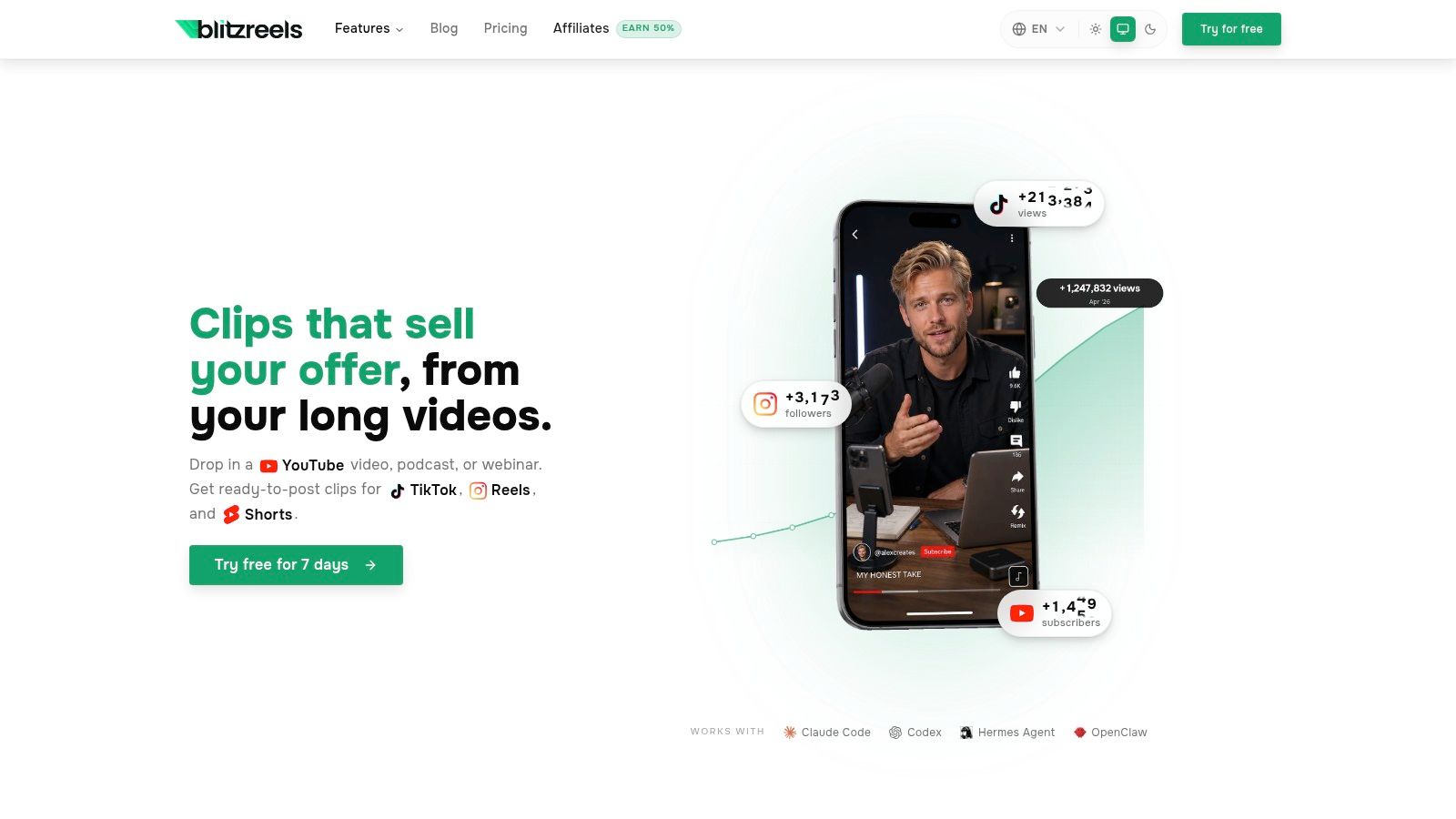
A common YouTube bottleneck looks like this. The long video is done, but turning it into five usable Shorts takes longer than recording the next upload. BlitzReels is a strong fit for that exact workflow.
Instead of centering the process around a traditional timeline, it starts with repurposing. You upload a recording, podcast, webinar, screen capture, or interview, and the platform moves straight into transcription, clip detection, vertical reframing, captions, and export formatting for Shorts. For creators trying to publish more often, that trade-off matters. You give up some fine-grain manual control, but you save hours on repetitive post-production.
### Best for fast YouTube Shorts production
BlitzReels works best for creators who already have source material and need volume. That could mean cutting one weekly YouTube video into multiple Shorts, repackaging client recordings, or building a faceless channel around template-driven output.
Its strongest advantage is consolidation. Hook styling, subtitle generation, resizing, visual callouts, and short-form packaging live in one place, so you spend less time bouncing between separate tools for captions, aspect ratio changes, and clip exports. If your bottleneck is consistency, not creative ideation, that matters more than having the deepest effects stack.
I usually judge tools in this category by one question: how much cleanup is left after the AI pass? BlitzReels often leaves less cleanup than general-purpose editors because it is built around social video first. Creators who also care about multilingual distribution should look at its guide to [automating YouTube subtitles for a global audience](https://www.blitzreels.com/blog/automate-youtube-subtitles-and-reach-a-global-audience), since subtitles are often where Shorts workflows slow down.
The AI Studio broadens the use case beyond simple clipping. Faceless video generation, prompt-based creation, templates, subtitle editing, compression, and file conversion make it useful for channels that publish without on-camera footage or need quick turnaround across several formats.
### Where BlitzReels wins and where it doesn't
BlitzReels wins on speed, output volume, and reduced handoffs. It is a better match for creators posting across YouTube Shorts, TikTok, Instagram Reels, and LinkedIn than for editors building highly customized videos shot by shot.
The limitation is clear too. Complex story edits, detailed motion design, multicam finishing, and frame-accurate pacing still work better in a full desktop editor. BlitzReels can handle the rough cut and packaging stage, but it is not the tool I would choose for a cinematic main-channel video where every visual beat needs manual control.
A useful way to evaluate it is by use case, not by feature count alone. If your YouTube strategy depends on publishing lots of short-form variations from existing footage, BlitzReels fits the workflow better than classic editing software. If your strategy depends on bespoke long-form editing, it makes more sense as a speed layer before the final polish.
## 2. Descript
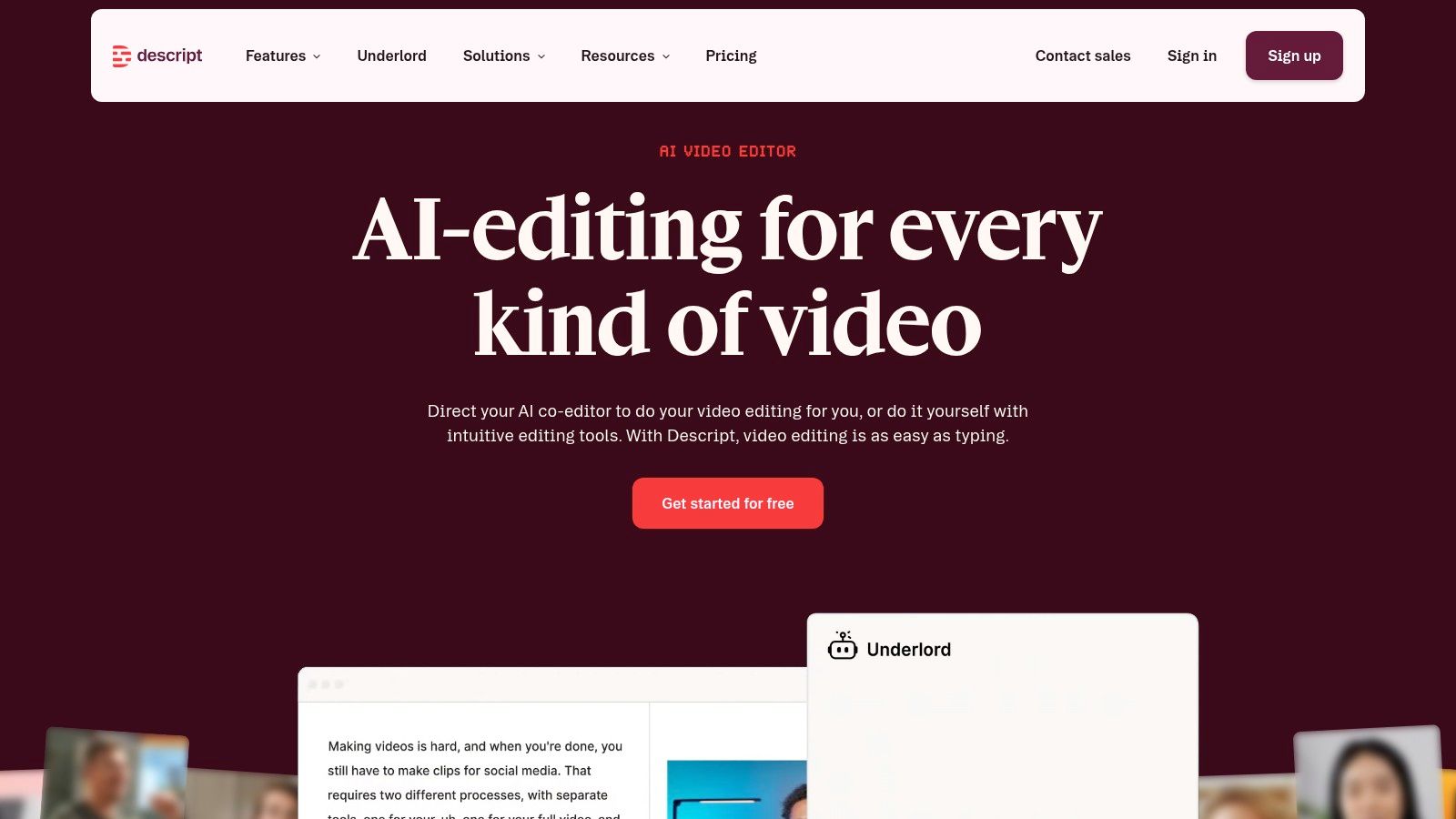
You finish recording a 40-minute tutorial, open the footage, and realize the primary job is not color or motion. It is cutting repeated lines, tightening explanations, cleaning audio, and finding the few moments worth turning into clips. [Descript](https://www.descript.com) is built for that part of the YouTube workflow.
### Best for transcript-led editing on speech-heavy channels
Descript makes the most sense for creators whose edit is driven by what was said. Tutorials, interviews, podcasts, webinars, remote guest recordings, and talking-head videos move faster when the transcript is the primary editing surface. Cutting a paragraph from the transcript is often quicker than hunting through a timeline for every matching video and audio segment.
That speed matters most at the rough-cut stage. Descript helps get from raw recording to a usable first pass quickly, especially when the goal is to remove filler, tighten pacing, clean up speech, generate captions, and pull highlights for repurposing. Creators building a repeatable [YouTube Shorts workflow from longer videos](https://www.blitzreels.com/use-cases/youtube-shorts) will usually find that Descript is strongest before the final polish, not at the very end.
The trade-off is control. Once a video relies on layered B-roll, precise visual comedy, custom motion graphics, or frame-sensitive pacing, Descript starts to feel less efficient than a timeline-first editor. I would use it to shape the story and clean the dialogue. I would not choose it as my only tool for a visually dense main-channel edit.
For creators deciding between social-first clipping and transcript editing, this breakdown of [BlitzReels vs Descript](https://www.blitzreels.com/compare/blitzreels-vs-descript) is useful because the tools solve different post-production problems.
- **Best fit for dialogue-led videos:** Podcasts, interviews, lessons, and expert explainers are easier to tighten in text than on a crowded timeline.
- **Strong rough-cut tool:** Filler removal, transcript editing, dubbing, captions, and audio cleanup reduce the time spent getting to version one.
- **Weaker for visual-heavy finishing:** Complex B-roll layering, detailed graphics timing, and effect-driven edits usually belong in a more traditional editor.
The practical way to judge Descript is by role in the workflow. If your bottleneck is turning spoken content into a clean, publishable cut, it saves real time. If your bottleneck is visual storytelling, it helps at the start but usually should not be the last stop before export.
## 3. CapCut
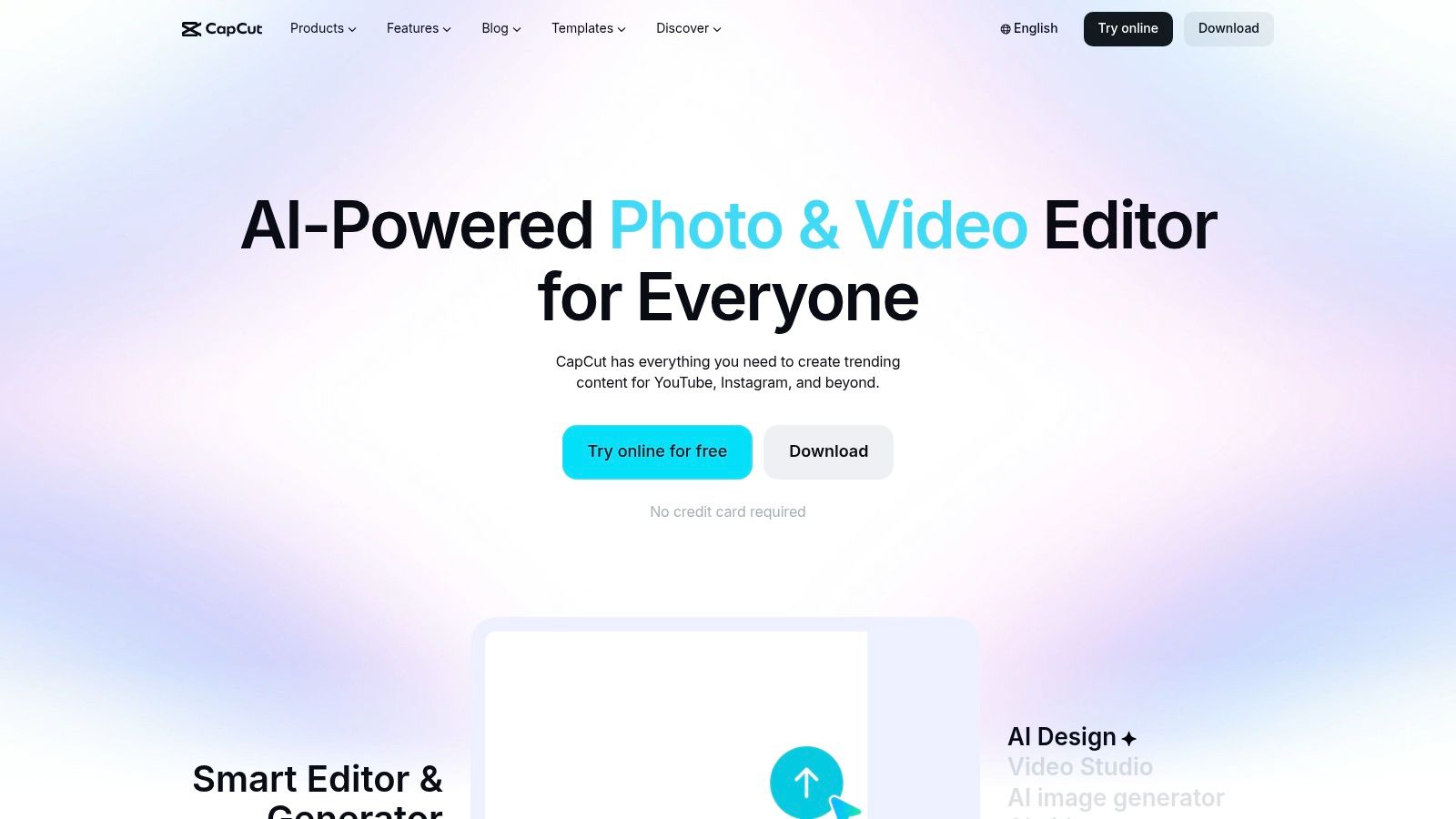
[CapCut](https://www.capcut.com) stays popular for a simple reason. It gets creators from raw footage to publishable short-form video without much training. Auto captions, templates, quick text animation, reframing, and social-sized exports make it a natural choice for YouTube Shorts workflows.
It also bridges mobile and desktop better than many editors. That's useful for creators who start with a phone edit, then return later for final cleanup on desktop or web.
### Best for quick mobile-to-desktop Shorts editing
CapCut is at its best when the goal is speed, not deep editorial nuance. For title cards, bold caption styles, template-driven hooks, and quick social polish, it's hard to beat the convenience.
The trade-off is consistency. Feature access can change by platform or region, and some creators eventually hit a ceiling when they want more control over brand systems or repeatable production pipelines. CapCut is fast, but it can feel less stable as a long-term operating system for high-volume publishing.
> The biggest mistake with CapCut is assuming a polished-looking clip is automatically a strong clip. Fast styling doesn't fix weak moment selection.
Creators comparing social-first editors can use this practical take on [CapCut vs BlitzReels for TikTok creators](https://www.blitzreels.com/blog/capcut-vs-blitzreels-which-video-editor-is-best-for-tiktok-creators-in-2025) because the same trade-offs carry over to YouTube Shorts.
- **Great for speed:** Short edits, simple hooks, fast subtitles, and quick exports are the main strengths.
- **Strong template library:** Helpful for creators who want visible motion and text styling without building from scratch.
- **Less ideal for advanced review workflows:** Teams that need repeatable QC, more granular controls, or integrated utility tools may outgrow it.
## 4. VEED.IO
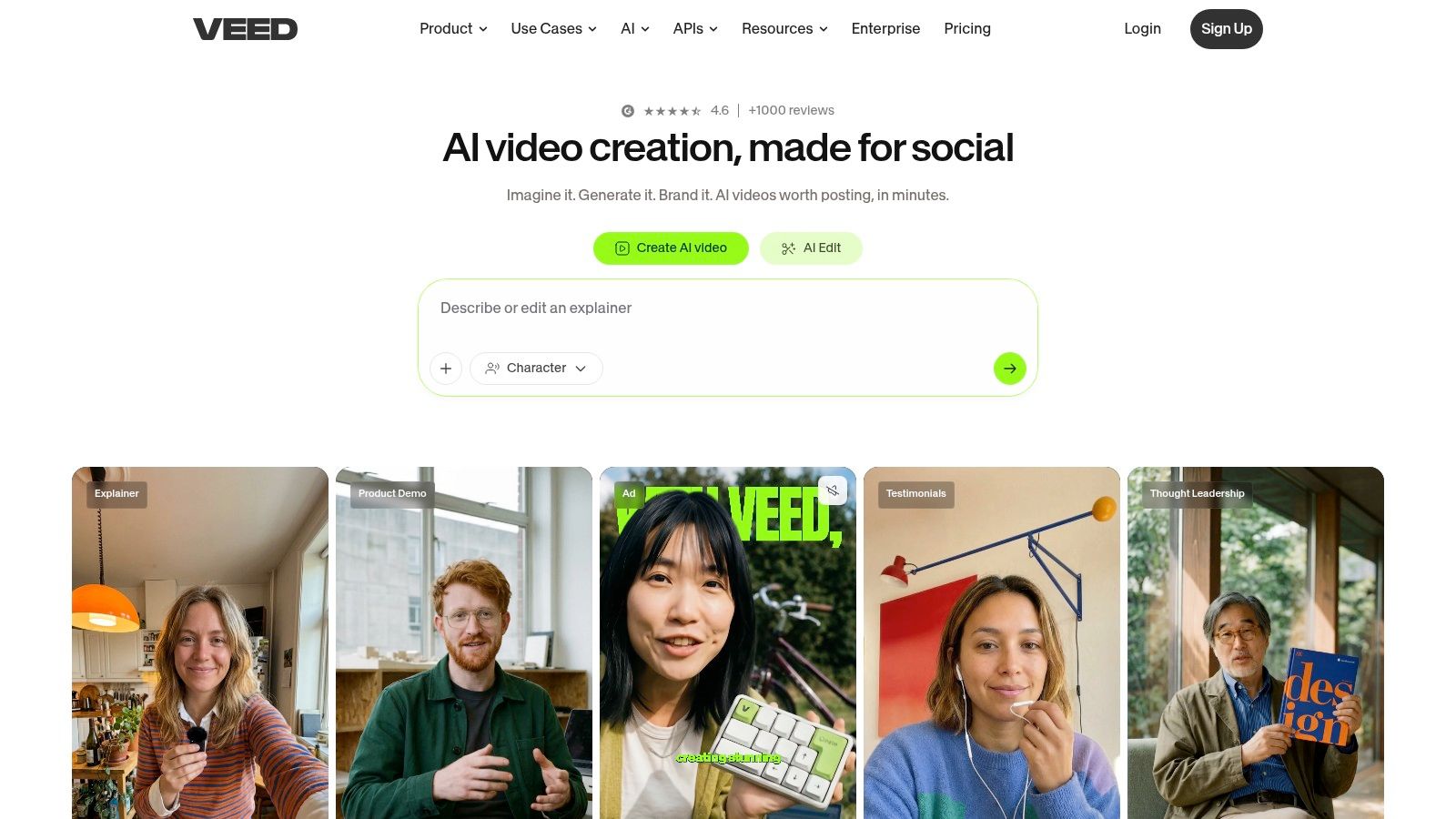
[VEED.IO](https://www.veed.io) is one of the cleanest browser-based options for creators who want editing, subtitles, and basic AI enhancement without installing anything. That alone makes it attractive for distributed teams, client review flows, and quick-turn social production.
Its appeal isn't just convenience. VEED groups subtitles, translations, dubbing, clip generation, script helpers, and browser collaboration in one place, which suits channels publishing educational or international YouTube content.
### Best for browser-based caption workflows
VEED is strongest when captions and accessibility are central to the workflow. Auto subtitles are easy to generate and clean up, and translation features make it useful for teams pushing content to multiple audiences.
The limit shows up on heavier projects. Browser editors still don't feel as responsive as desktop software once the timeline gets dense, and some of the deeper AI features sit behind higher plans.
Creators focused on subtitle workflow can pair VEED-style editing with this guide on [automating YouTube subtitles for a global audience](https://www.blitzreels.com/blog/automate-youtube-subtitles-and-reach-a-global-audience), especially when captioning is a distribution tactic, not just decoration.
> **Editing note:** Auto captions save time. Caption review still matters because line breaks, emphasis, and timing affect retention more than most creators expect.
## 5. Kapwing
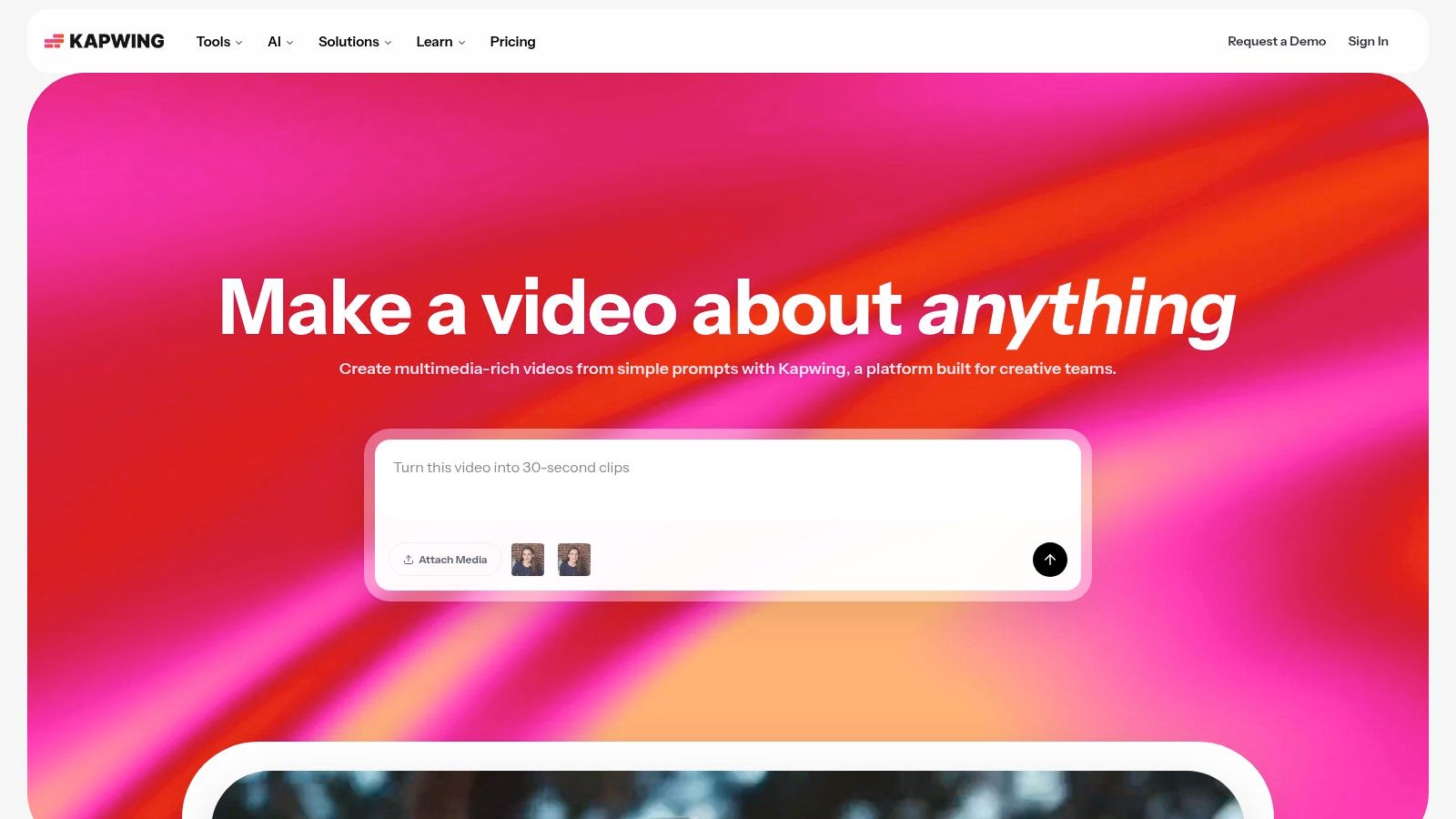
[Kapwing](https://www.kapwing.com) works well for creators and social teams who need a low-friction browser editor that others can easily use. It isn't trying to be the deepest tool in the category. That's part of the appeal.
For batch production, reusable templates and brand kits matter more than flashy AI claims. Kapwing understands that well, which makes it practical for agencies, social managers, and small in-house teams handling repeat YouTube short-form output.
### Best for lightweight team workflows
Smart Cut, subtitles, templates, and browser collaboration make Kapwing useful when content needs to move through multiple hands quickly. One person can rough cut, another can restyle captions, and another can swap in branding without passing around project files.
The downside is creative ceiling. If the content strategy relies on stronger motion design, higher-end finishing, or more advanced visual control, Kapwing starts to feel like a staging area rather than the final edit environment.
For creators building a repeatable Shorts pipeline, the [YouTube Shorts use case page from BlitzReels](https://www.blitzreels.com/use-cases/youtube-shorts) is a useful benchmark for what a more purpose-built short-form workflow looks like.
- **Best for collaborative speed:** Team members can jump into the same browser-based flow without much setup.
- **Good for repeatable formats:** Templates help keep title cards, lower thirds, and subtitle styles consistent.
- **Limited for advanced finishing:** It handles quick social edits better than cinematic or highly customized production.
## 6. OpusClip
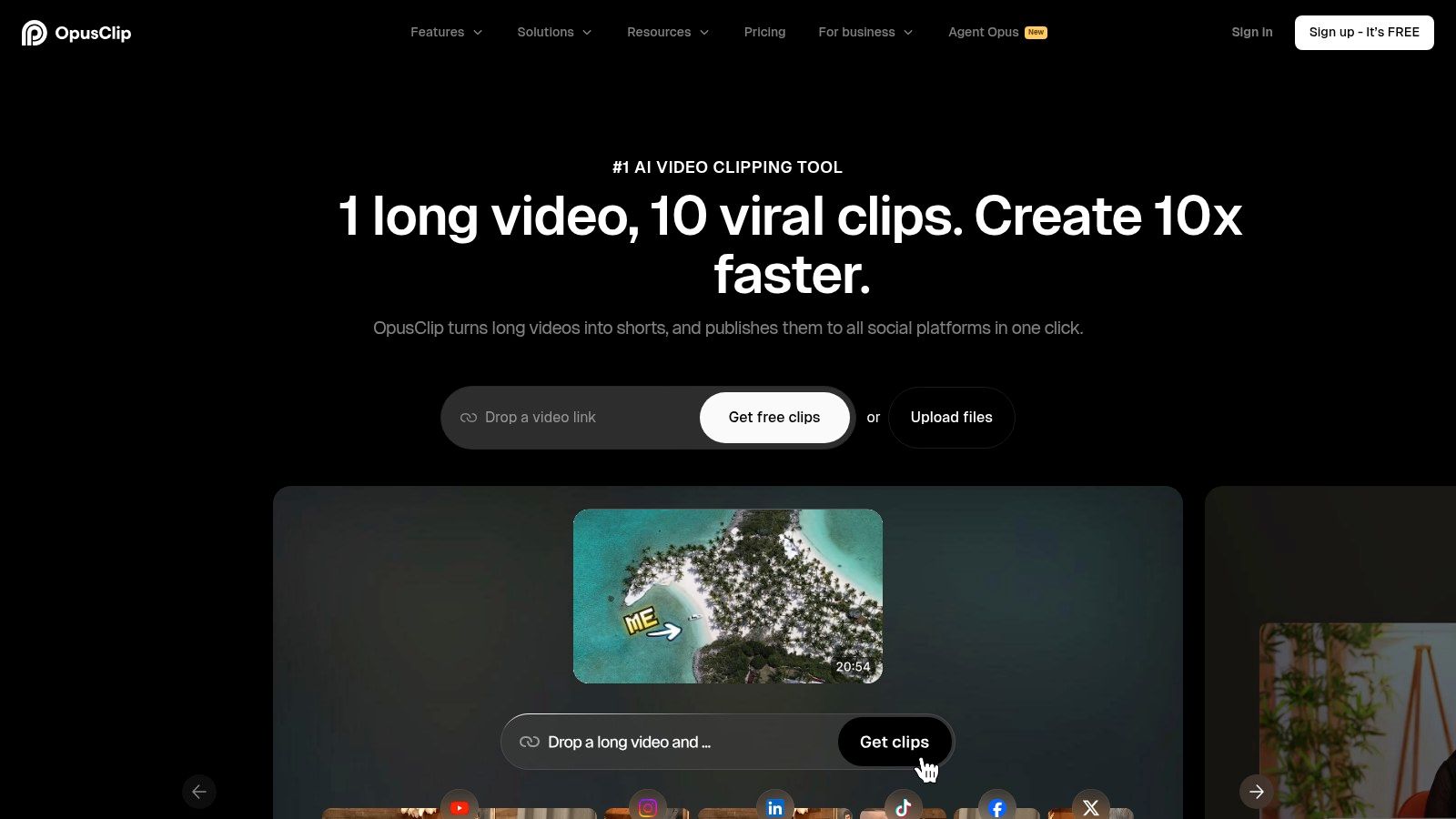
A common YouTube bottleneck shows up after the main edit is done. The full episode, interview, or webinar is ready, but turning it into a week of Shorts still takes hours. OpusClip is built for that specific part of the workflow.
[OpusClip](https://www.opus.pro) works best when long-form content is already the engine of the channel and short-form is the distribution layer. Podcasters, educators, interview channels, and B2B creators usually get the most value because they already have plenty of spoken moments to cut into clips. Instead of asking the editor to start from scratch, OpusClip helps surface candidate moments, package them fast, and push them toward publishing.
### Best for long-form repurposing at scale
Its strength is speed. Clip extraction, caption styling, reframing, silence trimming, and branding tools reduce the manual work that usually slows down repurposing. Teams handling a backlog of episodes can move from one source video to multiple usable Shorts without opening a heavier editor for every variation.
That speed comes with a clear trade-off.
OpusClip is good at finding moments. It is less convincing at shaping them. If a clip needs tighter context, a stronger narrative setup, cleaner comedic timing, or custom visual pacing, the automatic output usually needs human judgment. In practice, I would treat it as a first-pass repurposing system, not the final place to make editorial calls.
That distinction matters because repurposing is only one part of a YouTube workflow. Channels still need thumbnail strategy, long-form retention editing, packaging, and publishing discipline. OpusClip can remove a lot of repetitive clipping work, but it will not replace an editor who knows why a moment works.
Creators comparing it with more traditional tools should also review broader options in this guide to [best video editing software professional](https://www.cloudpresent.co/blog/best-video-editing-software-professional). OpusClip wins on throughput for clip production. It gives up control in exchange.
## 7. Wisecut
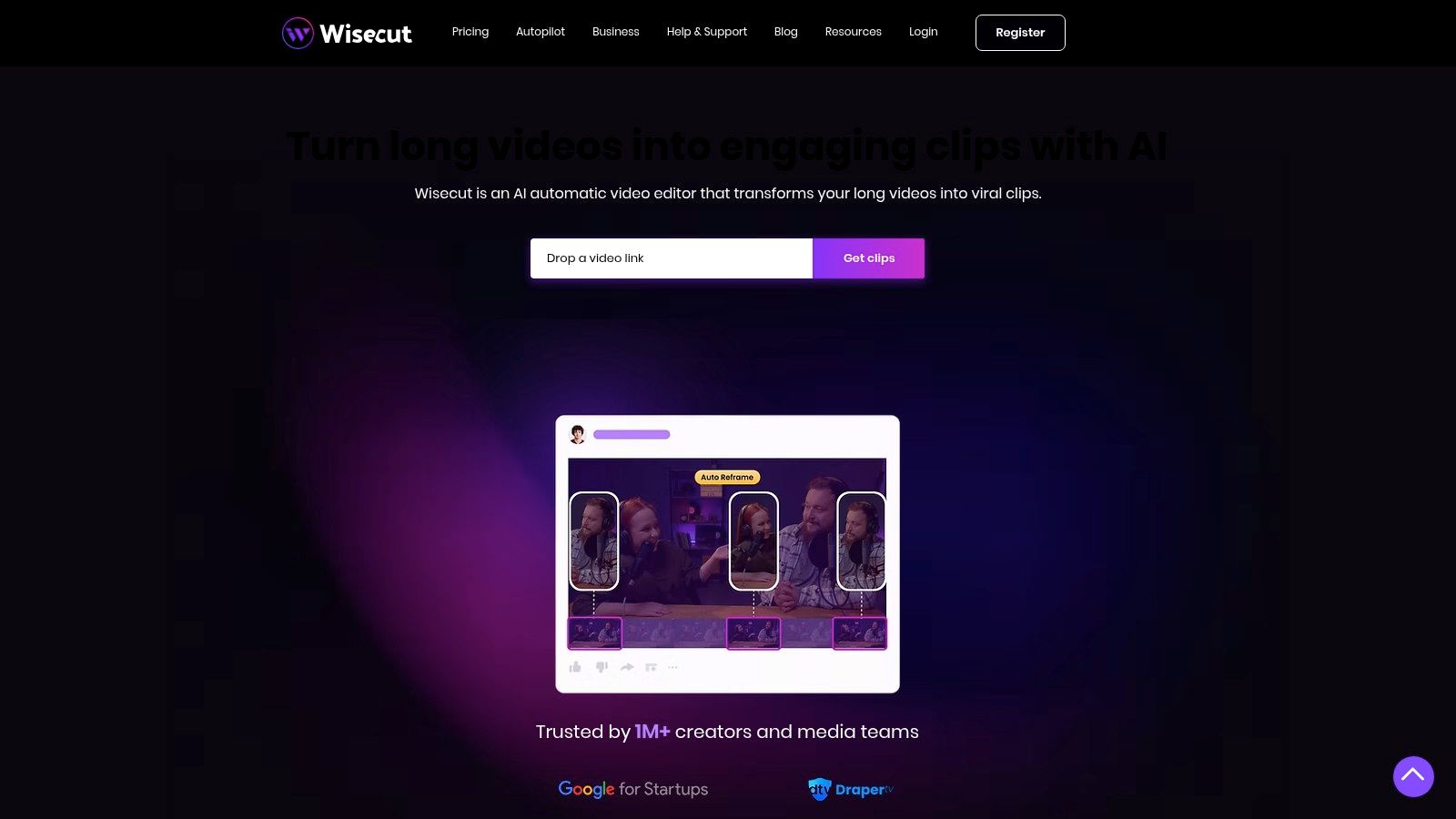
[Wisecut](https://www.wisecut.ai) is a practical tool for creators whose footage is mostly someone talking. It removes silence, tightens pacing, adds captions, handles simple music ducking, and keeps the workflow approachable for non-editors.
That focus makes it useful for tutorials, webcam explainers, educational content, and interview-style YouTube videos. It doesn't try to be everything. It tries to make a narrow kind of edit much faster.
### Best for talking-head cleanup
For creators producing large volumes of informational content, Wisecut can strip away the most repetitive cleanup work. Silence cuts and pacing adjustments are where it earns its keep.
The limitation appears when the edit needs stronger visual intervention. If the channel depends on layered B-roll, detailed callouts, visual jokes, or nuanced motion pacing, Wisecut starts to feel too automatic.
A contrarian but useful framing comes from the current coverage pattern around AI editors. Value often comes from reducing edit labor, not replacing editorial judgment, a gap highlighted in this [YouTube workflow-fit discussion](https://www.youtube.com/watch?v=dbiyuJ-u1os). Wisecut is a good example. It can remove busywork, but it still needs a human to judge what should stay, what should lead, and what merits becoming a Short.
For broader category context, this roundup of [AI video editors](https://www.blitzreels.com/best/ai-video-editors) helps place Wisecut among tools that optimize for different editing bottlenecks.
## 8. Adobe Premiere Pro
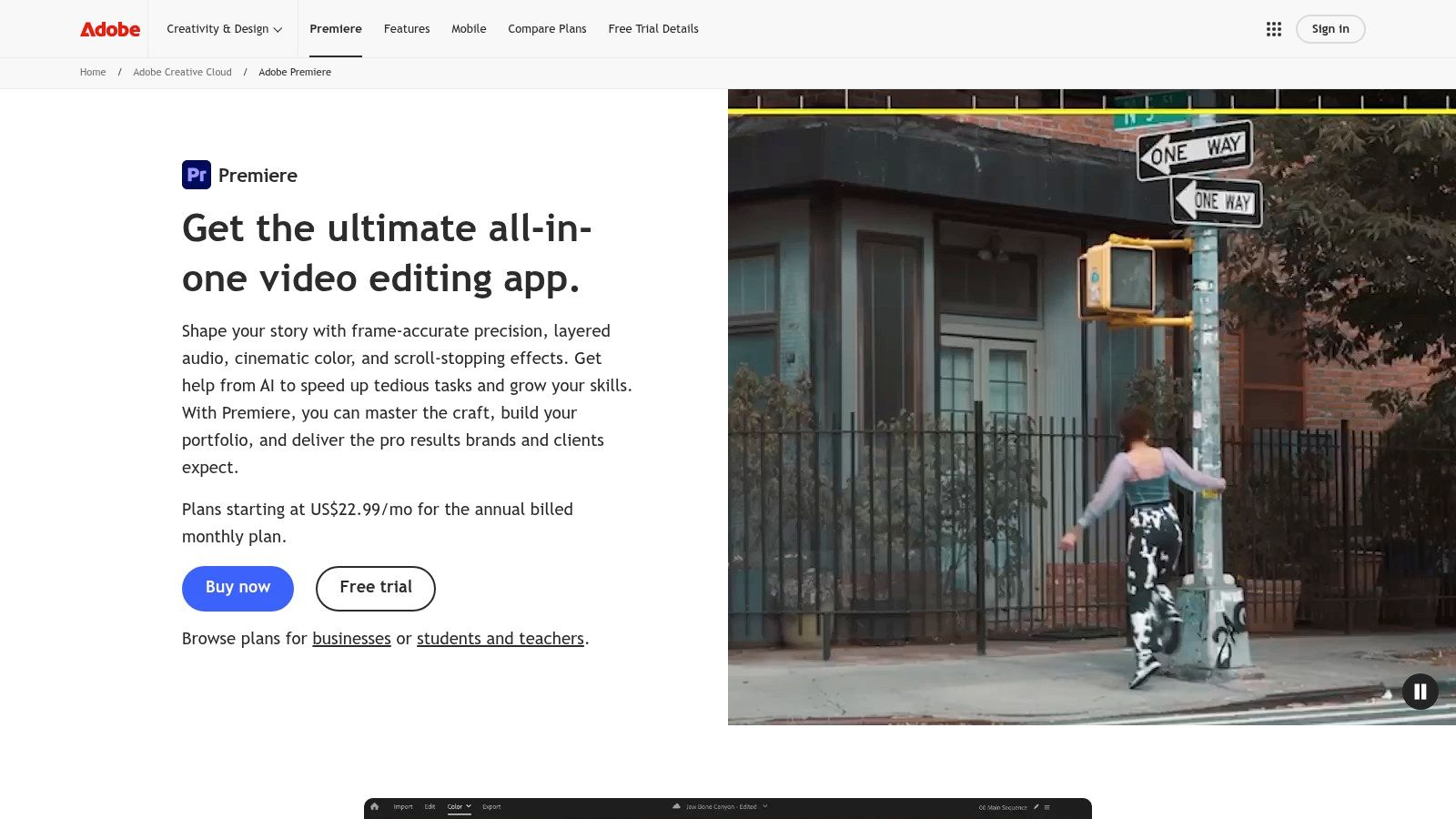
[Adobe Premiere Pro](https://www.adobe.com/products/premiere.html) is still the right answer when YouTube editing needs full control. AI features like text-based editing, speech-to-text captions, and auto reframe help, but the main reason to use Premiere is that it remains a complete editing environment rather than an AI shortcut layered on top of a narrow workflow.
For serious channels, that matters. A creator might use an AI tool to pull selects or prep Shorts, then move to Premiere for final structure, motion, sound, titles, color, and publishing masters.
### Best for creators who still need full editing control
Premiere is the strongest choice here for hybrid workflows. It can absorb AI assistance without giving up manual precision. That's why it still fits long tutorials, polished product videos, branded channel packages, and larger YouTube productions better than lighter tools.
The cost is obvious. It takes longer to learn, and it asks the creator to make more decisions. That's fine for editors. It can be overkill for founders, solo operators, or social managers who mainly need fast vertical output.
A separate industry forecast projects the AI video generation and editing software market will grow from USD 3.67 billion in 2026 to USD 24.89 billion by 2036 at a 21.4% CAGR, and says these tools can make video creation 10 to 100 times faster than traditional methods in [Meticulous Research's market forecast](https://www.meticulousresearch.com/product/ai-video-generation-and-editing-software-market-forecast-6359). Premiere's place in that trend is clear. AI helps remove repetitive tasks, but pro editors still want the final say.
For teams comparing heavyweight editors, this guide to the [best video editing software professional](https://www.cloudpresent.co/blog/best-video-editing-software-professional) gives useful additional context.
## 9. Microsoft Clipchamp
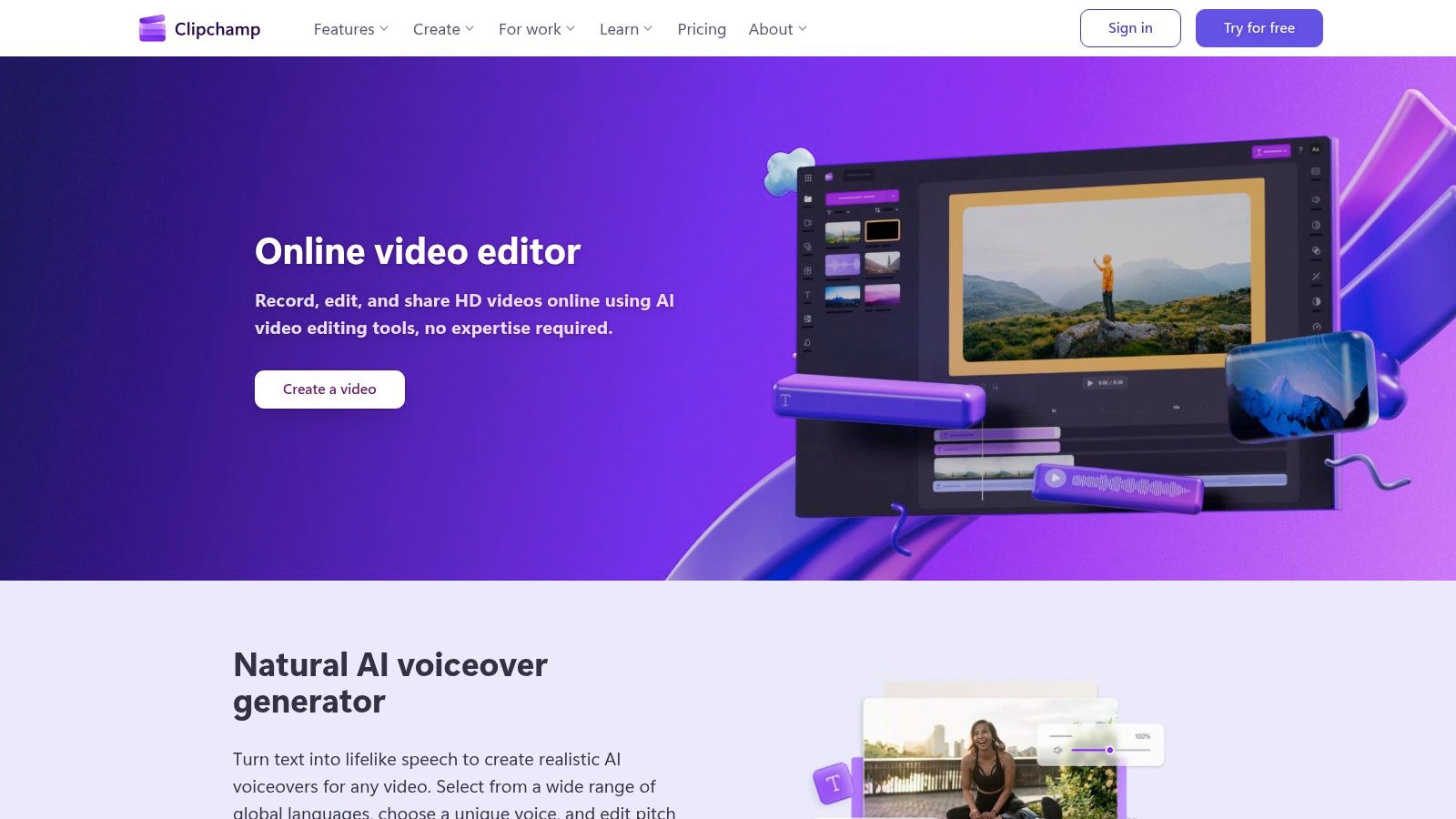
[Microsoft Clipchamp](https://clipchamp.com) makes sense for people who want a simple YouTube editor and already live inside Windows or Microsoft 365. It covers the basics well: screen and webcam recording, templates, captions, and easy exports.
That combination is especially practical for internal educators, small businesses, solo professionals, and teams publishing straightforward YouTube content without a dedicated editor.
### Best for simple YouTube editing inside the Microsoft ecosystem
Clipchamp isn't the most ambitious tool in this list, but it doesn't need to be. It removes setup friction and gives non-editors a manageable path to trimmed, captioned, platform-sized video.
Where it falls short is depth. Advanced social repurposing, stronger template systems, and more aggressive AI editing are better handled elsewhere. Clipchamp feels more like a reliable starting point than a growth engine for high-output Shorts teams.
The broader market direction still helps explain why tools like this keep improving. A market projection estimates the global AI video market will grow from USD 10.29 billion in 2024 to USD 156.57 billion by 2034, with North America at USD 2.74 billion in 2024 and the U.S. at USD 2.19 billion in 2024 in [Precedence Research's AI video market forecast](https://www.precedenceresearch.com/artificial-intelligence-video-market). Demand isn't limited to creators. It includes businesses that need easier video production across common workplace software.
## 10. Wondershare Filmora
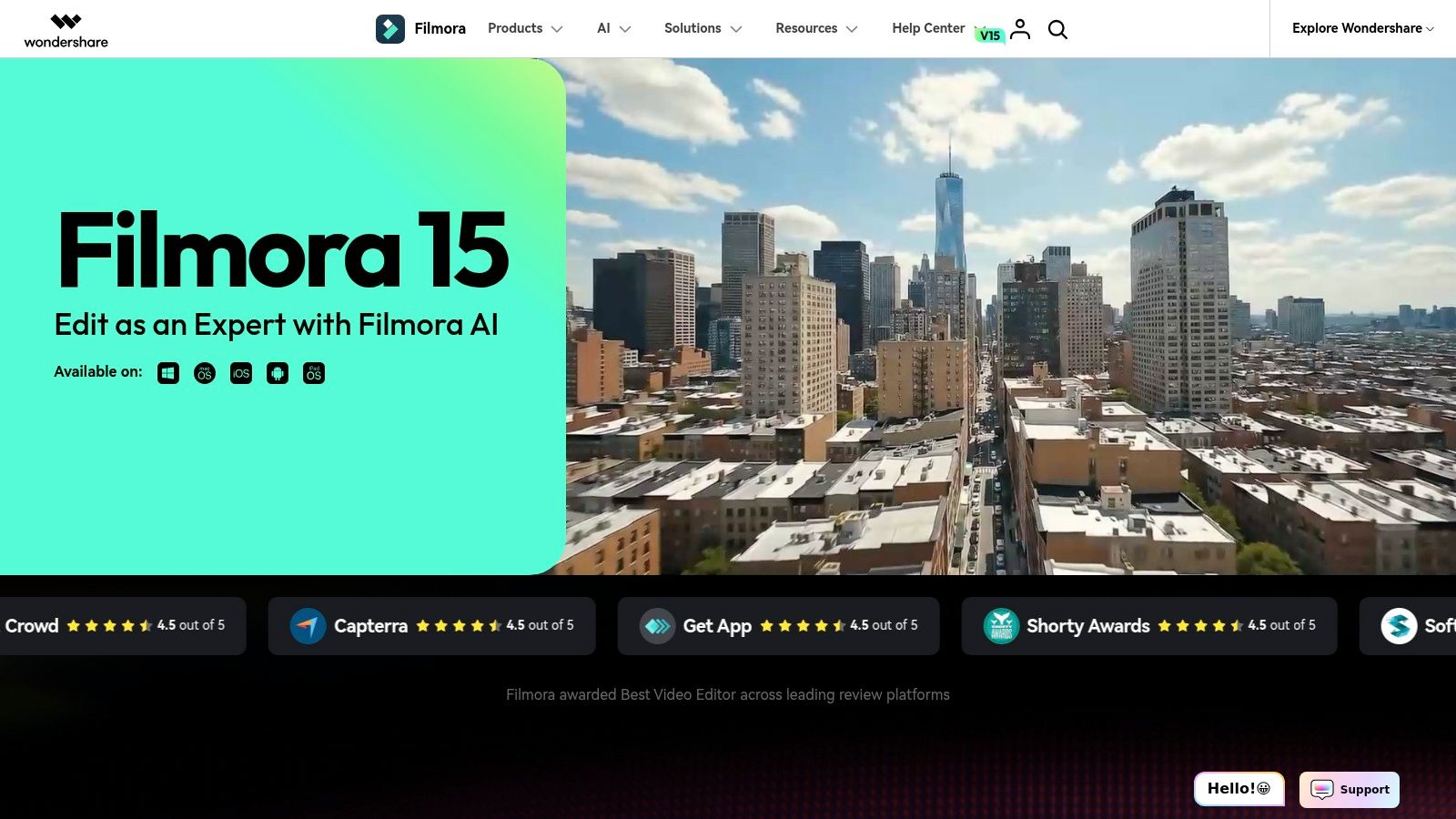
[Wondershare Filmora](https://filmora.wondershare.com) sits in the middle ground between beginner-friendly editors and more serious desktop software. That's a valuable place to be. Many creators want more than a browser tool, but they don't want the full complexity of Premiere.
Filmora's appeal comes from guided assistance. Auto captions, text-to-speech, AI helpers, effects, portrait tools, templates, and YouTube-friendly design elements all make the software approachable for creators still building post-production confidence.
### Best for beginners who want guided AI features
Filmora is strongest when the user wants a familiar timeline plus AI shortcuts. It can handle intros, lower thirds, title cards, simple effects, and social polish without overwhelming the editor.
The drawback is ceiling and trust. Some creators eventually outgrow the environment, and others become cautious when pricing or licensing feels less predictable. It can still be a solid fit for channels in the early growth stage.
The deeper issue isn't just feature count. It's whether the automated polish helps the video. Recent coverage has pointed to a growing gap around quality and trust in AI-generated short-form output, especially as features like auto hooks, captions, reframing, and B-roll start to converge across products in this [discussion of trust and quality in AI short-form editing](https://www.youtube.com/watch?v=OHODMrUZlpo). Filmora users should pay close attention to that. Slick isn't the same as effective.
## Top 10 AI Video Editors for YouTube, Feature Comparison
| Product | Core features | Best for | Key strengths / USP | Limitations / Pricing |
|---|---|---:|---|---|
| **BlitzReels** | Auto transcription, cut detection, on‑beat captions, auto‑hook, auto‑reframe, B‑roll insertion, AI Studio & templates | Creators & brands needing mass short‑form output and fast turnarounds | Automates record→edit→publish (~10 min); platform‑optimized vertical exports; faceless/prompt‑to‑video AI studio; all-in-one toolbox | 7‑day free trial; full pricing not public; not a frame‑by‑frame pro NLE |
| Descript | Transcript‑first text editing, Studio Sound, auto‑captions, Create Clips, translate/dub | Talking‑heads, podcasts, tutorials, repurposing long‑form | Fast text-based cuts; strong audio cleanup; team & brand controls | Subscription tiers with AI credit/hour limits |
| CapCut | Auto captions, Auto Reframe, large template/effects library, web/desktop/mobile apps | Mobile-first creators and quick social edits | Strong free offering; easy to learn; many templates | Feature availability and pricing vary by region; some AI moved to Pro |
| VEED.IO | Auto subtitles & translations, Video GPT, AI editing tools, hosting & collaboration | Teams and clients preferring browser-based workflows and hosted players | Wide set of AI subtitle tools; no install; built‑in hosting | Free plan limits/watermark; many AI features on higher tiers |
| Kapwing | AutoCut/Smart Cut, auto subtitles, brand kit, templates, cloud collaboration | Social teams, batch captioning, quick browser turnarounds | Simple shareable workflow; great for batch captioning & templates | Free plan watermark/limits; limited advanced VFX/color grading |
| OpusClip | AI auto‑clipping, virality scoring, animated captions, auto‑post | Creators repurposing long‑form into Shorts focused on virality | Fast long→short pipeline; virality ranking; single‑pass branding | Clip‑focused (not full editor); credit‑based usage for heavy users |
| Wisecut | Silence‑cut, pacing tightening, auto captions, music ducking, AI storyboard | Talking‑head videos, tutorials, non‑editors | Excellent for tightening dialogue; auto music & captions; simple UI | Not suited for complex B‑roll/effects; cloud workflow limits |
| Adobe Premiere Pro | Pro NLE, Text‑Based Editing, Speech‑to‑Text, Auto Reframe, Frame.io | Professional editors and full YouTube productions | Deep pro tools, plugins, advanced audio/color; enterprise features | Steeper learning curve; higher subscription cost |
| Microsoft Clipchamp | Auto‑captions, social templates, screen/webcam recording, cloud projects | Microsoft 365 users and basic YouTube/Shorts creators | Solid free tier; tight Windows/M365 integration; easy for non‑editors | Premium tied to Microsoft 365; limited mobile/iOS options |
| Wondershare Filmora | AI Copilot/Mate, auto‑captions, AI Portrait, text‑to‑speech, presets | YouTube beginners wanting guided AI assistance | Easy to learn; many AI helpers and templates for quick polish | Pricing/licensing complaints in community; fewer pro-grade features |
## Your Next Step Automate Your YouTube Workflow
Monday morning looks different when the edit stack fits the channel. One recording can become a polished long-form upload, three Shorts, a cleaner podcast cut, and two hook variations for testing. That only works if the tool matches the job.
The practical mistake is picking an AI editor by feature count instead of workflow fit. Clipping, captions, reframing, silence removal, and auto-resizing show up in a lot of products now. What matters more is where the tool saves time and where it creates cleanup work.
For long-form repurposing, a clipping-first tool usually beats a full editor. For transcript-led editing, Descript still makes sense. For channels that care about precise pacing, layered B-roll, color, sound design, and final polish, Premiere Pro keeps the advantage. The right choice depends on the bottleneck, not the marketing page.
A good workflow also keeps a human review layer in place. AI can cut dead air, format captions, and find short-form moments fast. It still misses on hook selection, context, tone, and the subtle pacing choices that make a YouTube video feel intentional instead of auto-generated.
That trade-off matters. Speed helps channels publish more often, but more output only works if review stays tight. The channels that get real value from AI editing usually do one thing well. They automate the repetitive parts and keep control over the decisions that viewers notice.
Feature overlap will keep growing, so the smarter question is simple. Which editor removes the most recurring labor from the format you publish every week?
For a Shorts-heavy channel, that often means using a short-form-first workflow. For tutorial, commentary, or documentary-style videos, it may mean a hybrid setup where AI handles transcripts, captions, reframing, or rough cuts, then a full editor handles finishing. For faceless content, speed matters even more because scripting, voiceover, stock selection, and packaging already create enough moving parts.
Audio is part of that workflow too. A fast edit still feels amateur if the dialogue is noisy, especially in tutorials, podcasts, and webcam videos. This roundup of [tools to eliminate background noise](https://www.clearaudio.app/blog/best-noise-removal-software) is useful if cleanup keeps eating into turnaround time.
The next move is smaller than most creators think. Do not trial five tools at once. Identify the one post-production task that delays uploads every week, then choose the editor built for that use case.
For creators focused on turning source footage into publishable Shorts fast, BlitzReels stands out because the workflow is built around output, not just editing controls. It handles clipping, captions, reframing, resizing, hooks, and faceless formats in one place, which cuts down on handoffs and tool switching. If the goal is more high-quality YouTube Shorts with less production drag, it is a strong place to start.