---
title: "10 Best Ai Video Editor Free for Shorts in 2026"
canonical: "https://blitzreels.com/blog/ai-video-editor-free"
---
# 10 Best Ai Video Editor Free for Shorts in 2026
URL: https://blitzreels.com/blog/ai-video-editor-free
Markdown URL: https://blitzreels.com/blog/ai-video-editor-free.md
Published: 2026-06-03
Author: BlitzReels
Find the best ai video editor free for your workflow. We review 10 top tools for captions, clipping, and creating TikToks, Reels, and Shorts fast in 2026.
Tags: ai video editor free, video editing software, short form video, content creation tools, ai video generator

A creator usually lands on an AI video editor free search with the same problem. There's footage sitting in a camera roll, a webinar recording, a podcast episode, or a rough script, and it needs to become a short that fits TikTok, Reels, YouTube Shorts, or LinkedIn. Fast. The friction isn't recording. It's clipping the right moment, adding readable captions, reframing for vertical, tightening the hook, and exporting without wrestling a heavyweight editor.
That's why free AI editors matter. They've become the front door to a category that was valued at [USD 0.9 billion in 2023 and projected to reach USD 4.4 billion by 2033 at a 17.2% CAGR](https://market.us/report/ai-in-video-editing-market/). The practical takeaway is simple. AI-assisted editing isn't a side feature anymore. It's part of the everyday short-form workflow.
The best choice depends on the job. Some tools are better for transcript-based clipping. Others are stronger for faceless explainers, template-heavy social edits, or turning long recordings into multiple shorts. For readers comparing options, this list stays focused on what each tool does well. For broader context on generation workflows, [AI video creation tools](https://armox.ai/ai-video-generation) are worth reviewing alongside editing tools.
## Table of Contents
- [1. CapCut](#1-capcut)
- [Why CapCut fits social-first editing](#why-capcut-fits-social-first-editing)
- [2. Microsoft Clipchamp](#2-microsoft-clipchamp)
- [Where Clipchamp is strongest](#where-clipchamp-is-strongest)
- [3. Kapwing](#3-kapwing)
- [Best use case for Kapwing](#best-use-case-for-kapwing)
- [4. VEED](#4-veed)
- [When VEED makes sense](#when-veed-makes-sense)
- [5. Descript](#5-descript)
- [Why Descript works for spoken content](#why-descript-works-for-spoken-content)
- [6. Canva Video Editor](#6-canva-video-editor)
- [Where Canva beats dedicated editors](#where-canva-beats-dedicated-editors)
- [7. Runway](#7-runway)
- [Best job for Runway](#best-job-for-runway)
- [8. InVideo AI](#8-invideo-ai)
- [Where InVideo AI helps most](#where-invideo-ai-helps-most)
- [9. OpusClip](#9-opusclip)
- [What OpusClip does well](#what-opusclip-does-well)
- [10. Klap](#10-klap)
- [Who should pick Klap](#who-should-pick-klap)
- [Top 10 Free AI Video Editors Comparison](#top-10-free-ai-video-editors-comparison)
- [Final Thoughts](#final-thoughts)
## 1. CapCut
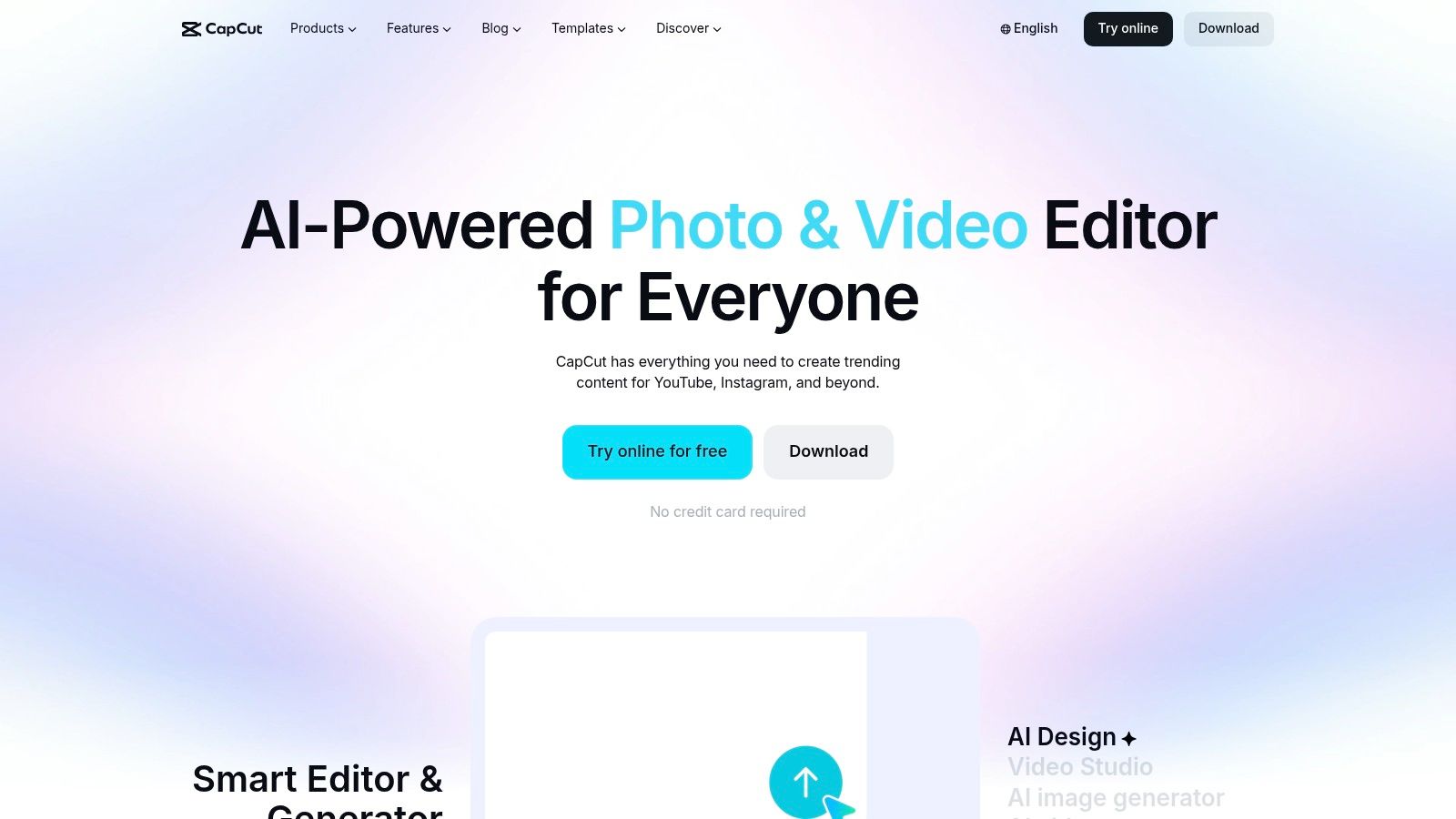
CapCut is the easiest recommendation for creators who want one tool for the full short-form loop. It handles cutting, captions, reframing, title cards, effects, and social-friendly templates without pushing users into a complicated edit bay. For TikTok-style output, it feels native because the workflow is built around speed rather than film-style precision.
For an AI video editor free option, CapCut is strongest when the raw material already exists. A talking-head clip, product demo, vlog segment, or simple voiceover can move from rough cut to social-ready fast. That matters when the goal is posting consistently, not polishing every frame like a commercial.
### Why CapCut fits social-first editing
CapCut is best for quick publishing across TikTok, Reels, and Shorts when a creator needs these tasks in one place:
- **Caption-heavy edits:** Auto-captions are central to the workflow, which is critical for silent viewing and social retention.
- **Mobile-friendly speed:** It works well for creators who start on a phone and finish on desktop or web.
- **Template-led output:** Reusable visual styles make recurring formats easier to maintain.
[Capcut profile on SponsorRadar](https://sponsorradar.com/brands/capcut) gives brand context, but the practical issue is workflow fit. CapCut works best when the edit needs to feel current and platform-native, not highly customized.
> **Practical rule:** CapCut is a better editor than generator. It shines after the footage exists.
Creators comparing it against a more repurposing-focused workflow can review [BlitzReels vs CapCut](https://www.blitzreels.com/compare/blitzreels-vs-capcut). The trade-off is that some newer AI features and assets can feel gated depending on the device, region, or account setup. For simple clipping, captioning, resizing, and posting, though, it remains one of the strongest starting points.
Use the platform directly at [CapCut](https://www.capcut.com/).
## 2. Microsoft Clipchamp
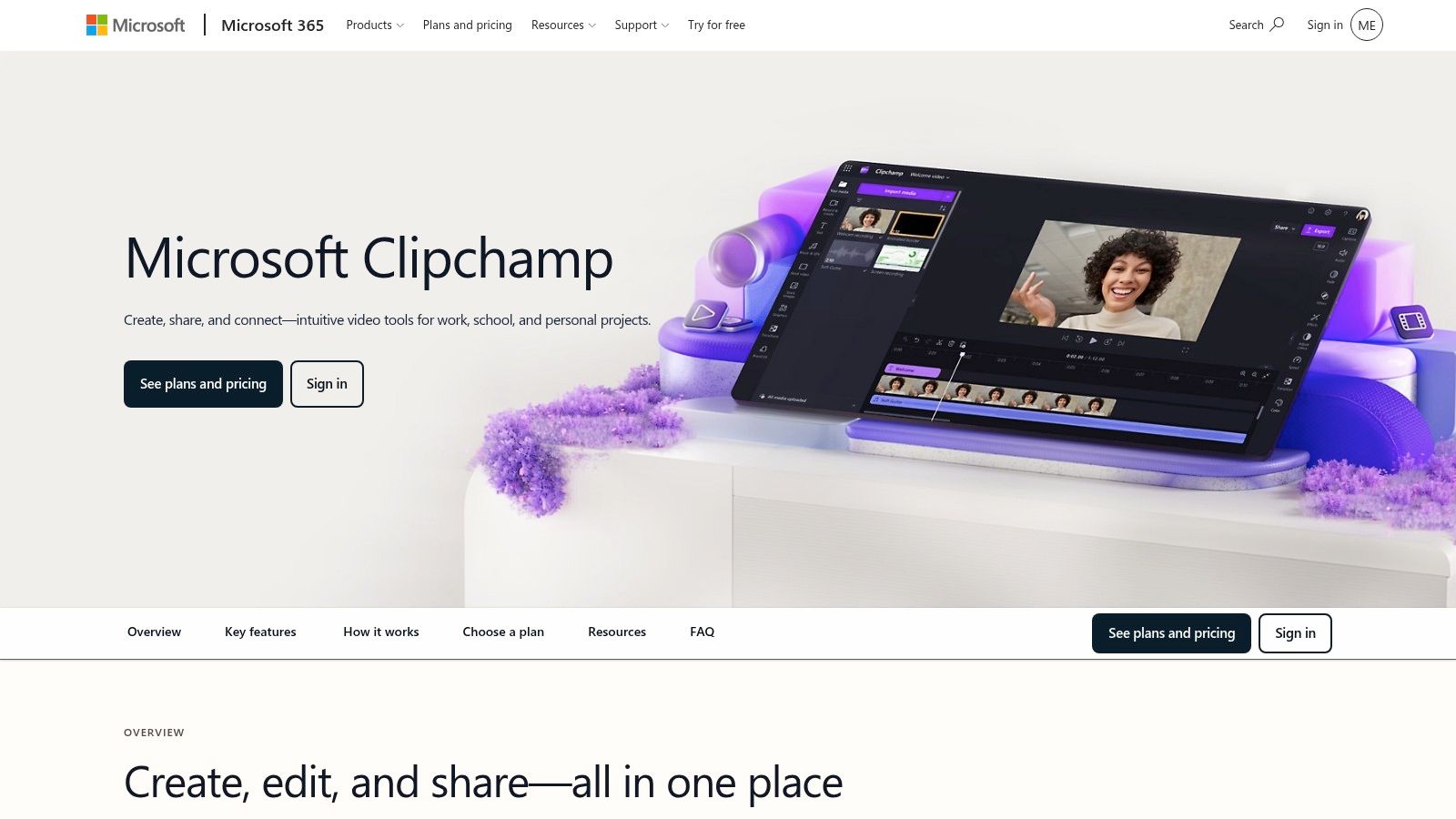
Clipchamp is the browser editor for people who want clean, straightforward production without learning a new ecosystem. It's especially practical for founders, marketers, educators, and internal teams already working in Microsoft's environment. The interface doesn't try to feel edgy. It tries to get the video out the door.
Its free positioning is stronger than many expect. Clipchamp states that its AI video editing tools are [free for all users](https://clipchamp.com/en/ai-video-editing-clipchamp/), including features such as auto subtitles, voiceovers, background-noise removal, and silence removal. That makes it useful for social clips built from webcam recordings, screen captures, quick product walk-throughs, and simple explainers.
### Where Clipchamp is strongest
Clipchamp fits teams that need practical content, not trend-driven edits. It's good for:
- **Screen plus face videos:** Product demos, tutorials, and LinkedIn-style explainers.
- **Fast cleanup:** Noise reduction and silence removal help before captions and resizing.
- **Simple publishing flow:** Browser-based editing removes install friction for non-editors.
A lot of users searching AI video editor free need a [video editor for social media](https://www.blitzreels.com/blog/video-editor-for-social-media), not a cinematic tool. Clipchamp is very good in that lane.
Its weaknesses are clear too. The best experience tends to be inside Edge or Chrome, and the more premium stock or brand-heavy features sit deeper in the Microsoft ecosystem. But for no-drama editing with readable captions and basic social output, it's a smart pick.
Use the platform at [Microsoft Clipchamp](https://www.microsoft.com/en-us/microsoft-365/clipchamp?msockid=3041969362bf6b99252580d163126aa6).
## 3. Kapwing
Kapwing is built for people who repurpose more than they edit from scratch. If the source is a podcast, webinar, interview, course recording, or YouTube upload, Kapwing makes sense quickly. The reason is simple. Transcript-driven work is faster when the editor is designed around text, clipping, and social formatting from the start.
This is the tool for turning one longer asset into multiple smaller ones with less manual trimming. It's well suited to agencies, social teams, and creators who want to identify a moment, cut dead air, caption it, and export a vertical version without bouncing between tools.
### Best use case for Kapwing
Kapwing is strongest when the workflow looks like this:
- **Import long footage**
- **Find the usable moments through text or AI tools**
- **Clip for Shorts, Reels, or TikTok**
- **Add captions and resize for platform fit**
That sounds basic, but many free editors still make clipping slower than it should be. Kapwing tends to reduce that friction.
> Repurposing tools save the most time when the source already has strong spoken content. Weak source material stays weak, even with AI trimming.
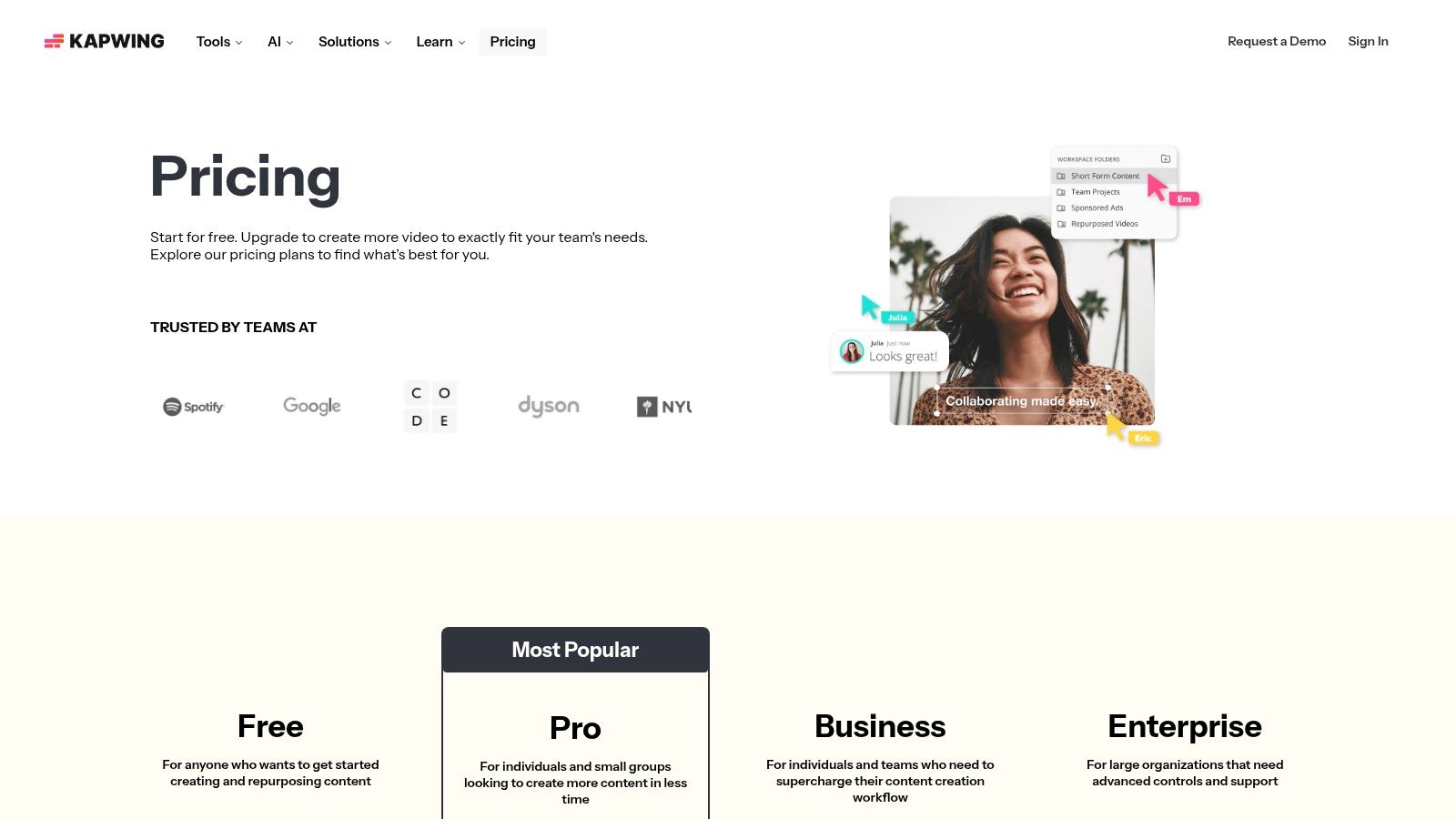
The trade-off is that free usage has clear limits, and heavier AI use can consume credits quickly. That transparency is useful. A creator can tell early whether the free tier is enough or just a test drive. For teams doing transcript-led social repurposing, Kapwing stays one of the better fits.
Use the platform at [Kapwing](https://www.kapwing.com/pricing?refresh=true).
## 4. VEED
VEED sits in the middle ground between simple online editor and broader AI video toolkit. That makes it appealing to creators who want more than captions and cuts but don't want a full pro editing environment. It's the kind of tool people choose when they need a little bit of everything in one browser tab.
For short-form work, VEED is useful when the video needs cleanup and presentation polish at the same time. Auto-subtitles, voice tools, social templates, and visual helpers make it easier to take a rough talking-head recording and turn it into something publishable.
### When VEED makes sense
VEED is a practical choice for:
- **Short explainers with captions:** Especially when subtitle styling matters.
- **Basic localization work:** Translation and dubbing features are relevant for teams testing multiple audiences.
- **On-camera fixes:** Eye-contact correction and cleanup features can help rough recordings feel more usable.
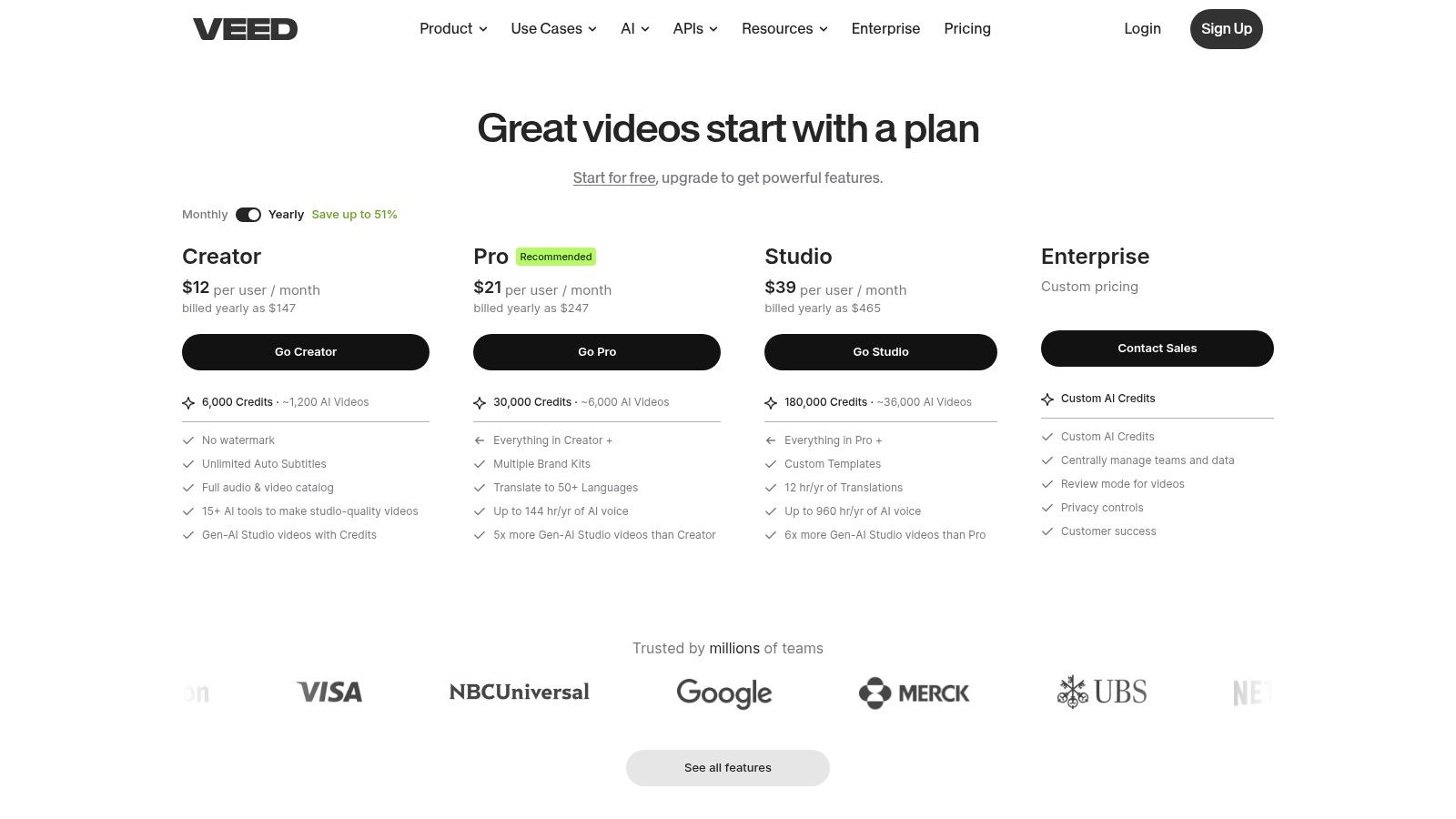
The limitation is predictable. Free exports are watermarked, and many of the headline AI features live behind paid access. That doesn't make VEED a bad pick. It just means the free plan works better as a proving ground than a complete production setup.
Many seeking a free AI video editor really need an all-rounder for occasional creator and marketing work. VEED can do that, especially when a project mixes captions, templates, and light AI enhancement rather than deep editing.
Use the platform at [VEED](https://www.veed.io/pricing).
## 5. Descript
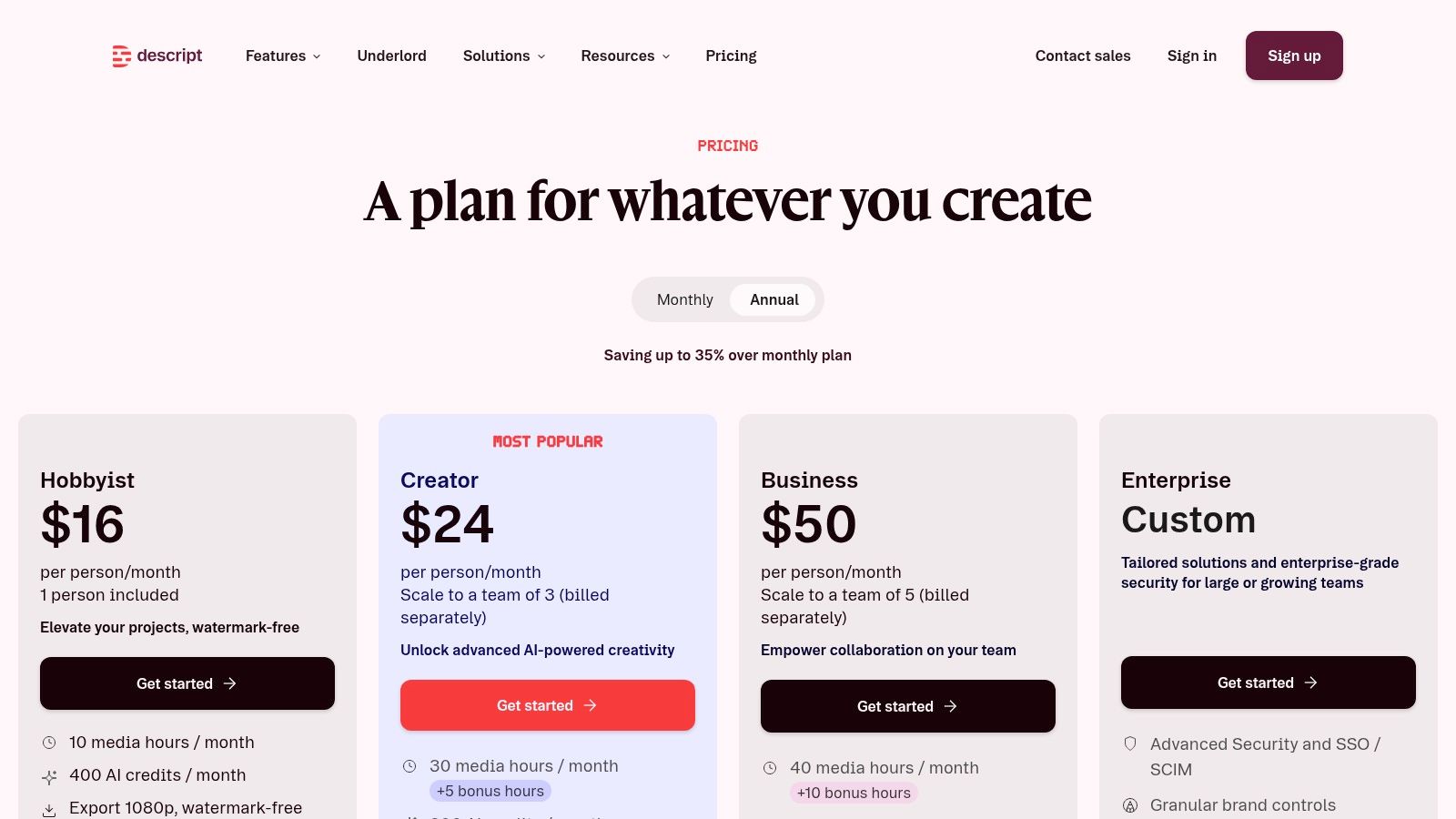
Descript is the best fit in this list for spoken content. If the core material is a podcast, interview, webinar, sales call, tutorial, course lesson, or founder monologue, Descript usually feels faster than a timeline editor. That's because the edit starts with words, not clips.
For anyone repurposing long recordings into short-form posts, Descript makes the first pass easier. Remove filler words, cut bad takes, trim sections from the transcript, then export shorter clips for social. The workflow suits creators who think in sentences and topics rather than in frames and transitions.
### Why Descript works for spoken content
Descript stands out in three areas:
- **Transcript-led cutting:** Spoken edits happen where the script is visible.
- **Audio cleanup:** Useful when the recording quality is acceptable but not polished.
- **Repurposing conversations:** One long discussion can become several captioned assets.
Captions matter most when the content lives on social feeds. A detailed look at why that matters is covered in [how AI captions save time and grow your audience](https://www.blitzreels.com/blog/how-ai-captions-save-time-and-grow-your-audience).
There's a trade-off. Descript isn't the best choice for highly visual edits with layered motion design, complex overlays, or style-heavy social cuts. It's strongest when the spoken message drives the video. For podcasts and education-style content, that's often exactly what's needed.
Use the platform at Descript.
## 6. Canva Video Editor
Canva Video Editor is the strongest option for people who care as much about layout and branding as they do about the edit itself. It's less about intricate trimming and more about getting branded shorts, title cards, visual explainers, and polished promotional clips made quickly.
That matters for social teams, coaches, consultants, startups, and small brands that already live in Canva for decks, graphics, and posts. The handoff between design and video is smoother than in many dedicated editors. Title slides, lower thirds, brand colors, text overlays, and simple animation come together fast.
### Where Canva beats dedicated editors
Canva is especially good when the job is:
- **Branded social content:** Repeating a visual system across multiple posts.
- **Faceless promo clips:** Text-led videos with stock footage, motion, and simple voiceover.
- **Template-driven production:** Quick output for recurring campaigns.
Its weakness is control. Fine editing, rhythm-based cuts, and more hands-on short-form pacing are weaker here than in tools made specifically for video. Credit-based AI actions can also make the free experience feel narrower depending on usage.
Still, if the priority is polished graphics, easy title cards, and consistent templates, Canva earns its place. It's often the right answer when a creator doesn't just need an AI video editor free option. They need a design-first publishing tool that also edits video.
Use the platform at [Canva](https://www.canva.com/).
## 7. Runway
Runway isn't the first tool to choose for everyday clipping and captions. It's the tool to choose when stock footage feels generic and custom visuals would make the short stronger. That puts it in a different category from classic social editors.
Runway works well as an AI companion for creators making explainers, trailers, concept videos, stylized promos, or visual inserts for faceless content. It can generate b-roll, remove backgrounds, add effects, and help create moments that standard editors can't.
### Best job for Runway
Runway fits short-form workflows when the missing piece is visual creation rather than edit speed.
- **Custom inserts:** Generating scenes that match a concept or script beat.
- **Stylized faceless videos:** Better for mood and concept than straightforward clipping.
- **Creative enhancement:** Adding visual interest to otherwise static explainers.
> The best use of Runway is usually selective. Generate the visual accent, then finish the actual short in a social editor.
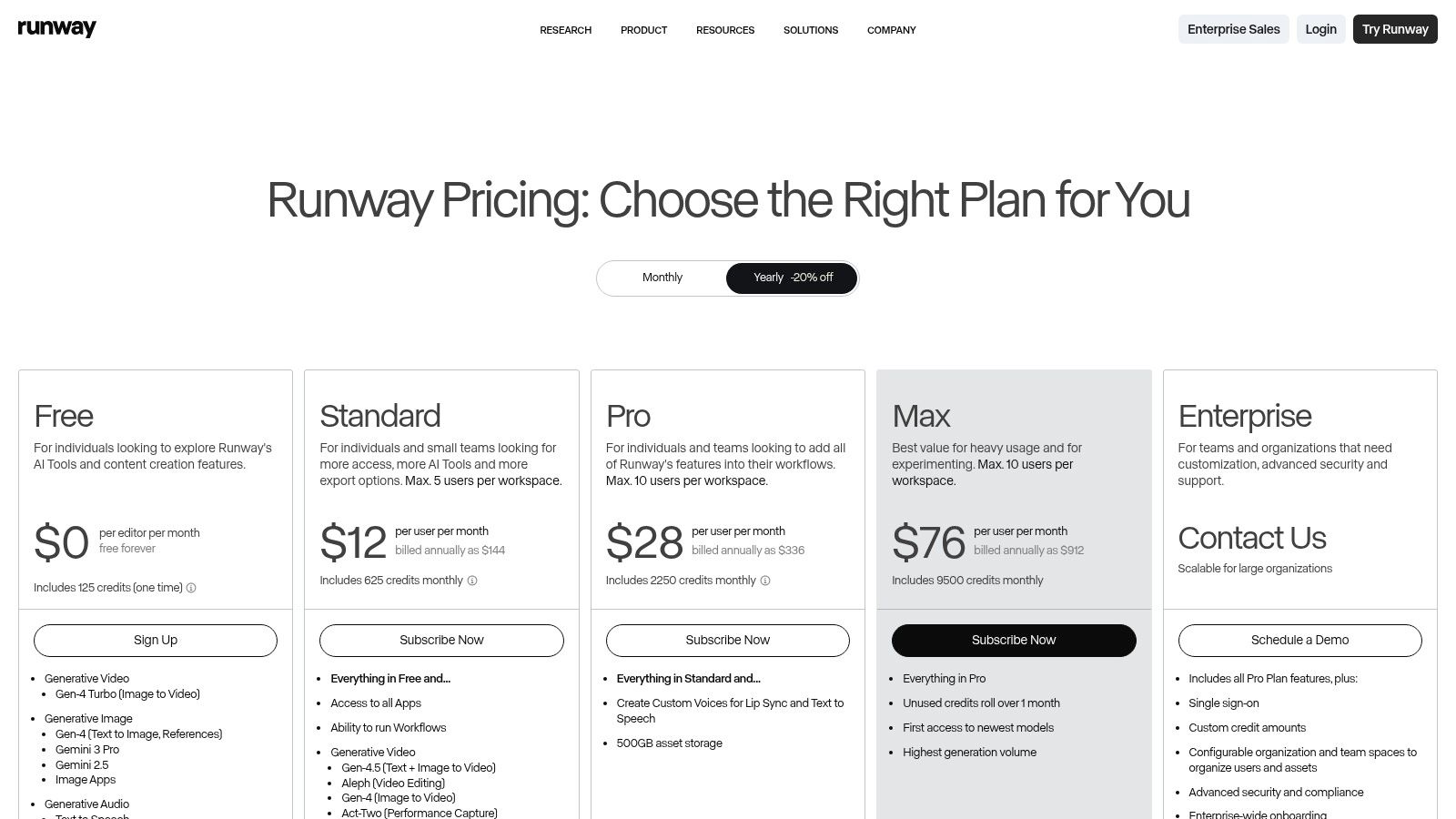
That's why it pairs well with a [prompt-to-video workflow](https://www.blitzreels.com/ai/prompt-to-video). The free plan is credit-limited, and it isn't a full replacement for a traditional editor when the project needs lots of multi-layer revisions. But for creators who need AI-generated visuals inside a short-form workflow, Runway is one of the most relevant tools on the list.
Use the platform at [Runway](https://runwayml.com/pricing?source=enmihomestudio.com&utm_source=openai).
## 8. InVideo AI
InVideo AI is for people who would rather describe the video than build it shot by shot. That makes it a useful option for faceless explainers, ad-like shorts, simple promos, list videos, and scripted social content where the concept starts as text.
Instead of beginning with a manual timeline, users can move from prompt to script to storyboard to draft. That speed is why this type of tool has gained attention. Independent market research says the AI video generation and editing software market is projected to grow from [USD 3.67 billion in 2026 to USD 24.89 billion by 2036 at a 21.4% CAGR, with tools making creation 10 to 100 times faster than traditional workflows](https://www.meticulousresearch.com/product/ai-video-generation-and-editing-software-market-forecast-6359).
### Where InVideo AI helps most
InVideo AI is best when the job is clear before the footage exists:
- **Faceless explainers**
- **Script-led product promos**
- **Fast first drafts for social campaigns**
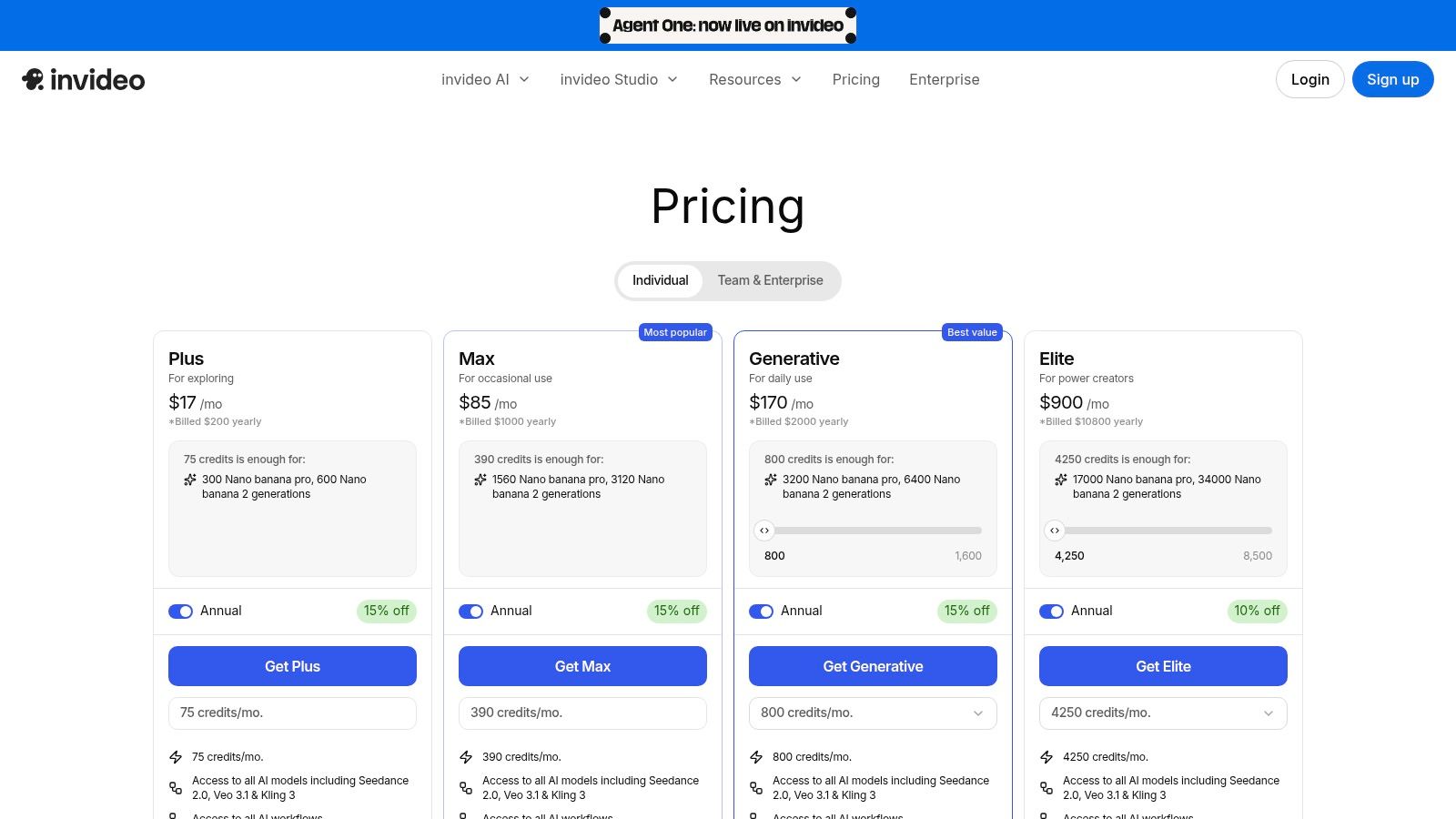
That speed comes with unevenness. Visual quality depends heavily on the prompt, the model path, and how much revision the user is willing to do. Credit usage also becomes a factor when drafts are regenerated repeatedly.
For creators who think in messaging first and visuals second, InVideo AI can be a useful shortcut. For creators who already have good footage and just need clipping, captions, and reframing, more editing-focused tools often fit better.
Use the platform at [InVideo AI](https://invideo.io/pricing/?irgwc=1&mpid=3256132&utm_source=openai).
## 9. OpusClip
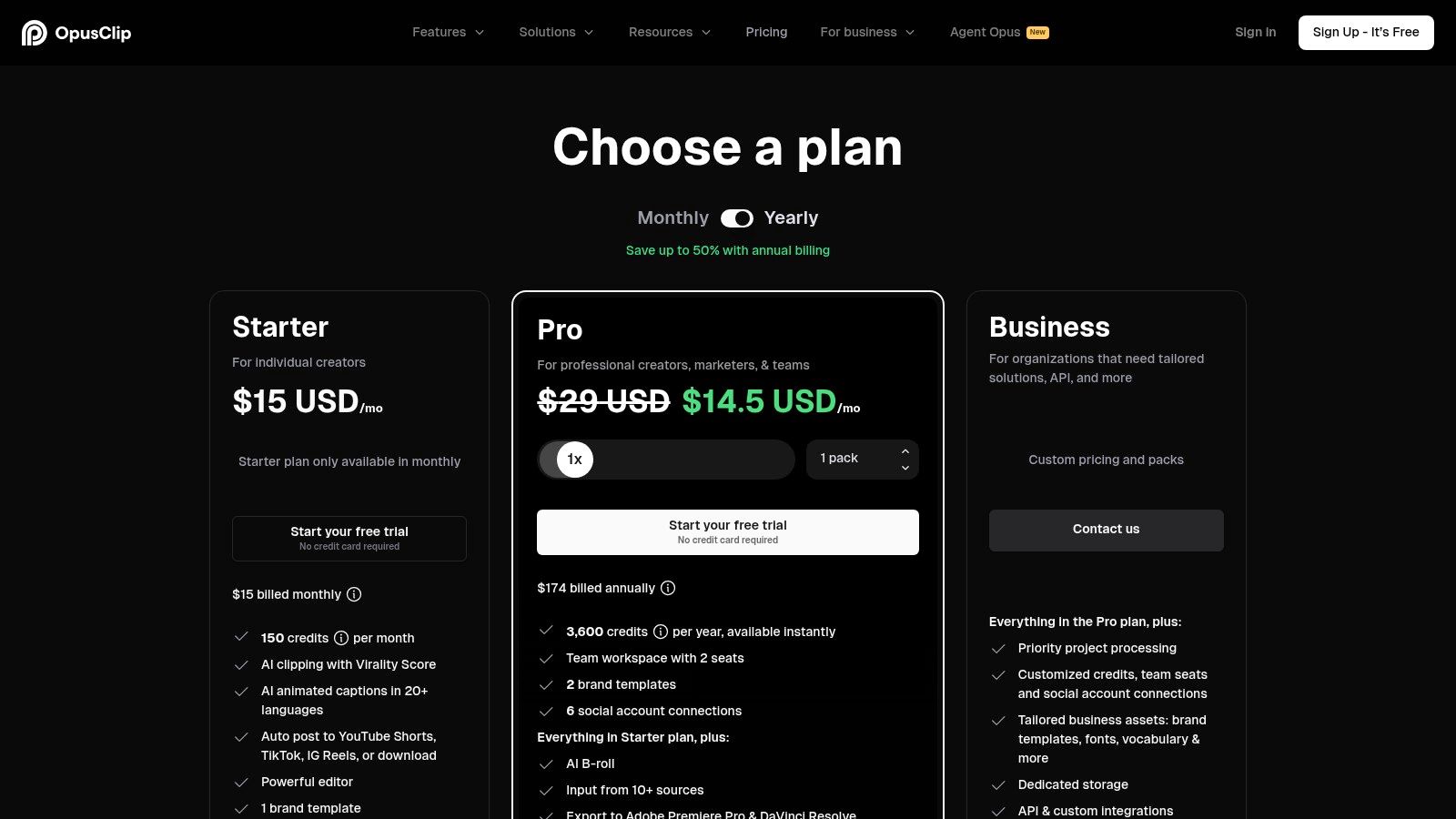
OpusClip is the repurposing specialist. It's for creators with a library of long recordings who need a machine to pull out the strongest short-form moments. Podcasters, webinar hosts, educators, interview creators, and YouTubers usually understand its value quickly because the source material already exists in volume.
The appeal isn't creative freedom. It's throughput. OpusClip helps identify hooks, highlights, captioned moments, and social-ready slices from larger videos with less manual labor than a traditional editor.
### What OpusClip does well
This tool is best for one job in particular. Turn one long asset into multiple vertical clips that are close to publishable.
The broader adoption trend helps explain why this matters. One industry roundup reported that [78% of marketing teams use AI-generated video, with the AI video tools market reaching USD 4.2 billion in 2025 and projected to reach USD 12.8 billion by 2027](https://autofaceless.ai/blog/ai-video-generation-statistics-2026). That doesn't prove every clip is good. It does show these workflows are no longer fringe.
For practical repurposing, OpusClip works best when the source is speech-heavy and the goal is output volume. For more hand-crafted edits, the tool feels limiting. A creator wanting tighter control over captions, pacing, or visual inserts may still need a second pass in another editor. Teams focused on [how to repurpose long videos with AI](https://www.blitzreels.com/blog/how-to-repurpose-long-videos-with-ai) will find OpusClip especially relevant.
Use the platform at [OpusClip](https://www.opus.pro/pricing?utm_source=openai).
## 10. Klap
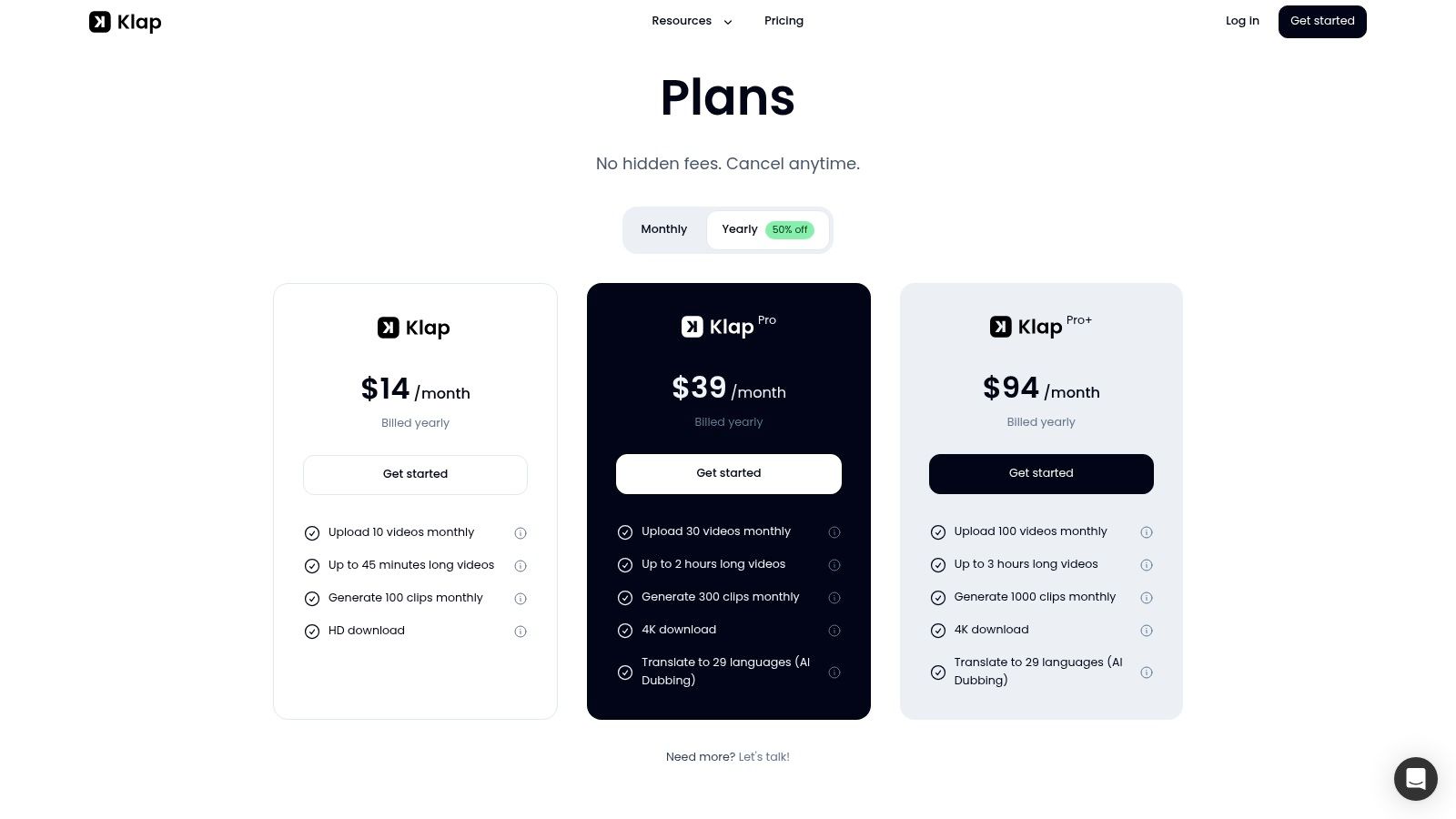
Klap is another strong option for clipping longer recordings into social shorts, but its appeal is simplicity. It doesn't try to be a complete editing universe. It focuses on transcript-aware clipping, captions, reframing, and language support for creators who publish often.
That makes it especially useful for YouTube interviews, Zoom recordings, podcasts, and creator education content. If the recurring job is “find the segment, frame it vertically, caption it, and export,” Klap stays on target.
### Who should pick Klap
Klap makes sense for creators who want a narrow but efficient workflow.
- **Podcast repurposing:** Pull clips without opening a heavier editor.
- **Multi-platform resizing:** Vertical and alternate aspect-ratio exports are central.
- **Cross-language testing:** Translation and dubbing matter for broader distribution.
There's still a practical question every user should ask before committing to any AI video editor free option. Is it free enough for the actual workflow? As [MindVideo's overview of free AI editors points out](https://www.mindvideo.ai/ai-video-editor/), the main difference usually comes down to what's capped, what's credit-based, and what export restrictions apply.
> Free access only matters if the tool lets a creator finish the job, not just start it.
Klap is a good fit when the need is frequent clipping and captioning, not detailed manual editing. Use the platform at [Klap](https://klap.app/pricing?via=121212&utm_source=openai).
## Top 10 Free AI Video Editors Comparison
| Product | Core features | Best for | Unique strengths | Limitations | Pricing note |
|---|---|---|---|---|---|
| BlitzReels | Auto-transcribe, hook detection, on-beat captions, auto-reframe, export verticals, AI Studio (prompt-to-video) | Creators & brands who need fast, high-performing short-form clips | End-to-end 10-min record→edit→publish flow; bold captions, auto B-roll, faceless video gen | Fewer legacy NLE features for complex timelines | Subscription-based (trial likely) |
| CapCut | Auto-captions & translation, TTS, noise reduction, auto-reframe, templates | Fast mobile/web TikTok/Reels/Shorts edits | Very capable free mobile-first tools; large template/effects library | Some AI assets gated by credits; region/device entitlements vary | Free core; paid features/credits for advanced tools |
| Microsoft Clipchamp | Auto-captions, AI audio tools, screen/webcam recording, 1080p exports | Quick social/business videos on Windows/Edge/Chrome | 1080p free exports; Microsoft 365 integration | Best on Edge/Chrome; premium stock/features need M365 | Free tier + Microsoft 365 premium features |
| Kapwing | AI Repurpose/Clip Maker, Smart Cut, auto-subtitles, transcript editing | Collaborative repurposing and fast clipping of longer files | Transparent free-plan limits; strong transcript-driven workflows | Free exports watermarked and time-limited; credits burn fast | Free with watermark/limits; paid removes caps |
| VEED | Auto-subtitles/translator, AI voice/dub, eye-contact correction, background removal | Simple social videos with quick results | Broad, easy-to-use social-video toolset; low learning curve | Free exports watermarked; high-end AI often paywalled | Free limited tier; paid plans for advanced features |
| Descript | Auto transcription, transcript-driven edit, filler-word removal, Studio Sound | Talking-heads, podcasts, webinars, repurposing long recordings | Best-in-class transcript editing; fast repurposing workflows | Advanced AI features (voice cloning, higher hours) behind paid plans | Free tier limited; paid tiers for pro features |
| Canva Video Editor | Magic Video (prompt-to-video), auto-captions, background remover, templates, brand kit | Branded social videos and design-first creators | Easiest path to polished branded visuals; huge template/stock library | Many AI actions use credits; Pro required for advanced controls | Free basic; Pro subscription for premium assets/features |
| Runway | Text/image-to-video, background removal, motion tracking, effects, timeline | Generative b-roll, VFX, and creative visual inserts | Top-tier in-browser generative video and effects | Free plan credit-limited; not a full multi-track NLE | Credit-based tiers; paid plans for higher exports |
| InVideo AI | Script→storyboard→video, voiceover, stock integrations, multi-model gen | Marketers and teams who want fast ad-like shorts from prompts | Fast concept-to-draft flow; useful for faceless explainers | Credit usage can rise quickly; visual quality varies by model | Credit-based; paid plans for higher usage |
| OpusClip | Hook detection, highlight extraction, auto-subtitles, social templates, NLE exports | Podcasters, webinar hosts, repurposers needing many clips | Consistent auto-clipping and scalable repurposing workflow | Less suited for handcrafted edits; free credits limited | Free tier limited; paid for heavier use |
| Klap | Auto-clip creation from transcripts, captions, aspect-ratio changes, translations/dubbing | Creators turning YouTube/Zoom/podcasts into multilingual shorts | Strong language support and straightforward clipping flow | Low-tier limits; less fine control than full editors | Paid tiers for high-quality/4K exports
## Final Thoughts
The right AI video editor free option depends less on the feature list and more on the repeatable job. CapCut is the easiest all-around choice for day-to-day social editing. Clipchamp is better for clean browser-based business and creator videos. Kapwing and Descript work well when transcripts drive the workflow. OpusClip and Klap are more specialized for turning long recordings into many shorts. Canva helps when brand design matters. Runway and InVideo AI are better when the edit begins with generated visuals or scripts instead of raw footage.
That distinction matters because free AI video tools don't all solve the same problem. Some are editing tools with light AI. Some are repurposing engines. Some are generation-first systems that happen to include editing. A creator making podcast clips should not choose the same tool as a marketer making faceless explainers. A founder posting webcam tips to LinkedIn doesn't need the same workflow as a Shorts channel built around stylized visuals.
There's also a broader quality gap to watch. Coverage of AI editing tools often highlights automation such as transcription, highlight detection, auto-cropping, captions, and visual emphasis, but practical reliability still varies by use case, as discussed in [Vizard's AI video editor comparison](https://vizard.ai/tools/ai-video-editor). The best results still come from pairing the right source material with the right tool. Good raw footage, a clear spoken point, a strong opening hook, readable captions, and platform-specific framing still matter.
For teams publishing across multiple channels, that usually means building a simple rule set. Use one workflow for podcast clipping. Use another for branded title-card explainers. Use a different one for prompt-led faceless videos. That approach is more effective than forcing one editor to do everything.
BlitzReels can fit naturally into that stack for creators focused on short-form repurposing, captions, resizing, and fast social edits. It's especially relevant when the goal is turning existing footage into platform-ready vertical content without spending too much time inside a traditional timeline.
Teams also shouldn't ignore localization. Captioning, dubbing, and translated versions are becoming more relevant for short-form distribution, especially for brands publishing globally. For that side of the workflow, [Translate AI for global video outreach](https://www.translate-ai.app/articles/video-translation-services) offers useful context.
The best tool is the one that removes the bottleneck. For some creators, that bottleneck is clipping. For others, it's captioning, reframing, templates, or idea-to-video speed. Pick based on that job, and the free plan becomes a useful production tool instead of a frustrating trial.
---
If the goal is to turn existing videos into short-form clips with captions, hooks, reframing, and platform-ready exports, [BlitzReels](https://blitzreels.com) is worth testing alongside the tools above. It's built around the short-form workflow most creators need: upload footage, find the usable moments, style the captions, resize for vertical, and publish faster.