---
title: "Auto Subtitle YouTube: How to Add Captions Fast"
canonical: "https://blitzreels.com/blog/auto-subtitle-youtube"
---
# Auto Subtitle YouTube: How to Add Captions Fast
URL: https://blitzreels.com/blog/auto-subtitle-youtube
Markdown URL: https://blitzreels.com/blog/auto-subtitle-youtube.md
Published: 2026-08-23
Author: BlitzReels
Learn how to auto subtitle YouTube videos with native tools, SRT uploads, and AI editors. Practical workflows for Shorts, long-form, and multilingual content.
Tags: auto subtitle youtube, youtube captions, srt upload, shorts subtitles, video accessibility

In one large analysis, YouTube auto-captions had a **median word error rate of 9.9%**, yet **20% of captions had no sentence-ending punctuation and 32% had no commas**. That gap explains why a transcript can be mostly correct and still feel unusable on a phone. For short-form producers, the practical answer isn't to generate captions faster. It's to generate them first, then clean the words, timing, casing, and line breaks before publishing.
## Table of Contents
- [Why Auto Subtitles Matter for YouTube Growth](#why-auto-subtitles-matter-for-youtube-growth)
- [Enabling and Editing YouTube Auto Captions](#enabling-and-editing-youtube-auto-captions)
- [The YouTube Studio path](#the-youtube-studio-path)
- [Fixing the actual caption blocks](#fixing-the-actual-caption-blocks)
- [The Hidden Readability Gaps in Auto Captions](#the-hidden-readability-gaps-in-auto-captions)
- [What the cleanup pass catches](#what-the-cleanup-pass-catches)
- [Native Auto Captions Versus Uploaded SRT Files](#native-auto-captions-versus-uploaded-srt-files)
- [The hybrid method](#the-hybrid-method)
- [A Fast Caption Workflow for YouTube Shorts](#a-fast-caption-workflow-for-youtube-shorts)
- [Start with the clip, not the transcript](#start-with-the-clip-not-the-transcript)
- [Choosing the Right Caption Method for Your Content](#choosing-the-right-caption-method-for-your-content)
- [Pre-publish checklist](#pre-publish-checklist)
## Why Auto Subtitles Matter for YouTube Growth
Captions have moved from an accessibility option to a normal part of video consumption. A 2026 survey covering the United States, United Kingdom, France, Spain, and Germany found that **87% of U.S. viewers use captions at least sometimes**, while **49% use them often or always**. The same survey recorded often-or-always usage at **47% among Spanish viewers, 46% among French viewers, and 23% among German viewers**. These figures are reported in [YouTube's caption viewing research](https://blog.youtube/news-and-events/happy-birthday-automatic-captions/).
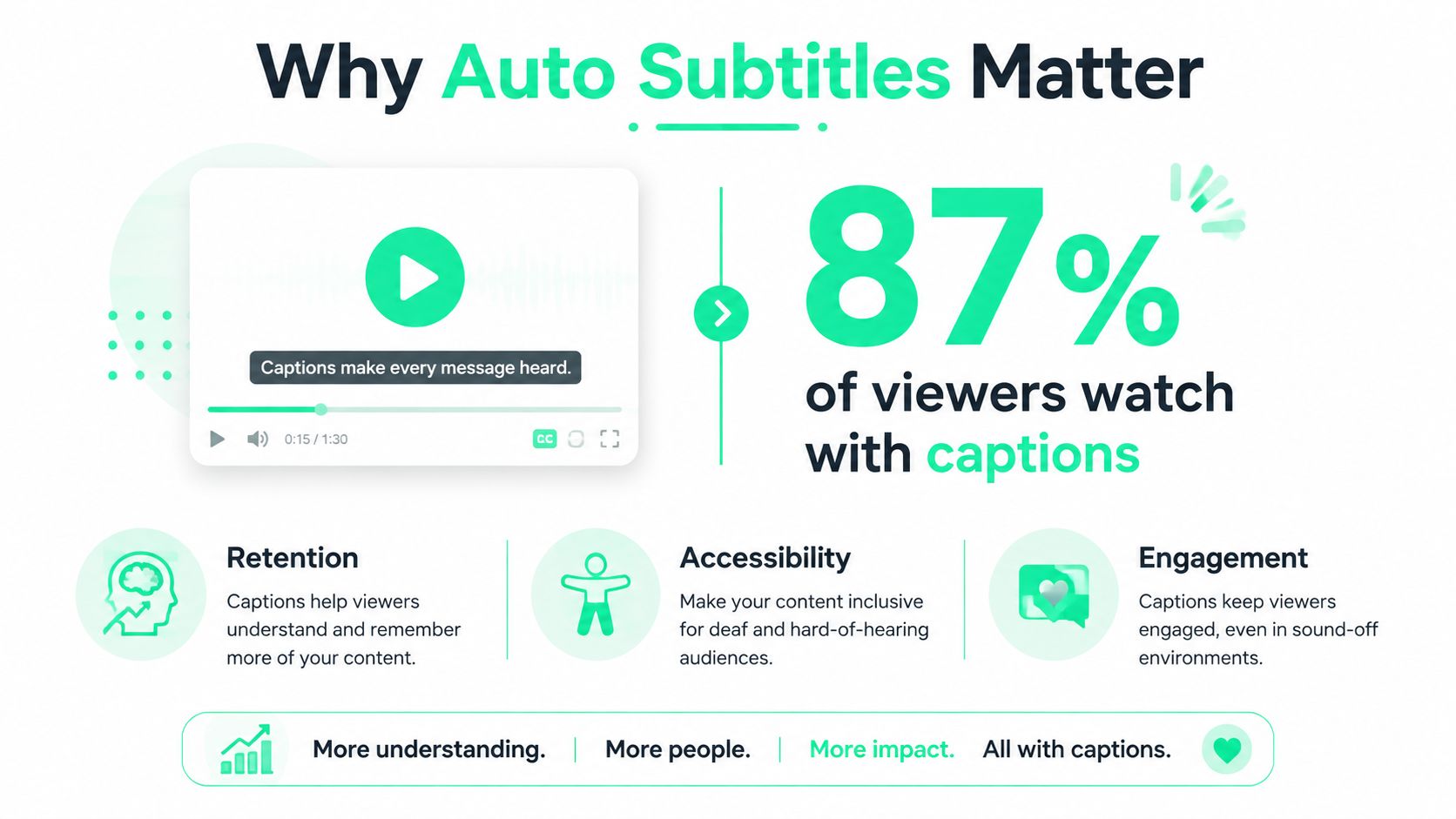
That behavior matters because short-form videos often compete for attention in places where sound is inconvenient, including public transport, offices, waiting rooms, and mobile feeds. A viewer can understand a strong hook without turning audio on, but only if the text is accurate, timed correctly, and easy to scan. Captions also help viewers follow unfamiliar terminology, fast speech, accents, and clips repurposed from longer conversations.
YouTube's own history shows how quickly automatic captioning became part of the platform. Captions launched in **2006**, automatic captions followed in **2009**, and by February **2012** YouTube reported **1.6 million manually captioned videos** alongside **135 million videos with automatic captions**. By **2017**, automatic captions had crossed **1 billion videos**, while viewers watched videos with automatic captions more than **15 million times per day**, according to the [historical review of YouTube automatic captions](https://www.mediaecosystems.org/explorations/youtube-autocaptions).
> **Practical rule:** Treat captions as part of the opening edit, not as a checkbox added after the video is finished.
The useful workflow is straightforward. Enable YouTube's native captions when speed matters, inspect the readability gaps, clean the transcript or upload a better SRT file, and burn styled captions into Shorts when the mobile feed demands visible text. Creators who want a broader accessibility perspective can also consult the [AiHeadshots accessibility resource](https://www.aiheadshots.ai/accessibility), while this [guide to how AI captions improve engagement and accessibility](https://blitzreels.com/blog/how-ai-captions-make-your-content-more-engaging-and-accessible) covers the wider role of captioned content.
## Enabling and Editing YouTube Auto Captions
YouTube's automatic captioning uses speech recognition to create captions from the uploaded audio, and the platform allows creators to edit the result afterward through YouTube Studio. The [official YouTube caption help page](https://support.google.com/youtube/answer/6373554?hl=en) confirms both parts of that process. The captions aren't written by hand, so unclear speech, overlapping voices, jargon, and background noise can affect the first draft.
### The YouTube Studio path
For an uploaded video, the practical route is:
1. Open **YouTube Studio** and select **Content**.
2. Choose the video that needs captions.
3. Open the **Subtitles** tab.
4. Select the relevant language.
5. Wait for the automatic caption track to finish processing.
6. Open the generated track, review it, and choose **Duplicate and edit** or the equivalent editing option.
7. Publish the corrected caption track when the review is complete.
The generated track may not appear immediately after upload. Processing time depends on the video and its audio, so a creator publishing on a schedule shouldn't assume the captions will be ready at the same moment as the video. For a channel with multilingual viewers, select the video's spoken language first, then add or prepare additional language tracks as needed. A default language track gives YouTube a clear base for translation and caption management.
### Fixing the actual caption blocks
The editing interface lets creators click into individual segments and replace misheard words, add punctuation, and correct capitalization. Timing boundaries can be adjusted when a caption appears too early or disappears before the phrase finishes. Caption blocks can also be split when they contain too much text, or merged when a fragment flashes too quickly to read.
Shorts use the same general subtitle management area after upload, although the viewing experience differs on mobile. Guidance from [Shorts captioning instructions](https://www.checksub.com/blog/add-subtitles-youtube-shorts) indicates that Shorts captions are handled in YouTube Studio after the Short has been uploaded, rather than as a live, pre-publish subtitle layer inside the Studio editor.
> **Scheduling note:** A Short can be published before its native captions are ready, but that choice leaves the first viewing window dependent on any burned-in text already present.
For a channel team that needs a repeatable process, the [BlitzReels captions documentation](https://blitzreels.com/docs/captions) is useful for defining how captions should be generated, reviewed, styled, and exported before a clip reaches YouTube.
## The Hidden Readability Gaps in Auto Captions
Word accuracy and reading quality aren't the same thing. A large analysis found a **median word error rate of 9.9%**, but the same analysis found that **20% of captions lacked sentence-ending punctuation** and **32% lacked commas**. The [YouTube auto-caption accuracy analysis](https://youtube-transcript.ai/blog/youtube-auto-caption-accuracy-study) also reported a **14.8% mean word error rate**, suggesting a long tail where some videos perform much worse than the median.
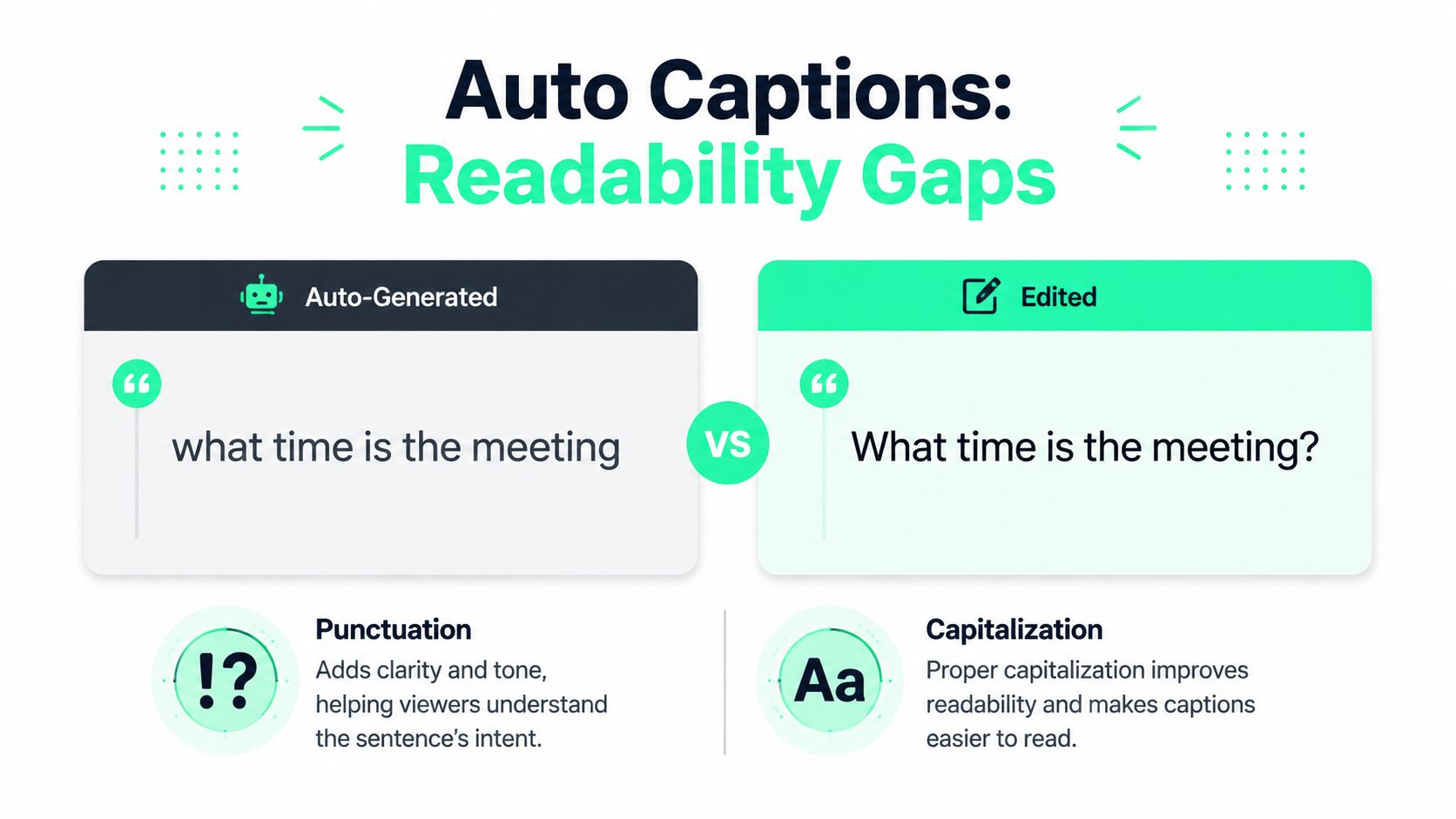
Consider the difference:
**Raw auto-caption:**
> what time is the meeting we need to send the deck before the client joins
**Cleaned caption:**
> What time is the meeting? We need to send the deck before the client joins.
The words are nearly identical, but the second version gives the viewer sentence boundaries, a clear question, and an easier reading rhythm. On a fast Short, that difference affects whether someone can follow the thought while watching the speaker, graphics, and interface elements at the same time.
### What the cleanup pass catches
- **Punctuation gaps:** Add periods, commas, question marks, and apostrophes where the spoken meaning requires them.
- **Capitalization errors:** Correct sentence openings, names, brands, acronyms, and technical terms.
- **Proper-noun mistakes:** Check people, products, locations, and specialist vocabulary against the source script or speaker's intended wording.
- **Homophones:** Review errors such as “your” and “you're,” or “to,” “too,” and “two,” using the sentence context.
- **Speaker changes:** Add clear speaker labels when two or more people appear, especially if the visual edit doesn't make the change obvious.
- **Run-on blocks:** Split long caption streams into readable units that match the speaker's phrasing.
Independent reviews also show that audio conditions strongly affect results. One review cites overall YouTube automated-caption accuracy around **60% to 70%**, while another test reported roughly **78% average accuracy for YouTube auto-captioning** compared with **94% for a modern ASR baseline across five content types**. The benchmark gap grew from **10 percentage points on clean studio audio** to **22 points with heavily accented speech**, as summarized by [this review of YouTube auto-caption performance](https://www.notelm.ai/blog/youtube-auto-captions-transcript).
The conclusion is operational, not theoretical: generate the transcript automatically, then inspect the high-risk sections manually. A clean microphone helps, but it doesn't remove the need to check names, jargon, punctuation, and speaker transitions.
## Native Auto Captions Versus Uploaded SRT Files
YouTube's native captions win when the priority is getting a basic text track created with minimal setup. An uploaded SRT file wins when the creator needs deliberate timing, cleaner line breaks, language variants, or a caption track prepared outside YouTube Studio. An [SRT subtitle file](https://blitzreels.com/glossary/srt-subtitles) stores caption text alongside timing information, which makes it portable across editing and publishing workflows.
| Feature | YouTube Auto Captions | Uploaded SRT, AI Tool |
|---|---|---|
| Time to first draft | Fast once processing completes | Requires generation and review before upload |
| Punctuation and casing | Can require substantial cleanup | Usually easier to review before publishing |
| Timing control | Editable inside YouTube Studio | Timings can be prepared and adjusted externally |
| Styling | Limited as a native caption track | Useful for preparing text, while burned-in styling is handled in the video editor |
| Language variants | Can support translation workflows | Separate SRT files can be created for different languages |
| Editability | Corrected in YouTube Studio | Revised externally, then uploaded again |
Native auto captions are a sensible first draft for raw uploads, community content, and videos where the caption track only needs to provide basic access. They don't provide the visual treatment short-form editors often need. A YouTube toggleable caption layer isn't the same as bold, burned-in text that appears inside the creative, reinforces the hook, and stays visible in a feed preview.
An external SRT workflow adds a review step, but that step creates control. The editor can correct a product name before upload, align a line break with the speaker's pause, create a language variant, and preserve a clean caption file for future resizing or repurposing. For clips distributed across TikTok, Instagram Reels, YouTube Shorts, and LinkedIn, that portability matters.
### The hybrid method
The most efficient compromise is often to let YouTube generate the rough transcript, export or recreate the caption text, clean it externally, and upload a polished SRT. This keeps speech recognition fast while moving punctuation, casing, and timing decisions into a workflow designed for editing.
That approach works well for tutorials and talking-head clips. It becomes less dependable when an AI editor rewrites the transcript instead of preserving the spoken words, so every corrected file still needs a final watch-through against the audio.
## A Fast Caption Workflow for YouTube Shorts
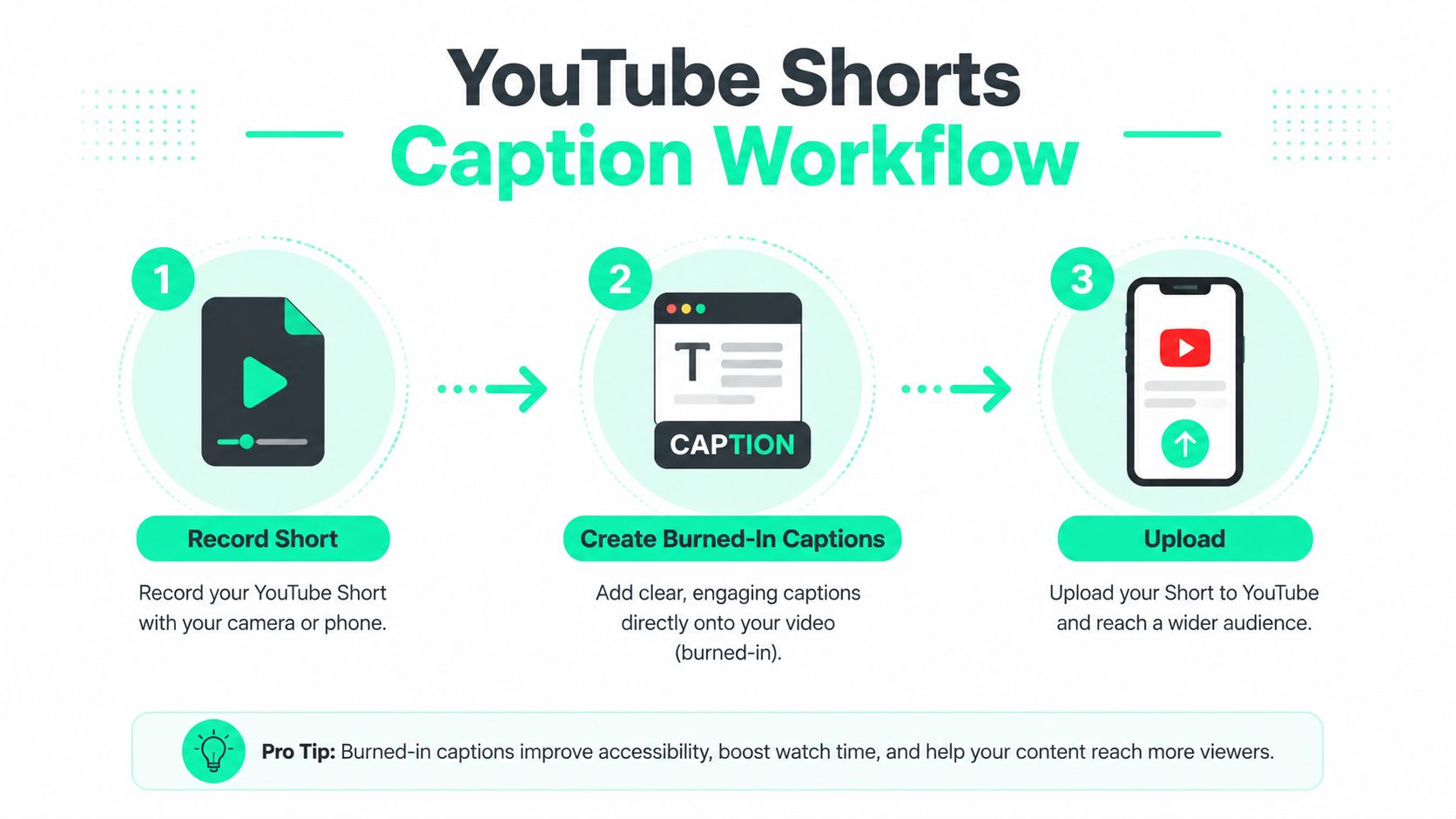
Shorts need captions that survive a vertical mobile frame. Toggleable closed captions can help viewers who activate them, but burned-in captions make the hook visible immediately and give the editor control over typography, placement, and emphasis.
### Start with the clip, not the transcript
Begin with the strongest moment from the source video. Trim the long-form recording into a hook-driven segment, remove empty setup, and make the first title card communicate the payoff before the viewer has to infer it. For repurposing, one long recording can produce several Shorts, each with its own opening hook, caption emphasis, and end frame.
A practical production sequence looks like this:
1. **Clip the idea:** Select a complete thought rather than cutting mid-sentence.
2. **Reframe the footage:** Convert video to **9:16**, keep the speaker's face centered, and check that important screen content remains visible.
3. **Generate the text:** Use an AI subtitle generator such as the [BlitzReels subtitle generator](https://blitzreels.com/tools/subtitles-generator) to create timed captions or export an SRT file.
4. **Clean the transcript:** Correct proper nouns, homophones, punctuation, casing, and obvious recognition errors.
5. **Style the captions:** Use a bold sans-serif font, strong contrast, and line breaks that can be read without pausing.
6. **Protect the safe area:** Keep captions away from the lower interface zone, action buttons, and channel handle.
7. **Export and review:** Watch the finished vertical file on a phone before upload.
The cleanup should focus on errors that change meaning first. A misheard brand name, technical term, or person's name deserves attention before a minor comma. Then check whether each caption appears when the word is spoken and disappears before the next visual beat.
> **Production rule:** Captions should support the hook, not cover the face, product demo, subtitles from another language, or the visual proof that makes the clip worth watching.
Creators publishing several Shorts each week benefit from batching. Trim multiple clips from one source, apply a consistent template, reuse a title-card system, and review all caption files in one pass. A [Short calendar coordination guide](https://ihateposting.com/guides/schedule-youtube-shorts) can help organize that publishing rhythm without turning every upload into a separate editing project.
## Choosing the Right Caption Method for Your Content
Captioning investment should match the video's value and risk.
For a raw vlog, casual update, or low-stakes community post, native YouTube auto captions may be enough. They provide a fast starting track, and a light review can catch the most distracting mistakes without slowing the entire publishing process.
Tutorials and talking-head videos sit in the middle. The hybrid method usually makes sense: generate the draft with YouTube, export or recreate the text, clean punctuation and capitalization, review names and terminology, then upload an SRT that preserves the improved version. This balances speed with a more professional reading experience.
Product launches, course previews, accessibility-critical videos, and repurposed Shorts deserve a full treatment. Generate a timed caption file, review it against the audio, burn captions into the vertical edit, and keep a separate SRT for the YouTube caption track. Tools can accelerate transcription and timing, but they don't remove editorial responsibility. A practical comparison of available options appears in this guide to [AI subtitle generators](https://blitzreels.com/best/ai-subtitle-generators).
### Pre-publish checklist
- **Accuracy:** Are names, technical terms, numbers, and key claims correct?
- **Timing:** Does each caption appear with the spoken phrase and clear before the next beat?
- **Line length:** Are long thoughts divided into readable blocks?
- **Mobile readability:** Can viewers read the text without covering the face or important visuals?
- **Language coverage:** Does the video need an additional reviewed caption track for another audience?
Native auto captions are useful automation, but they shouldn't be mistaken for finished short-form editing. The reliable pattern is generate first, clean second, then decide whether the final video needs a visible burned-in layer, an uploaded SRT, or both.
---
BlitzReels can transcribe clips, create word-timed captions, export SRT files, burn styled subtitles into video, reframe footage, and resize edits for YouTube Shorts and other social platforms. Visit [BlitzReels](https://blitzreels.com) to turn a source video into a polished, captioned short-form edit without rebuilding the workflow from scratch.