---
title: "10 Best Content Creation Tools for Social Media in 2026"
canonical: "https://blitzreels.com/blog/content-creation-tools-for-social-media"
---
# 10 Best Content Creation Tools for Social Media in 2026
URL: https://blitzreels.com/blog/content-creation-tools-for-social-media
Markdown URL: https://blitzreels.com/blog/content-creation-tools-for-social-media.md
Published: 2026-07-19
Author: BlitzReels
Discover 10 best content creation tools for social media in 2026. From AI video editors to caption and design apps, streamline your short-form workflow today.
Tags: content creation tools for social media, short-form video, AI video editing, captioning, scheduling

A creator finishes recording a webinar, product demo, podcast, or talking-head explainer, then the intensive work starts. One long file has to become short clips, captions, resized formats, title cards, and platform-specific exports for TikTok, Instagram Reels, YouTube Shorts, and LinkedIn. Without a clear tool stack, that workflow turns into a backlog fast.
The problem usually is not recording. It is deciding which tool should handle each step without adding extra exports, manual fixes, or duplicate work. Some tools are faster for clipping and reframing. Others are better for captions, brand design, audio cleanup, scheduling, or turning one source video into multiple short-form assets. Teams that publish consistently usually stop looking for one app that does everything and start building a stack by workflow category.
Sprout Social notes in its [creator tools overview](https://sproutsocial.com/insights/creator-tools/) that short-form video continues to drive strong engagement across social platforms. That matters in practice because speed alone is not enough. A fast editor that produces weak captions, awkward cuts, or limited brand control still creates more cleanup later.
This guide sorts 10 social media content creation tools by the jobs creators need done: video editing, captioning, design, audio, scheduling, and repurposing. It also focuses on short-form use cases, honest comparisons, and the trade-offs that show up in daily production. If you are weighing a lightweight editor against an AI-first workflow, this [CapCut vs BlitzReels comparison for TikTok creators](https://www.blitzreels.com/blog/capcut-vs-blitzreels-which-video-editor-is-best-for-tiktok-creators-in-2025) is a useful example of how those differences play out.
It also helps to compare adjacent tool types. If faceless videos, prompt-based drafts, or synthetic visuals are part of the plan, this roundup of [AI video generators](https://microposter.so/blog/best-ai-video-generator) can help narrow the field before you commit to a full stack.
## Table of Contents
- [1. BlitzReels](#1-blitzreels)
- [Why BlitzReels stands out](#why-blitzreels-stands-out)
- [Best fit and trade-offs](#best-fit-and-trade-offs)
- [2. Adobe Express](#2-adobe-express)
- [Where Adobe Express fits](#where-adobe-express-fits)
- [3. Descript](#3-descript)
- [Why Descript works for repurposing](#why-descript-works-for-repurposing)
- [4. CapCut](#4-capcut)
- [Best use case for CapCut](#best-use-case-for-capcut)
- [5. VEED](#5-veed)
- [Where VEED makes sense](#where-veed-makes-sense)
- [6. Kapwing](#6-kapwing)
- [What Kapwing does well](#what-kapwing-does-well)
- [7. OpusClip (Opus)](#7-opusclip-opus)
- [Repurposing strengths and limits](#repurposing-strengths-and-limits)
- [8. InVideo](#8-invideo)
- [When InVideo is the better pick](#when-invideo-is-the-better-pick)
- [9. Canva](#9-canva)
- [Canva's role in a short-form stack](#canvas-role-in-a-short-form-stack)
- [10. Microsoft Clipchamp](#10-microsoft-clipchamp)
- [Who should use Clipchamp](#who-should-use-clipchamp)
- [Top 10 Social Media Content Creation Tools, Feature Comparison](#top-10-social-media-content-creation-tools-feature-comparison)
- [Choose Your Fast-Track Toolkit](#choose-your-fast-track-toolkit)
## 1. BlitzReels
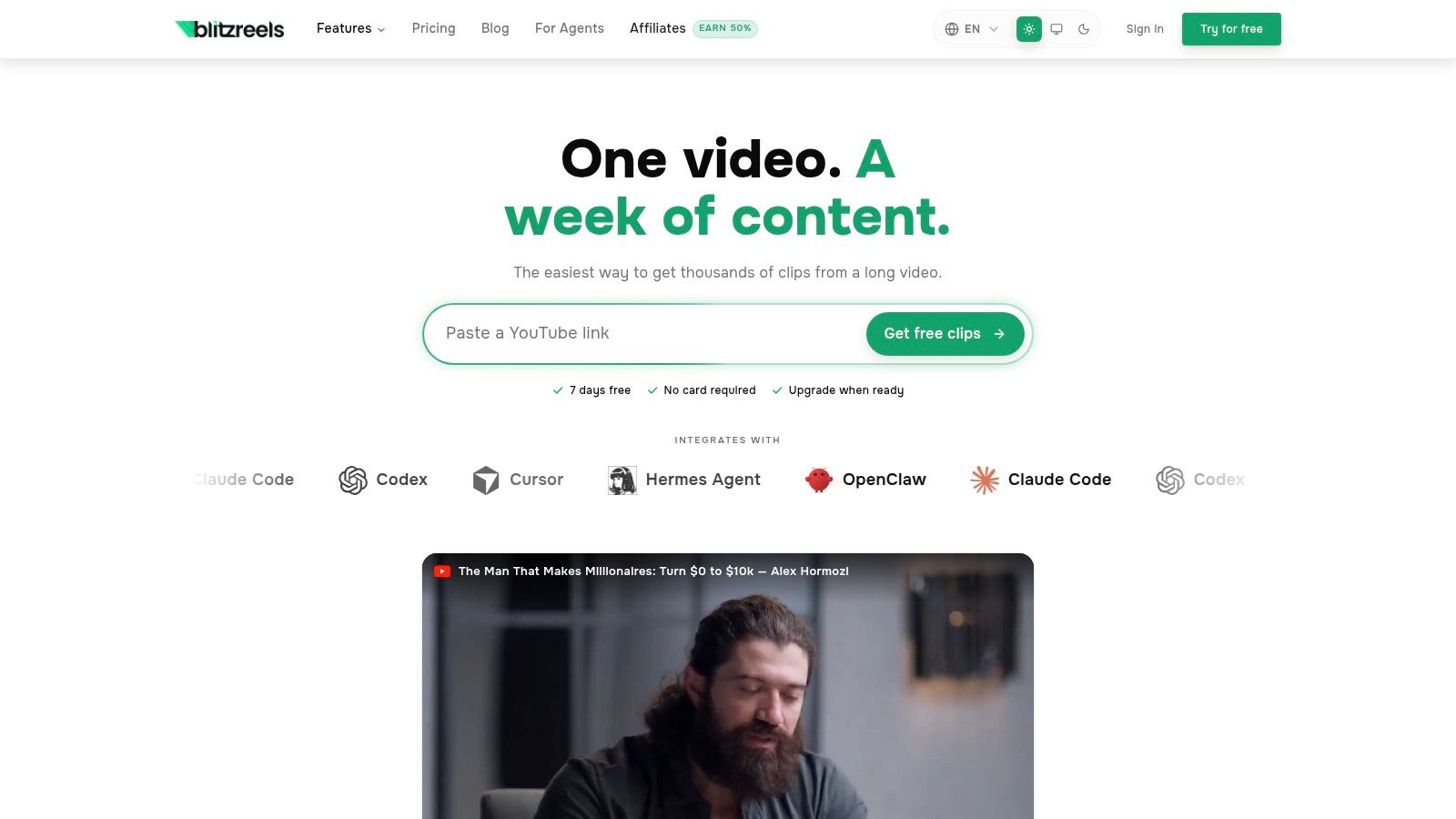
[BlitzReels](https://blitzreels.com) is the strongest fit for creators and teams who start with one source video and need finished vertical clips fast. It's built around short-form output, not around forcing a desktop editing workflow into social media. That matters when the actual job is to pull hooks, cut dead air, add title cards, generate captions, resize to vertical, and export several versions without opening five separate tools.
The workflow is straightforward. Upload an MP4, MOV, screen recording, or link, then the platform transcribes the audio, identifies strong segments, chooses a hook for the opening title, applies auto-reframe, and produces captioned clips for TikTok, Reels, Shorts, and LinkedIn. For teams repurposing interviews, webinars, product demos, podcasts, and Looms, that's the kind of automation that removes the slowest part of production.
### Why BlitzReels stands out
BlitzReels goes beyond basic clipping. It also includes an AI Studio for faceless video generation and prompt-to-video work, plus templates, subtitle tools, compressors, and format converters. That all-in-one setup matters because content creation tools for social media usually break down when the workflow jumps from editing to formatting to publishing prep.
> **Practical rule:** If a tool handles clipping but still sends the team into another app for subtitles, resizing, or file optimization, the workflow isn't actually fast.
Captions are a major reason this category matters. Captioned short-form videos can see a 25 to 40 percent engagement boost compared with raw versions without captions, based on [Growmerz's before-and-after tech demo metrics](https://www.growmerz.com/blogs/before-after-real-tech-demo-edits-performance-metrics). That makes auto-captions and subtitle editing a retention feature, not just a cosmetic extra.
A useful side-by-side breakdown appears in this [CapCut vs BlitzReels comparison for TikTok creators](https://www.blitzreels.com/blog/capcut-vs-blitzreels-which-video-editor-is-best-for-tiktok-creators-in-2025), especially for anyone deciding between social-native editing speed and a heavier all-in-one repurposing workflow.
### Best fit and trade-offs
BlitzReels is best for:
- **Long-to-short repurposing:** Webinars, podcasts, demos, interviews, and founder videos.
- **Fast vertical production:** Reframing, clipping, resizing, and title cards in one flow.
- **Template-driven consistency:** Teams that need repeatable branded exports without manual timelines.
The trade-offs are clear too:
- **Opinionated automation:** Hook selection, cuts, and caption styling usually need a human pass when brand voice is nuanced.
- **Less ideal for deep handcrafted edits:** Complex storytelling and custom motion work still benefit from a dedicated editor.
- **Pricing visibility:** The free trial is easy to test, but long-term plan comparison isn't as visible as some competitors.
For anyone whose bottleneck is speed, not cinematic control, BlitzReels is the sharpest tool on this list.
## 2. Adobe Express
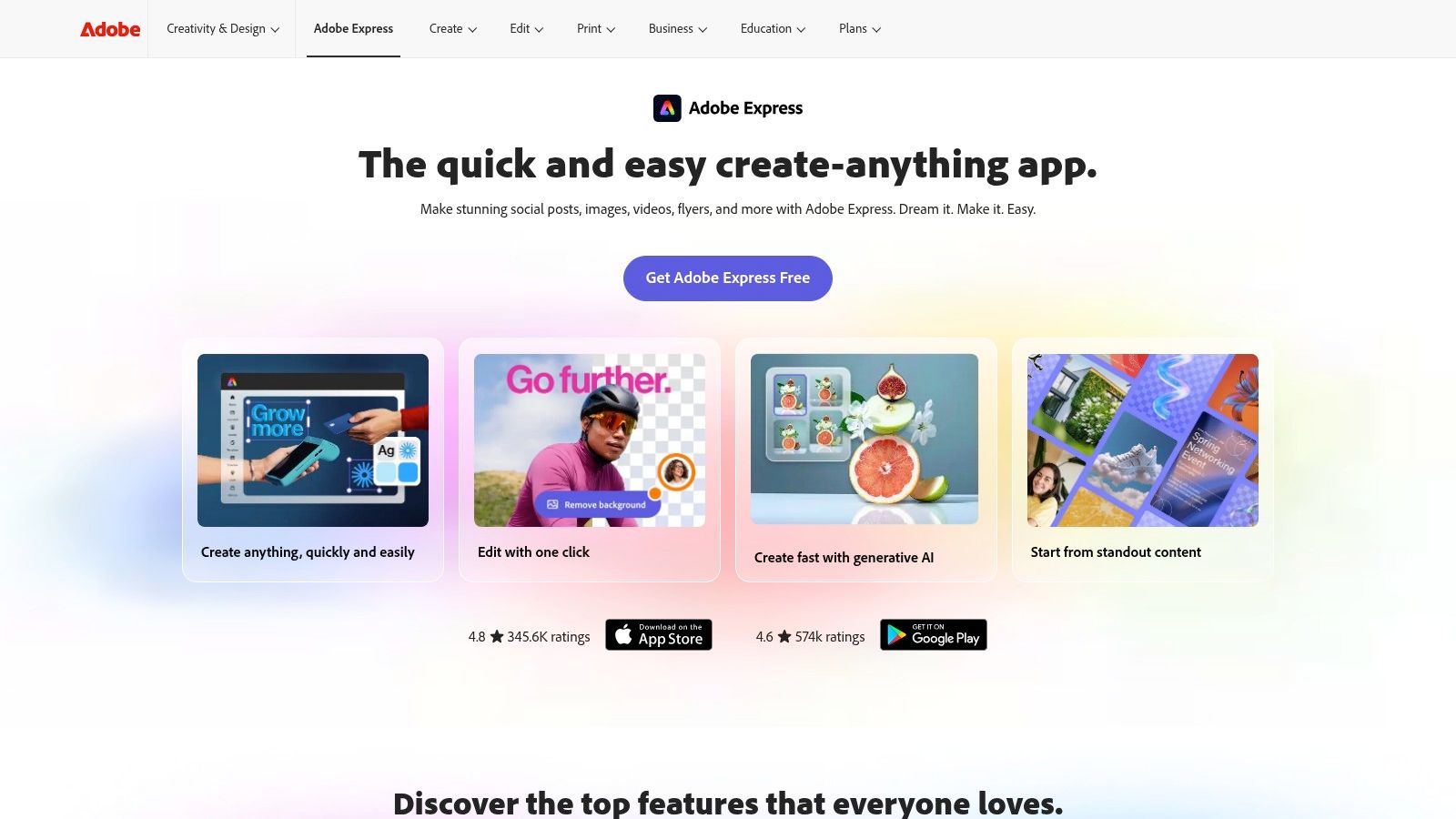
[Adobe Express](https://www.adobe.com/express/) is the practical choice when short-form video sits inside a broader social design workflow. It handles reels covers, thumbnails, story graphics, quote cards, promo posts, and lightweight video edits in one browser-first setup. For a social manager producing both video and static assets, that's often more useful than a pure editor.
Its strengths are templates, brand kits, one-click resize, stock access, quick animation tools, and a built-in scheduler. Adobe users will also like how it connects with the rest of the Adobe ecosystem. If a team already lives in Photoshop, Illustrator, or Creative Cloud libraries, Express feels familiar.
### Where Adobe Express fits
Adobe Express works best when the main goal is variation at speed. A creator can turn one promo into feed graphics, stories, a reel cover, and a vertical cut with matching brand elements. That's especially useful for campaigns that need consistency more than heavy editing depth.
Still, it isn't a full replacement for a dedicated short-form editor. Timeline editing is lighter than CapCut, BlitzReels, or Descript, and the AI credit structure can feel messy at first.
A good way to think about Adobe Express is this:
- **Best for branded asset production:** Templates, resizing, and quick visual adaptation.
- **Good enough for light video:** Short promos, text-led clips, simple edits.
- **Not ideal for repurposing long footage:** It doesn't specialize in pulling hooks, scoring segments, or turning raw recordings into batches of shorts.
For content creation tools for social media, Adobe Express earns its place because many teams need more than editing. They need packaging too.
## 3. Descript
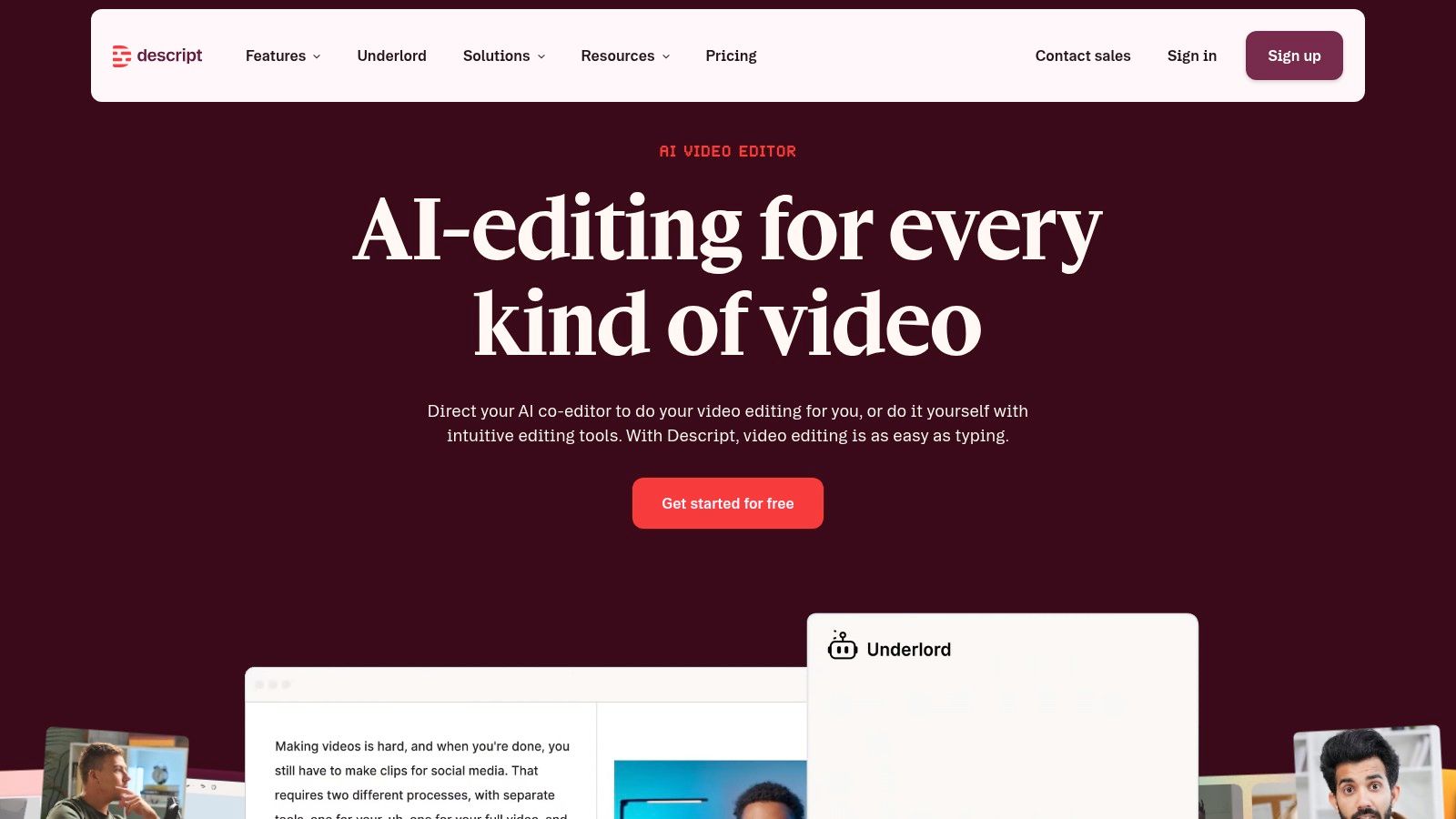
[Descript](https://www.descript.com/) fits the part of the workflow where raw recordings turn into usable clips. Start with a podcast episode, webinar, interview, or tutorial, then edit by changing the transcript instead of dragging clips around a timeline. For teams publishing a lot of spoken content, that saves real time.
Its strength is repurposing speech-heavy footage into short-form pieces. You can remove filler words, cut weak sections, clean up audio, generate captions, dub, translate, and pull multiple clips from one source without leaving the app. If your process starts with talking-head video or recorded conversations, Descript usually gets you from long-form to social-ready faster than a traditional editor.
That workflow matters more than flashy effects.
### Why Descript works for repurposing
Descript is strongest in the middle of a short-form system. Record once, transcribe it, tighten the script, then cut three to five clips for Reels, Shorts, or LinkedIn video. Teams that need a reliable [video-to-text transcription workflow for social clips](https://www.blitzreels.com/blog/how-to-transcribe-video-to-text) will find Descript easier to hand off across marketers, editors, and founders who are not comfortable editing on a timeline.
It also gives you cleaner collaboration than many mobile-first tools. A strategist can mark sections in the transcript, an editor can tighten pacing, and a creator can approve final wording before export. That makes it useful in the captioning and repurposing categories of this list, not just editing.
The trade-off is visual depth. Descript handles speech cleanup and clip extraction better than motion-heavy edits. If the post depends on trend-native effects, layered animation, or fast visual punch-ins, CapCut or another timeline-first editor will usually feel quicker. For creators comparing that style of workflow, [Veo3 AI's Seedance 2.0 guide](https://www.veo3ai.io/blog/seedance-2-0-in-cap-cut) shows how effect-driven editing differs from transcript-first production.
For a broader stack of repurposing and editing options, this roundup of [AI content creation tools](https://www.blitzreels.com/blog/ai-content-creation-tools) is worth pairing with Descript.
Use Descript when the words carry the content. Choose something else when the visuals do the heavy lifting.
Busy teams should also watch media-hour limits and AI credits, because costs can rise once transcription, dubbing, and batch clip production become part of the weekly workflow.
## 4. CapCut
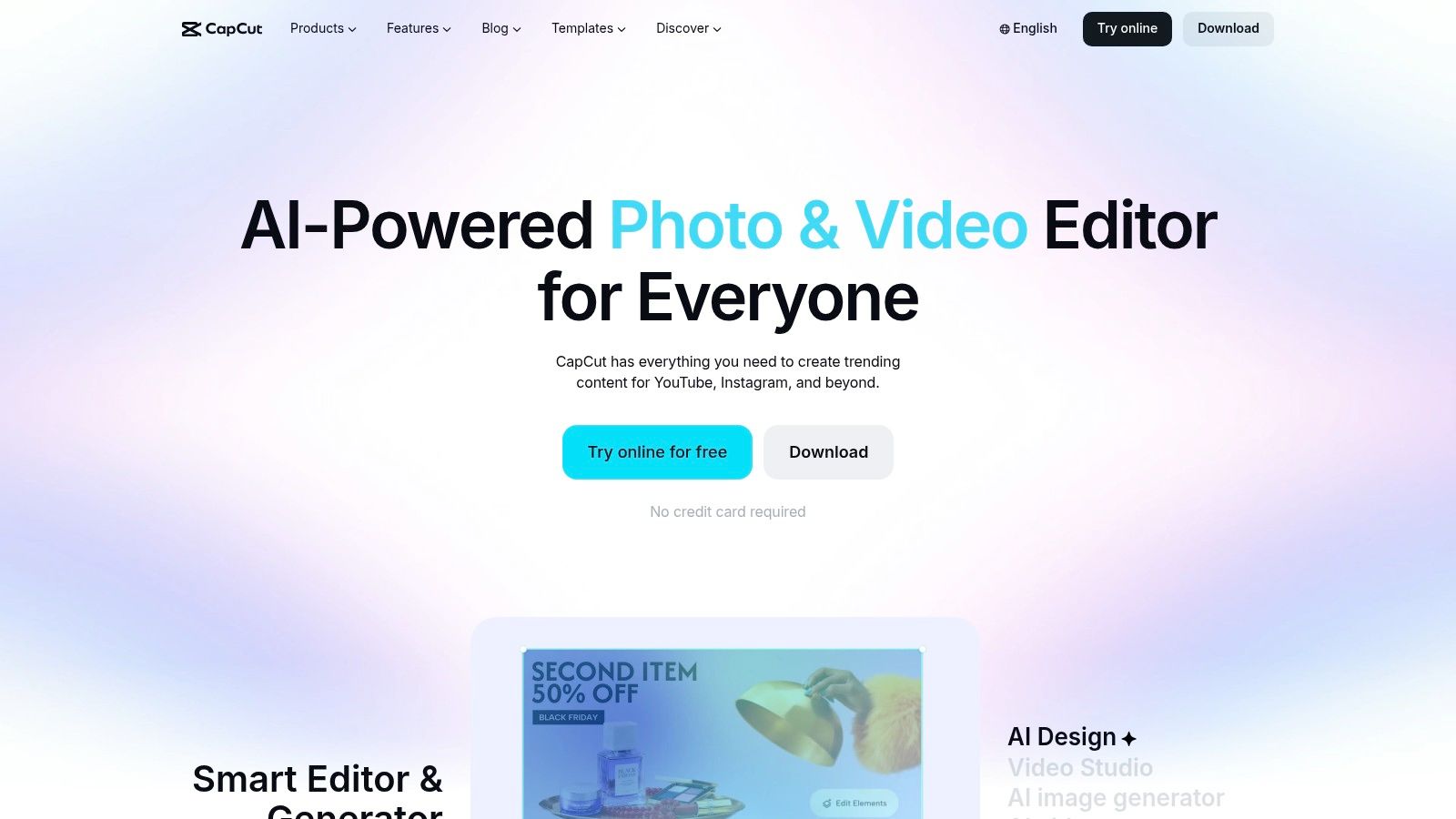
[CapCut](https://www.capcut.com/) fits the part of the workflow where speed matters more than polish. Open the app, drop in vertical clips, apply captions, trim dead space, add trend-native effects, and export in minutes. For creators posting daily on TikTok, Reels, or Shorts, that matters more than advanced finishing tools.
Its strength is social-native editing. Templates, beat syncing, green screen tools, auto captions, and mobile-first controls make it easy to produce short-form content that already looks at home on the platform. If your weekly process starts with phone footage and ends with same-day publishing, CapCut usually gets there faster than desktop-first editors.
### Best use case for CapCut
CapCut works best for short clips that need energy, not heavy restructuring. Product demos, talking-head reactions, day-in-the-life posts, meme edits, before-and-after transformations, and quick promo cuts all move well here. It is also a practical choice for creators adapting wider footage into vertical formats. This guide on [converting horizontal video to vertical for social platforms](https://www.blitzreels.com/blog/convert-horizontal-video-to-vertical) pairs well with a CapCut-style workflow.
The trade-off is category fit. CapCut is strongest in video editing and light captioning. It is less effective for teams that need structured collaboration, transcript-led revisions, or systematic repurposing from long-form content into batches of clips. In those workflows, tools like Descript or Opus usually create less cleanup work.
This companion read on [Seedance 2.0 in CapCut](https://www.veo3ai.io/blog/seedance-2-0-in-cap-cut) is useful for creators exploring newer AI-assisted visual workflows inside the CapCut ecosystem.
A simple way to judge it is by edit intent:
- **Use CapCut for fast short-form editing:** Trend formats, punchy pacing, native effects, quick caption styling.
- **Use another tool for batch repurposing:** Long podcasts, webinars, and transcript-heavy editorial workflows need more structure.
- **Use another tool for detailed finishing:** Brand motion systems, layered graphics, and precise timeline control still work better elsewhere.
CapCut stays near the top if the goal is to publish often, test quickly, and keep the edit process close to the phone.
## 5. VEED
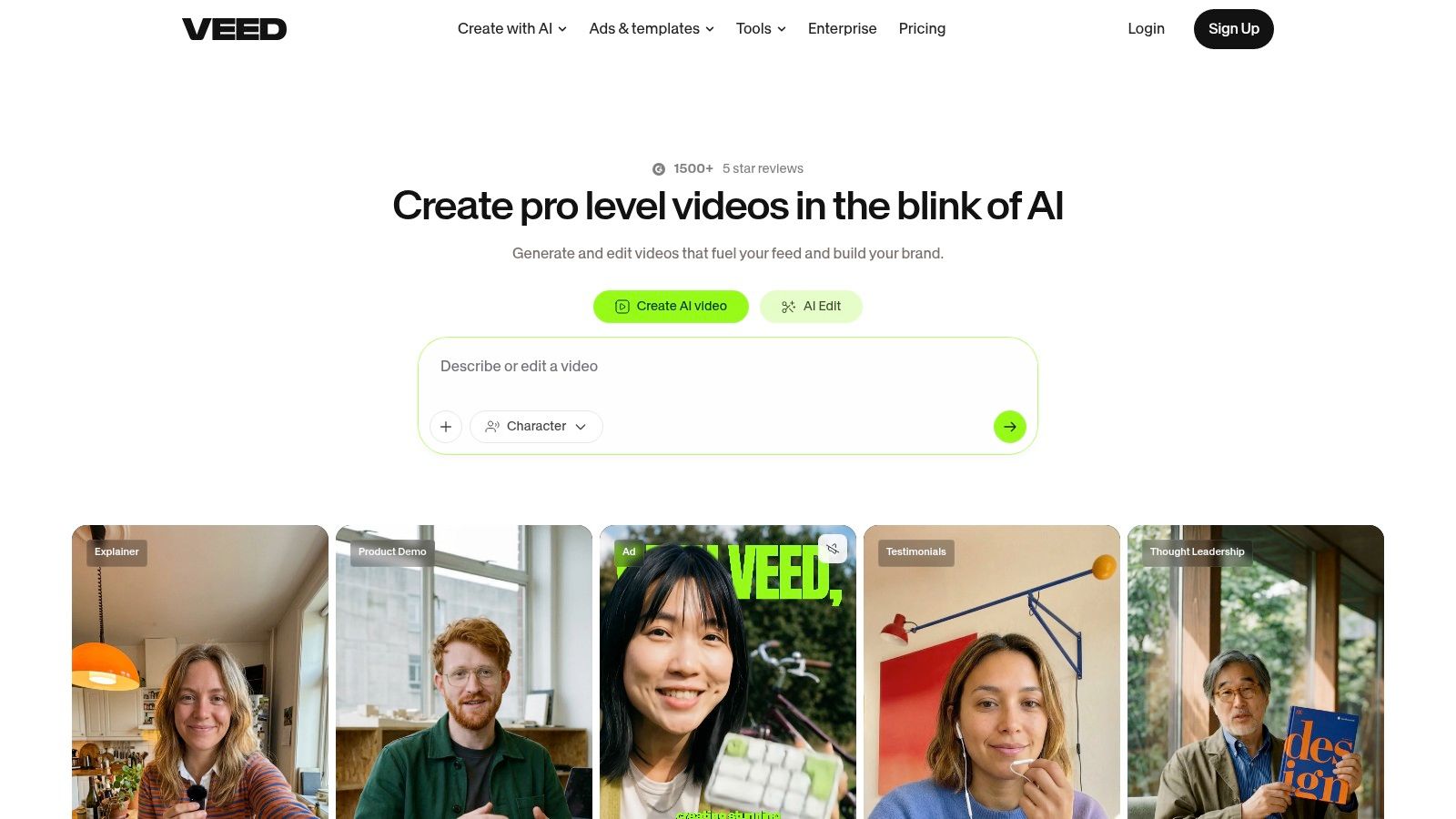
[VEED](https://www.veed.io/) is one of the better browser-based picks for teams that want speed without installing desktop software. It combines subtitles, translation, webcam and screen recording, teleprompter tools, audio cleanup, templates, and simple timeline editing in one place. That makes it attractive for educators, agencies, founders, and in-house marketers who produce a lot of talking-head and explainer content.
VEED also pushes into generative features with avatars, text-to-video, dubbing, and TTS. That won't replace a strong human edit, but it can speed up draft creation and multilingual publishing.
### Where VEED makes sense
VEED is useful when the content workflow starts in the browser and stays there. Record a webcam message, clean the audio, generate subtitles, resize for vertical, and export. That's a clean path for short tutorials, product explainers, hiring videos, and quick social clips.
Its subtitle workflow is one reason many teams choose it. For anyone building a caption-first process, this guide on [how to transcribe video to text](https://www.blitzreels.com/blog/how-to-transcribe-video-to-text) pairs naturally with VEED-style editing.
> **Field note:** Browser tools save time when the team values convenience more than precision. Once edits get visually dense, the limits show up quickly.
The downside is depth. VEED handles speed well, but not detailed color work, advanced animation, or highly customized editing. AI credits can also become harder to predict for larger teams.
## 6. Kapwing
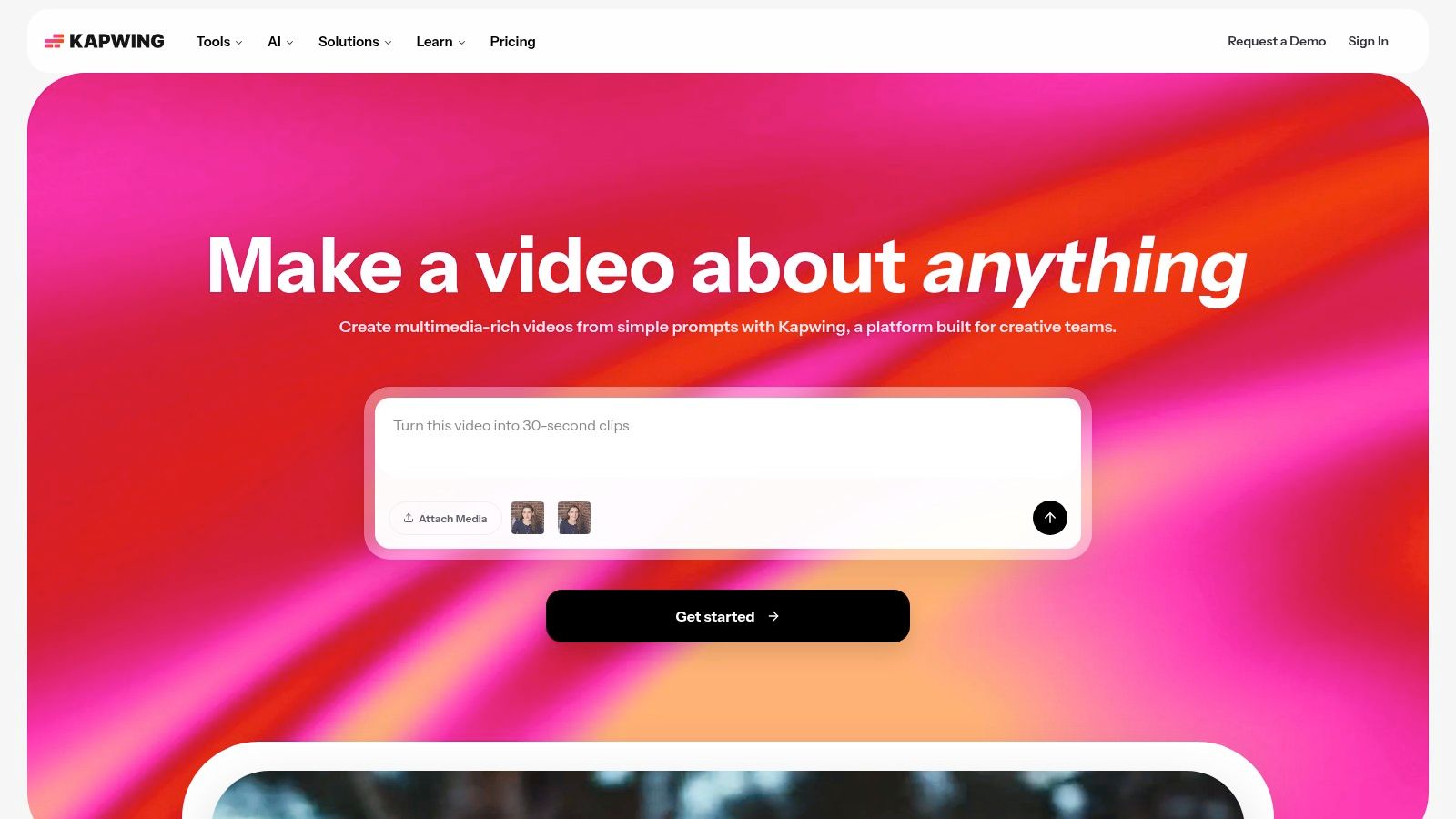
[Kapwing](https://www.kapwing.com/) fits a very specific part of the social workflow. It is a browser editor for teams that need to turn raw footage into usable short-form posts quickly, without handing every edit to a video specialist. Auto-subtitles, Smart Cut, templates, resizing, teleprompter tools, recording, and light collaboration cover the jobs social managers handle every week.
That category matters because creators are publishing across more formats, aspect ratios, and channels than a basic editor can comfortably support. Kapwing exists for adaptation work.
### What Kapwing does well
Kapwing is strongest in the middle of the workflow. The footage already exists. The goal is to trim pauses, add captions, swap to a vertical layout, drop in a headline, and export versions for different platforms. For that job, it is faster than heavier software and easier to hand off across a team.
It also handles social-native formats well. Meme edits, reaction videos, commentary clips, simple educational posts, and talking-head explainers are all realistic use cases here. If your weekly process includes turning one recorded asset into several platform-ready versions, Kapwing keeps the work moving.
For creators adapting existing footage into shorts, this guide to [short-form video editing and strategy](https://www.blitzreels.com/blog/short-form-video) connects well with Kapwing's day-to-day use.
The trade-off is creative range. Once a project needs layered motion graphics, detailed visual polish, or more precise timeline control, Kapwing starts to feel narrow. That is usually the line with browser-first tools. They save time on repeatable social edits, but they give up flexibility on more ambitious productions.
Free plan limits can also get in the way, especially for teams exporting often or collaborating across multiple drafts.
## 7. OpusClip (Opus)
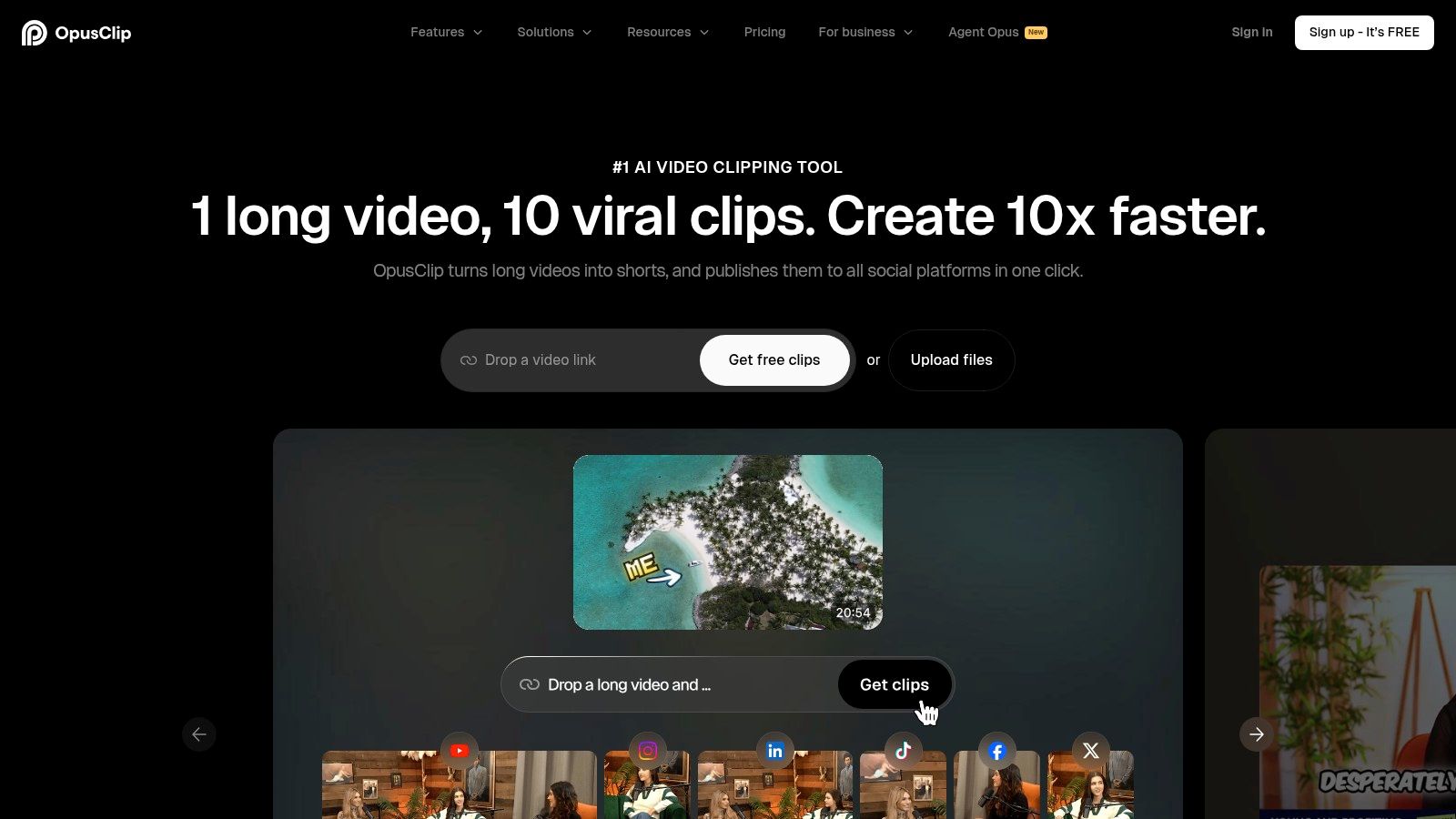
[Opus](https://www.opus.pro/) is built for one thing: turning long videos into short clips at scale. For podcasts, webinars, interviews, lectures, and founder conversations, that specialization works. The software finds highlights, creates clips, applies social-native layouts, adds captions, and reframes for vertical viewing.
That makes Opus valuable for anyone with a large archive of long-form content. It can surface usable moments quickly, which is often the biggest bottleneck in repurposing.
### Repurposing strengths and limits
Opus is strongest when the source material is conversational and idea-driven. It can pull punchy moments from a long recording and turn them into rough-ready shorts faster than a manual workflow. Teams that publish in volume will like that.
But repurposing has a trap. While 78% of marketers plan to repurpose existing content into short-form videos in 2025 to 2026, coverage often ignores whether those clips outperform native short-form posts, according to [Buffer's social media content creation resource](https://buffer.com/resources/social-media-content-creation/). That's why Opus outputs still need judgment. A decent clipped moment isn't always a strong short-form hook.
> Some repurposed clips feel efficient but not native. The pacing is right, the captions are there, and the post still lands flat because the opening wasn't rebuilt for scroll behavior.
That's the central trade-off with Opus. It wins on speed, but the final pass still matters. Brand tone, title card wording, and first-frame hook quality usually need human review.
## 8. InVideo
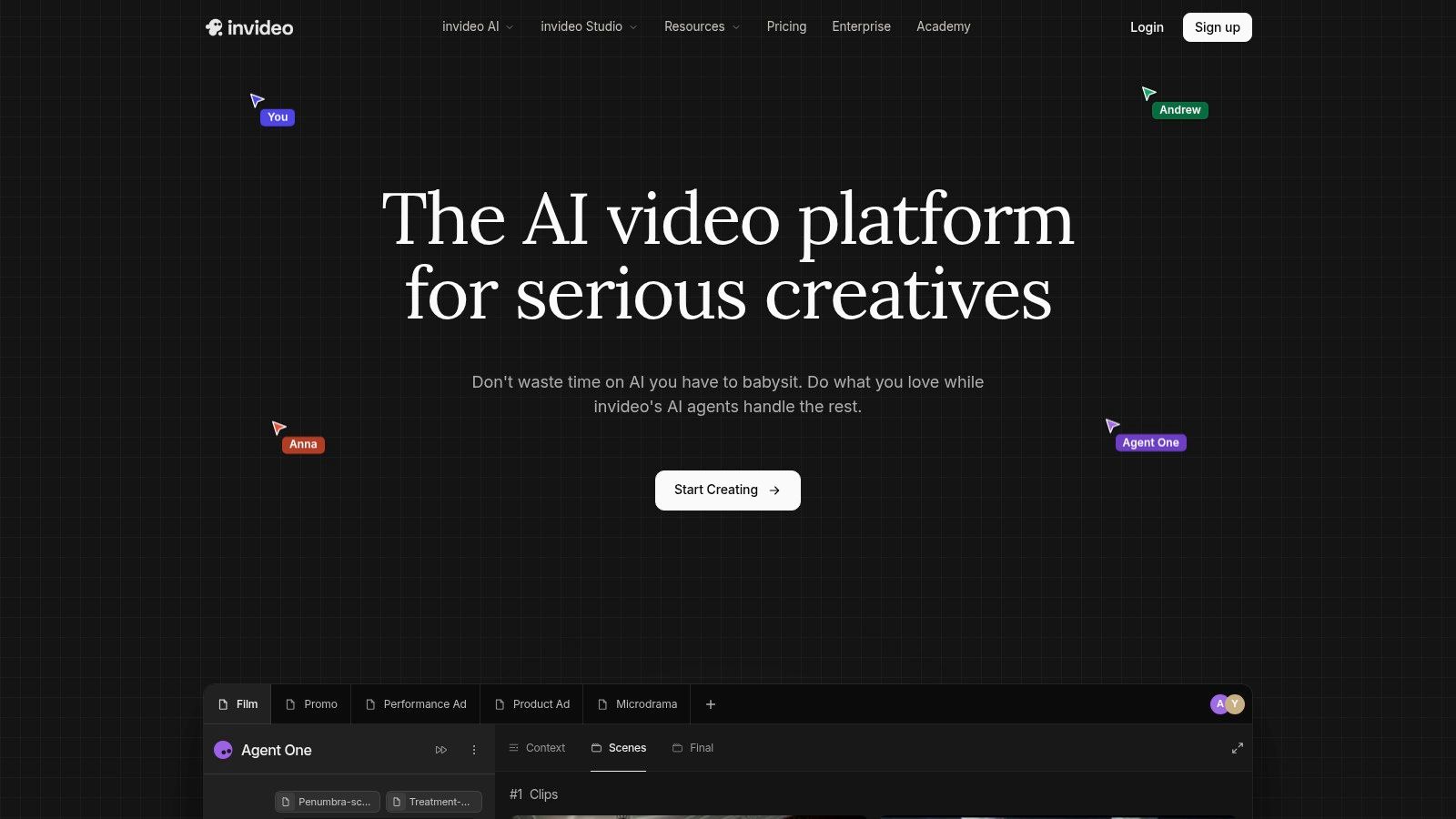
[InVideo](https://invideo.io/) sits in a different lane from the pure clipping tools. It mixes a traditional online editor with prompt-to-video generation, avatars, lip-sync, and stock-heavy draft creation. That makes it useful for creators who don't always start with footage. Sometimes the starting point is a script, a concept, or a rough outline.
This is one of the better choices for ad variants, explainers, and faceless content where speed matters more than handcrafted originality on the first draft.
### When InVideo is the better pick
InVideo works best when there isn't a clean source video to repurpose. A marketer can start with text, generate a first version, then swap visuals, tighten timing, and adjust captions for platform use. That's a practical workflow for promos, list videos, educational shorts, and product-led social content.
Still, generated clips need polish. Hook strength, stock selection, and title card wording often decide whether the final output feels sharp or generic. For anyone planning a steady pipeline of vertical content, this guide to [short-form video workflows](https://www.blitzreels.com/blog/short-form-video) complements the way InVideo is usually used.
InVideo's biggest trade-off is cost control through credits. It's flexible, but heavy generation can get expensive. The other limit is creative sameness. Prompt-to-video is good for drafts, not for replacing editorial taste.
## 9. Canva
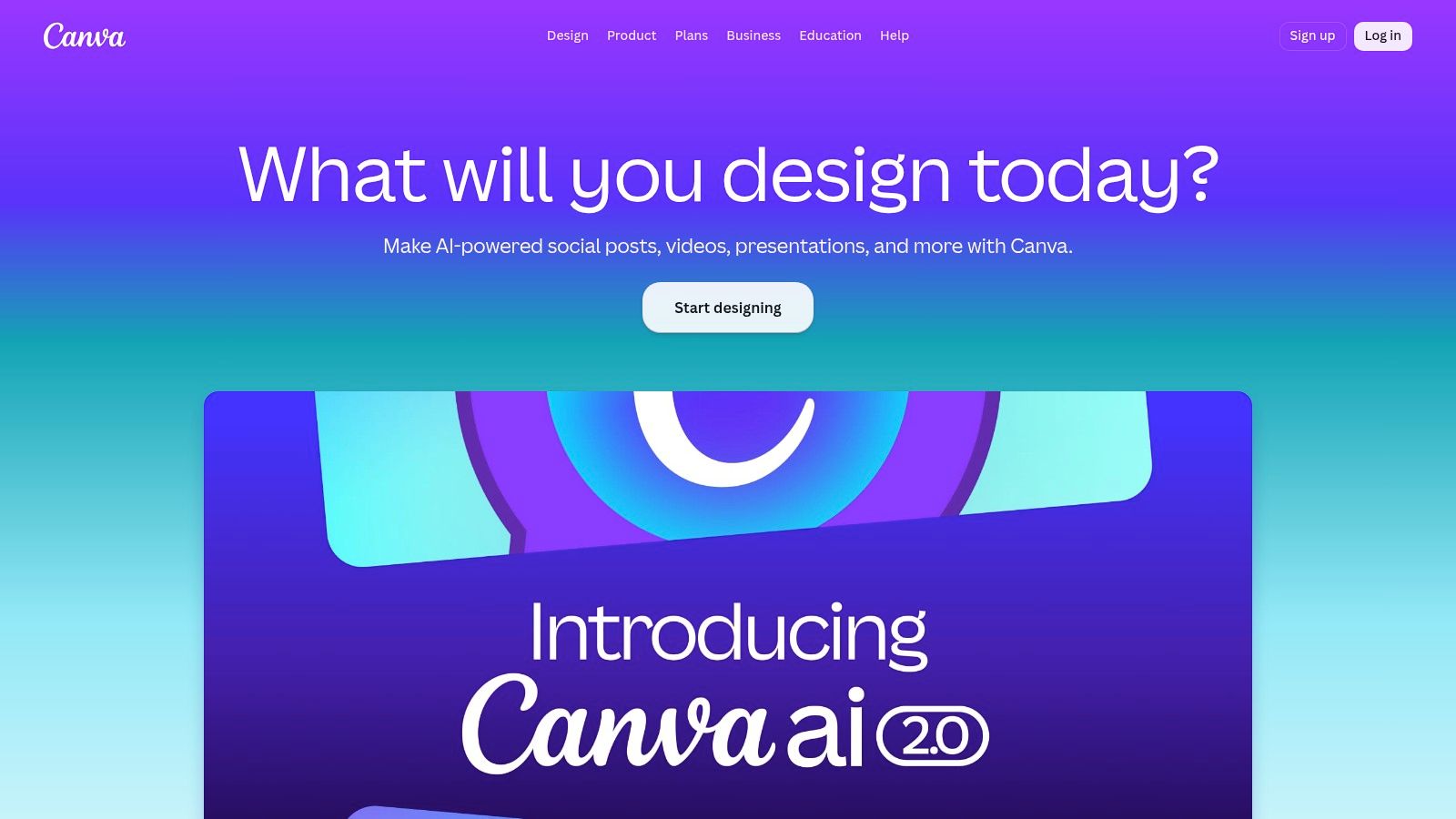
[Canva](https://www.canva.com/) remains one of the most useful content creation tools for social media because so much social production isn't pure video editing. Teams still need cover images, quote graphics, carousels, title slides, thumbnails, product callouts, and brand-safe overlays. Canva handles that work faster than most tools.
Its video editor is simpler than dedicated editors, but that simplicity is also why teams keep using it. Text-led reels, thumbnail design, promo clips, and branded visual assets come together quickly.
### Canva's role in a short-form stack
Canva is a support tool first and a video editor second. It's ideal for creators who need strong visual packaging around short-form content. Reel covers, title cards, pull-quote slides, carousels, and simple animated posts are all good fits.
There's one caution on caption styling. A 2026 marketing research study found that videos with excessive emoji and bold formatting saw a 22% lower comment-to-view ratio on TikTok and Instagram Reels, and neutral or minimal captions outperformed emoji-heavy ones by 18% in engagement quality for B2B, LinkedIn, and educational content, according to [IndexBox's analysis of under-served market angles for content](https://www.indexbox.io/blog/mi-2026-02-24-marketing-research-how-to-find-under-served-market-angles-for-content-s41/). Canva templates make it easy to over-style content, so teams need restraint.
This companion piece on [Canva strategies for product listings](https://merchloom.ai/blog/canva-remove-background) is useful for anyone using Canva beyond social posts.
Canva is best when brand consistency matters most. It's less compelling when the edit depends on advanced clipping, dynamic reframing, or detailed timeline work.
## 10. Microsoft Clipchamp
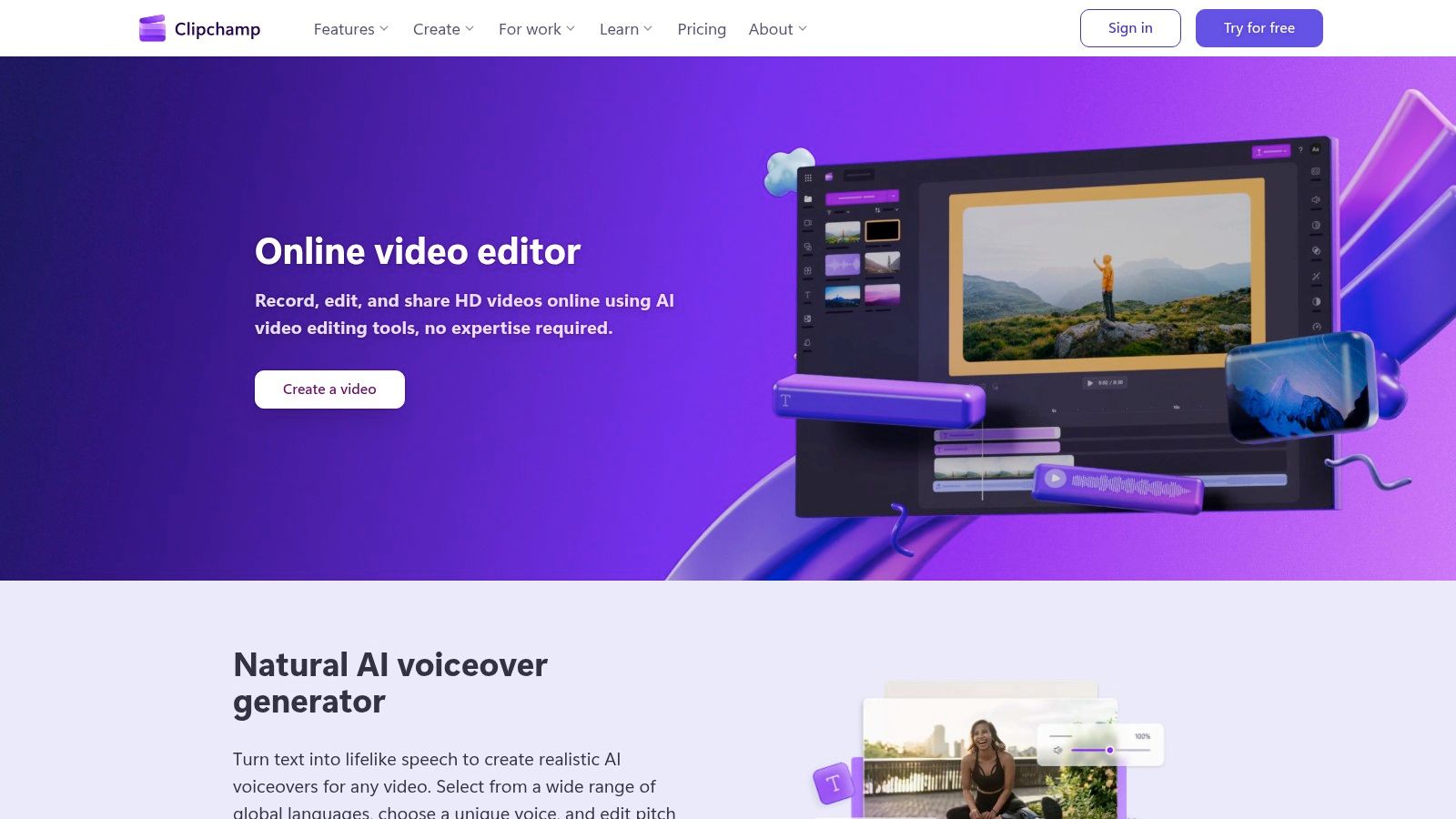
[Microsoft Clipchamp](https://clipchamp.com/) is the beginner-friendly option for teams already operating inside Microsoft accounts and OneDrive. It covers the basics well: trimming, templates, auto-captions, text-to-speech voiceover, screen recording, and simple exports. For quick tutorials, internal thought leadership clips, and social explainers, that can be enough.
Its appeal is convenience. A team that already uses Microsoft 365 can add lightweight editing without introducing a heavier creative stack.
### Who should use Clipchamp
Clipchamp is a good fit for educators, consultants, startups, and in-house teams that need simple social video without a steep learning curve. It's especially practical for screen-based content like product walk-throughs, feature explainers, and slide-led videos.
The short-form environment still rewards quality openings. On TikTok, a strong hook should exceed a 25% thumbstop rate, while anything below 15% signals that the opening is failing to stop the scroll, according to [Jetfuel's short-form video measurement guide](https://jetfuel.agency/how-to-measure-success-with-short-form-video-content/). Clipchamp can help package the basics, but the opening line, title card, and first visual still need careful human choices.
Its limits are straightforward:
- **Good for quick edits:** Tutorials, social explainers, and simple marketing clips.
- **Good value in Microsoft workflows:** Especially when bundled with existing subscriptions.
- **Not built for aggressive repurposing:** Heavy clipping, AI hook selection, and advanced branding are lighter here.
For creators graduating from beginner tools, Clipchamp often becomes a starting point, not the final stack.
## Top 10 Social Media Content Creation Tools, Feature Comparison
| Product | Core features | Best for | UX / Quality | Unique selling point & Price |
|---|---|---:|---|---|
| **BlitzReels** | Auto-transcribe, segment scoring, hook selection, on‑beat captions, auto‑reframe, AI Studio & templates | Creators, marketers, social teams scaling short‑form | Fast, platform‑ready verticals; streamlines record→edit→publish (~10 min) | Opinionated automation for high-volume clips; 7‑day free trial (no card), contact sales for plans |
| Adobe Express | Templates, brand kits, 1‑click resize, scheduler, Firefly credits | Design-forward creators & social managers | Template‑led, quick brand variations | Deep Adobe ecosystem & stock access; tiered paid plans with AI credits |
| Descript | Text-based editing, auto transcription, filler removal, AI dubbing | Podcasters, webinar repurposers, talking‑head creators | Edit like a doc; fast for non‑editors | Strong repurposing workflow; paid tiers have media/credit limits |
| CapCut | Auto-captions, templates, effects, auto-reframe, multi-platform apps | Mobile-first creators, trend-driven TikTok users | Very fast phone→post workflow, huge community templates | Free/Pro feature mix varies by region; excellent trend templates |
| VEED | Auto-subtitles/translations, Gen‑AI Studio, web recorder, templates | Teams needing browser workflow and translations | Fast browser-based subtitling and exports | Gen‑AI features with credit model; team APIs & scalable workflow |
| Kapwing | Auto-subtitles, smart cut, templates, quick resizing, screen recorder | Marketers & social managers needing quick captions | Extremely quick browser edits; easy resizing | Clear Pro/Business pricing; free plan has export/quality limits |
| OpusClip (Opus) | AI clipping, hook detection, auto captions, B‑roll insertion, API | Batch repurposers (podcasts, webinars, interviews) | Fast batch outputs; good defaults but may need polish | API/CMS automation for scaling clips; best for talk/education content |
| InVideo | Prompt‑to‑video, avatars, traditional editor, stock integrations | Creators who ideate via prompts then refine | Good for draft generation; requires manual polish | Credit-based generative features; flexible model access |
| Canva | Magic Resize, templates, brand kits, simple video editor, collaboration | Teams needing on‑brand graphics and light video | Extremely fast for graphics and light edits | Massive template ecosystem, collaboration tools; tiered pricing |
| Microsoft Clipchamp | Trim/edit, AI subtitles, TTS voiceover, screen/cam recorder, OneDrive | Microsoft 365 users, beginners & educators | Beginner-friendly, integrated with OneDrive | Bundled value with M365; simpler toolset for quick social edits |
## Choose Your Fast-Track Toolkit
You recorded a 40-minute interview, pulled three decent clips, lost another hour fixing captions, then opened a design app just to make a cover that matches your brand kit. That is the point where tool choice starts affecting output, not just convenience.
The fastest setup is usually the one that removes your biggest delay in the workflow. Creators cutting podcasts, webinars, or talking-head videos need strong repurposing first. Teams posting daily tips, promos, and announcement graphics need design speed and template control first. Social managers publishing from a browser often care more about quick subtitle cleanup, resizing, and handoff than advanced editing depth.
The pattern is clear across the market, as noted earlier in the article. AI-assisted editing and content production are now common because they reduce repetitive work. The useful takeaway is practical: manual editing on every asset does not scale once posting volume goes up.
A good toolkit usually breaks down by workflow category:
- **Video editing and clipping:** BlitzReels, Descript, Opus, and CapCut handle the heavy lifting for short-form output, but in different ways. BlitzReels and Opus are better fits for repurposing long recordings into multiple clips. CapCut is faster for trend-style edits and mobile-first work. Descript is stronger when transcript editing is part of the process.
- **Captioning and browser cleanup:** VEED, Kapwing, and Clipchamp are good choices for quick subtitle fixes, resizing, and simple edits without opening a full desktop editor.
- **Design and packaging:** Canva and Adobe Express are the practical picks for title cards, thumbnails, covers, quote graphics, and branded templates. Canva has the broader template ecosystem. Adobe Express fits well if your team already works inside Adobe tools.
- **Audio and voice cleanup:** Descript stands out here because text-based editing, filler-word removal, and voice tools are built into the same workflow.
- **Generated drafts and faceless production:** InVideo is useful for rough first drafts, script-to-video workflows, and stock-based explainers, but those outputs usually need human cleanup before publishing.
- **Repurposing at scale:** Opus and BlitzReels make more sense than general editors if the job is turning one source file into many platform-specific clips every week.
One caution matters. Automation saves time, but default output is rarely publish-ready. Auto-picked hooks miss context. Captions can look over-designed. Reframed clips often need manual adjustment to keep the speaker centered and the pacing native to TikTok, Reels, or Shorts.
For small teams, the cleanest starting stack is one primary editor and one design tool. That covers clipping, captions, resizing, and branded packaging without creating a messy stack of overlapping subscriptions. Add scheduling, batch repurposing, or AI draft generation only after the core workflow is stable and someone on the team owns review.
BlitzReels is a practical starting point if the main job is turning long recordings into short-form social clips. It focuses on short-form production with captions, hooks, reframing, resizing, templates, subtitle tools, and exports for TikTok, Instagram Reels, YouTube Shorts, LinkedIn, and other channels. Explore [BlitzReels](https://blitzreels.com) if you want a faster record-to-edit-to-publish workflow.