---
title: "How to Convert a MPEG to MOV Without Losing Quality"
canonical: "https://blitzreels.com/blog/convert-a-mpeg-to-mov"
---
# How to Convert a MPEG to MOV Without Losing Quality
URL: https://blitzreels.com/blog/convert-a-mpeg-to-mov
Markdown URL: https://blitzreels.com/blog/convert-a-mpeg-to-mov.md
Published: 2026-09-05
Author: BlitzReels
Learn how to convert a MPEG to MOV on Mac, Windows, FFmpeg and online. Keep quality, fix playback issues, and prep clips for Reels and Shorts.
Tags: convert a mpeg to mov, MPEG to MOV converter, FFmpeg MOV conversion, MOV for social video

A client sends over an old MPEG recording for a simple job: cut the interview into vertical clips, add captions, and publish it across social channels. The file gets renamed to `.mov`, but QuickTime refuses to open it. Final Cut Pro imports only the audio, another editor shows jittery playback, and the “conversion” has created more work than it removed.
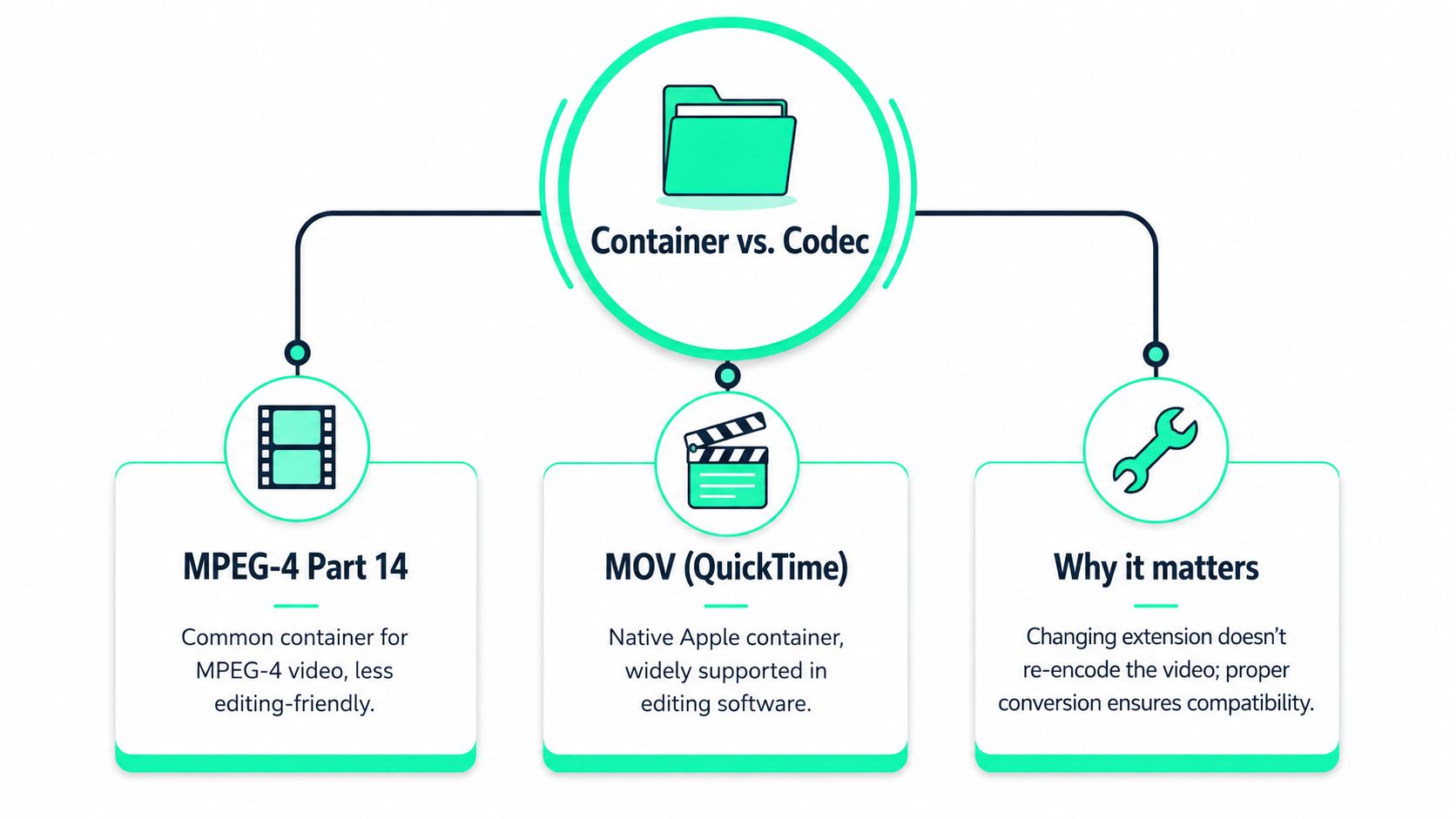
That failure is common because **MOV describes a container, not a universal video codec**. To convert a MPEG to MOV successfully, the file must contain a video and audio combination that the target applications can decode. The right workflow might be a fast remux, a full transcode, or a high-quality editing master, depending on the source and the destination.
## Table of Contents
- [Why Converting MPEG to MOV Is More Than Changing the Extension](#why-converting-mpeg-to-mov-is-more-than-changing-the-extension)
- [Remuxing versus re-encoding](#remuxing-versus-re-encoding)
- [Quick Ways to Convert MPEG to MOV Without Installing Software](#quick-ways-to-convert-mpeg-to-mov-without-installing-software)
- [A sensible no-install decision](#a-sensible-no-install-decision)
- [How to Convert MPEG to MOV With FFmpeg and HandBrake](#how-to-convert-mpeg-to-mov-with-ffmpeg-and-handbrake)
- [FFmpeg remuxing](#ffmpeg-remuxing)
- [FFmpeg transcoding](#ffmpeg-transcoding)
- [HandBrake for a visual workflow](#handbrake-for-a-visual-workflow)
- [Choosing the Right Codec and Settings to Keep Quality High](#choosing-the-right-codec-and-settings-to-keep-quality-high)
- [Three practical paths](#three-practical-paths)
- [Settings that prevent avoidable failures](#settings-that-prevent-avoidable-failures)
- [Preparing Your Converted MOV for TikTok Reels and Shorts With BlitzReels](#preparing-your-converted-mov-for-tiktok-reels-and-shorts-with-blitzreels)
- [Final Checklist to Verify and Reuse Your MOV Files](#final-checklist-to-verify-and-reuse-your-mov-files)
- [Verification checklist](#verification-checklist)
## Why Converting MPEG to MOV Is More Than Changing the Extension
A file extension only tells software how to interpret the container. Renaming `recording.mpg` to `recording.mov` doesn't rewrite the file structure, update its headers, change the codec, or make an unsupported stream compatible with QuickTime or an NLE.
MOV is Apple's **QuickTime Movie container**, and Apple documents QuickTime as the basis for the MPEG-4 format. The relationship is historical as well as practical. The proprietary MOV release dates to **December 2, 1991**, followed by a public release on **March 1, 2001**; the first MP4 specification appeared in **2001** as ISO/IEC 14496-1:2001, then evolved through MPEG-4 Part 14 and the ISO Base Media File Format. That shared lineage is why MPEG-to-MOV work often involves moving streams between related time-based media structures rather than changing the underlying video science. ([MOV format history and lineage](https://en.wikipedia.org/wiki/.mov))
A production team may still choose MOV because it fits an editing or archival workflow, while MPEG-derived formats remain common in delivery and playback pipelines. A **2012 survey of video professionals** reported MOV as a regular input for **25%** of respondents, compared with **7%** for MPEG-4 and **3%** for MPEG-2. The same survey reported MP4 use by **69%** of respondents for web video and **58%** for mobile video, illustrating the operational split between production media and distribution media. ([TV Technology survey coverage](https://www.tvtechnology.com/news/mp4-tops-list-of-encoding-format-used-for-web-mobile-viewing-says-survey))
### Remuxing versus re-encoding
**Remuxing** copies the existing video and audio streams into a different container. It's fast and doesn't reduce quality because the compressed streams aren't decoded and recompressed. It works only when the codecs, tags, metadata, and headers are accepted by the destination software.
**Re-encoding** decodes the source and creates new streams, such as H.264 video with AAC audio or ProRes video with PCM audio. It takes longer and can introduce generation loss, but it gives the editor control over compatibility, pixel format, bitrate, audio layout, and editing performance.
A useful [video format glossary](https://blitzreels.com/glossary/video-format) can clarify the container terms, but the practical test is simple: the resulting MOV must open, seek, decode, and edit correctly in the applications that matter.
> **Practical rule:** A valid `.mov` file isn't automatically a usable MOV asset. Test the streams, not just the filename.
## Quick Ways to Convert MPEG to MOV Without Installing Software
For a one-off file, an online converter can be the quickest route. Upload the MPEG, select MOV, choose the highest available quality setting, and download the result. This approach suits non-sensitive footage and small files, but it puts the media on a third-party service and may impose upload, processing, or download limits. Client interviews, unreleased campaigns, and confidential recordings generally belong in a local workflow.

On macOS, QuickTime Player can open compatible media and export it through its available movie export controls. It may not preserve the original MPEG stream, and the available output choices depend on the source and the macOS version. After exporting, open the MOV again in QuickTime, scrub across the entire timeline, and confirm that the audio remains synchronized.
Windows users can use an installed media application or a reputable web converter, but native playback support varies with the MPEG variant and installed codecs. A file that plays in a consumer media player can still fail in an editor, so the verification step matters more than the export dialog.
### A sensible no-install decision
- **Use an online service** when the file isn't confidential and speed matters more than detailed codec control.
- **Use QuickTime Player** when the source already opens cleanly on a Mac and the output is headed to a basic Apple workflow.
- **Switch to a desktop encoder** when the file is large, sensitive, interlaced, damaged, or intended for professional editing.
- **Review specialist comparisons** if a browser-based workflow is required and the available options are unclear. A practical resource to [find the best MOV converter](https://screencharm.com/blog/best-mov-converters-mac) can help narrow the choices.
The following video demonstrates the general conversion workflow and the interface decisions users typically encounter.
Regardless of the tool, the downloaded file should be tested in the intended editor, not just in a browser. If it fails there, a controlled FFmpeg or HandBrake transcode is more reliable than repeating the same online conversion.
## How to Convert MPEG to MOV With FFmpeg and HandBrake
FFmpeg gives precise control, while HandBrake offers a friendlier preset-driven interface. The first decision is whether the source streams can be copied safely.
### FFmpeg remuxing
A basic container conversion looks like this:
`ffmpeg -i "input.mpg" -map 0 -c copy -f mov "output.mov"`
The `-c copy` option performs stream copying. It avoids a quality change and usually finishes quickly, but it doesn't fix an incompatible codec, unsupported pixel format, incorrect video tag, or missing metadata. If the source is MPEG-2 and the MOV must work with a particular Final Cut Pro decoder, FFmpeg community guidance documents special handling for certain MPEG-2 bitstreams using `-bsf:v imxdump` and `-tag:v mx3n`. Those flags aren't universal fixes, so they should be used only when the source and target workflow require them. ([FFmpeg MPEG-to-MOV examples](https://stackoverflow.com/questions/32448450/how-to-use-ffmpeg-to-encode-mp4-to-mov))
A remux is appropriate when the source codec is already supported by the target editor and the goal is to place the streams in a self-contained MOV wrapper. AWS MediaConvert also notes that MOV inputs must be self-contained, a useful requirement for assets moving into editing systems. ([AWS container and codec details](https://docs.aws.amazon.com/mediaconvert/latest/ug/supported-containers-codecs-details.html))
### FFmpeg transcoding
When a copied stream won't open or scrubs badly, encode a compatible MOV instead:
`ffmpeg -i "input.mpg" -c:v libx264 -pix_fmt yuv420p -c:a aac -b:a 192k -movflags +faststart "output.mov"`
This creates H.264 video with AAC audio and a broadly compatible 4:2:0 pixel format. The audio bitrate in this example is a command setting, not a guarantee of quality for every source. A higher-quality editing master may use ProRes and uncompressed PCM audio:
`ffmpeg -i "input.mpg" -c:v prores -profile:v 3 -c:a pcm_s16le "output.mov"`
An Ubuntu FFmpeg workflow documents this ProRes and PCM pattern, while another example uses DNxHR HQX with 10-bit 4:2:2 parameters for a 4K MOV master. ([ProRes and DNxHR MOV examples](https://www.joelotz.com/blog/2020/converting-mp4-to-mov-with-ffmpeg-in-ubuntu.html))
For HEVC, QuickTime compatibility can depend on the pixel format and the codec tag. A command may look like this:
`ffmpeg -i "input.mpg" -c:v libx265 -pix_fmt yuv420p -tag:v hvc1 -c:a aac "output.mov"`
The `hvc1` tag and supported `yuv420p` or `yuv420p10le` formats can matter when QuickTime rejects an otherwise valid HEVC MOV. If the target editor still fails, re-encode rather than forcing a stream copy. ([QuickTime MOV compatibility guidance](https://www.volcengine.com/article/476948))
### HandBrake for a visual workflow
HandBrake doesn't make the same low-level remuxing choices as FFmpeg, but it works well for a controlled transcode:
1. Open the MPEG source and confirm the preview shows the correct title and aspect ratio.
2. Choose a production-friendly preset rather than an extreme compression preset.
3. Set the video encoder to H.264 when cross-platform editing compatibility is the priority.
4. Keep the source frame rate and use constant frame rate when the editor needs predictable timing.
5. Use a compatible audio track, then choose MOV as the output container if the installed HandBrake version provides it.
6. Start the encode and test the resulting file in QuickTime and the intended NLE.
| Method | Best For | Quality Control | Ease of Use |
|---|---|---|---|
| FFmpeg remux | Compatible streams and fast container changes | Exact stream and metadata control | Command line |
| FFmpeg transcode | Codec, tag, pixel format, and audio fixes | High control over every parameter | Technical |
| HandBrake | Repeatable GUI-based transcodes | Presets and adjustable encode settings | Accessible |
Teams that automate conversion, inspection, and export can also use the [BlitzReels CLI documentation](https://blitzreels.com/docs/cli) as a reference for structured command-line video workflows.
## Choosing the Right Codec and Settings to Keep Quality High
The right MOV setting depends on what happens after conversion. A file for quick review has different requirements from a file that will be cut repeatedly, captioned, reframed, and exported for multiple platforms.
### Three practical paths
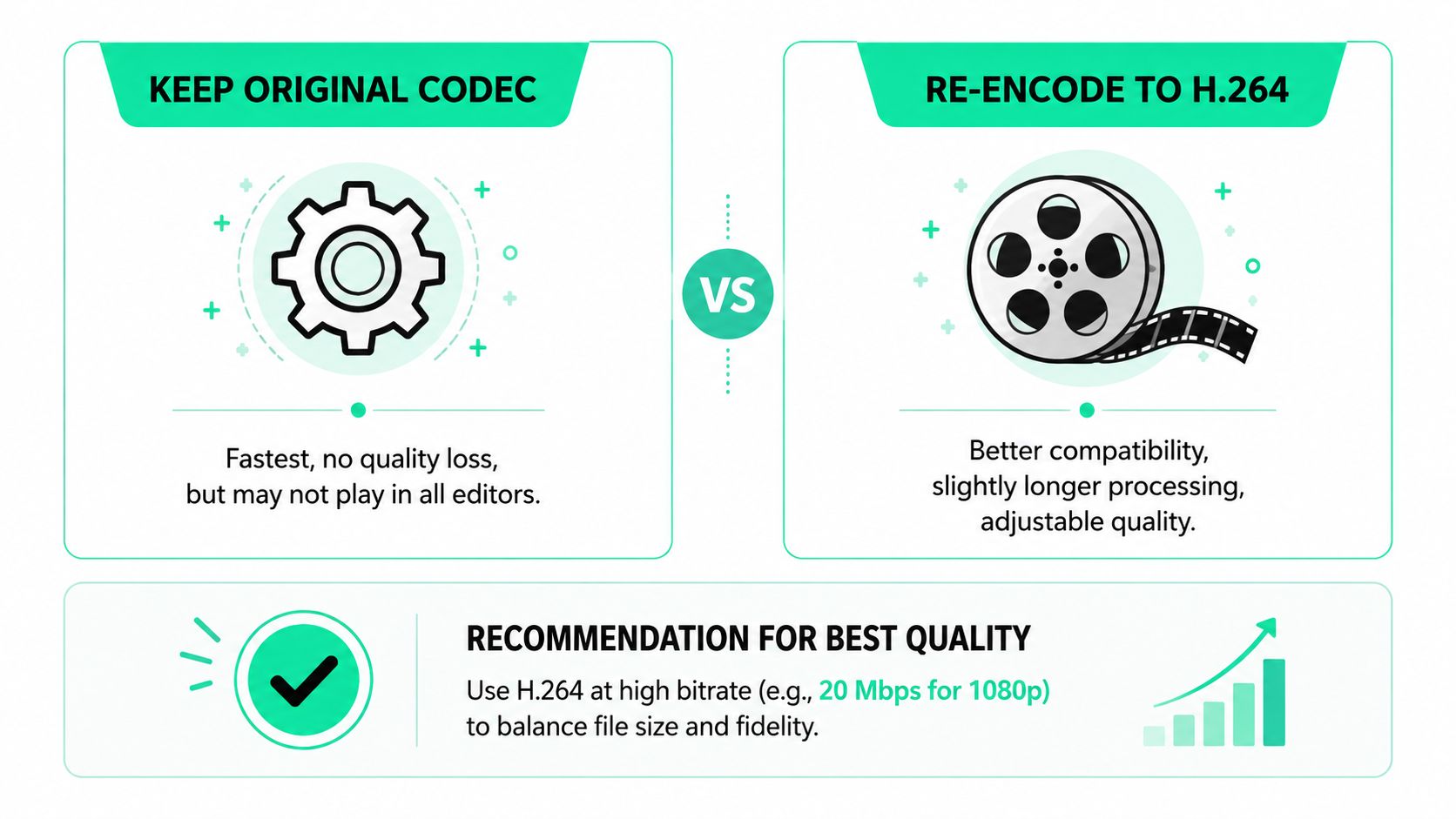
**Keep the original codec** when the source already decodes reliably in the target tools. This is the fastest path and avoids another generation of compression. It can still fail if the codec is poorly supported inside MOV or if the file's tags and headers don't match what the application expects.
**Re-encode to H.264** when broad playback and manageable file size matter. H.264 in a MOV container is often a practical exchange file for review, editing, and downstream social preparation. The [best video format for photographers](https://sendphoto.io/blog/best-format-video) is also a useful reference when a camera or production workflow offers several recording choices.
**Create a mezzanine MOV** when editing quality and responsiveness outrank storage efficiency. ProRes or DNxHR inside MOV preserves a more edit-friendly working file, but it requires substantially more storage than a delivery-oriented compressed stream. The source still can't gain detail that MPEG compression already removed, though a mezzanine can prevent additional damage during later edits and exports.
AWS MediaConvert's documentation lists MOV support around codecs including **H.264, HEVC, ProRes, and MPEG-2**, while also distinguishing which codecs can be used for ingest and which can be produced as outputs. That distinction is important because a codec accepted inside an input MOV isn't necessarily available for a valid output MOV in every workflow. ([AWS MediaConvert input codec reference](https://docs.aws.amazon.com/mediaconvert/latest/ug/reference-codecs-containers-input.html))
### Settings that prevent avoidable failures
- **Pixel format:** Use `yuv420p` for broad compatibility unless the target workflow specifically requires higher chroma or bit depth.
- **Video tag:** For HEVC, `hvc1` can improve QuickTime recognition when the stream is otherwise compatible.
- **Audio:** AAC suits compact delivery files. PCM is a safer editing choice when storage and application compatibility allow it.
- **Frame rate:** Preserve the source timing unless the project intentionally requires conversion. Unplanned frame-rate changes can create cadence or sync problems.
- **Bitrate and quality:** Increase quality settings for text, faces, and fast motion, but don't expect encoding to restore lost source detail.
- **Self-contained media:** Keep all required streams inside the MOV rather than relying on external references.
The [codec glossary](https://blitzreels.com/glossary/codec) helps separate codec decisions from container decisions. That distinction prevents the most expensive mistake in this workflow, creating a MOV that looks correct in a file browser but fails during editing.
> **Editing rule:** Choose the codec for the next operation, not merely for the current export. A review copy, a mezzanine master, and a social deliverable don't need the same compression profile.
## Preparing Your Converted MOV for TikTok Reels and Shorts With BlitzReels
A clean MOV is only the starting asset for short-form work. Long MPEG recordings often need the speaker isolated, pauses removed, captions styled, the frame reframed vertically, and a strong opening added before they can work as TikTok videos, Instagram Reels, YouTube Shorts, or LinkedIn clips.
BlitzReels is an **agentic AI video editor** that can ingest usable MOV media for clipping, transcript editing, captions, vertical reframing, resizing, B-roll, title cards, templates, and cloud exports. Human editors can review the result in the browser rather than treating automatic clipping as a substitute for editorial judgment.
Teams using Claude, Codex, Cursor, or another compatible agent can connect through BlitzReels' hosted OAuth MCP server. The same operational model is available through its REST API, TypeScript SDK, CLI with structured JSON, OpenAPI, `llms.txt`, and agent skills. An agent can inspect projects, find clips, edit transcripts and caption items, add media, modify timeline items, validate output, start exports, and verify render status, while a human checks hooks, captions, framing, title cards, and brand treatment.
A converted MOV from a webinar or podcast can therefore move through a repeatable sequence:
1. Identify a useful statement or story beat.
2. Cut the surrounding transcript and timeline items.
3. Reframe the speaker for vertical viewing.
4. Add captions, a hook, and a title card.
5. Review the safe areas and speaker tracking.
6. Export versions for each destination.
Platform dimensions and compression rules change, so creators should [browse TikTok video guidelines](https://postsyncer.com/tips/tiktok-video-size-and-specs) before finalizing a delivery preset. If the MOV is too large for upload, the [compress video for TikTok tool](https://blitzreels.com/tools/compress-video-for-tiktok) can fit the file into a more practical publishing workflow without requiring the editor to rebuild the clip.
## Final Checklist to Verify and Reuse Your MOV Files
Conversion is complete only after the MOV survives the workflow it was created for. A file that opens once but fails during seeking, captioning, or export isn't ready for client delivery.
### Verification checklist
- **Open it in QuickTime:** Confirm the picture displays, the timeline seeks, and playback doesn't stutter.
- **Open it in the target NLE:** Test Final Cut Pro or the editor used by the production team, then check the first, middle, and final portions.
- **Check audio sync:** Listen for drift after scrubbing and confirm every intended channel is present.
- **Inspect the codec:** Verify that the chosen video, audio, pixel format, and frame rate match the project requirements.
- **Compare the result with the source:** Look for changed aspect ratio, clipped highlights, unexpected interlacing, or missing frames.
- **Test the social workflow:** Import the MOV into the clipping, captioning, reframing, and export tools that will produce the final short-form videos.
For jittery playback or a file that refuses to open, stop trying to repair the extension. Re-encode with a compatible pixel format, correct video tag, and supported audio codec. If the source MPEG is already suitable, retain it as the original and create a separate working MOV. If repeated editing is expected, a ProRes or DNxHR mezzanine can be more dependable than repeatedly processing a delivery-compressed stream.
The [publishable clip QA checklist](https://blitzreels.com/guide/publishable-clip-qa-checklist) provides a useful final review structure for captions, framing, hooks, title cards, and export readiness. Once the MOV passes technical playback checks, the same source can support multiple platform-specific versions instead of forcing a new conversion for every clip.
---
BlitzReels turns a compatible MOV into a working short-form pipeline with AI clipping, transcript edits, captions, reframing, resizing, B-roll, title cards, human review, and cloud exports. Visit [BlitzReels](https://blitzreels.com) to move from conversion to publishable TikTok, Reels, Shorts, and LinkedIn clips without rebuilding each edit from scratch.