---
title: "Convert Audio MP3 to Text: 2026 Guide"
canonical: "https://blitzreels.com/blog/convert-audio-mp-3-to-text"
---
# Convert Audio MP3 to Text: 2026 Guide
URL: https://blitzreels.com/blog/convert-audio-mp-3-to-text
Markdown URL: https://blitzreels.com/blog/convert-audio-mp-3-to-text.md
Published: 2026-05-18
Author: BlitzReels
Learn to convert audio MP3 to text with our complete guide. Explore fast online tools, offline methods like Whisper, and tips for perfect transcripts.
Tags: convert audio mp3 to text, audio transcription, mp3 to text, video captions, content repurposing

You've probably got an MP3 sitting on your desktop right now that should already be working harder for you.
Maybe it's a podcast episode, a client interview, a webinar replay, a sales call, or a voice note you meant to turn into a post. The problem isn't creating the audio. That part is easy. The problem is that audio is slow to reuse when it stays trapped in one file.
That's why learning how to **convert audio mp3 to text** matters so much for creators. A usable transcript turns one recording into raw material for captions, blog drafts, quote cards, searchable notes, subtitles, and short-form clips. Once the words are visible, you can edit faster, find strong moments quickly, and publish more from the same recording session.
## Table of Contents
- [Why Turning MP3s into Text is a Creator Superpower](#why-turning-mp3s-into-text-is-a-creator-superpower)
- [From specialized service to normal workflow](#from-specialized-service-to-normal-workflow)
- [Text unlocks the next stage of content](#text-unlocks-the-next-stage-of-content)
- [Choosing Your Transcription Path](#choosing-your-transcription-path)
- [Three paths creators actually use](#three-paths-creators-actually-use)
- [Transcription methods compared](#transcription-methods-compared)
- [The Quickest Method Instant Online Converters](#the-quickest-method-instant-online-converters)
- [The basic workflow that saves time](#the-basic-workflow-that-saves-time)
- [What online tools do well and where they fall short](#what-online-tools-do-well-and-where-they-fall-short)
- [The Power User Method Offline and CLI Tools](#the-power-user-method-offline-and-cli-tools)
- [Who should use the offline route](#who-should-use-the-offline-route)
- [A simple local workflow](#a-simple-local-workflow)
- [Pro Tips for Near-Perfect Transcription Accuracy](#pro-tips-for-near-perfect-transcription-accuracy)
- [Audio hygiene matters more than people think](#audio-hygiene-matters-more-than-people-think)
- [A preflight checklist before you transcribe](#a-preflight-checklist-before-you-transcribe)
- [From Raw Text to Polished Content](#from-raw-text-to-polished-content)
- [Edit the right parts, not the whole file](#edit-the-right-parts-not-the-whole-file)
- [Choose the export format based on the job](#choose-the-export-format-based-on-the-job)
- [Frequently Asked Questions](#frequently-asked-questions)
- [Can I convert audio mp3 to text for free](#can-i-convert-audio-mp3-to-text-for-free)
- [Is MP3 the best format for transcription](#is-mp3-the-best-format-for-transcription)
- [What's better for captions, TXT or SRT](#whats-better-for-captions-txt-or-srt)
## Why Turning MP3s into Text is a Creator Superpower
A transcript isn't just paperwork. It's a production asset.
When you convert audio mp3 to text, you make your content searchable, editable, and reusable. That changes the way you work. Instead of scrubbing through a waveform to find one sharp quote, you can scan text, highlight the strongest lines, and turn them into a caption, an email, or a script for a short clip.
For creators, content multiplication starts here. One interview can become:
- **A blog draft** built from the core talking points
- **Short-form captions** pulled from punchy moments
- **Subtitles** for accessibility and silent viewing
- **Show notes or client notes** you can search later
A lot of people still treat transcription like a final admin step. In practice, it works better as the first editing step.
### From specialized service to normal workflow
A big shift happened when transcription stopped being something you ordered from a specialist and started showing up inside mainstream software. Microsoft's Office transcription feature can transcribe a conversation, interview, or meeting into text and explicitly separates each speaker, according to [Microsoft's transcription documentation](https://support.microsoft.com/en-us/office/transcribe-your-recordings-7fc2efec-245e-45f0-b053-2a97531ecf57). That mattered because transcription became part of everyday productivity workflow, not a niche service.
That change is why creators now expect a faster pipeline. Upload file. get draft. clean it up. publish.
> **Practical rule:** If you record anything longer than a quick voice memo, you should probably transcribe it. The transcript usually becomes more useful than the audio file itself.
### Text unlocks the next stage of content
Once spoken content becomes text, it stops being trapped in time. You can skim it. Search it. hand it to an editor. paste it into a doc. turn it into subtitles. That's also why caption workflows matter so much for audience retention and accessibility, especially if you're publishing social video. If that's part of your workflow, this guide on [how AI captions make your content more engaging and accessible](https://www.blitzreels.com/blog/how-ai-captions-make-your-content-more-engaging-and-accessible) is worth reading.
Most creators don't need “perfect transcription.” They need **usable text fast**, with enough structure to turn audio into outputs people consume.
## Choosing Your Transcription Path
The best way to convert audio mp3 to text depends less on features and more on context. A fast social clip for today's posting schedule needs one kind of workflow. A confidential client interview needs another.
The trade-off that gets ignored most often is **privacy versus convenience**. Many web tools make transcription easy, but many also process files in the cloud. For sensitive recordings, local processing can be the better fit. [WhisperWeb's audio-to-text page](https://whisperweb.net/audio-to-text) explicitly says audio is processed locally in the browser, which is notable because many tools talk about speed but say much less about where your audio goes.
### Three paths creators actually use
Creators usually end up in one of three lanes.
1. **Online converters**
Best when speed matters most. You upload the MP3, choose language or speaker settings, and export text or subtitle files. This is the easiest path for solo creators, marketers, and anyone clipping content on a deadline.
2. **Offline desktop or CLI tools**
Best when privacy, control, or recurring cost matters more than convenience. This route takes more setup, but it lets you keep sensitive files local and build a repeatable workflow.
3. **Mobile apps**
Best when you need rough text on the go. Good for voice memos, field interviews, or quick capture. Less ideal for long polishing sessions and bulk editing.
This visual summarizes the strategic difference well:
### Transcription methods compared
| Method | Best For | Speed | Cost | Privacy |
|---|---|---|---|---|
| Online tools | Fast turnaround, captions, quick exports | Fast | Usually recurring or usage-based | Usually depends on cloud processing policies |
| Offline software or CLI | Sensitive audio, repeatable local workflows | Slower to set up, efficient once ready | Often lower ongoing cost after setup | Stronger control because processing can stay local |
| Mobile apps | Quick capture, rough drafts, note-taking | Fast for short files | Usually simple entry pricing or bundled apps | Varies widely by app |
The right choice usually becomes obvious when you ask three questions:
- **Is the audio confidential**
- **Do I need this transcript in minutes or can I spend time setting up**
- **Will I do this once, or every week**
A podcaster with a backlog might accept a little setup time to save effort later. A social manager cutting one Reel before lunch usually won't.
Later, if you want a practical companion piece focused on podcasts, [Whisper AI's podcast transcription tips](https://whisperbot.ai/blog/mp-3-to-text) are useful because they stay close to creator workflow instead of turning into a product checklist.
For a quick walkthrough of how these tools fit into real production flow, this video is a helpful starting point:
> Fast isn't automatically best. If the file contains client calls, internal meetings, or unreleased content, privacy rules the decision.
## The Quickest Method Instant Online Converters
If your goal is speed, online converters win almost every time.
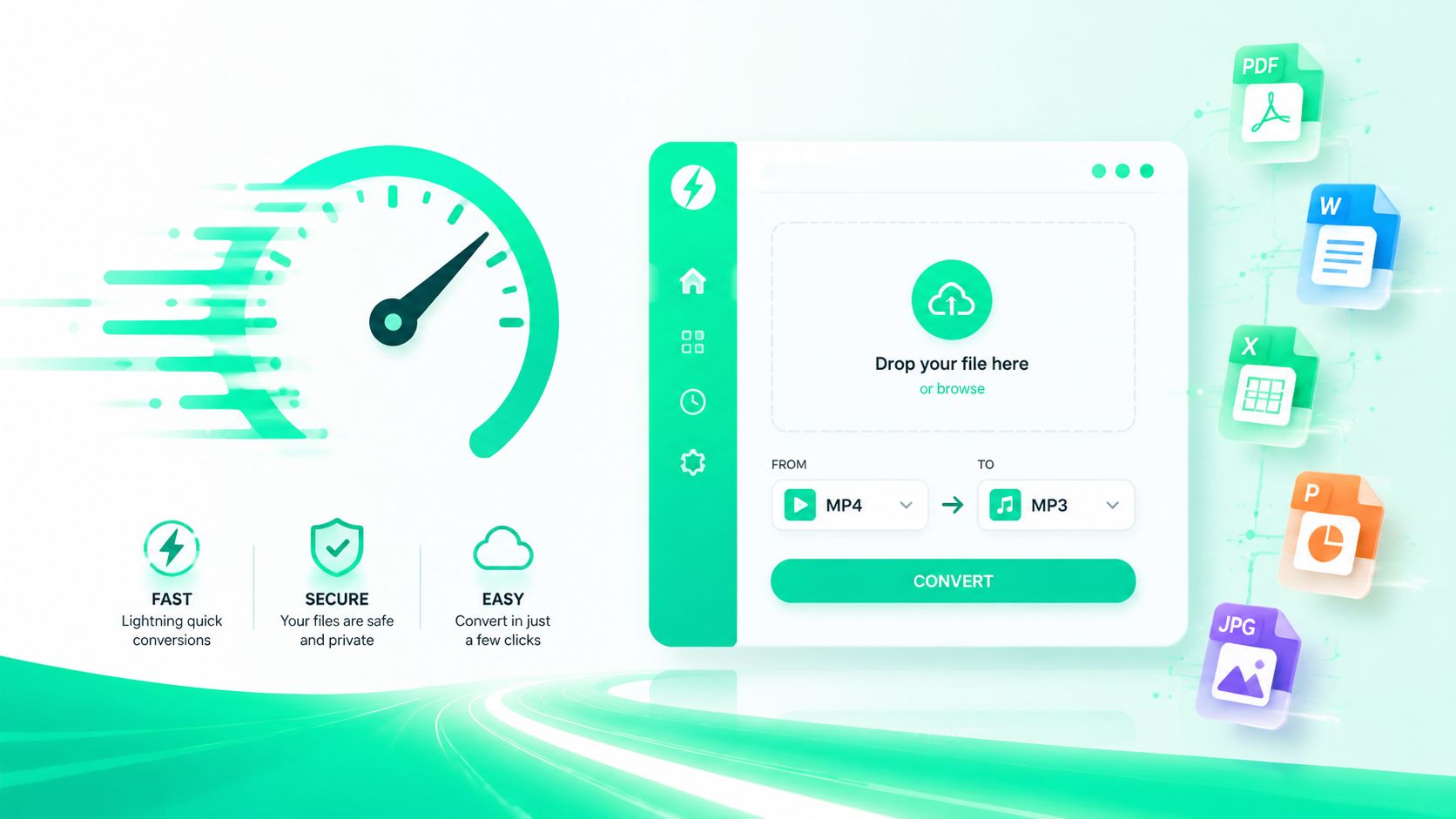
They're the default choice for creators because there's almost no setup. Open the site, upload the MP3, set a few options, and export the transcript. That's often enough to move from raw audio to a blog outline or subtitle draft in one sitting.
### The basic workflow that saves time
Most online tools follow the same pattern:
1. **Upload your MP3**
Drag the file in. Some tools also accept WAV, M4A, and other formats.
2. **Choose language and speaker options**
If the tool supports speaker labels or diarization, turn it on for interviews and podcasts.
3. **Run transcription**
The platform creates a draft transcript.
4. **Review obvious errors**
Correct names, brand terms, technical jargon, and speaker mix-ups.
5. **Export in the format you need**
TXT works for documents and blog drafting. SRT or VTT works for captions and subtitles.
Current platforms show how global this workflow has become. ElevenLabs says its MP3-to-text tool supports **99 languages** and includes **speaker labels, timestamps, and event markers** on its [MP3 to text page](https://elevenlabs.io/mp3-to-text). That's enough to make online transcription practical for multilingual creator teams, podcasts, and social content pipelines.
### What online tools do well and where they fall short
What they do well:
- **Fast start:** no installs, no setup, no command line
- **Easy exports:** useful when your end goal is captions or a draft article
- **Low friction for teams:** easy to hand off files and transcripts
Where they can disappoint:
- **Privacy can be vague:** some tools say little about processing and retention
- **Accuracy still depends on the recording**
- **Editing can get clumsy:** especially on long interviews with multiple speakers
A smart way to use online tools is to treat them as your **draft generator**, not your final editor.
If you're comparing beginner-friendly options before committing, this guide to an [audio to text converter free](https://iamtypist.dev/blog/audio-to-text-converter-free) approach is a solid resource because it helps you think through low-friction starting points.
If your next step is captions rather than a plain transcript, it also helps to use a tool built for subtitle output and styling. An [AI caption generator](https://www.blitzreels.com/ai-caption-generator) can save a lot of cleanup time when the final deliverable is a vertical video, not a text file.
## The Power User Method Offline and CLI Tools
Online tools are convenient. Local tools are for people who care about control.
If you regularly work with confidential interviews, internal recordings, or client material that shouldn't leave your machine, offline transcription is worth learning. It's also useful if you want to avoid getting locked into another monthly tool just to convert audio mp3 to text.
### Who should use the offline route
This method makes sense for:
- **Agencies handling client-sensitive files**
- **Developers or technical creators** who don't mind a one-time setup
- **Podcast producers** processing lots of recordings
- **Anyone who wants control** over preprocessing, file handling, and exports
It's less ideal if you need a transcript in the next five minutes and don't already have your workflow configured.
### A simple local workflow
The common combination is **FFmpeg** plus **Whisper**.
FFmpeg handles the prep work. You use it to convert formats, extract audio from video, trim sections, or prepare cleaner files. Whisper handles the speech recognition. Run together, they give you a practical local pipeline without sending files to a web service.
A straightforward workflow looks like this:
- **Prep the file with FFmpeg:** convert odd formats, trim dead space at the beginning or end, and standardize your audio file before transcription.
- **Run Whisper locally:** generate the transcript from the cleaned file.
- **Review output files:** keep plain text for writing, subtitle files for video, and timestamped output for quick spot checks.
- **Archive both source and transcript:** useful when clients come back asking for one exact quote.
> Local transcription usually costs you setup time upfront. It gives you privacy and control back on every project after that.
This route also lets you be stricter about your workflow. You can keep a folder structure, batch process content, and build repeatable habits around naming files and storing exports. That matters more than people expect once you're managing interviews, podcast episodes, webinars, and content repurposing across multiple projects.
The catch is simple. Offline tools don't remove the need for cleanup. They just give you more control over how you get to the draft.
## Pro Tips for Near-Perfect Transcription Accuracy
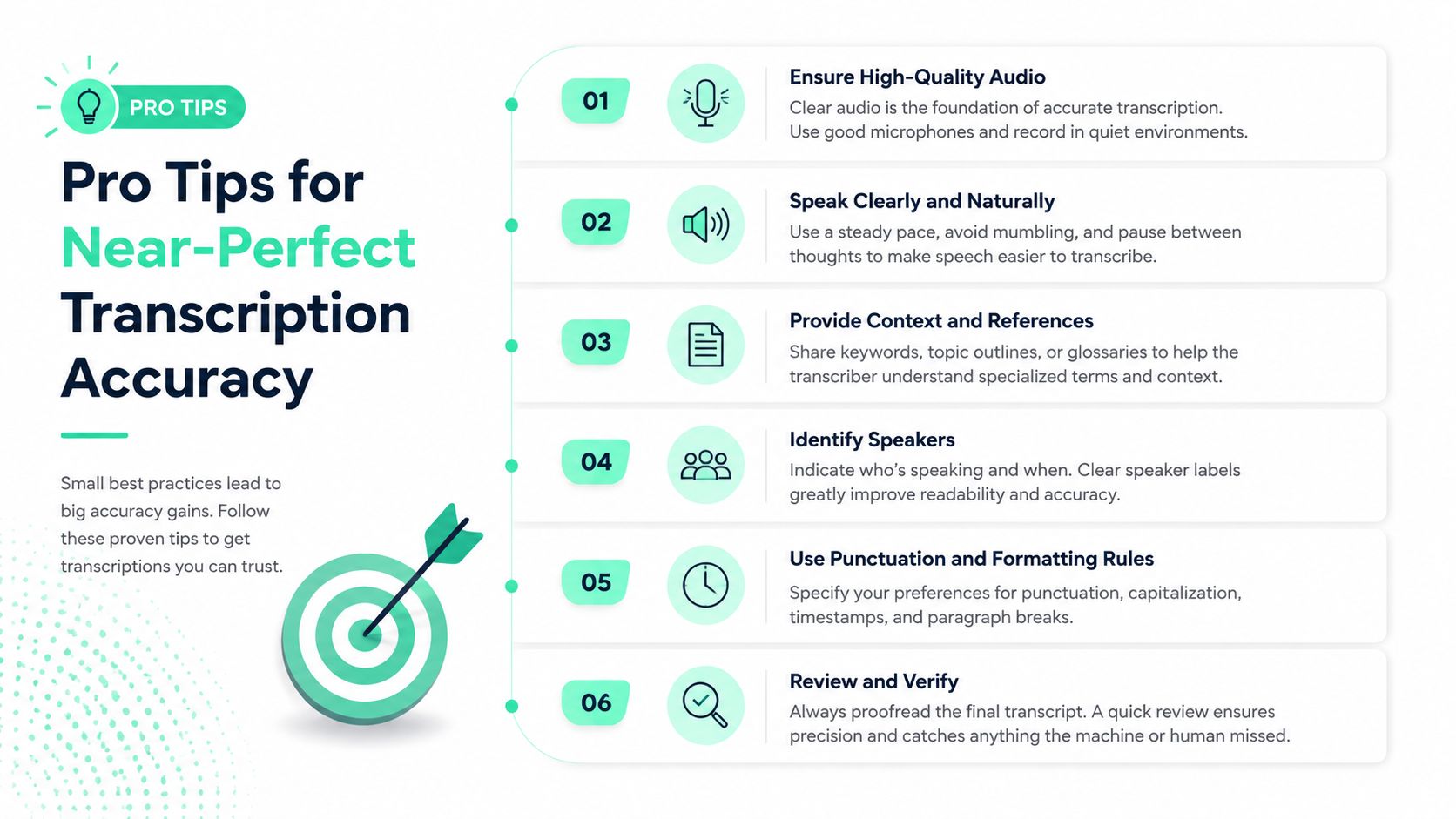
Most transcription mistakes start before the upload.
People blame the model when the actual problem is the recording. If the speaker is distant, the room is echoey, the audio is crushed by compression, or two people keep talking over each other, the transcript will suffer no matter which service you choose.
### Audio hygiene matters more than people think
AssemblyAI notes that **microphone quality, background noise, audio compression, and echo can significantly degrade results**, and recommends WAV or FLAC over compressed MP3 when possible. It also says preprocessing steps like **noise reduction, volume normalization, and converting to uncompressed audio can improve accuracy** on its guide to [speech-to-text accuracy](https://www.assemblyai.com/blog/speech-to-text-accuracy).
That lines up with what creators run into every day. A clean recording from an average tool usually beats a messy recording pushed through a stronger model.
If you need a quick reference on one of the biggest cleanup steps, this short glossary entry on [noise reduction](https://www.blitzreels.com/glossary/noise-reduction) is useful because it explains the concept plainly.
### A preflight checklist before you transcribe
Use this before you hit upload:
- **Start with the best source file:** export the original recording if you can. Don't pass around compressed copies if a cleaner source exists.
- **Normalize loudness:** get voices into a consistent range so quiet lines don't disappear.
- **Trim long silence:** dead air wastes time and can complicate review.
- **Be conservative with cleanup:** remove obvious distractions, but don't overprocess until speech sounds artificial.
- **Separate speakers at recording time when possible:** good mic technique saves a lot of transcript repair later.
- **Flag jargon beforehand:** product names, acronyms, and surnames often need manual correction.
> Cleaner audio beats clever prompting. The transcript's ceiling is usually set by the recording, not the settings menu.
A few recording habits make a huge difference:
- **Use a closer mic position** instead of trying to “fix it in post”
- **Ask guests not to interrupt each other** if the recording will be repurposed
- **Monitor one short test clip** before the full session
- **Avoid low-quality exports** when handing files to editors
The creators who get consistently good transcripts usually aren't using magic tools. They're protecting the audio before it becomes text.
## From Raw Text to Polished Content
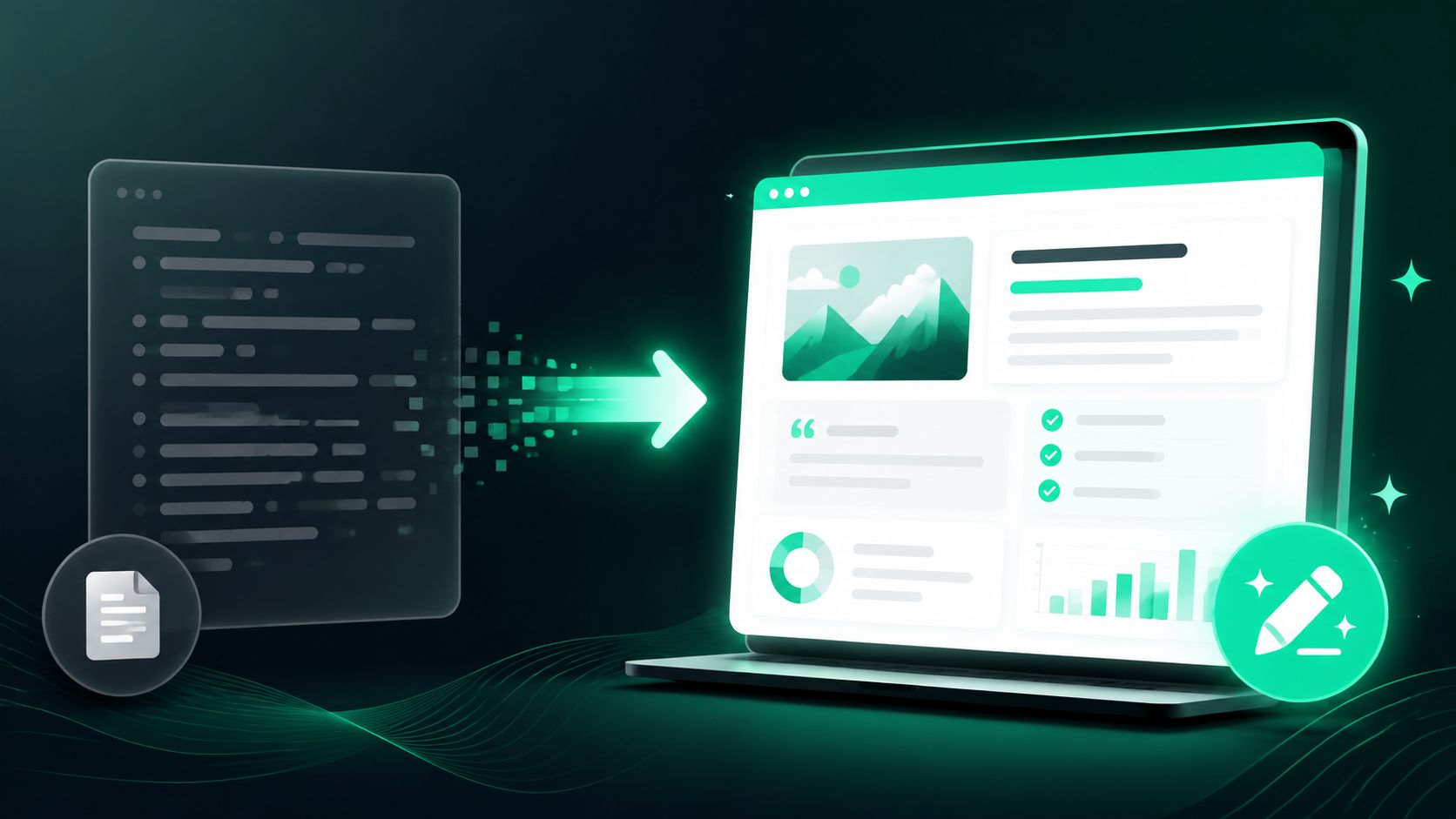
A transcript draft is not the finished asset. It's the working file.
The fastest creators don't waste time proofreading every second from start to finish. They edit selectively. They know where errors tend to cluster, and they clean the transcript according to the final use case.
### Edit the right parts, not the whole file
Vatis Tech points to the main failure areas clearly. **Overlapping speech** can cause dropped words, merged phrasing, or wrong speaker assignment. It also warns that low-audibility sections can trigger hallucinated text, which is why the most efficient workflow is **automated draft plus targeted human QA** focused on uncertain segments, names, and jargon, as explained in its guide on [how to transcribe audio to text](https://vatis.tech/blog/transcribe-audio-to-text).
That gives you a better editing strategy:
1. **Scan for speaker overlap first**
Interviews and roundtables are where transcript quality often breaks.
2. **Fix proper nouns and industry terms**
Brand names, surnames, product labels, and acronyms should be checked early.
3. **Spot-check low-audibility sections with timestamps**
Don't relisten to the whole file if only a few passages are messy.
4. **Clean for the destination**
A blog transcript needs readability. Captions need timing and line breaks.
> The best transcript workflow isn't one-click automation. It's fast drafting followed by deliberate review where machines struggle most.
A transcript becomes much more valuable when you feed it into a broader repurposing system. If you want a practical model for turning one source into multiple assets, this [successful content repurposing framework](https://www.narrareach.com/blog/content-repurposing-strategies) is a useful companion read.
### Choose the export format based on the job
Different outputs need different files.
| Format | Best Use |
|---|---|
| **TXT** | Blog drafts, article outlines, notes, summaries |
| **SRT** | Standard subtitles for video platforms |
| **VTT** | Web video subtitles and workflows needing more modern caption support |
Here's the simple rule:
- Use **TXT** when the transcript is heading into a doc.
- Use **SRT** when you need straightforward subtitles fast.
- Use **VTT** when your publishing environment prefers it or your workflow needs that format.
Formatting matters too. Break long sentences. remove filler words if the text is becoming an article. keep natural phrasing if the transcript will become captions synced to speech. The same words can serve different jobs, but they shouldn't be exported mindlessly.
## Frequently Asked Questions
### Can I convert audio mp3 to text for free
Yes, many tools offer some kind of free access or trial workflow. The main question isn't just price. It's whether the output is good enough for your use case and whether the privacy model fits your project.
### Is MP3 the best format for transcription
It's common and convenient, but not always ideal. Cleaner source audio usually helps more than model changes. If you have access to a higher-quality original recording, use that.
### What's better for captions, TXT or SRT
Use **SRT** for video captions. Use **TXT** when you're turning the spoken content into a blog post, notes, or a script.
---
If your real goal isn't just getting a transcript but turning long recordings into polished short-form videos fast, [BlitzReels](https://blitzreels.com) is built for that workflow. Upload your video, generate transcripts and captions, find strong clip moments, and turn one recording into publish-ready content for TikTok, Reels, and YouTube Shorts without getting stuck in a full manual edit.