---
title: "How to Create a SRT File in Minutes (Even on Auto)"
canonical: "https://blitzreels.com/blog/create-a-srt-file"
---
# How to Create a SRT File in Minutes (Even on Auto)
URL: https://blitzreels.com/blog/create-a-srt-file
Markdown URL: https://blitzreels.com/blog/create-a-srt-file.md
Published: 2026-08-22
Author: BlitzReels
Learn how to create a SRT file fast with this short-form creator guide. Compare manual editing, auto-generation, and AI tools that save time.
Tags: srt file, video captions, subtitle guide, shorts editing, auto captions

You've clipped the strongest moment from a longer video, resized it for TikTok, Reels, or Shorts, and added a hook that works. Then the caption workflow stalls because a platform or editor asks for an SRT file. The format sounds technical, but creating one is a matter of pairing readable text with accurate timestamps. The decision is whether to build those timestamps manually or let an AI workflow produce a draft that a creator can validate quickly.
## Table of Contents
- [What an SRT File Actually Is and Why Short-Form Creators Need It](#what-an-srt-file-actually-is-and-why-short-form-creators-need-it)
- [Why separate captions help](#why-separate-captions-help)
- [Manual SRT Creation vs Auto-Generated Subtitle Workflows](#manual-srt-creation-vs-auto-generated-subtitle-workflows)
- [A practical decision rule](#a-practical-decision-rule)
- [How to Create a SRT File Manually from Scratch](#how-to-create-a-srt-file-manually-from-scratch)
- [Timing without creating new problems](#timing-without-creating-new-problems)
- [Fastest Way to Generate an SRT File Using AI Tools](#fastest-way-to-generate-an-srt-file-using-ai-tools)
- [Common SRT File Errors and How to Fix Encoding Issues](#common-srt-file-errors-and-how-to-fix-encoding-issues)
- [Start with encoding](#start-with-encoding)
- [Check the structure](#check-the-structure)
- [SRT Caption Length Limits for Mobile and Short-Form Platforms](#srt-caption-length-limits-for-mobile-and-short-form-platforms)
- [Timing controls comprehension](#timing-controls-comprehension)
- [How to Choose the Right Workflow for Your Next Video](#how-to-choose-the-right-workflow-for-your-next-video)
## What an SRT File Actually Is and Why Short-Form Creators Need It
A viewer may discover a short-form video while commuting, sitting in a quiet room, or scrolling with the sound muted. Captions then carry the hook, the setup, and the payoff. They also help viewers follow speech when the audio is unclear or when the speaker uses unfamiliar terms.
An **SRT file**, short for SubRip Subtitle, is a plain-text subtitle track. Each caption block contains a sequence number, a start and end time, the text shown on screen, and a blank line separating it from the next block. The format originated with the SubRip Windows program, first released on **3 March 2000**, which extracted DVD subtitles with OCR into editable plain text. The resulting format became a **de facto standard**, not a formally standardized one, because its structure was simple and widely supported across video tools and platforms. [The Library of Congress format description](https://www.loc.gov/preservation/digital/formats/fdd/fdd000569.shtml) documents that history and structure.

### Why separate captions help
SRT keeps **timing and text separate from visual design**. Unlike burned-in captions, the file doesn't permanently alter the video image. A creator can correct a misspelled word or shift a timestamp without rebuilding the clip, then reuse the subtitle track in another editor, localization workflow, or uploader.
YouTube expanded closed-caption support in **August 2008** and accepted SubRip files, a milestone that helped creators add captions without specialized authoring software. [Titlevision's SRT format reference](https://www.titlevision.dk/sm/srt_format.htm) also documents the familiar `HH:MM:SS,mmm` timing convention, including millisecond precision and the comma used as the decimal separator.
For creators working across clipping, reframing, title cards, templates, and fast editing, an SRT file is an operational asset. The [SRT subtitles glossary](https://blitzreels.com/glossary/srt-subtitles) is useful when a workflow involves importing, exporting, or converting subtitle tracks.
## Manual SRT Creation vs Auto-Generated Subtitle Workflows
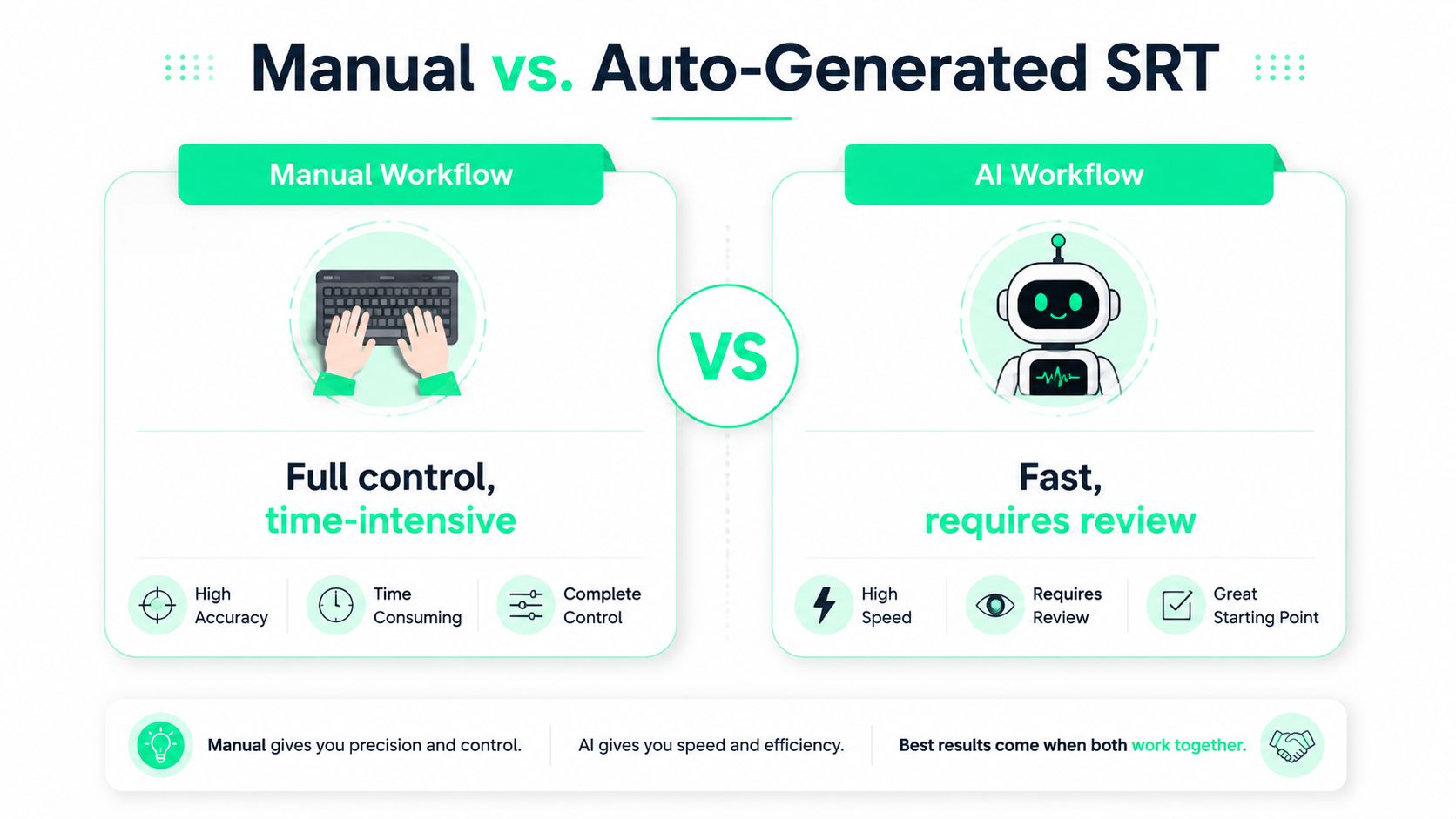
Manual creation gives a creator exact control, but it assigns every small decision to a human. The process requires transcribing the dialogue, typing sequential blocks, setting `HH:MM:SS,mmm` timestamps, checking overlaps, and adjusting line breaks against the actual video. For a short correction or a sensitive foreign-language clip, that control can be worth the effort.
For a batch of clips, manual timing becomes the bottleneck. Auto-generated workflows use speech recognition to produce a transcript with timing, then export the result as an SRT file. Some AI editors can also identify cuts, beat changes, or likely hook moments while preparing captions for vertical edits. The output is fast, but it still needs review for names, jargon, punctuation, timing, and segmentation.
### A practical decision rule
Manual work makes sense when:
- **Wording is critical:** Legal, medical, branded, or multilingual captions may need deliberate human correction.
- **The clip is short:** A small number of blocks can be edited directly without creating a larger production burden.
- **Timing needs artistic control:** A creator may want captions to land with a reveal, cut, gesture, or title card rather than follow speech alone.
AI generation makes more sense when:
- **Volume matters:** Repurposing a long recording into several TikToks, Reels, Shorts, or LinkedIn clips rewards speed.
- **The audio is clear:** Clean speech gives transcription tools a stronger starting point.
- **The file is a draft:** A creator can generate captions quickly, then spend time correcting only visible problems.
A creator looking for a dedicated [automated subtitle creation tool](https://clipcreator.ai/blog/srt-file-creator) can use that kind of workflow to avoid typing every timestamp. The important distinction is that automation replaces repetitive setup, not quality control. An [auto-caption workflow](https://blitzreels.com/glossary/auto-caption) should still be checked against the video before publication.
## How to Create a SRT File Manually from Scratch
Manual creation starts with a plain-text editor, not a word processor with hidden formatting. Notepad works on Windows, while TextEdit must be switched to plain-text mode on Mac. A subtitle editor can make timing easier, but a basic editor is enough for the file itself.
Build each block in the same order:
1. Enter a sequential index number.
2. Add the start and end timestamps in `HH:MM:SS,mmm --> HH:MM:SS,mmm` format.
3. Type the caption text on one or two lines.
4. Leave a blank line before the next block.
A valid block looks like this:
1
00:00:01,200 --> 00:00:03,400
This is the opening hook.
The index identifies the block, while the timestamp controls when the player displays it. SRT stores timing and text only, not styling or positioning data. [FileFormat.com's SRT reference](https://docs.fileformat.com/video/srt/) describes the required block structure and explains why invalid timecodes, inconsistent timestamps, and encoding mistakes are common failure points.
### Timing without creating new problems
Play the video beside the text editor and mark the moment speech begins and ends. Avoid overlapping blocks. The end of one entry should finish before the next entry begins, unless a specific player workflow has been tested to handle the overlap.
Break lines at natural pauses rather than splitting a phrase between unrelated words. Include meaningful non-speech cues when they help communicate the scene, such as `[laughter]` or `[music]`, but don't fill a fast-moving short with unnecessary descriptions.
Save the file with an `.srt` extension and **UTF-8 encoding**. Then open it with the target editor or player, not only the text editor. The [BlitzReels captions documentation](https://blitzreels.com/docs/captions) is relevant when a creator needs to move caption files into a broader editing workflow.
Manual creation works best for targeted fixes. It doesn't scale well when every new clip requires the same transcription and timing work.
## Fastest Way to Generate an SRT File Using AI Tools
The quickest workflow usually starts with the video rather than an empty text document. Upload a clip, let the tool transcribe the audio, review the caption track, and export the result as SRT. This approach turns SRT creation into one step inside a wider short-form pipeline that may also include clipping, reframing, resizing, hook selection, title cards, templates, and fast edits.
A practical sequence looks like this:
1. **Upload the source clip:** Use the original video when possible, with clear audio and no unnecessary re-encoding.
2. **Generate captions:** Select automatic transcription or subtitle generation.
3. **Review the transcript:** Correct names, technical words, slang, punctuation, and missing speech.
4. **Check the visual timing:** Watch the captions against the speaker, cuts, gestures, and on-screen text.
5. **Export SRT:** Download the plain-text subtitle track for use in another editor or uploader.
6. **Create the social version:** Apply animated captions, emoji callouts, brand colors, reframing, and platform sizing separately if the destination needs burned-in text.
BlitzReels can export an SRT from AI transcription and can also import an existing SRT to apply animated caption styles. That distinction matters because a creator may need a portable subtitle file for one platform, while another version needs captions permanently visible inside a vertical video. The [AI caption generator](https://blitzreels.com/ai-caption-generator) supports the faster starting point, while the final review protects against transcription and pacing errors.
An SRT track can support a longer repurposing chain, too. A creator can find a strong hook in a long recording, clip the relevant moment, resize it for mobile, and reuse corrected caption text across several versions. YouTube Shorts can run from at least **15 seconds up to 3 minutes** under rules effective **15 October 2024**, so the SRT needs to cover the complete exported clip rather than the duration of the original recording. [Descript's YouTube Shorts length guide](https://www.descript.com/blog/article/how-long-can-youtube-shorts-be) covers that change.
## Common SRT File Errors and How to Fix Encoding Issues
A file can look correct in a text editor and still fail after import. Most problems come from a small set of technical details: malformed timestamps, missing blank lines, unsupported characters, unexpected line endings, or captions that a player can't display comfortably.
### Start with encoding
**UTF-8 is the safest practical choice** for captions that include accented letters, symbols, or multiple languages. A different encoding can turn valid text into broken characters, particularly after a file moves between operating systems or editors. Reopen the exported file in a text editor that shows encoding information, confirm UTF-8, and inspect every special character before uploading.
Line endings can also matter. Windows commonly uses CRLF, while Unix-based systems commonly use LF. Many applications handle both, but portability problems can appear when a file passes through several tools. If an import fails without an obvious timestamp error, resave the file with consistent line endings and test it again.
> **Validation habit:** Never trust the export dialog alone. Open the SRT in the destination editor, then watch the video from beginning to end.
### Check the structure
Look for these quiet failures:
- **Timestamp syntax:** Every timing line should use the correct arrow, two-digit time fields, three-digit milliseconds, and comma separator.
- **Block separation:** Each caption block needs a blank line after its text.
- **Character display:** Check accents, apostrophes, emoji, and non-English text on the actual target device.
- **Line length:** Some players impose practical display limits even though SRT itself is plain text.
- **Order and overlap:** Confirm that indexes progress sequentially and entries don't collide.
The [encoding glossary](https://blitzreels.com/glossary/encoding) can help clarify why the same text may behave differently after export. If a platform rejects the file, simplify the caption text, resave as UTF-8, normalize line endings, and test a short section before replacing the entire track.
## SRT Caption Length Limits for Mobile and Short-Form Platforms
A caption can be technically valid and still be unusable on a phone. Vertical video leaves limited room for text, while viewers are also tracking faces, cuts, product shots, B-roll, and animated callouts. Dense captions compete with the hook instead of reinforcing it.
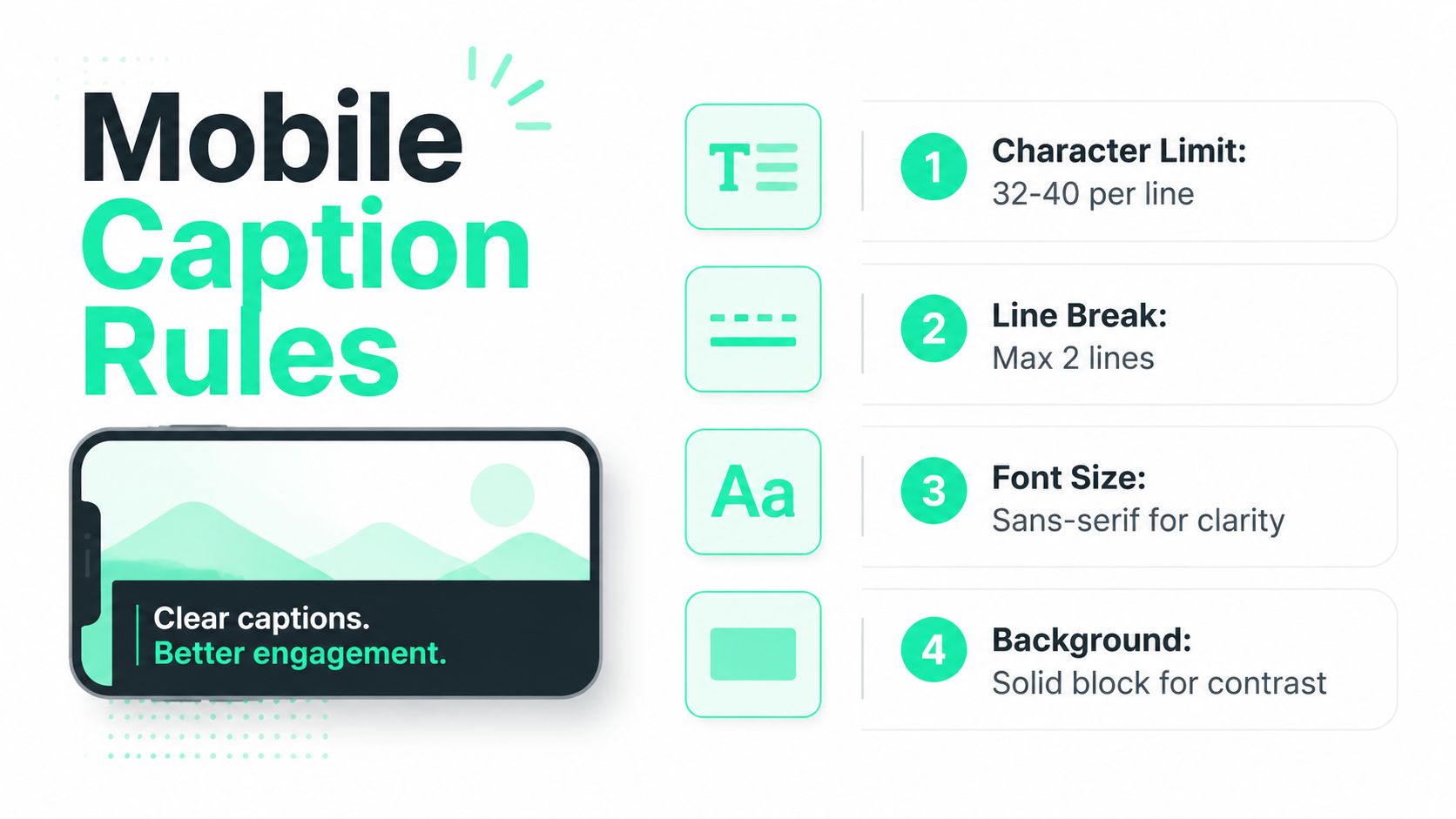
For short-form video, practical guidance commonly keeps each line around **32 to 42 characters**, or roughly **5 to 7 words per line**. [Bakecut's mobile subtitle guide](https://bakecut.com/en/blog/shorts-subtitle-guide/) frames those limits around quick reading on mobile screens. A creator should generally keep a block to no more than two lines and break text at natural pauses.
### Timing controls comprehension
Reading speed matters as much as character count. Professional guidance commonly places general broadcast reading speed around **15 to 20 characters per second**, with **20 CPS** cited for Netflix and BBC. Children's content is often limited to **13 CPS**. Recommended subtitle duration ranges from a minimum of **0.833 seconds** to a maximum of **7 seconds**, while gaps between subtitles should be at least about **2 frames, approximately 80 milliseconds at 25 frames per second**. These figures come from [Subtitlewise's subtitle statistics guide](https://www.subtitlewise.com/blog/subtitle-statistics-guide).
Use those values as quality controls, not as a reason to force every spoken word onto the screen. Short-form captions often work better when they preserve the central phrase, follow the speaker's cadence, and leave space for a visual beat.
A readability study of post-edited interlingual subtitling reported readability errors in **52.8% of cases**, which shows why segmentation and line breaking deserve a deliberate review. Captions shouldn't merely arrive on time. They should arrive in a form the viewer can scan before the next cut.
## How to Choose the Right Workflow for Your Next Video
The right method depends on the job, not on a loyalty to manual or automated tools. A creator with one precise correction may finish faster in a text editor. A creator repurposing a long recording into several short clips should generate a draft automatically, then spend the saved time on accuracy and pacing.
A simple decision table helps:
| Situation | Practical choice | Main review |
|---|---|---|
| A short clip needs a few wording changes | Manual editing | Check timestamps and blank lines |
| A clear recording needs captions quickly | AI generation | Verify names and transcript accuracy |
| A long video is becoming several clips | AI plus human review | Recheck timing after every cut |
| Captions need a branded visual style | Import or export around the editor | Confirm readability after styling |
| A multilingual version is required | Separate subtitle track per language | Review characters and segmentation |
The SRT should be treated as one part of the publishing pipeline. The source video may need clipping, a stronger opening hook, a title card, reframing to keep a face centered, or resizing for a different platform. Captions then need a final pass after those edits because a cut can change the timing and context of an otherwise accurate subtitle.
> **Publishing rule:** Generate quickly, correct deliberately, and validate the exact file attached to the exact video being published.
Manual control remains valuable for sensitive wording and fine timing. AI-assisted generation is usually the more practical starting point for volume, provided the creator watches the output against the actual clip. That hybrid workflow removes repetitive timestamp work without treating automation as finished quality.
---
BlitzReels helps creators transcribe short-form videos, export or import SRT files, apply animated captions, find clips, add hooks and title cards, reframe footage, resize it for social platforms, and finish edits quickly. Visit [BlitzReels](https://blitzreels.com) to turn the next source video into a publish-ready captioned clip.