---
title: "How to Add Subtitles to MP4 for Short-Form Video"
canonical: "https://blitzreels.com/blog/how-to-add-subtitles-to-mp-4"
---
# How to Add Subtitles to MP4 for Short-Form Video
URL: https://blitzreels.com/blog/how-to-add-subtitles-to-mp-4
Markdown URL: https://blitzreels.com/blog/how-to-add-subtitles-to-mp-4.md
Published: 2026-08-20
Author: BlitzReels
Learn how to add subtitles to MP4 files for TikTok, Reels, and Shorts. Covers auto-captions, SRT editing, burned-in vs soft tracks, and safe-zone placement.
Tags: add subtitles mp4, video captions, short-form video, SRT editor, burned-in captions

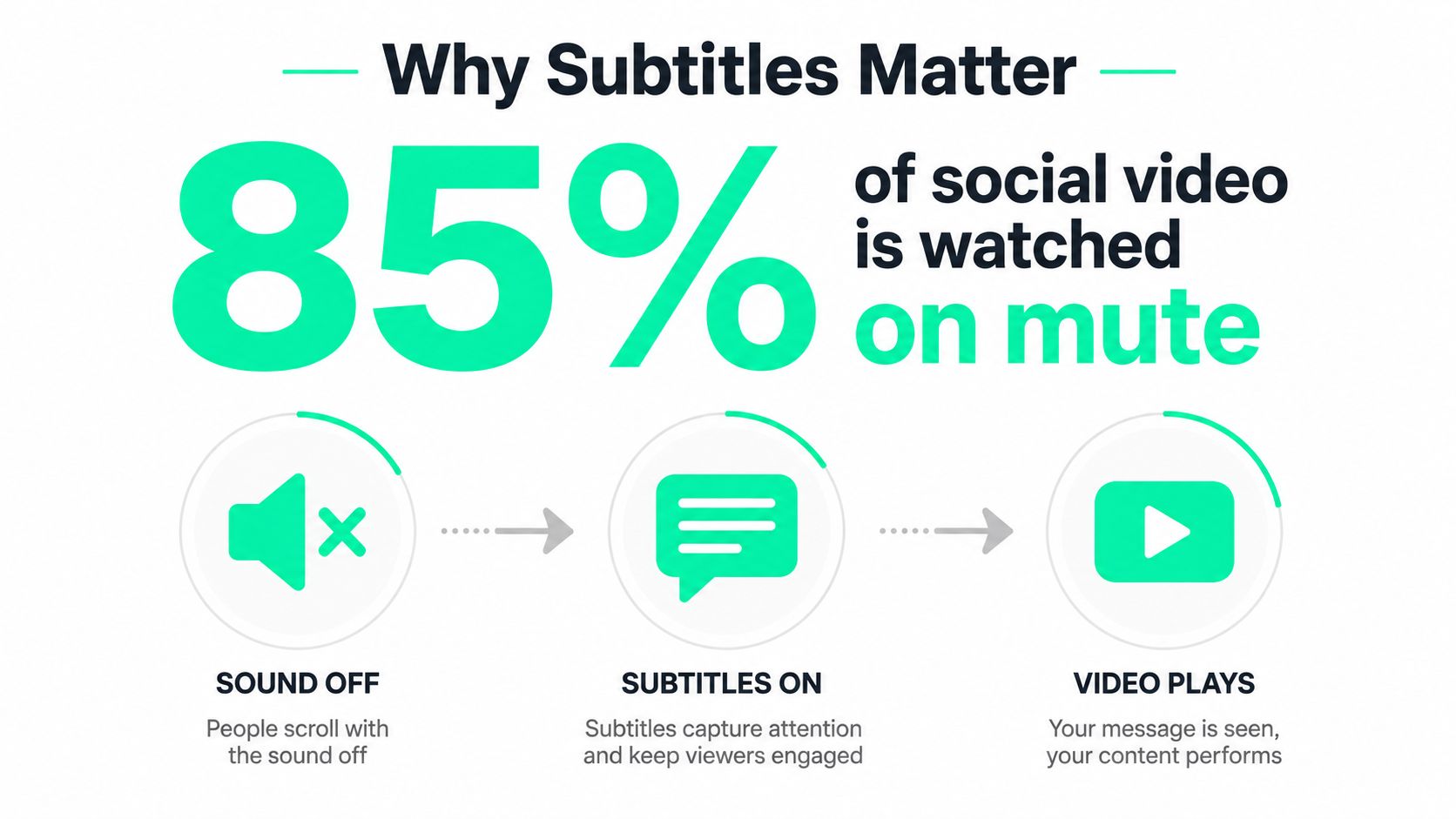
Up to **85% of social video is watched on mute**, according to the widely cited benchmark summarized by [QuickReel's caption-placement guidance](https://quickreel.io/blog/caption-placement-safe-zones). For short-form editors, subtitles aren't a finishing touch added after the core work. They determine whether a silent autoplay viewer can follow the hook, whether the text survives platform processing, and whether the final MP4 works across the places where it will be published.
The practical answer to **how to add subtitles to MP4** starts with a distribution choice. Burned-in subtitles become part of the picture, while soft subtitles remain a separate track that a compatible player can show, hide, or switch between. The right option depends on the platform, the audience, and whether the clip needs to be reused in another language or format.
## Table of Contents
- [Why Subtitles Are a Distribution Decision](#why-subtitles-are-a-distribution-decision)
- [The export choice comes first](#the-export-choice-comes-first)
- [Burned-In vs Soft Subtitles for Social Platforms](#burned-in-vs-soft-subtitles-for-social-platforms)
- [Subtitle Type Recommendations by Platform](#subtitle-type-recommendations-by-platform)
- [Generating and Editing Captions with AI Tools](#generating-and-editing-captions-with-ai-tools)
- [Build the first draft quickly](#build-the-first-draft-quickly)
- [Make captions readable on a phone](#make-captions-readable-on-a-phone)
- [Embedding Subtitles Using FFmpeg and Desktop Software](#embedding-subtitles-using-ffmpeg-and-desktop-software)
- [Hard-burn an SRT file](#hard-burn-an-srt-file)
- [Soft-mux a subtitle track](#soft-mux-a-subtitle-track)
- [Caption Safe Zones for Vertical Short-Form Video](#caption-safe-zones-for-vertical-short-form-video)
- [Place the first hook before the interface does](#place-the-first-hook-before-the-interface-does)
- [Fixing Sync Issues and Export Errors](#fixing-sync-issues-and-export-errors)
## Why Subtitles Are a Distribution Decision
Silent viewing changes the job. A viewer scrolling TikTok, Instagram Reels, YouTube Shorts, or LinkedIn may encounter a clip before choosing to enable sound, so the opening title card, spoken hook, and first caption need to communicate without relying on audio. Subtitles also support accessibility and multilingual viewing, rather than serving only as decoration.
Captioning has a long history of solving this exact communication problem. Silent cinema used intertitles between scenes, modern subtitle histories place early film subtitles in the early 1900s, and one milestone often cited is **1909**, when M. N. Tropp proposed placing additional text at the bottom of the screen. Subtitles later became established in the **1920s**, appeared in patents for text displayed with moving pictures by the **1930s**, and moved toward downloadable computer-based systems by the **1980s**, developments that helped lead to file-based workflows such as SRT and embedded MP4 tracks. [Capital Captions' history of subtitles](https://www.capitalcaptions.com/2017/05/22/history-subtitles-past-present-future/) documents that progression.
### The export choice comes first
**Burned-in subtitles**, also called hard subtitles, are rendered permanently into the video frames. They guarantee that the text appears in players that ignore subtitle tracks, which makes them practical for autoplay social feeds. **Soft subtitles** stay separate, either as an embedded MP4 track or an external SRT file. They preserve the ability to toggle captions, switch languages, or revise the text without altering the picture.
That difference affects reach, localization, brand styling, file reuse, and re-encoding time. Automation can generate a useful first draft, but a human still needs to check proper nouns, slang, speaker changes, punctuation, and timing drift. Captioning adoption is broad, yet accuracy remains uneven: [Amara's accessibility history](https://blog.amara.org/2019/07/11/a-history-of-subtitles/) cites **90% of organizations captioning at least some content** and **66% reporting caption-accuracy standards in 2024**, while another finding in the same source says only **28% of online videos had captions meeting accuracy standards**.
Creators building a repeatable publishing system can pair subtitle decisions with broader planning, such as these [10 distribution tactics for creators](https://taap.bio/blog/content-distribution-strategies). The useful mindset is simple: captions influence how a clip is understood, packaged, localized, and delivered.
## Burned-In vs Soft Subtitles for Social Platforms
The distinction is operational, not cosmetic. A burned-in subtitle is permanently rendered into the MP4 image, so every viewer sees the same words, position, font, and emphasis. A soft subtitle is stored separately, either inside the MP4 container or beside it as an SRT file, and the player decides whether the viewer can access it.
For short-form feeds, hardcoded text usually provides the most reliable result. TikTok, Instagram Reels, and YouTube Shorts may autoplay with no sound, process uploads, or ignore an embedded track. Burned-in captions survive those conditions and preserve a chosen style, including bold hooks, highlighted words, emoji callouts, and branded title cards. The cost is flexibility. Changing a typo or creating a localized version requires another render, and every hard-burn export requires video re-encoding.
Soft subtitles make more sense when the playback environment supports tracks. They suit YouTube long-form, LinkedIn posts with compatible playback, internal review, archival files, and multilingual delivery. The viewer can turn captions off or select another language, while the editor can update the subtitle file without changing the underlying video. MP4 compatibility still matters. SRT is commonly converted to the MP4-compatible `mov_text` codec during muxing, while ASS is generally more useful when rendered into the picture. The [burned-in captions glossary](https://blitzreels.com/glossary/burned-in-captions) gives the terminology a useful reference point.
### Subtitle Type Recommendations by Platform
| Platform | Recommended Type | Reason |
|---|---|---|
| TikTok | Burned-in | Reliable visibility during silent autoplay and consistent styling |
| Instagram Reels | Burned-in, with optional native captions | Custom text survives more playback conditions than a separate track |
| YouTube Shorts | Burned-in for social styling, soft track where supported | Hardcoded text keeps hooks visible, while tracks preserve language flexibility |
| LinkedIn | Burned-in for feed reliability, soft track for compatible playback | A visible caption layer supports muted autoplay, while a track can support accessibility workflows |
Instagram's native auto-caption sticker can be useful for a quick post, but it doesn't provide the same control over line breaks, safe zones, emphasis, or reusable exports. A high-volume editor should keep a clean master, a styled hard-subtitle version for feed distribution, and a separate SRT when localization or archival reuse matters. Soft tracks can be lightweight, but player support determines whether anyone sees them.
## Generating and Editing Captions with AI Tools
A productive caption workflow uses automation for transcription and a human pass for editorial judgment. The process starts with the source MP4, moves through speech recognition, and ends with a corrected subtitle file or rendered caption layer.
### Build the first draft quickly
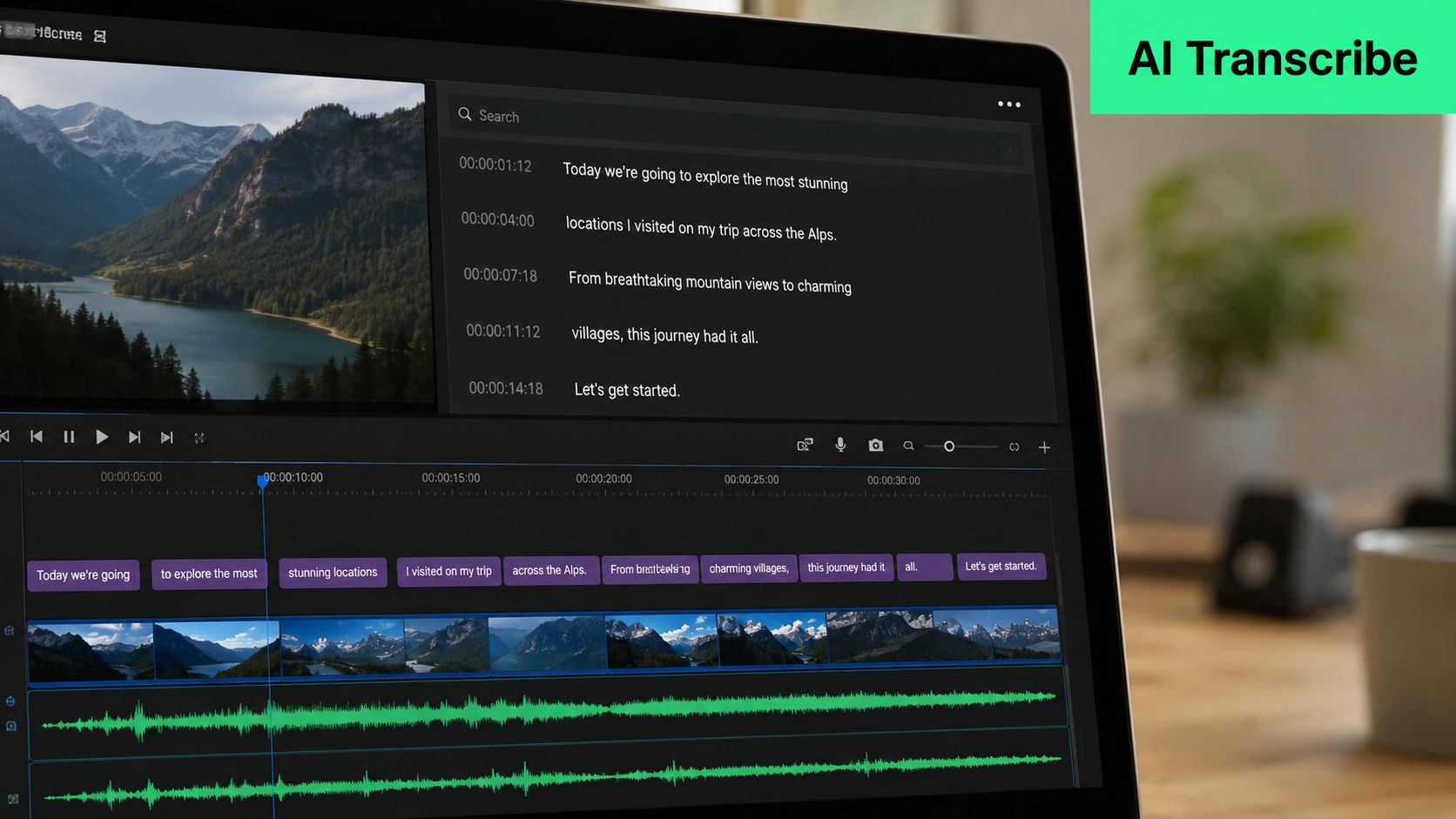
Tools such as Whisper, platform transcription features, browser-based subtitle editors, and a caption workflow in BlitzReels can produce the initial transcript. The resulting text can be exported as **SRT or VTT**, then opened in Aegisub, Subtitle Edit, or another editor for review. A creator who needs an automated starting point can use the [AI caption generator](https://blitzreels.com/ai-caption-generator), then check the output against the waveform and original audio.
The first pass should prioritize meaning and timing rather than visual polish. Proper nouns, product names, slang, acronyms, and technical terms are common transcription failure points. Filler words can be removed when they distract from the message, but edits shouldn't change the speaker's intended meaning.
### Make captions readable on a phone
Long transcript lines overwhelm a vertical frame. A practical mobile target is roughly **37 to 42 characters per line**, with breaks placed at natural breath points, phrase boundaries, or changes in thought. Captions should support the edit, not cover a speaker's mouth or force viewers to read a dense block while the shot changes.
Timing deserves equal attention:
1. **Set the in-point** to the first audible syllable, not several frames before speech.
2. **Set the out-point** roughly **0.5 to 1 second** after speech ends when the phrase needs a brief reading window.
3. **Split around edits** so a caption doesn't remain across a distracting shot change.
4. **Check word emphasis** against the actual spoken beat, especially for animated captions.
Teams publishing dozens of clips each week should save caption styles as presets. Store the font, size, stroke, shadow, highlight color, and placement together, then use batch find-and-replace for recurring transcription mistakes. AI can accelerate the draft, but professional quality comes from correcting the final layer of errors, particularly names, punctuation, speaker labels, and timing.
Editors looking beyond captioning can also [explore AI-generated video resources](https://blog.lunabloomai.com/) for ideas around automated creation and repurposing. Those tools still work best when a person reviews the result before publication.
## Embedding Subtitles Using FFmpeg and Desktop Software
FFmpeg gives editors two distinct MP4 workflows. The first burns subtitles into the image, which requires a new video encode. The second muxes a subtitle track into the container, which can preserve the existing video and audio streams.
### Hard-burn an SRT file
The standard hard-subtitle command is:
`ffmpeg -i input.mp4 -vf subtitles=subtitle.srt output.mp4`
The `subtitles` filter reads the SRT and renders it into each relevant video frame. The FFmpeg build needs **libass** enabled for subtitle rendering, which can be checked with `ffmpeg --version`. On Windows, paths containing drive-letter colons or spaces need careful escaping, so a path such as `C:\Videos\captions.srt` may need escaped separators inside the filter expression.
Styling can be controlled with ASS override settings through `force_style`:
`ffmpeg -i input.mp4 -vf "subtitles=subtitle.srt:force_style='FontSize=28,PrimaryColour=&H00FFFFFF,OutlineColour=&H00000000,Outline=2,Shadow=1'" output.mp4`
This changes text size, color, outline, and shadow. ASS color values use the `&HAABBGGRR` pattern, not the usual CSS order. If the video is also being resized, apply the scale before the subtitles filter so the captions render against the intended frame dimensions.
### Soft-mux a subtitle track
For an MP4 subtitle track, convert the SRT to `mov_text` while copying the existing streams:
`ffmpeg -i input.mp4 -i subtitles.srt -c copy -c:s mov_text output.mp4`
This approach avoids a full video re-encode and keeps the subtitle track editable, but compatible playback is essential. If the target platform strips or ignores the track, the captions won't appear.
HandBrake provides a simpler graphical route. Add the source, open the **Subtitles** tab, import the SRT, select **Burn In**, choose the output settings, and queue the encode. VLC can be used through **Media > Convert/Save** when a soft-mux workflow is appropriate, although the available track controls depend on the build and output configuration.
| Tool | Method | Re-encode Required | Batch Support | Best For |
|---|---|---:|---|---|
| FFmpeg | Hard-burn or soft-mux | Hard-burn yes, soft-mux no | Strong through scripts | Repeatable pipelines and large clip batches |
| HandBrake | Hard-burn | Yes | Queue-based | One-off exports and mixed source formats |
| VLC | Soft-mux-oriented conversion | Usually no for stream copying | Limited | Quick desktop conversions |
| SRT editor | Caption text and timing changes | No by itself | Varies | Fixing transcripts before export |
For editors preparing many versions, scripted FFmpeg commands reduce repetitive clicks. For a single clip with mixed media settings, HandBrake's queue can be easier to manage. The same production workflow can also include tools for unrelated audio tasks, such as [adding vocals to a song](https://vocuno.com/add-vocals-to-song), but subtitle embedding still requires a deliberate MP4 track or render decision. Editors who prefer a visual correction step can use the [SRT editor](https://blitzreels.com/tools/srt-editor) before encoding.
## Caption Safe Zones for Vertical Short-Form Video
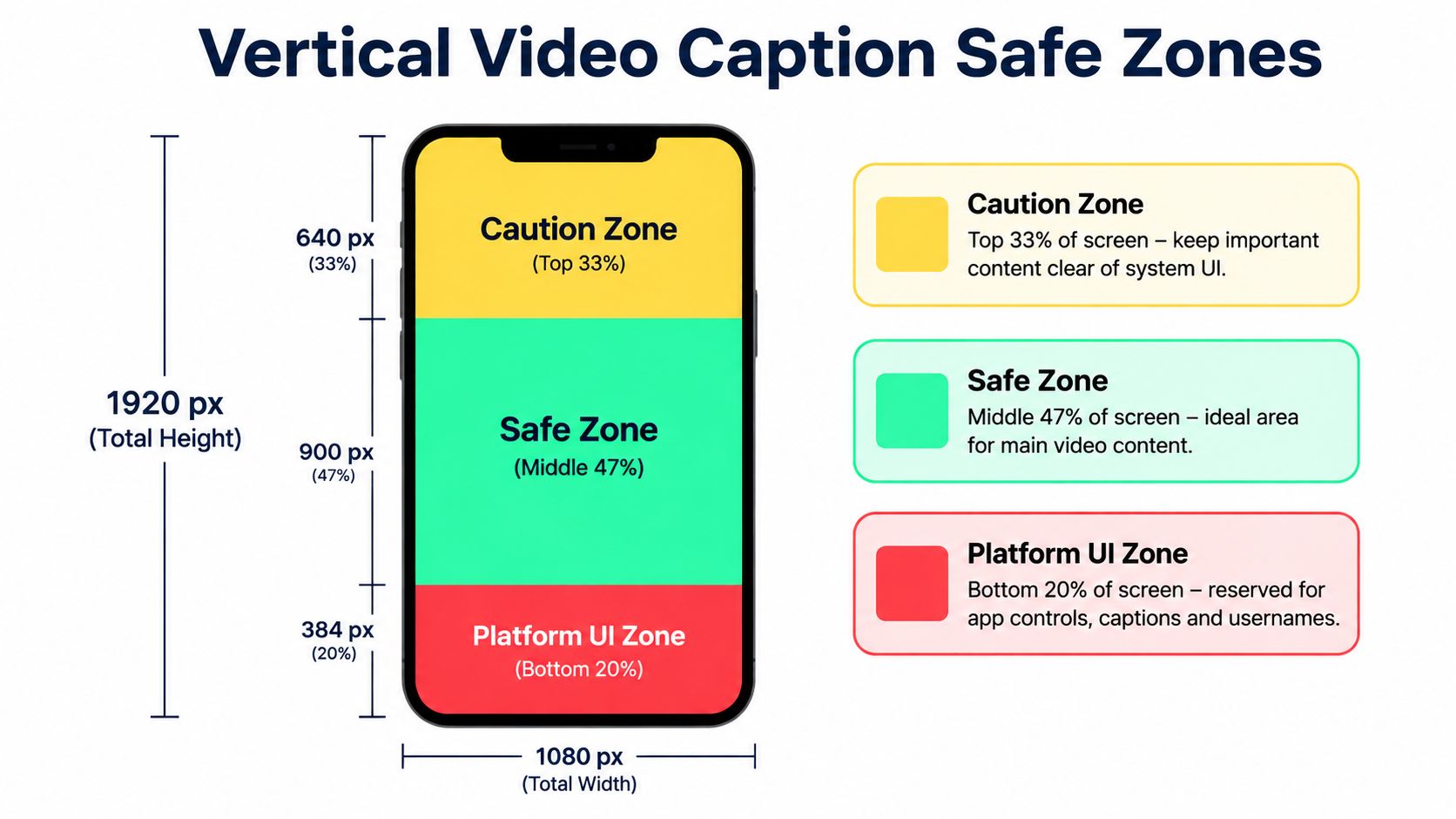
A 1080×1920 vertical canvas has plenty of room, but social interfaces occupy the edges. One short-form placement guide recommends keeping text below the top **approximately 220 pixels**, above the bottom **approximately 320 to 440 pixels**, and clear of the right **approximately 120 pixels** so interface elements don't cover it. [BlitzCut AI's caption-placement guidance](https://blitzcutai.com/blog/best-caption-placement-short-form-video) provides those practical boundaries.
Independent guidance recommends keeping critical text inside a centered **900×1400-pixel rectangle** within the 1080×1920 frame, while reserving the bottom and right edges for captions, buttons, and engagement controls. [ShortsFast's safe-zone guide](https://shortsfast.com/blog/faceless-shorts-hooks-retention-2026/) uses that centered rectangle as a reference for TikTok, Instagram Reels, and YouTube Shorts.
### Place the first hook before the interface does
The safest caption position is usually the central portion of the frame, adjusted around faces, product demonstrations, and platform controls. A caption centered at half the frame height can still collide with a subject's face, while a caption placed too low may disappear beneath descriptions, usernames, or engagement controls.
Use the same geometry when building an ASS style, setting margins in Premiere's Essential Graphics panel, or positioning text in a mobile editor. The caption layer should be tested on the actual platform, not only in a clean desktop preview. TikTok and Reels can place search or engagement elements over the video, YouTube Shorts can display channel information around the viewing area, and LinkedIn's muted autoplay makes visible opening text especially useful.
A short-form retention benchmark summarized by [QuickReel](https://quickreel.io/blog/caption-placement-safe-zones) says that more than **50% of viewers leaving in the first 3 seconds** can undermine a video's first distribution test, while a healthy **3-second hold is roughly 70 to 80%**. Those figures make the first subtitle line a mechanical part of the hook, not merely a transcript. The opening title card, first spoken phrase, and caption position need to work together.
For terminology and reusable layout checks, the [safe-zone glossary](https://blitzreels.com/glossary/safe-zone) is a useful reference. A reframed clip should be checked after resizing, because auto-reframing can move the speaker into the exact area where subtitles were originally positioned.
## Fixing Sync Issues and Export Errors
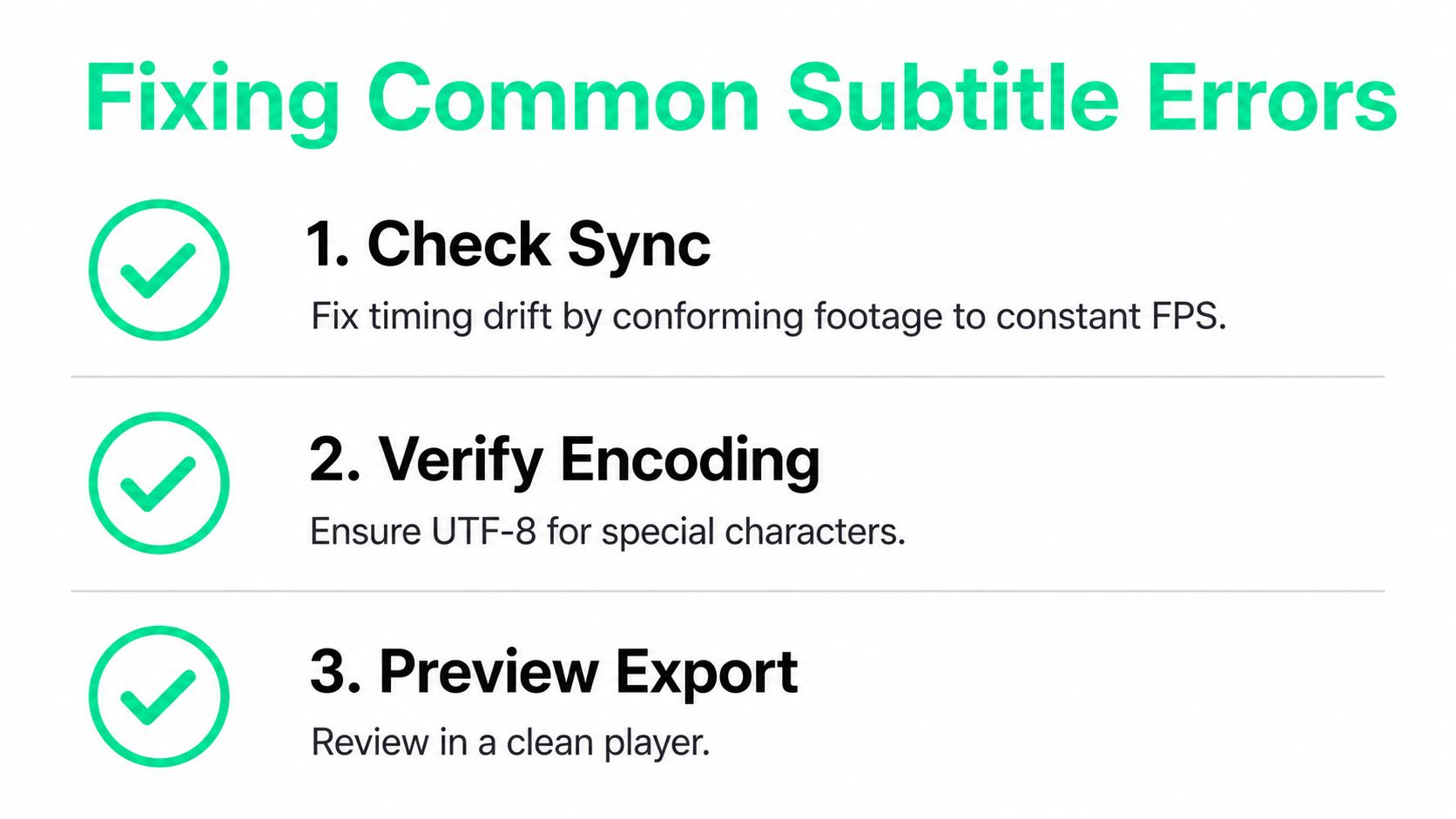
Most subtitle failures fall into three groups: timing, character encoding, and player compatibility. Variable frame rate footage can create apparent drift because the subtitle timestamps and video timeline no longer agree. Conforming the source to constant frame rate before captioning prevents many of these mismatches.
A full-file offset can be applied with FFmpeg:
`ffmpeg -itsoffset 0.5 -i subtitles.srt -i input.mp4 -map 1:v -map 1:a -map 0:0 -c copy output.mp4`
For a text-only correction, shift the SRT timestamps in Subtitle Edit or another subtitle editor rather than rebuilding the transcript. If a special character appears as a box, reopen the SRT as UTF-8 and save it again. Converting a UTF-16 file can be handled with:
`iconv -f UTF-16 -t UTF-8 captions-utf16.srt > captions.srt`
A hard-burn caption that looks too small or sits too low needs a `force_style` adjustment, such as `FontSize`, `MarginV`, or `Alignment`, or a corresponding margin change in HandBrake. A soft MP4 track that players ignore usually needs the subtitle codec specified explicitly:
`ffmpeg -i input.mp4 -i subtitles.srt -c copy -c:s mov_text output.mp4`
> **Preview rule:** Check the finished MP4 in a clean player and on the intended platform. A caption that works in an editor can still be hidden, cropped, or ignored after upload.
Word-level timing checks are especially useful when animated captions emphasize individual terms. The [word-level sync glossary](https://blitzreels.com/glossary/word-level-sync) explains the workflow concept without replacing the final human review.
---
BlitzReels lets creators upload an MP4, generate and style captions, edit clips, reframe and resize them for TikTok, Instagram Reels, YouTube Shorts, and LinkedIn, then export a distribution-ready version. Visit [BlitzReels](https://blitzreels.com) to turn subtitle correction, short-form clipping, hooks, title cards, and fast repurposing into one repeatable workflow.