---
title: "How to Compress a MOV File Without Losing Quality"
canonical: "https://blitzreels.com/blog/how-to-compress-a-mov-file"
---
# How to Compress a MOV File Without Losing Quality
URL: https://blitzreels.com/blog/how-to-compress-a-mov-file
Markdown URL: https://blitzreels.com/blog/how-to-compress-a-mov-file.md
Published: 2026-08-29
Author: BlitzReels
Learn how to compress a MOV file fast. Step-by-step FFmpeg commands, desktop tools, online options, and social-ready settings for TikTok and Reels.
Tags: compress mov, mov file size, ffmpeg mov, video compression, mov to mp4

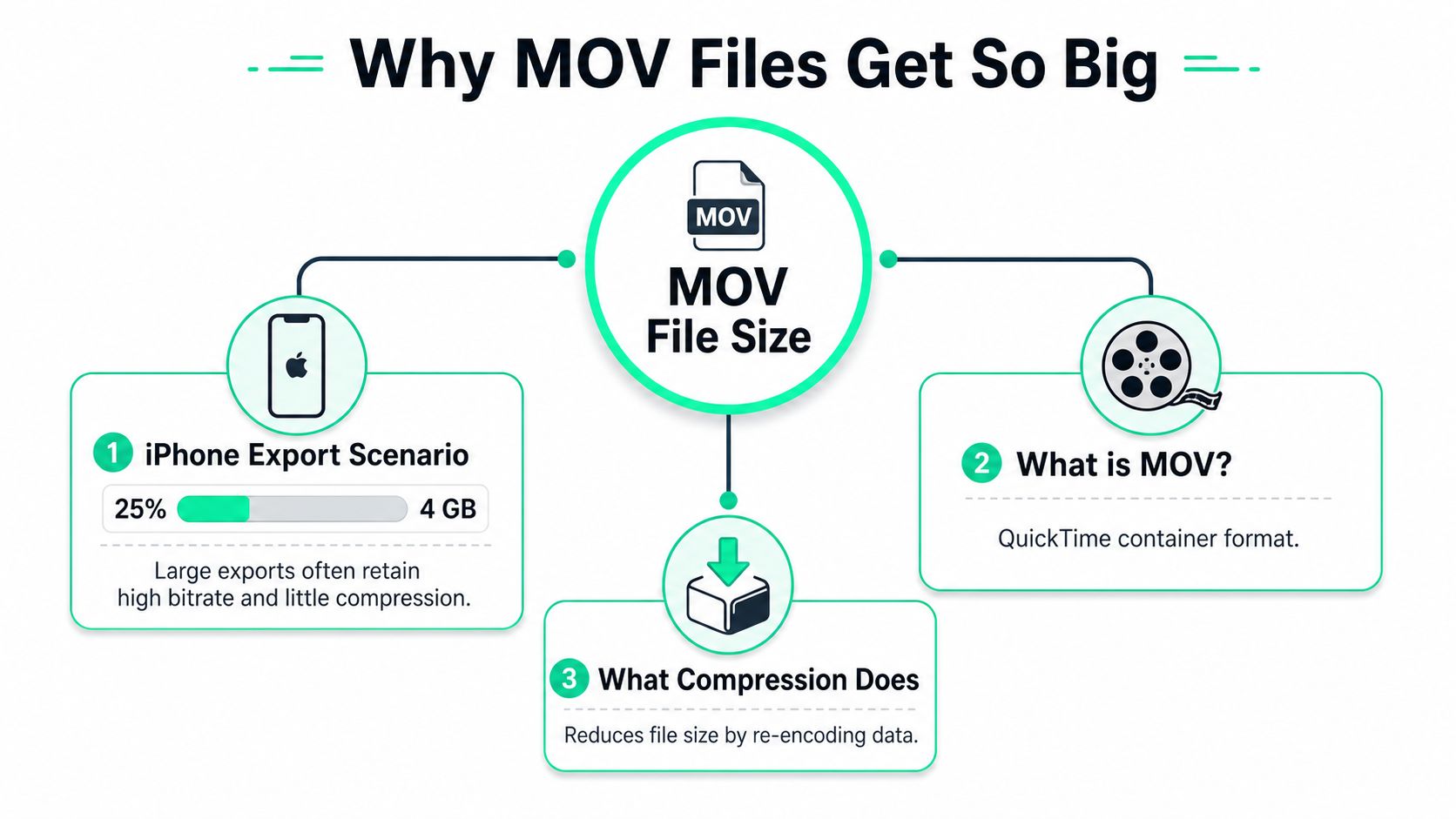
An iPhone export can arrive as a **4 GB MOV file**, just when an upload needs to move quickly. The progress bar stalls, email rejects the attachment, and a social platform may accept the file only to compress it again. The right fix isn't to rename `.mov` to `.mp4` or place the file in a ZIP archive. The file needs an export designed for where it will play.
Compression works best when the editor identifies the source codec, chooses the delivery platform, and then adjusts the codec, bitrate, resolution, audio, and container together. A ProRes master should stay intact for editing, while a social clip usually needs a smaller, web-ready version. The following workflow shows how to compress a MOV file without wasting quality or creating a file that still fails at upload.
## Table of Contents
- [Why MOV Files Get So Big and What Compression Actually Does](#why-mov-files-get-so-big-and-what-compression-actually-does)
- [The four levers that change file size](#the-four-levers-that-change-file-size)
- [Choosing the Right Codec, Bitrate, and Resolution](#choosing-the-right-codec-bitrate-and-resolution)
- [Settings that hold up in real delivery workflows](#settings-that-hold-up-in-real-delivery-workflows)
- [FFmpeg Commands That Compress MOV Files Fast](#ffmpeg-commands-that-compress-mov-files-fast)
- [HEVC and scaled exports](#hevc-and-scaled-exports)
- [Batch processing and AV1](#batch-processing-and-av1)
- [Desktop Apps, Online Tools, and the Command Line Compared](#desktop-apps-online-tools-and-the-command-line-compared)
- [Settings for TikTok, Reels, Shorts, and LinkedIn](#settings-for-tiktok-reels-shorts-and-linkedin)
- [Reframe before compressing](#reframe-before-compressing)
- [A Practical Compression Workflow and Quick Answers](#a-practical-compression-workflow-and-quick-answers)
- [Common questions](#common-questions)
## Why MOV Files Get So Big and What Compression Actually Does
A MOV file isn't automatically large because it ends in `.mov`. Apple introduced the QuickTime Movie container with QuickTime 1.0 in **1991**, and the format was designed as a container rather than a codec. A single MOV can hold video streams such as H.264, H.265/HEVC, Apple ProRes, or MPEG-4 Part 2, along with AAC or PCM audio, as described in this [MOV format overview](https://file-extensions.com/docs/mov).
That distinction matters. A consumer phone clip may contain H.264 or HEVC with AAC audio, while an editing master often contains Apple ProRes with Linear PCM. ProRes and PCM preserve more information for post-production, but they also create much larger deliverables than a web-oriented H.264 and AAC combination.
### The four levers that change file size
**Codec switching** usually creates the largest improvement. Re-encoding ProRes into H.264 or HEVC removes redundant visual data through lossy compression. H.264, HEVC, and AV1 are lossy delivery codecs, while ProRes variants are designed for editing and can be near-lossless depending on the variant and workflow.
**Bitrate control** determines how much data the encoder spends on each second of video. A higher bitrate protects fine detail and fast movement, but it produces a larger file. A lower bitrate saves space until gradients band, text becomes muddy, or motion breaks into blocks.
**Resolution downscaling** reduces the number of pixels the encoder must store. A 4K source doesn't need to remain 4K when the destination is a phone feed. Published comparisons report that moving from 1080p to 720p can cut file size by about **50%**, while changing CRF from 18 to 24 can reduce size by about **40% to 50%**, depending on the footage and encode settings ([compression comparison guidance](https://vid-crush.com/blog/compress-without-quality-loss/)).
**Container repacking** changes the wrapper, not necessarily the data. Putting the same streams in MP4 instead of MOV may improve compatibility, but it won't deliver meaningful compression by itself. Audio, timecode, metadata, and extra tracks can also add size, even when the visible picture looks clean.
> **Practical rule:** Choose the destination first. Then select the codec, resolution, bitrate, and container that fit that destination.
For a deeper definition of the underlying process, see the [video compression glossary](https://blitzreels.com/glossary/video-compression). The useful decision is simple: preserve the original MOV for editing, or create a separate delivery file for playback, sharing, or social publishing.
## Choosing the Right Codec, Bitrate, and Resolution
Codec choice depends on the delivery target. **H.264** remains the safest option for browsers, phones, editing applications, and social platforms. **HEVC**, or H.265, can provide **25% to 50% better compression than H.264 at similar visual quality** ([HEVC compression guidance](https://klap.app/blog/how-to-compress-an-mov-file)), but older devices and some workflows may not decode it smoothly. AV1 can compress efficiently when the encoder and playback environment support it, though it adds compatibility and processing considerations. A [codec glossary](https://blitzreels.com/glossary/codec) helps separate the codec from the container holding it.
CRF is usually more practical than guessing one fixed bitrate. Lower CRF values preserve more detail and create larger files. For H.264 web delivery, start around CRF 23. A range of **18 to 28** covers higher-quality masters through smaller compressed outputs ([FFmpeg web encoding guidance](https://www.ffmpeg-micro.com/blog/compress-video-for-the-web-bitrate-codecs-and-one-call-presets)). HEVC uses a different quality scale in many encoders, so its CRF number should not be compared directly with H.264.
### Settings that hold up in real delivery workflows
These values are starting points. Talking heads compress easily, while foliage, confetti, screen recordings, gradients, and rapid movement require more data.
| Use case | Codec | CRF / Bitrate | Resolution |
|---|---|---:|---|
| H.264 archive or high-quality handoff | H.264 | CRF 18 to 23 | Original or delivery target |
| H.264 social delivery | H.264 | CRF 23 to 28 | 1080p or 1080 × 1920 |
| HEVC compact delivery | HEVC | CRF 22 to 28 | 1080p, 4K when needed |
| 1080p web video | H.264 or HEVC | About 8 to 12 Mbps | 1920 × 1080 |
| 4K social output | H.264 or HEVC | About 15 to 25 Mbps | 4K |
| 4K editing archive | H.264, HEVC, or editing codec | About 35 to 60 Mbps | 4K |
For a 1080p web export, the broader guidance places common targets around **10 to 20 Mbps**. For 720p, it gives roughly **5 to 10 Mbps**, while 4K commonly falls around **30 to 60 Mbps** ([Vimeo compression guidelines](https://help.vimeo.com/hc/en-us/articles/12426043233169-Video-and-audio-compression-guidelines)). H.264 guidance includes 720p examples around **1,500 to 4,000 kbps**, showing why a smaller frame can support a lower bitrate ([H.264 codec guide](https://antmedia.io/h264-codec-complete-guide-advanced-video-coding/)).
Downscaling often preserves more perceived quality than forcing a 4K file into an extremely low bitrate. A clean 1080p export usually beats a blocky 4K encode. For short-form delivery, this overview of [intelligent compression for short-form video](https://www.aicut.pro/blog/video-compression-youtube) offers another way to assess content complexity before encoding.
Keep MOV for Final Cut Pro projects, ProRes sources, QuickTime metadata, or professional handoffs. Choose MP4 for browsers, phones, email, messaging, and social uploads. Rewrapping MOV as MP4 improves compatibility, but it does not compress the video unless the streams are also re-encoded.
## FFmpeg Commands That Compress MOV Files Fast
FFmpeg gives editors a repeatable way to convert a MOV source into a delivery file. The standard H.264 command below uses quality-based encoding, AAC audio, broad pixel-format compatibility, and `faststart` metadata for progressive web playback.
`ffmpeg -i input.mov -c:v libx264 -crf 23 -pix_fmt yuv420p -c:a aac -b:a 128k -movflags +faststart output.mp4`
The `-crf 23` value is a sensible starting point for social and web output. Lower it when fine detail matters, and raise it cautiously when the file still needs to shrink. The `yuv420p` pixel format prevents compatibility surprises in QuickTime and other consumer playback environments. The `+faststart` flag moves the MP4 index toward the beginning of the file, allowing playback to begin sooner after upload.
### HEVC and scaled exports
For a smaller HEVC version, use:
`ffmpeg -i input.mov -c:v libx265 -crf 28 -pix_fmt yuv420p -c:a aac -b:a 128k -movflags +faststart output-hevc.mp4`
HEVC can produce substantially smaller files at similar visual quality, but playback and encoding support vary. For a 1080p source that needs to become 720p, add a scale filter:
`ffmpeg -i input.mov -vf "scale=1280:720" -c:v libx264 -crf 23 -pix_fmt yuv420p -c:a aac -b:a 128k -movflags +faststart output-720p.mp4`
The scale filter should match the delivery target, not an arbitrary file-size goal. A vertical source needs a vertical target, and a wide source may need reframing before scaling rather than simple distortion.
### Batch processing and AV1
On Windows Command Prompt, a batch conversion can use:
`for %f in (*.mov) do ffmpeg -i "%f" -c:v libx264 -crf 23 -pix_fmt yuv420p -c:a aac -b:a 128k -movflags +faststart "%~nf.mp4"`
On macOS or Linux, a folder-wide conversion can use:
`find . -iname "*.mov" -exec sh -c 'ffmpeg -i "$1" -c:v libx264 -crf 23 -pix_fmt yuv420p -c:a aac -b:a 128k -movflags +faststart "${1%.*}.mp4"' _ {} \;`
For experimental AV1 delivery, try libaom:
`ffmpeg -i input.mov -c:v libaom-av1 -crf 32 -b:v 0 -c:a libopus output-av1.mkv`
SVT-AV1 can be a faster alternative where the local FFmpeg build includes it:
`ffmpeg -i input.mov -c:v libsvtav1 -crf 30 -preset 8 -c:a aac -b:a 128k output-av1.mp4`
AV1 settings need testing against the target platform. The encoder may be slower, and the destination may re-encode the file anyway. Teams automating repeatable exports can also review the [BlitzReels CLI documentation](https://blitzreels.com/docs/cli) for structured command-line workflows.
## Desktop Apps, Online Tools, and the Command Line Compared
The best compressor depends on how many files need processing, whether footage is sensitive, and how much control the editor needs. QuickTime Player is convenient for a one-off Mac export, but it exposes fewer controls than HandBrake or FFmpeg. HandBrake works well for repeatable GUI batches, while Shutter Encoder is useful when a workflow needs clear options for rewrapping, transcoding, or hardware-assisted processing.
Online tools remove installation friction, but the upload itself can become the slowest step. They also require careful review of privacy terms for interviews, client footage, internal meetings, and unreleased campaigns. Services such as CloudConvert and Online-Convert can suit a small, non-sensitive clip when upload speed is strong, but their presets may hide the exact CRF, bitrate, or audio settings being applied.
| Method | Best for | Privacy | Batch friendly | Learning curve |
|---|---|---|---|---|
| QuickTime Player | One-off Mac export | Local | Low | Low |
| HandBrake | GUI exports and repeat batches | Local | High | Low to moderate |
| Shutter Encoder | Format management and production conversions | Local | Moderate | Moderate |
| Online compressor | Small, non-sensitive files | Uploaded to service | Low to moderate | Low |
| FFmpeg | Repeatable pipelines and automation | Local | Very high | High |
| BlitzReels | Social-ready compression and repurposing | Hosted cloud workflow | High | Low for editors |
A desktop application is usually faster than an online service for large footage because it avoids the upload round trip. FFmpeg is the strongest option when every export needs identical settings, while HandBrake is easier for editors who want a visual preview and preset management.
Creators who need platform-oriented output without learning every codec control can use the [BlitzReels video compressor](https://blitzreels.com/tools/video-compressor). It supports MOV compression for delivery workflows, while a browser-based editor can also handle clipping, captions, reframing, title cards, templates, and resizing before the final export. Human review still matters, especially when captions cover faces or a crop removes important visual context.
## Settings for TikTok, Reels, Shorts, and LinkedIn
A clean upload master reduces platform surprises. For vertical delivery, use **1080 × 1920**, H.264 video, AAC audio, and `+faststart` unless the platform or workflow calls for something else. HEVC can reach similar visual quality at a lower bitrate, but H.264 remains easier to move between phones, browsers, editing apps, and publishing tools.
| Platform | Resolution | Codec | Video bitrate | Audio |
|---|---|---|---:|---|
| TikTok | 1080 × 1920 | H.264 | 6 to 8 Mbps | AAC 128 to 160 kbps |
| Instagram Reels | 1080 × 1920 | H.264 | 6 to 8 Mbps | AAC 128 to 160 kbps |
| YouTube Shorts | 1080 × 1920 | H.264 or HEVC | H.264 8 to 10 Mbps, HEVC 5 to 7 Mbps | AAC 128 to 160 kbps |
| LinkedIn square | 1080 × 1080 | H.264 | 4 to 6 Mbps | AAC 128 kbps |
| LinkedIn portrait | 1080 × 1350 | H.264 | 4 to 6 Mbps | AAC 128 kbps |
For TikTok and Reels, the **6 to 8 Mbps** range leaves room for motion and text without sending an unnecessarily large file. Shorts benefits from the higher **8 to 10 Mbps** H.264 target, while HEVC can use **5 to 7 Mbps** when the receiving workflow accepts it. LinkedIn square and portrait exports can stay at **4 to 6 Mbps**, with AAC at **128 kbps**. These settings give the platform a reasonably clean source before its own re-encoding.
### Reframe before compressing
Compression cannot repair a badly chosen crop. Compose the vertical frame first, then encode the delivery file.
- **Keep faces in the safe center:** Leave headroom for captions and keep key expressions away from the upper interface area.
- **Protect the lower area:** Keep important text and visual details out of roughly the lower **15%** of the frame, where controls and captions may cover them.
- **Match the crop to the subject:** A talking head may suit a tight portrait crop. A demonstration often needs a wider view that keeps hands and products visible.
- **Use 30 fps deliberately:** Vertical TikTok exports at 60 fps can trigger downconversion, so 30 fps is often the safer choice for interviews, podcasts, and talking-head clips.
Keep MOV for editing in Final Cut Pro or another workflow that benefits from ProRes or an intermediate master. Export MP4 for TikTok, Reels, Shorts, and LinkedIn, where H.264 compatibility usually matters more than the MOV container. Teams producing regular [Social Media Video Production](https://imagestudio.com/social-media/) can standardize these presets by platform instead of reusing one file everywhere.
For terminology around the [short-form video glossary](https://blitzreels.com/glossary/short-form-video), check the format and editing definitions before building templates. A platform-specific export gives captions, framing, bitrate, and playback a better chance of surviving upload processing.
## A Practical Compression Workflow and Quick Answers
A reliable export starts with the source and ends with a playback check on the actual delivery file. The settings that suit a ProRes master are different from those for an H.264 phone clip.
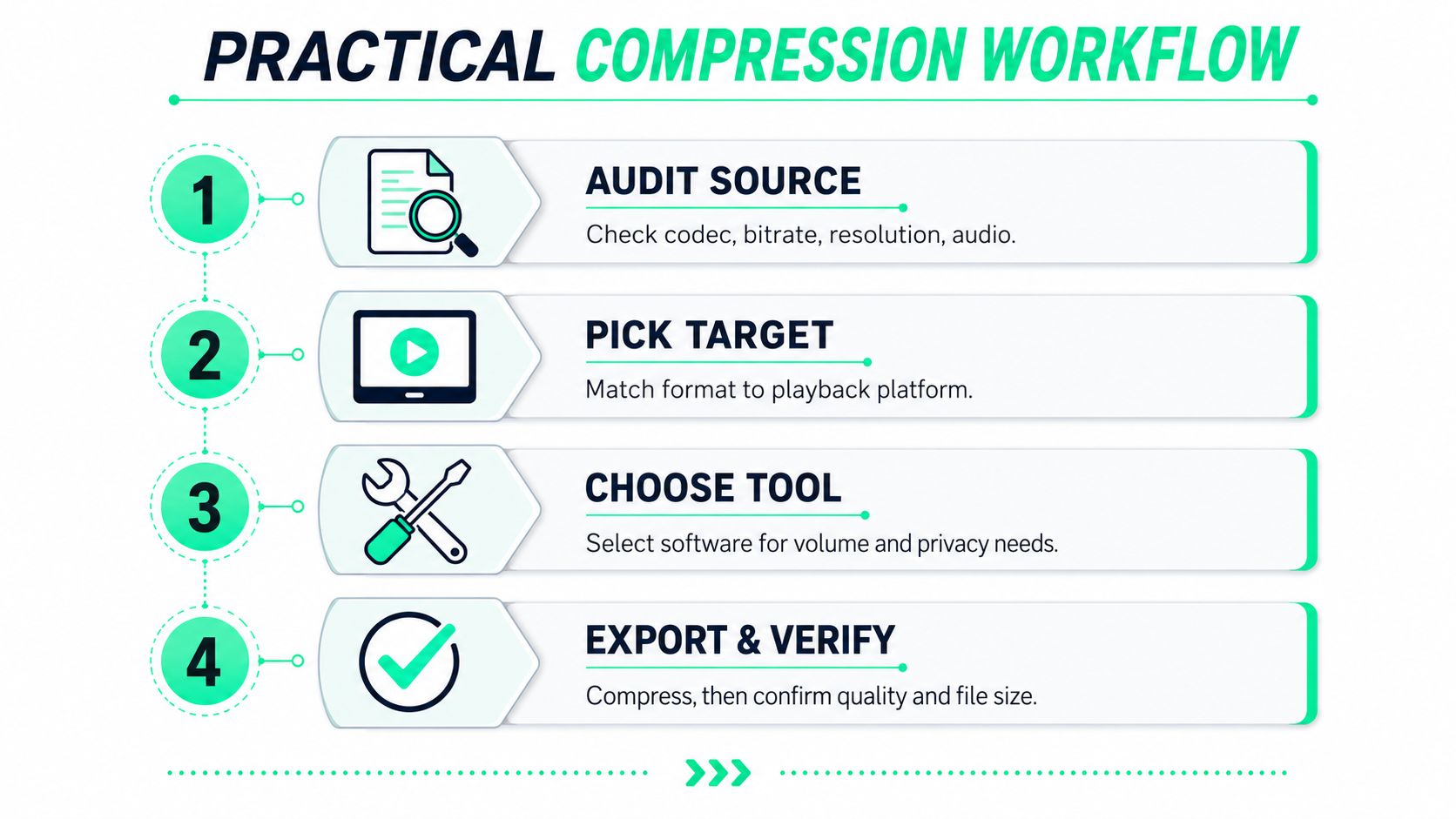
1. **Audit the source.** Check the codec, bitrate, resolution, frame rate, audio format, extra tracks, and duration. This identifies whether you are compressing an editing master or an already efficient delivery file.
2. **Pick the destination.** Set the target before choosing compression settings. Final Cut Pro, a browser, an Android phone, email, TikTok, Reels, Shorts, and LinkedIn each place different demands on compatibility, dimensions, and file size.
3. **Choose the tool.** QuickTime Player handles a simple Mac export. HandBrake suits visual batch work. FFmpeg provides repeatable automation. A cloud workflow can combine compression with social editing when both tasks belong together.
4. **Export and verify.** Compare duration and file size, inspect a representative frame with fine detail and motion, and confirm that captions, title cards, audio, and framing survived.
Keep MOV for Final Cut Pro, DaVinci Resolve, or another ProRes-oriented editing workflow. MOV preserves a useful editing master when the codec and production workflow depend on it. Export MP4 for browsers, phones, messaging apps, email clients, and social platforms. H.264 with AAC in an MP4 container is usually the safer exchange format. Changing the container alone will not make a large file smaller. Re-encoding the streams for the delivery target does.
### Common questions
**Does compressing MOV reduce quality?** Lossy re-encoding discards visual information. The practical goal is to keep that loss below the point viewers notice by choosing a suitable CRF or bitrate and avoiding unnecessary downscaling. Inspect motion, fine texture, gradients, and text rather than judging only the file size.
**What bitrate suits a 1080p MOV?** Social delivery commonly falls around **8 to 12 Mbps** for 1080p. Platform-specific targets may be narrower, and clips with rapid motion, texture, or screen text often need the upper end of that range. Use the target platform's export guidance where available.
**Can MOV be smaller than MP4?** Yes. The extension does not determine size. A MOV containing H.264 can be smaller than an MP4 containing ProRes because the encoded streams control data volume.
**Will an iPhone MOV play on Android?** Many do, particularly with broadly supported H.264 video and AAC audio. HEVC, unusual metadata, or a professional editing codec can cause compatibility problems, so H.264 MP4 remains the safer exchange format.
**Why did compression make the file bigger?** The source may already be efficiently encoded, the selected bitrate may be higher, audio may have been expanded, or extra tracks may have been preserved. Compare the source and output stream details before changing settings.
**How small can a 10-minute MOV become?** There is no honest answer without the source codec, resolution, frame rate, motion, audio, and target quality. A compressed 1080p file can be far smaller than an uncompressed source, while visually complex footage needs more data to avoid artifacts. Judge the result at its destination instead of promising one file size.
For a visual walkthrough, the following video provides another practical reference.
BlitzReels accepts MOV footage for compression, clipping, captioning, reframing, resizing, and social-ready exports across TikTok, Instagram Reels, YouTube Shorts, and LinkedIn. Creators and teams can review results in the browser, then visit [BlitzReels](https://blitzreels.com) to convert oversized source files into usable short-form deliverables.