---
title: "How to Convert MOV Files Across Every Workflow"
canonical: "https://blitzreels.com/blog/how-to-convert-mov-files"
---
# How to Convert MOV Files Across Every Workflow
URL: https://blitzreels.com/blog/how-to-convert-mov-files
Markdown URL: https://blitzreels.com/blog/how-to-convert-mov-files.md
Published: 2026-09-02
Author: BlitzReels
Learn how to convert MOV files to MP4, GIF, and vertical short-form formats on Windows, Mac, iOS, Android, the web, and via FFmpeg with pro tips.
Tags: convert mov files, mov to mp4, ffmpeg mov, video conversion guide, short-form video export

A folder of `.mov` files can look perfectly healthy until one reaches a social platform, a Windows workstation, or an Android phone. An iPhone recording may play in QuickTime and DaVinci Resolve, while Premiere shows a black frame, a player drops the audio, or an upload rejects the file. The extension isn't the diagnosis. The codec, audio track, metadata, and intended destination determine what conversion needs to happen.
The reliable approach to **how to convert MOV files** starts with inspection. Probe the source, decide whether a remux is enough, and re-encode only when the streams aren't suitable for the target. That distinction protects quality, saves processing time, and prevents a technically valid MP4 from failing during captioning, reframing, or publishing.
## Table of Contents
- [Why MOV Files Behave Differently Across Tools](#why-mov-files-behave-differently-across-tools)
- [Inspect the payload before choosing a converter](#inspect-the-payload-before-choosing-a-converter)
- [Container vs Codec and Why It Matters](#container-vs-codec-and-why-it-matters)
- [Converting MOV Files on Windows, Mac, iOS, Android, and the Web](#converting-mov-files-on-windows-mac-ios-android-and-the-web)
- [Desktop workflows](#desktop-workflows)
- [FFmpeg Commands for MOV Conversion](#ffmpeg-commands-for-mov-conversion)
- [Remux compatible streams](#remux-compatible-streams)
- [Re-encode incompatible sources](#re-encode-incompatible-sources)
- [Batch and Automated Workflows for Teams](#batch-and-automated-workflows-for-teams)
- [Where automation earns its place](#where-automation-earns-its-place)
- [Common Conversion Errors and How to Fix Them](#common-conversion-errors-and-how-to-fix-them)
- [Quick Decision Checklist Before You Convert](#quick-decision-checklist-before-you-convert)
## Why MOV Files Behave Differently Across Tools
MOV is a **container**, not a single video encoding method. Apple introduced QuickTime in 1991, and the MOV structure later influenced MP4, whose first specification appeared in 2001 before the family was generalized into ISO/IEC 14496-12:2004, the ISO Base Media File Format. The [W3C overview of media containers](https://www.w3.org/2008/WebVideo/Fragments/wiki/State_of_the_Art/Containers) describes the shared QuickTime and MP4 lineage and the hierarchical atom or box model behind these formats.
That history explains why two `.mov` files can behave completely differently. One may contain H.264 video and AAC audio, which many players and social platforms handle comfortably. Another may carry ProRes, HEVC, PCM, ALAC, subtitles, chapters, timecode, or an alpha channel. The wrapper looks identical in Finder or File Explorer, but each payload creates a different compatibility problem.
### Inspect the payload before choosing a converter
A QuickTime screen recording, a Final Cut export, and an iPhone capture shouldn't go through the same preset automatically. Use **MediaInfo** on Windows, macOS, or Linux, or use `ffprobe` when FFmpeg is installed. Check at least:
- **Video codec:** H.264, HEVC, ProRes, or another format.
- **Audio codec:** AAC, PCM, ALAC, or whether an audio stream exists.
- **Pixel format and dimensions:** These affect browser and mobile playback.
- **Frame rate:** Variable-rate footage can require special handling.
- **Additional tracks:** Timecode, chapters, subtitles, and alpha may not survive a basic export.
A quick inspection prevents repeated blind conversions. It also clarifies the difference between a video format and the media data inside it, a distinction covered in this [video format glossary](https://blitzreels.com/glossary/video-format).
> **Practical rule:** Never rename a MOV file or select a converter preset until the video and audio codecs are known.
## Container vs Codec and Why It Matters
The container organizes streams, timing, metadata, and related tracks. The codec compresses the actual video or audio frames. MOV and MP4 share much of their structural heritage, so a compatible MOV can often be **remuxed** into MP4 without touching the encoded frames. The file changes wrappers, not image data.
That's why `-c copy` can finish almost instantly and preserve the source quality. It works when the destination can accept the existing streams, such as H.264 video with AAC audio. A ProRes video with PCM audio is different. The container may change successfully, but the resulting MP4 can still fail in a browser, editor, or mobile player because its streams remain unsuitable.
The practical decision tree is short:
1. **Probe the file.**
2. **Check video and audio compatibility.**
3. **Remux when both streams are suitable.**
4. **Transcode when either stream needs a new codec.**
5. **Reject or separately map tracks that the destination can't preserve.**
For readers comparing wrappers, codecs, and delivery choices, Trendy's guide to [choosing the right video format](https://heytrendy.app/blog/different-video-formats) provides useful background. The key distinction remains simple: a container swap is not the same operation as encoding new video.
| Action | What Changes | Speed | Quality Loss | Typical Use |
|---|---|---|---|---|
| Remux | Container metadata and stream placement | Very fast | None from re-encoding | Compatible H.264 or HEVC MOV to MP4 |
| Transcode video | Encoded video stream and often its pixel format | Slower | Possible, depending on settings | ProRes or incompatible HEVC to H.264 |
| Transcode audio | Encoded audio stream | Moderate | Possible | PCM or ALAC to AAC |
| Re-map tracks | Included, excluded, or reordered tracks | Varies | Depends on converted streams | Captions, timecode, chapters, or alternate audio |
A [video codec glossary](https://blitzreels.com/glossary/codec) is useful when a camera or editing application reports a codec name without explaining its delivery implications. The senior-editor rule is blunt: **remux first when compatibility is already present, re-encode only to solve a real mismatch**.
## Converting MOV Files on Windows, Mac, iOS, Android, and the Web
Every operating system offers a quick path, but convenience usually means fewer controls. Start by probing the source with MediaInfo or `ffprobe`, then choose the lightest workflow that meets the destination requirements.
### Desktop workflows
On macOS, QuickTime Player offers **File > Export As > 1080p** for a straightforward delivery file. It's suitable for a one-off export, but it doesn't provide the batch queue, audio mapping, or detailed codec control needed for a production folder.
HandBrake is the more practical desktop choice on both Windows and Mac. Import the MOV, choose an H.264 MP4 workflow, select **RF 20 to RF 23** for delivery or **RF 18** for archival quality, and enable **Web Optimized** so the MP4 uses faststart metadata. VLC's Convert/Save flow can handle an occasional file, but its presets and batch behavior are less dependable for repeated work.
On iOS, the Files app can expose native share and save options, but those options are preset-driven. A remote HandBrake workflow can provide more control when the source needs consistent treatment. On Android, FFmpeg through Termux offers an offline command-line route, while apps such as VidCompact provide a simpler interface. Free mobile tiers can restrict resolution or output choices, so the output still needs inspection.
A browser converter such as CloudConvert or Convertio can help with unusual inputs, including ProRes 4444 to MP4, when local installation isn't practical. Uploading sensitive recordings to an external service may be unacceptable, though. For a direct browser-based option, the [MOV-to-MP4 converter](https://blitzreels.com/tools/mov-to-mp4) can fit a simple online workflow.
A final MediaInfo check should confirm the output codec, audio stream, dimensions, and faststart arrangement before the file goes to social publishing.
The following video demonstrates a HandBrake-style conversion path, but the same inspection-first rule still applies.
## FFmpeg Commands for MOV Conversion
FFmpeg is the most transparent option because every important decision appears in the command. Before converting, inspect the source:
`ffprobe -v error -show_streams -show_format input.mov`
The output exposes the video codec, audio codec, frame rate, pixel format, and container metadata. It's especially useful for detecting a ProRes or PCM track that a simple extension change would leave untouched.
### Remux compatible streams
When the MOV already contains H.264 video and AAC audio, use:
`ffmpeg -i input.mov -c copy output.mp4`
This is a **remux**, not a re-encode. It avoids generational quality loss and is the right answer when the only problem is the container. The command can still fail to meet a platform's expectations if the file contains unusual tracks, unsupported audio, or metadata that the destination doesn't handle.
For web delivery, use:
`ffmpeg -i input.mov -c copy -movflags +faststart output.mp4`
The `+faststart` flag moves the MP4's `moov` atom toward the beginning of the file, allowing progressive playback before the complete download finishes. The [FFmpeg MOV-to-MP4 workflow](https://ffmpeg-cookbook.com/en/articles/mov-to-mp4/) explains why stream copying and transcoding should be treated as separate paths.
### Re-encode incompatible sources
For ProRes, PCM, or a delivery target that requires broad H.264 support, use:
`ffmpeg -i input.mov -c:v libx264 -preset slow -crf 18 -pix_fmt yuv420p -c:a aac -b:a 192k -movflags +faststart output.mp4`
`libx264` creates H.264 video, `aac` converts the audio, and `yuv420p` improves compatibility with mobile and browser playback. The slower preset spends more processing time to improve compression efficiency at the selected quality target.
For HEVC output aimed at Apple playback ecosystems, use:
`ffmpeg -i input.mov -c:v libx265 -tag:v hvc1 -c:a aac -movflags +faststart output.mp4`
The `hvc1` tag matters for compatibility with Apple playback environments. For ProRes creation as an intermediate rather than a delivery file, `-c:v prores_ks` provides an explicit ProRes encoder path. Variable-rate ProRes footage may also need careful frame-rate handling, especially when a downstream application expects a stable timeline.
The [encoding glossary](https://blitzreels.com/glossary/encoding) helps separate the codec decision from the container decision. That distinction is what keeps FFmpeg commands predictable.
## Batch and Automated Workflows for Teams
A single MOV file rewards a desktop application. A folder of camera originals, podcast recordings, and social cutdowns needs a queue or a pipeline. HandBrake's queue works well for editors who want visual control, while FFmpeg is better when a repeatable command should process every matching file.
A shell loop can remux compatible files:
`for f in *.mov; do ffmpeg -i "$f" -c copy -movflags +faststart "${f%.mov}.mp4"; done`
That loop is safe only after the source codecs have been checked. If the folder mixes H.264, HEVC, ProRes, PCM, and ALAC, a universal `-c copy` pass can produce files that technically exist but still fail in later editing or publishing stages.
### Where automation earns its place
Teams producing daily clips usually need more than conversion. They need **clipping, captions, transcript edits, reframing, resizing, hooks, title cards, templates, human review, and render verification**. A local FFmpeg server is precise and economical for known inputs, but it won't decide which podcast moment deserves a hook or preserve a human approval step by itself.
BlitzReels is one agentic option for that middle layer. Its hosted OAuth MCP server, REST API, TypeScript SDK, CLI with structured JSON, OpenAPI, `llms.txt`, and agent skills can support workflows that inspect projects, create clips, edit transcripts and captions, add B-roll or media, modify timeline items, validate output, start exports, and verify render status. Human editors can still review the browser-based result before publishing.
The architecture should match the operation:
- **Desktop queue:** Best for occasional batches and visible preset control.
- **FFmpeg loop or server:** Best for deterministic conversion on trusted source profiles.
- **Hosted cloud editor:** Best when clipping, captions, resizing, and review belong in the same workflow.
- **Agentic editor:** Best when an agent must inspect media, make structured timeline changes, and trigger exports.
- **Professional NLE integration:** Best when finishing requires complex color, audio, or editorial decisions.
The short-form target should be defined before conversion. The standard delivery shape for TikTok, Instagram Reels, and YouTube Shorts is **1080×1920 pixels in a 9:16 vertical aspect ratio**, as described in [short-form video specifications](https://earnedits.com/short-form-video-specs-2026/?v=04e827edf2bc). A container swap won't create that framing. The source must be reframed or resized.
The following table uses the specified delivery envelope from the workflow brief. Bitrate values are operational targets, not universal platform rules, so they should be validated against current account and upload requirements.
| Platform | Resolution | Codec | Bitrate | Audio |
|---|---|---|---|---|
| TikTok | 1080×1920, 9:16 | H.264 | 10 to 15 Mbps | AAC |
| Instagram Reels | 1080×1920, 9:16 | H.264 | 10 to 15 Mbps | AAC |
| YouTube Shorts | 1080×1920, 9:16 | H.264 | 10 to 15 Mbps | AAC, avoid AC-3 |
| LinkedIn | 1080×1350, 4:5 | H.264 | Delivery target should be tested | AAC |
For TikTok and Reels, a letterboxed scale can preserve the complete image:
`-vf "scale=1080:1920:force_original_aspect_ratio=decrease,pad=1080:1920:(ow-iw)/2:(oh-ih)/2"`
Shorts can use the same general vertical envelope, but uploads are capped at **60 seconds**, and AC-3 audio can create compatibility trouble. LinkedIn needs separate treatment because vertical output under a 1:1 shape can be rejected. A 4:5 crop can be created with:
`-vf "crop=in_w:in_h*0.84:0:in_h*0.08"`
A square **1080×1080** render remains the safest fallback when one file must be cross-posted without separate reframing. Teams should still inspect faces, captions, title cards, and safe areas manually. Automated crops can preserve dimensions while cutting off the hook or speaker.
The [batch processing glossary](https://blitzreels.com/glossary/batch-processing) is useful when a team is deciding whether to keep a local queue or introduce an orchestration layer. Local FFmpeg loops minimize recurring service costs, while cloud and agentic systems trade that simplicity for shared projects, automation, review, and scalable rendering.
## Common Conversion Errors and How to Fix Them
Most conversion tickets have a recognizable cause. The file extension rarely deserves blame.
| Symptom | Root Cause | Fix |
|---|---|---|
| Video plays without sound | PCM, ALAC, unmapped audio, or an unsupported track | Use `-c:a aac -b:a 192k`, and verify the selected audio stream |
| Browser waits before playback | The `moov` atom remains at the end | Add `-movflags +faststart` |
| Black video on mobile | Unsupported codec or pixel format | Re-encode with `-c:v libx264 -pix_fmt yuv420p` |
| ProRes fails on Windows or Android | The destination doesn't support the mezzanine codec | Transcode to H.264 with AAC rather than merely changing the extension |
| Audio disappears after remux | The container change preserved a track the player can't decode | Explicitly map or convert audio with `-map` and AAC |
| Vertical video appears stretched or cropped badly | Scaling ignored the source aspect ratio | Use proportional scaling with `force_original_aspect_ratio` and deliberate padding or cropping |
A silent file deserves a stream inspection before another export. `ffprobe -v error -show_streams input.mov` reveals whether the source contains audio and whether the command accidentally selected the wrong stream. For multiple tracks, explicit mapping can make the result predictable:
`ffmpeg -i input.mov -map 0:v:0 -map 0:a:0? -c:v libx264 -pix_fmt yuv420p -c:a aac -b:a 192k -movflags +faststart output.mp4`
Advanced MOV features need separate attention. **Alpha channels, ALAC audio, reference movies, and timecode tracks** can be lost, broken, or require special mapping during MP4 conversion. If the source is an editing master, retain the original and create a delivery derivative instead of treating MP4 as a replacement.
If the file itself appears damaged, a broader diagnostic guide such as [SubmitMySaas' corrupted video fix](https://submitmysaas.com/blog/how-to-fix-corrupted-video-files) can help distinguish corruption from an ordinary codec mismatch. Conversion can't repair every incomplete or damaged source.
## Quick Decision Checklist Before You Convert
The next MOV file should pass five checks before the original is moved or deleted.
1. **Inspect the source.** Run MediaInfo or `ffprobe` and confirm the video codec, audio codec, pixel format, frame rate, and available tracks.
2. **Define the destination.** Decide whether the file is for editing, browser playback, a social upload, or device compatibility. A delivery MP4 and an editing mezzanine serve different purposes.
3. **Choose remux or re-encode.** Use `-c copy` only when the existing streams are compatible. Otherwise, use H.264 with AAC for broad delivery compatibility, and add `-movflags +faststart` for web playback.
4. **Match the frame.** Preserve **1080×1920 at 9:16** for TikTok, Reels, and Shorts, or create a deliberate 4:5 or square version when the destination calls for it. Check captions, hooks, title cards, and faces after reframing.
5. **Verify the result.** Re-run MediaInfo, play the file on the target device, inspect audio, scrub through the beginning and end, and confirm the upload platform accepts the final render before archiving the source.
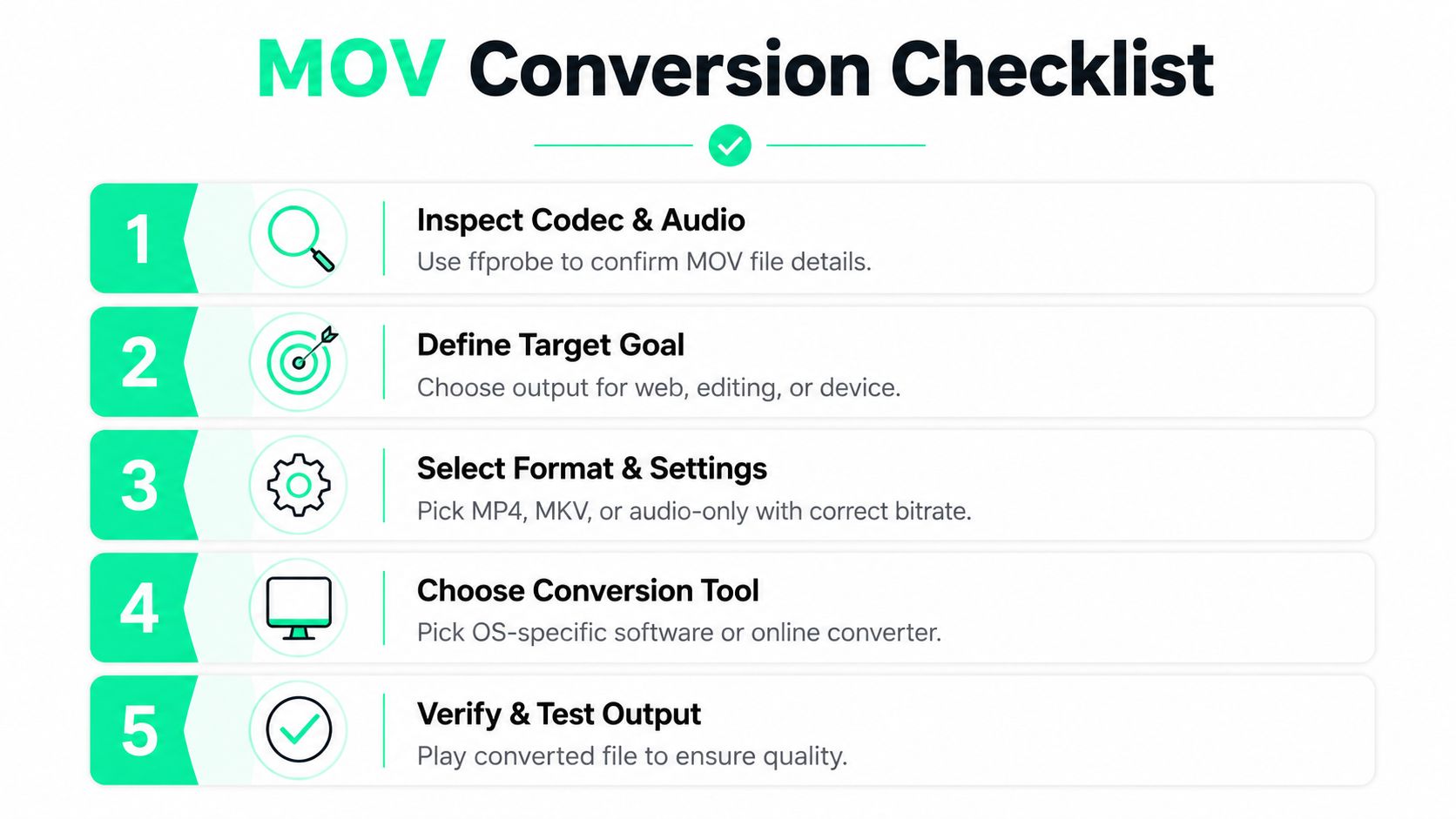
A remux is the right move when the streams already fit. A re-encode is the responsible choice when ProRes, PCM, ALAC, pixel format, audio compatibility, or vertical delivery requirements say otherwise.
---
BlitzReels helps turn MOV sources into reviewed short-form deliverables with clipping, transcript and caption editing, vertical reframing, resizing, title cards, templates, and cloud exports for TikTok, Reels, Shorts, and LinkedIn. Visit [BlitzReels](https://blitzreels.com) to convert, repurpose, and manage the final review without treating every file as a manual FFmpeg task.