---
title: "Instagram Video File Format: The 2026 Creator's Guide"
canonical: "https://blitzreels.com/blog/instagram-video-file-format"
---
# Instagram Video File Format: The 2026 Creator's Guide
URL: https://blitzreels.com/blog/instagram-video-file-format
Markdown URL: https://blitzreels.com/blog/instagram-video-file-format.md
Published: 2026-07-13
Author: BlitzReels
Get the exact Instagram video file format specs for 2026. Our guide covers MP4, codecs, resolution, bitrates, and export settings to avoid compression.
Tags: instagram video file format, instagram reels format, video export settings, instagram video specs, blitzreels

A short-form team usually finds this problem the same way. The cut looks sharp in Premiere, Final Cut, CapCut, or Resolve. Captions are clean, the hook lands, title cards are readable, and the clip looks crisp on export. Then it hits Instagram and comes back softer, flatter, and sometimes oddly cropped.
That usually isn't random. Instagram rewards creators who feed it files it can process cleanly, and it punishes anything that forces extra work. The practical goal with the Instagram video file format isn't just “high quality.” It's giving Instagram a file that matches its preferred container, codec, size, shape, and bitrate closely enough that the platform doesn't mangle it on the way in.
## Table of Contents
- [Why Your Videos Look Blurry on Instagram](#why-your-videos-look-blurry-on-instagram)
- [Compression punishes guesswork](#compression-punishes-guesswork)
- [The platform wants compliance, not excess](#the-platform-wants-compliance-not-excess)
- [The Only Two File Formats Instagram Really Wants](#the-only-two-file-formats-instagram-really-wants)
- [Container first, codec second](#container-first-codec-second)
- [Why MP4 wins in practice](#why-mp4-wins-in-practice)
- [Instagram's Exact Video Specs for Every Placement](#instagrams-exact-video-specs-for-every-placement)
- [Instagram Video Specifications Cheat Sheet 2026](#instagram-video-specifications-cheat-sheet-2026)
- [What the table means in real workflows](#what-the-table-means-in-real-workflows)
- [Recommended Export Settings for Flawless Uploads](#recommended-export-settings-for-flawless-uploads)
- [The export checklist that avoids re-encoding damage](#the-export-checklist-that-avoids-re-encoding-damage)
- [Why higher bitrate can look worse](#why-higher-bitrate-can-look-worse)
- [How to Fix Common Instagram Video Problems](#how-to-fix-common-instagram-video-problems)
- [Black bars and awkward crops](#black-bars-and-awkward-crops)
- [Muffled voiceovers and strange audio](#muffled-voiceovers-and-strange-audio)
- [Upload issues and duplicate-looking posts](#upload-issues-and-duplicate-looking-posts)
- [A Faster Workflow for Consistently Great Video](#a-faster-workflow-for-consistently-great-video)
- [Speed matters in short-form production](#speed-matters-in-short-form-production)
## Why Your Videos Look Blurry on Instagram
The most common failure happens before upload. A creator edits from a clean source, adds punchy captions, clips dead space, reframes for vertical, and exports a file that looks perfect locally. Instagram then recompresses it, and the result looks like a copy of a copy.
That quality loss usually comes from mismatch. Wrong container. Wrong codec. Oversized bitrate. Resolution that sounds impressive but gets thrown away. Teams often waste time trying to fix this with sharpening, denoising, or even [upscaling video for social media](https://saturaai.com/blog/resolution-scaling), when the actual issue is that Instagram is still going to reprocess the upload.
### Compression punishes guesswork
Instagram has preferred technical settings, and the platform is much less forgiving than many creators expect. If the file arrives in a format Instagram likes, quality holds up better. If it arrives as a mismatched export, Instagram often does the cleanup itself, and that cleanup rarely looks flattering on motion, text, or skin detail.
That's why blurry exports often show up most clearly in short-form content elements:
- **Captions:** Thin subtitle styles can get soft fast after recompression.
- **Hooks:** Small opening title cards lose contrast when text is compressed.
- **Reframed clips:** A mediocre resize can look much worse once Instagram touches it again.
- **Fast cuts:** Motion-heavy edits expose compression damage faster than static shots.
> **Practical rule:** The file that looks best before upload isn't always the file that survives Instagram best after upload.
A second mistake is trying to solve file quality only at the end. If the team leaves formatting decisions until export, the editor often ends up patching around problems created earlier in the workflow. Vertical-safe framing, readable captions, and the right delivery settings need to work together.
For teams that already have a large source file and need to trim it down without wrecking quality first, this guide on [compressing an MP4 video without unnecessary damage](https://www.blitzreels.com/blog/how-to-compress-mp-4-video) is a useful starting point before the file ever reaches Instagram.
### The platform wants compliance, not excess
Instagram doesn't reward overkill. Uploading huge files, ultra-high-resolution masters, or unusual codecs doesn't usually preserve quality. It often gives the platform more to reinterpret.
The fastest route is simple. Stop trying to outsmart Instagram's compression. Feed it the file structure and export profile it already prefers.
## The Only Two File Formats Instagram Really Wants
The Instagram video file format conversation gets confusing because people mix up **file format** and **codec**. They aren't the same thing.
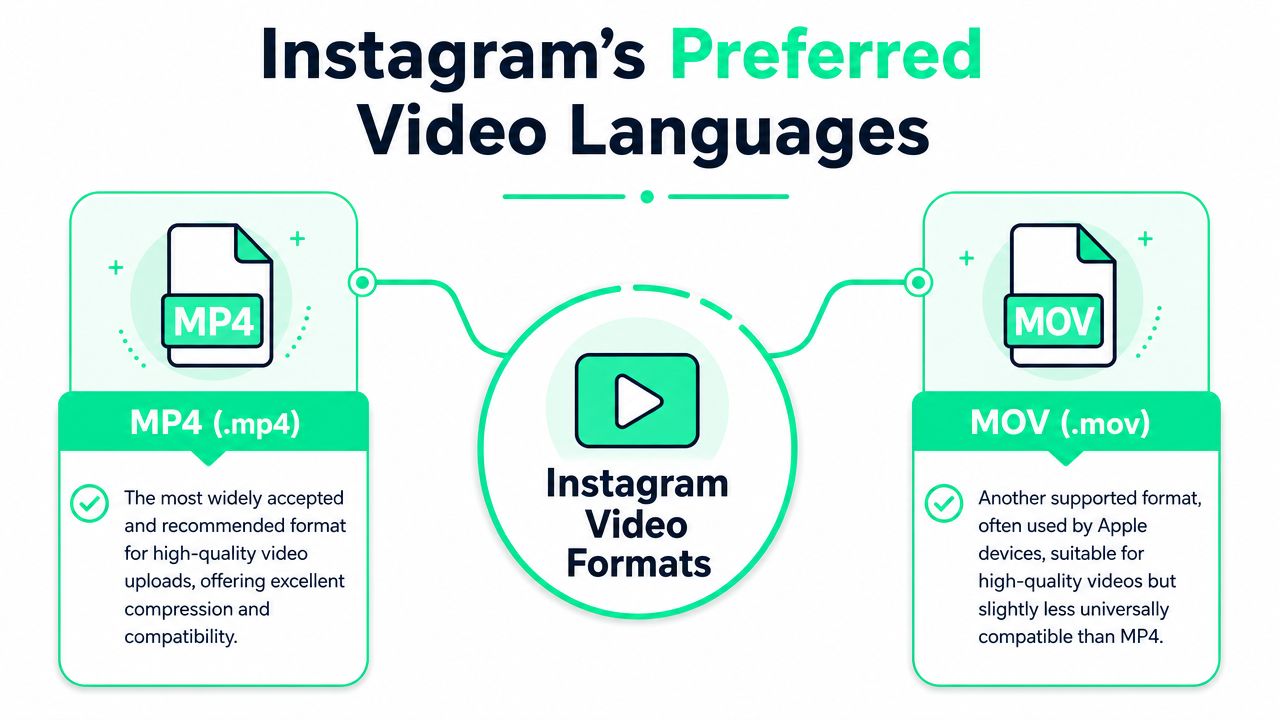
A simple way to explain it to a new editor is this. The file format is the **box**. The codec is the **language inside the box**. Instagram can open more than one box, but it strongly prefers one box and one language combination because that's what web video systems handle most smoothly.
### Container first, codec second
For Reels, the clean answer is straightforward. **MP4** is the recommended file format, with **H.264** video and **AAC** audio, while **MOV** is also supported but is less optimal for web streaming, as noted in [this breakdown of Instagram Reels dimensions and format support](https://wayin.ai/blog/instagram-reels-dimensions/).
That means the practical stack looks like this:
- **Container:** MP4
- **Video codec:** H.264
- **Audio codec:** AAC
MOV isn't unusable. It's just the format teams usually keep when a file comes straight from an Apple workflow or a camera export and nobody normalized it before upload. Instagram may accept that file, but “accepted” and “ideal” are different standards.
### Why MP4 wins in practice
MP4 travels cleanly across editing apps, browsers, phones, scheduling tools, and social platforms. It's the default handoff format for short-form for a reason. When a team clips one long recording into Instagram Reels, TikTok, YouTube Shorts, and LinkedIn video, MP4 is the least fussy format to manage.
MOV can still make sense inside production. Editors may archive in higher-quality intermediates, trade files between Mac-based apps, or receive source clips in MOV. But for publishing, MP4 usually creates fewer headaches.
A few common signs the team is relying on MOV longer than it should:
- **Longer upload processing**
- **Playback quirks across devices**
- **Bigger files than needed**
- **Inconsistent results when moving between tools**
For teams that still receive Apple-native exports and need a quick compatibility fix, this guide on [playing and handling MOV files](https://www.blitzreels.com/blog/play-mov-files) helps clarify where MOV fits and where it becomes friction.
> Treat MOV as something Instagram can tolerate. Treat MP4 as what it wants.
Another useful primer for creators sorting through export confusion is this article on [mastering Instagram video settings](https://www.remotionvideo.com/blog/instagram-video-file-format), especially for understanding why “supported” doesn't automatically mean “best for upload.”
## Instagram's Exact Video Specs for Every Placement
The safe way to think about Instagram delivery is this. One technical base applies across placements, then the crop and layout shift depending on where the video appears.
The baseline that matters most is clear: **MP4** is the recommended format, **MOV** is supported secondarily, videos should use **H.264** and **AAC**, and Instagram caps supported width at **1080 pixels**, so uploads above that get downscaled rather than displayed in 4K, according to [Influencer Marketing Hub's summary of Instagram video size requirements](https://influencermarketinghub.com/instagram-video-size/).
### Instagram Video Specifications Cheat Sheet 2026
| Placement | Aspect Ratio | Resolution (Pixels) | Recommended Bitrate | Frame Rate | Max Length | Max File Size |
|---|---|---:|---:|---:|---:|---:|
| Reels | 9:16 | 1080 x 1920 | 10 to 15 Mbps for 1080p vertical content | Minimum 30 fps | Up to 15 minutes from mobile, up to 60 minutes for verified accounts on desktop | 4GB, though files under 10 minutes are capped at 650 MB |
| Stories | 9:16 | 1080 x 1920 | 3,500 kbps or higher | Minimum 30 fps | Qualitatively similar vertical workflow to Reels | Use Instagram's general video file limits |
| Feed videos | 4:5 portrait often used for feed presence | 1080 x 1350 | 3,500 kbps or higher | Minimum 30 fps | Use Instagram's general video limits | Use Instagram's general video file limits |
| Video carousels | 1:1 or 4:5 depending on feed design | 1080 x 1080 or 1080 x 1350 | 3,500 kbps or higher | Minimum 30 fps | Use Instagram's general video limits | Use Instagram's general video file limits |
A few lines in that table matter more than they seem.
First, **4K upload is wasted effort for Instagram delivery**. If the team exports a 4K master for archive or YouTube, that's fine. But if the destination is Instagram, the platform still downscales to **1080p**. The editor doesn't gain visible playback quality on Instagram by forcing an oversized deliverable.
Second, **Reels and Stories are native vertical placements**. Reels are best prepared at **1080 x 1920** in **9:16**, and teams that need a fast way to convert widescreen or square footage can use a dedicated [Instagram Reels resize tool](https://www.blitzreels.com/tools/resize-video-for-instagram-reels) instead of manually rebuilding every sequence.
### What the table means in real workflows
The practical use case is less about memorizing every line and more about making fewer bad exports.
If the destination is full-screen mobile viewing, the editor should build for vertical first. If the clip is meant to live in-feed and hold screen space while users scroll, **4:5** can be a deliberate choice. If the source video is wider than it is tall, reframing matters more than raw resolution because a bad crop destroys subject focus long before bitrate becomes the issue.
A simple workflow split works well:
- **Reels and Stories:** Build native vertical. Keep captions inside safe zones.
- **Feed-first clips:** Consider 4:5 if the goal is stronger feed presence.
- **Carousels:** Keep aspect ratio consistent across slides so the layout doesn't jump.
- **Repurposed long-form clips:** Reframe the subject first, then export to the target placement.
> Most Instagram quality problems start as formatting problems, not camera problems.
## Recommended Export Settings for Flawless Uploads
The cleanest export for Instagram isn't the heaviest one. It's the one that lands inside Instagram's preferred processing range.
### The export checklist that avoids re-encoding damage
For Reels, the most reliable spec set is **H.264 (AVC)** video with **AAC audio at 44.1 kHz**, exported at **1080 x 1920**, with bitrate held in the **10 to 15 Mbps** range for vertical 1080p content, according to [Taja's technical breakdown of Instagram video format behavior](https://www.taja.ai/blog/instagram-video-format).
That gives editors a practical export checklist:
- **Format:** MP4
- **Codec:** H.264
- **Audio:** AAC at **44.1 kHz**
- **Resolution:** **1080 x 1920** for vertical Reels
- **Bitrate:** **10 to 15 Mbps**
- **Frame rate:** Match source, but keep it at or above Instagram's recommended minimum where relevant
Teams that want a plain-English explanation of the codec itself can use this short reference on [what H.264 means in social video workflows](https://www.blitzreels.com/glossary/h264).
This matters even more with modern short-form edits. Bold captions, emoji callouts, kinetic title cards, zooms, and rapid clipping all create visual complexity. Those elements can survive compression well, but only if the source export is already tuned for the platform.
### Why higher bitrate can look worse
This is the part many export guides miss. A bigger file doesn't guarantee a better Instagram result.
Taja's analysis notes that pushing bitrate above that recommended **10 to 15 Mbps** range can trigger Instagram's internal compression pipeline to push the video down to roughly **3500 kbps**, which can produce a net loss in sharpness instead of a gain in quality. In practice, that means an “ultra high quality” export may come back looking softer than a disciplined one.
> Upload quality on Instagram is often about restraint. Give the platform enough data, not every bit of data.
That's especially obvious on clips with subtitles and voiceover. Fine text edges, drop shadows, and moving graphic elements can get chewed up if the upload forces a heavy re-encode.
A useful walkthrough of export decisions in action is below.
The practical workflow is simple. Build clean edits, keep hooks and captions readable on a phone screen, and export to Instagram's lane instead of exporting “max quality” and hoping for the best.
## How to Fix Common Instagram Video Problems
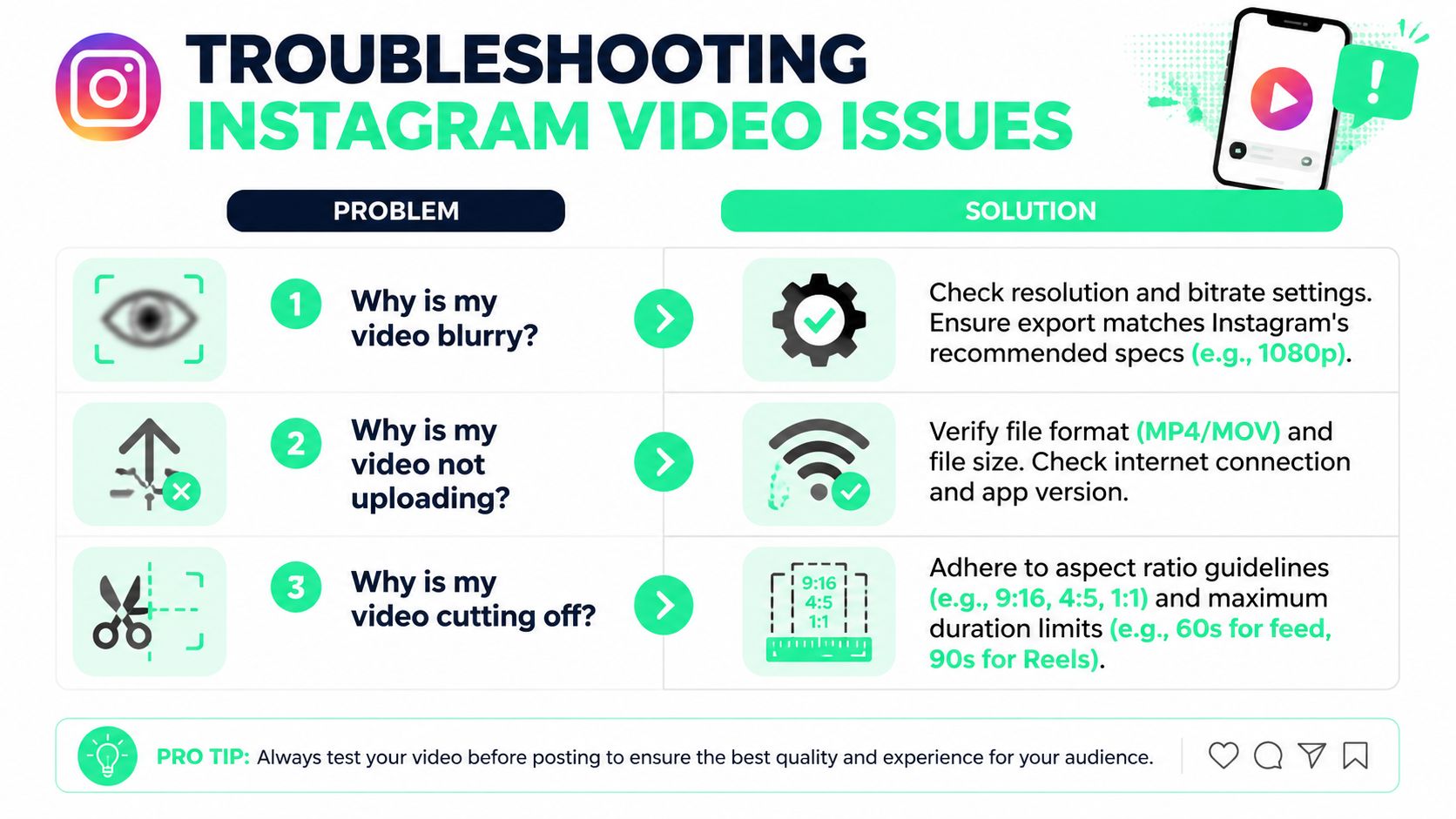
Most Instagram upload problems map back to one of three things. Wrong shape, wrong audio settings, or a file that asks Instagram to do too much cleanup.
### Black bars and awkward crops
Black bars usually mean the edit wasn't prepared for the placement. A horizontally oriented clip dropped into a vertical timeline without proper reframing will either shrink, crop badly, or leave dead space.
There's also a nuance many format guides skip. A Reddit discussion compiling user reports notes that **4:5 portrait videos at 1080×1350 often outperform 9:16 in feed engagement due to larger on-screen presence**, even though 9:16 remains the standard for full-screen vertical viewing. The same discussion also points out Instagram's automatic reframing behavior with widescreen clips, which can shift faces and distort caption placement if the crop wasn't pre-edited, as covered in [this user-report thread on Reel aspect ratios and audio behavior](https://www.reddit.com/r/socialmedia/comments/1d4g235/in_which_format_should_i_upload_169_videos_as_a/).
That creates a practical split:
- **For Reels meant to fill the screen:** Edit for 9:16.
- **For feed-first posts:** 4:5 may be a stronger visual choice.
- **For footage in a wide aspect ratio:** Reframe before export, don't let Instagram guess.
### Muffled voiceovers and strange audio
Audio problems often hide until after upload. The voiceover sounds fine on desktop, then turns dull or slightly smeared on Instagram.
The user reports above highlight one detail that many teams miss. **AAC audio at 44.1 kHz** can hold up better for Instagram than **48 kHz** in certain upload scenarios, especially on spoken-word content. That matters for AI voiceovers, podcast clips, screen recordings, and caption-led talking head videos where clarity does the heavy lifting.
A quick troubleshooting pass helps:
- **If voiceovers sound muddy:** Check the AAC sample rate.
- **If captions feel “late”:** Confirm the final export, not just the timeline preview.
- **If speech lacks punch:** Re-export with cleaner audio settings before changing EQ.
> A lot of “Instagram ruined the audio” complaints are really export-setting problems upstream.
### Upload issues and duplicate-looking posts
Upload failures or inconsistent playback often come from unsupported combinations, oversized files, or unusual export chains. The safest move is still the boring one. Keep the file standard and predictable.
There's also a strategic issue beyond file quality. Creators who repurpose memes, trend clips, or near-identical edits across accounts can run into duplication concerns. This piece on [avoiding meme duplication flags with smart uploads](https://findclout.com/blog/posts/avoiding-content-duplication-flags-how-distortion-and-smart-uploads-protect-meme-campaigns.html) is useful reading for teams that publish high volumes of similar short-form variants.
When a post fails or looks off, the fastest debugging sequence is:
1. **Check the container and codecs first.**
2. **Confirm aspect ratio and placement match.**
3. **Review audio sample rate for voice-led content.**
4. **Export again with a conservative bitrate.**
5. **Inspect title cards and captions after upload, not just before.**
## A Faster Workflow for Consistently Great Video
Manual export still works. A disciplined editor can set every delivery option correctly, check aspect ratios, keep captions in safe zones, and render separate versions for Reels, feed posts, Shorts, TikTok, and LinkedIn.
But that's slow. It also creates avoidable mistakes when the team is moving fast and publishing constantly.
The essential requirement for Reels is simple. Instagram Reels require a **9:16** aspect ratio at **1080 x 1920** for full-screen viewing, while formats like **4:5** are supported but don't fill the screen and may reduce performance, according to [Hootsuite's Instagram video size guide](https://blog.hootsuite.com/instagram-video-sizes/). Once that rule is set, every other workflow choice should support it instead of fighting it.
### Speed matters in short-form production
Short-form teams rarely make just one file. They clip multiple hooks, test alternate intros, swap title cards, burn in captions, resize the same source for different platforms, and often need a clean version plus a branded one.
That makes manual compliance expensive in time, even when it's technically possible.
A faster system usually looks like this:
- **Templates for recurring layouts:** Same caption style, same title-safe zones, same hook structure.
- **Reframing that keeps faces centered:** Especially important when turning horizontally oriented source into vertical shorts.
- **Preset resizing:** One edit adapted cleanly for Reels, TikTok, Shorts, and feed placements.
- **Fast caption passes:** Readable subtitles matter more than overdesigned ones.
- **Predictable exports:** The team shouldn't have to rethink the Instagram video file format every time.
For creators and social teams building a repeatable publishing process, this article on [letting AI handle the edits in a modern video workflow](https://www.blitzreels.com/blog/let-ai-handle-the-edits-your-new-video-workflow) is a practical look at how to remove export and editing friction without lowering quality.
The pattern is consistent. Teams get better Instagram results when they stop improvising technical settings and start using a stable workflow that respects the platform's constraints from the first cut through final export.
---
BlitzReels helps creators turn raw footage, screen recordings, podcasts, and long videos into polished short-form content fast. It handles clipping, captions, reframing, resizing, hooks, title cards, and export-ready files for Instagram Reels, TikTok, YouTube Shorts, LinkedIn, and more. For teams that want fewer blurry uploads and less time lost in export settings, [BlitzReels](https://blitzreels.com) is built to make the record, edit, and publish loop much faster.