---
title: "Play MOV Files: Easy Guide for Any Device 2026"
canonical: "https://blitzreels.com/blog/play-mov-files"
---
# Play MOV Files: Easy Guide for Any Device 2026
URL: https://blitzreels.com/blog/play-mov-files
Markdown URL: https://blitzreels.com/blog/play-mov-files.md
Published: 2026-07-01
Author: BlitzReels
Struggling to play MOV files on Windows, Android, or other devices? Get step-by-step solutions & troubleshooting tips. Learn to play or convert any MOV easily.
Tags: play mov files, mov player, convert mov to mp4, video file formats, blitzreels

A creator receives a client clip from an iPhone, a camera operator sends over a master export, or an editor drops a transparent overlay into a shared folder. The filename ends in .mov, so it should be simple. Then the file refuses to open, plays without audio, or stutters hard enough to make trimming impossible.
That failure usually doesn't mean the file is damaged. It means the device, player, or editing app doesn't understand what's inside the MOV well enough to decode it cleanly. For short-form work, that matters fast, because a file that won't play also can't be clipped, captioned, resized, reframed, or turned into a TikTok, Reel, Short, or LinkedIn post on schedule.
## Table of Contents
- [That MOV File Is Not Broken It Just Needs the Right Key](#that-mov-file-is-not-broken-it-just-needs-the-right-key)
- [Why Some MOV Files Play and Others Do Not](#why-some-mov-files-play-and-others-do-not)
- [MOV is the container, not the whole story](#mov-is-the-container-not-the-whole-story)
- [The codec decides whether playback is easy or painful](#the-codec-decides-whether-playback-is-easy-or-painful)
- [The Best Ways to Play MOV Files on Any Platform](#the-best-ways-to-play-mov-files-on-any-platform)
- [Windows](#windows)
- [macOS and iPhone](#macos-and-iphone)
- [Android and Linux](#android-and-linux)
- [Converting MOVs for Editing and Universal Sharing](#converting-movs-for-editing-and-universal-sharing)
- [When conversion is the smart move](#when-conversion-is-the-smart-move)
- [HandBrake versus a faster creator workflow](#handbrake-versus-a-faster-creator-workflow)
- [How to Fix Common MOV Playback Problems](#how-to-fix-common-mov-playback-problems)
- [When VLC still fails](#when-vlc-still-fails)
- [When conversion makes things worse](#when-conversion-makes-things-worse)
- [When Windows 11 playback is choppy](#when-windows-11-playback-is-choppy)
- [The Smartest Workflow From MOV to Social Media Clip](#the-smartest-workflow-from-mov-to-social-media-clip)
- [A clean short-form path](#a-clean-short-form-path)
## That MOV File Is Not Broken It Just Needs the Right Key
Most MOV problems start the same way. A creator double-clicks the file, gets an error, then assumes the export is corrupt. In many cases, the file itself is fine. The issue is that MOV is Apple's native container, and outside the Apple ecosystem the playback chain isn't always ready for every variation inside it.
A client-shot iPhone clip and a ProRes export from Final Cut Pro can both end in .mov while behaving completely differently on the same machine. One opens instantly. The other gives a black screen, missing audio, or a vague unsupported format warning. That's why random trial and error wastes time.
> **Practical rule:** Treat MOV as a package, not a guarantee. The extension tells part of the story, not the whole story.
For short-form creators, the goal isn't only to play MOV files. The primary task is to get them ready for captions, clipping, title cards, reframing, resizing, and export without flattening quality too early. That matters even more when the file is headed into a social workflow with fast hooks, burned-in captions, platform-specific aspect ratios, and multiple deliverables.
The fastest way to think about it is simple:
- **If the file is consumer-friendly**, it may play with the default tools already on the device.
- **If the file is professional-grade**, it may need a stronger player, a proper editor, or a careful transcode.
- **If the file includes transparency or an editing codec**, a blind MOV-to-MP4 conversion can break the whole point of the asset.
Creators who get comfortable with that distinction stop guessing and start diagnosing. A quick understanding of the [codec basics in this BlitzReels glossary entry](https://www.blitzreels.com/glossary/codec) helps make the rest of the MOV rabbit hole much easier to understand.
## Why Some MOV Files Play and Others Do Not
A MOV file can be perfectly valid and still fail on a specific device. That sounds contradictory until the container and codec are separated.
**MOV is a multimedia container format developed by Apple and introduced in 1991 as the QuickTime File Format (QTFF). Because it is native to macOS, MOV files operate effectively with Apple software such as Final Cut Pro and often use high-quality codecs like Apple ProRes, making MOV the preferred choice for professional videographers who need to retain maximum quality during editing** ([QuickTime MOV background](https://www.youtube.com/watch?v=ICzEN0pS84k)).
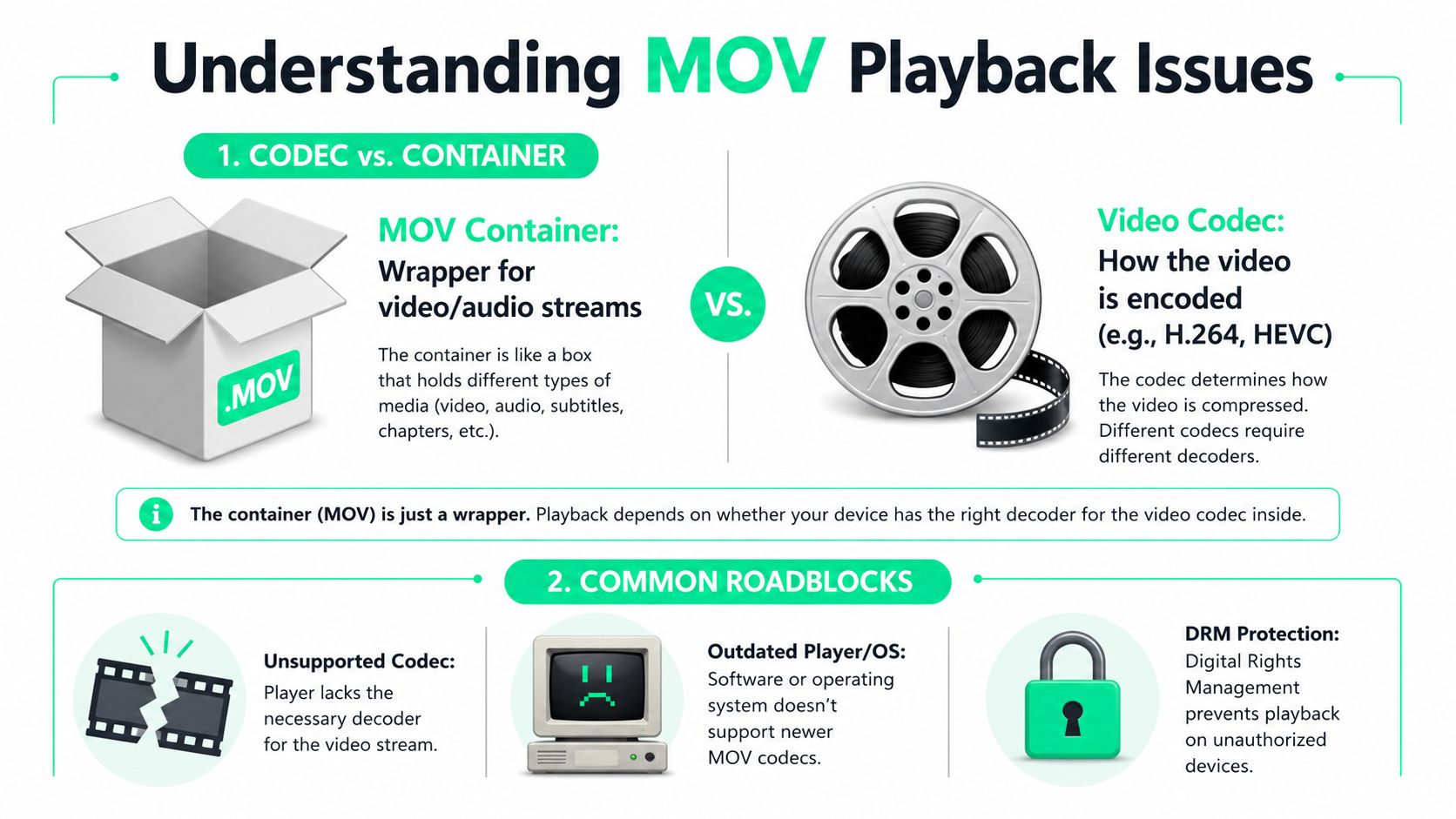
### MOV is the container, not the whole story
Think of MOV as a box. The box can hold video, audio, and sometimes text tracks. That flexibility is useful in editing, but it also means two .mov files can be built very differently.
One file may contain H.264 video and AAC audio, which many devices handle comfortably. Another may contain ProRes video, HEVC, uncommon audio, or transparency data. Both are MOVs. Only one fits the player's expectations.
That difference explains why a creator can say, "one MOV plays, the other doesn't," and still be completely right.
### The codec decides whether playback is easy or painful
The **codec** is how the video inside the MOV was encoded. If the player knows that codec and the machine can decode it efficiently, playback is easy. If not, problems start.
A practical way to think about common MOV scenarios:
| Codec type | What it usually means | Typical result |
|---|---|---|
| **H.264 in MOV** | Common delivery-friendly encoding | Usually easiest to open |
| **HEVC or H.265 in MOV** | Efficient compression, often newer mobile capture | Can fail or stutter on weaker systems |
| **Apple ProRes in MOV** | Editing-first, high-quality master or intermediate | Great for post, not always ideal for casual playback |
The trap is assuming the extension tells enough. It doesn't. A creator trying to play MOV files on a budget Windows laptop may blame the file, when the actual problem is that the system doesn't support the codec well. Another creator may convert a ProRes MOV to MP4 just to make it open, then wonder why the edit feels flatter and less flexible afterward.
> The .mov ending identifies the wrapper. Playback success depends on what the wrapper contains and whether the device can decode it.
That distinction also matters for short-form editing. If the clip is only needed for upload and review, a web-friendly transcode may be smart. If the clip is heading into color work, transparency overlays, title animations, or reusable social templates, preserving the original MOV may be the better move.
## The Best Ways to Play MOV Files on Any Platform
Creators don't need one answer. They need the fastest working answer for the device in front of them.
### Windows
Windows users often assume MOV is still a dead end unless QuickTime is installed. That's outdated. **Windows Media Player 12 supports MOV natively without requiring QuickTime, enabling 97% playback success for standard H.264-encoded MOVs** ([Windows MOV playback notes](https://stackoverflow.com/questions/13600229/how-to-support-movquick-time-in-android)).
That said, VLC remains the safest first install when the file source is unpredictable. It handles a wide range of MOV variants better than default players, especially when creators bounce between phone footage, exported ads, downloaded assets, and old archive files.
A simple Windows decision flow works well:
- **Open it first in Windows Media Player 12** if the file is likely a standard H.264 MOV.
- **Switch to VLC** if the default player throws an error, opens without sound, or stutters.
- **Check the codec** if the file came from a pro workflow such as Final Cut Pro, a cinema camera, or a transparency export.
Some creators also use MOV clips as looping previews or ambient assets while organizing edits. For that kind of visual setup, this guide to [desktop video backgrounds](https://gifpaper.com/guide/video-wallpaper-for-desktop/) is a useful side read because it covers practical playback behavior on desktop environments.
### macOS and iPhone
On Apple devices, MOV is at home. QuickTime Player usually opens standard MOV files cleanly, and native handling is one reason editors working in Final Cut Pro often stay in MOV for masters and intermediates.
For iPhone-originated clips, playback is usually smooth if the destination is another Apple device. Problems typically show up when that same file moves to a mixed-device workflow, especially if the creator is trying to review footage on Windows before cutting vertical versions.
Creators who need a quick format sanity check can use this short glossary on [video formats for creators](https://www.blitzreels.com/glossary/video-format) to separate editing formats from delivery formats before exporting the wrong version for social.
After the file opens, the next step is usually editing for social. This walkthrough is a solid visual reference for platform-safe handling before moving into clipping and publishing:
### Android and Linux
Android is where many creators hit the wall first. **Native MediaPlayer and VideoView do not support MOV due to platform restrictions, but third-party players based on FFmpeg achieve 90–93% playback success for standard MOV files, and online MOV players can reach a 98% success rate for standard MOVs up to 250MB** ([Android MOV playback details](https://stackoverflow.com/questions/13600229/how-to-support-movquick-time-in-android)).
That leads to a practical Android hierarchy:
1. **Try a third-party player first.** ExoPlayer-based apps or other FFmpeg-backed players tend to handle standard MOV files better than the native stack.
2. **Use an online viewer for quick inspection** if the file is small enough and not privacy-sensitive.
3. **Convert only when necessary** if the file includes a codec the player can't decode.
Linux users usually get the best results from VLC or another FFmpeg-backed player. Native desktop app behavior varies by distro and installed codec support, so a universal player removes a lot of uncertainty.
> If the job is only playback, choose the player with the broadest codec support. If the job is editing, choose the workflow that preserves what the file was made to keep.
## Converting MOVs for Editing and Universal Sharing
Sometimes conversion isn't a compromise. It's the efficient choice.
**Approximately 90% of websites and hosting services prefer MP4 uploads due to the H.264 codec's ability to compress files without destroying quality, and the smaller file sizes make sharing easier** ([Adobe MOV versus MP4 overview](https://www.adobe.com/creativecloud/file-types/video/container/mov.html)). That's why a MOV that works beautifully in an editing suite can still be the wrong handoff format for review links, browser playback, email attachments, or social uploads.
### When conversion is the smart move
Convert when the file needs to travel more than it needs to preserve an editing-first structure.
That usually includes situations like these:
- **Client review copies** where the recipient just needs to watch the video.
- **Web uploads** where broad compatibility matters more than retaining a heavy master.
- **Shared team folders** where multiple devices and operating systems are involved.
- **Short-form publishing** where the primary destination is TikTok, Instagram Reels, YouTube Shorts, or LinkedIn.
A practical resource for Windows-based editors who are still sorting out the broader editing side is [TechiePlus on video editing](https://www.techieplus.net/how-to-edit-videos-on-windows-10/). It helps frame where conversion fits inside an everyday desktop workflow instead of treating it as an isolated technical task.
### HandBrake versus a faster creator workflow
HandBrake is still a strong option when the creator wants desktop control over output settings. It works well for deliberate H.264 MP4 exports, especially when a MOV is too large or too finicky for quick collaboration.
The downside is workflow friction. A short-form creator often doesn't just need a converted file. The next steps usually happen immediately:
- clipping dead space
- pulling a stronger hook
- adding bold captions
- resizing to vertical
- reframing the subject into 9:16
- inserting title cards or brand templates
In that kind of workflow, a dedicated converter built for social creators is usually faster than a desktop transcode followed by a separate editing pass. A tool like the [BlitzReels MOV to MP4 converter](https://www.blitzreels.com/tools/mov-to-mp4) makes more sense when the file is headed straight into shorts production and needs to become a clean MP4 before captioning, clipping, resizing, and export.
> Conversion is the right move when the final destination is compatibility. It is the wrong move when the file still needs to behave like an editing asset.
## How to Fix Common MOV Playback Problems
Generic advice stops helping once VLC is installed and the file still won't behave. At that point, the error itself matters.
**Benchmark data shows VLC Media Player achieves 98% playback success across 10,000+ MOV samples. However, players showing "codec not supported" often fail on MOVs with non-standard audio codecs, which occur in about 18% of files from older Final Cut Pro versions. Converting to MP4 using H.264 + AAC guarantees more than 99% compatibility** ([MOV troubleshooting benchmark](https://stackoverflow.com/questions/13600229/how-to-support-movquick-time-in-android)).
### When VLC still fails
If VLC doesn't open the file properly, the problem usually isn't "MOV" in the abstract. It's something specific inside the file.
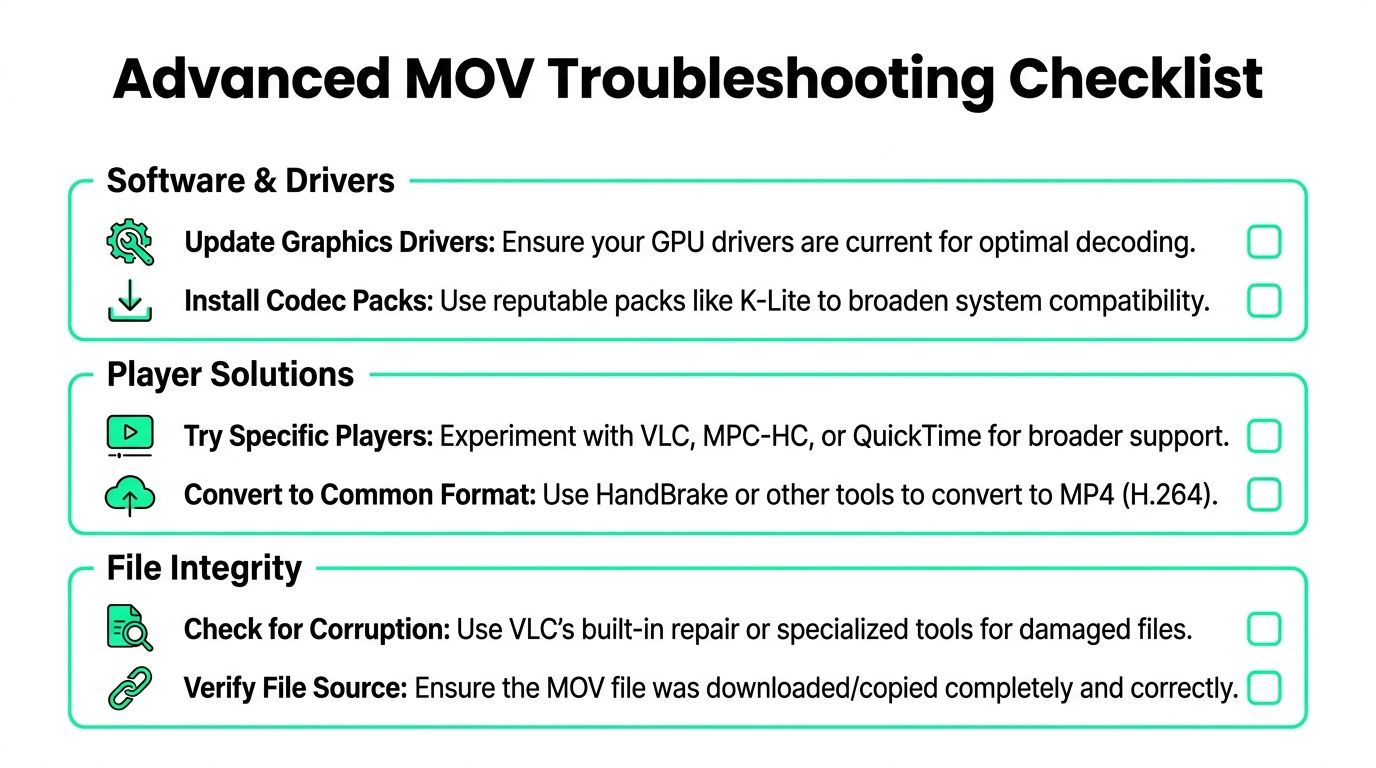
A quick diagnostic checklist helps:
- **Black screen with audio present** often points to a video codec or hardware decode issue.
- **Video plays but no audio** can point to non-standard audio inside the MOV.
- **Player opens then reports unsupported codec** usually means the file uses something outside the player's comfortable range or the export is unusual.
- **Only one machine fails** suggests a device-specific decode problem rather than a broken file.
Random codec packs can often create more confusion than clarity. For social creators, it's usually better to identify whether the file is playback-only, editing-first, or delivery-ready before changing the system.
### When conversion makes things worse
Blind conversion can solve playback and still ruin the asset.
**The prevailing advice to convert MOV to MP4 ignores the fact that MOV files often contain alpha channels or ProRes codecs essential for professional editing. The 2025 Short-Form Creator Survey found that 68% of TikTok and Reels creators specifically need transparent video overlays for dynamic captions**. That makes blind conversion a bad default for creators building layered social edits with animated text and reusable graphics.
If the MOV is an overlay, title animation, lower-third, sticker element, or transparent caption component, flattening it to standard MP4 can strip the transparency that made it useful. In that case, the right fix isn't "convert and move on." It's "preserve the asset and use software that understands it."
Creators who need smaller delivery files after a successful transcode can also use a separate compression step. This guide on [compressing MP4 video for easier sharing](https://www.blitzreels.com/blog/how-to-compress-mp-4-video) is useful after the file is already in a universal format.
### When Windows 11 playback is choppy
A lot of creators assume choppy playback means a missing codec. That's not always true.
The more accurate diagnosis for some newer MOV files is hardware decoding. **Microsoft's 2025 Windows Diagnostic Report says 43% of HEVC MOV playback failures on Windows 11 are due to inadequate GPU decoding, and the 2025 Tech Coach Survey says 57% of creators experience choppy playback on Windows 11 because of GPU limitations rather than codec issues**.
That matters for creators moving HEVC MOV footage from recent iPhones onto older or budget Windows PCs. The file isn't necessarily wrong. VLC isn't necessarily wrong either. The machine may struggle to decode the footage smoothly.
> Update the graphics driver, test another player, and if the footage still drags, create an edit-friendly proxy or a clean H.264 MP4 review copy. Playback problems aren't always codec-pack problems.
## The Smartest Workflow From MOV to Social Media Clip
The best short-form workflow doesn't start with conversion by default. It starts with intent.
### A clean short-form path
If the MOV is a camera original, a ProRes export, or a file with transparency, keep the original untouched first. That's especially important because **the prevailing advice to convert MOV to MP4 ignores that MOV files often contain alpha channels or ProRes codecs essential for professional editing, and the 2025 Short-Form Creator Survey revealed that 68% of TikTok and Reels creators specifically need transparent video overlays for dynamic captions**.
From there, the practical path looks like this:
1. **Identify the role of the file.** Is it raw footage, a master, a transparent overlay, or just a review copy?
2. **Choose the right working version.** Keep the original for editing assets. Make a lighter MP4 only if the job is sharing or browser-safe playback.
3. **Build for the platform.** Pull a strong opening hook, trim pauses, add title cards, burn in captions, and resize for TikTok, Reels, Shorts, or LinkedIn.
4. **Reframe deliberately.** A widescreen MOV usually needs vertical cropping that keeps the speaker, product, or action centered.
5. **Repurpose the same source.** One good source clip can become multiple social cuts with different lengths, captions, and templates.
Creators trying to sharpen the publishing side, not only the file-handling side, can borrow ideas from [PostSyncer's video marketing expertise](https://postsyncer.com/blog/video-marketing-for-social-media). The strongest technical workflow still needs a content strategy that fits how short-form gets watched.
For teams repurposing interviews, webinars, podcasts, demos, or talking-head footage, the goal isn't just to play MOV files. It's to turn them into usable social assets fast, without accidentally throwing away the quality or transparency that the original file was carrying.
---
BlitzReels is built for that exact handoff. Upload a MOV, turn it into a workable short, add captions, find stronger cuts, resize for vertical platforms, and export polished clips without getting stuck in format chaos. If the job is turning raw footage into TikToks, Reels, Shorts, or LinkedIn videos faster, [BlitzReels](https://blitzreels.com) is the clean next step.