---
title: "Master How to Save Live Photo as Video in 2026"
canonical: "https://blitzreels.com/blog/save-live-photo-as-video"
---
# Master How to Save Live Photo as Video in 2026
URL: https://blitzreels.com/blog/save-live-photo-as-video
Markdown URL: https://blitzreels.com/blog/save-live-photo-as-video.md
Published: 2026-05-30
Author: BlitzReels
Learn how to save Live Photo as video on iPhone, iPad, and Mac. This 2026 guide covers built-in methods, batch conversion, and editing for TikTok.
Tags: save live photo as video, live photo to video, iphone video tips, short-form content, content creation

A strong short-form clip often starts as something almost accidental. A glance to camera, a hand movement, a laugh, a shift in the light. On iPhone, those moments often sit inside a Live Photo instead of a standard video, which is why so many creators scroll past useful footage without realizing it.
That's the primary value of learning how to **save Live Photo as video**. It isn't just a file conversion trick. It's a fast way to pull hidden B-roll out of the camera roll, turn it into something editable, and use it in Reels, TikToks, Shorts, and LinkedIn clips without shooting again.
## Table of Contents
- [Unlock the Hidden Videos in Your Camera Roll](#unlock-the-hidden-videos-in-your-camera-roll)
- [The Official Way to Convert a Live Photo to Video](#the-official-way-to-convert-a-live-photo-to-video)
- [On iPhone and iPad](#on-iphone-and-ipad)
- [On Mac](#on-mac)
- [Why the built-in method is usually the right first move](#why-the-built-in-method-is-usually-the-right-first-move)
- [Advanced Conversion for Power Users and Batch Jobs](#advanced-conversion-for-power-users-and-batch-jobs)
- [When Shortcuts makes sense](#when-shortcuts-makes-sense)
- [When third-party apps are worth it](#when-third-party-apps-are-worth-it)
- [How to Turn Your New Clip into Engaging Social Content](#how-to-turn-your-new-clip-into-engaging-social-content)
- [Use the clip for interruption not explanation](#use-the-clip-for-interruption-not-explanation)
- [Edit for vertical platforms fast](#edit-for-vertical-platforms-fast)
- [Troubleshooting Common Conversion Problems](#troubleshooting-common-conversion-problems)
- [Why Save as Video disappears](#why-save-as-video-disappears)
- [Why the exported clip feels disappointing](#why-the-exported-clip-feels-disappointing)
- [Start Mining Your Camera Roll for Gold](#start-mining-your-camera-roll-for-gold)
## Unlock the Hidden Videos in Your Camera Roll
A lot of creators hit the same wall. The moment is good, but it's trapped in the wrong format.
A Live Photo might capture the exact reaction shot needed before a talking-head hook. It might hold a quick environmental moment that works perfectly as B-roll between captions. It might even contain the only natural movement from a day when nobody thought to record proper footage. But until that file becomes a video, it can't really join a normal editing workflow.
That's why this matters beyond Apple's Photos app. Converting a Live Photo is often the first edit, not the final one.
> **Practical rule:** If a Live Photo contains motion that adds context, mood, or a pattern interrupt, it's already more valuable than a static image for short-form content.
Creators who also experiment with motion effects on stills can get useful context from this guide on [Photo for Video](https://photoforvideo.com/blog/app-that-makes-images-move), especially when deciding whether a real captured Live Photo or a generated moving image better fits the clip.
The best use cases tend to be simple:
- **Reaction inserts** that make a talking segment feel less flat
- **Micro B-roll** for title cards, transitions, or dead space between lines
- **Texture shots** like city movement, product handling, or a quick facial expression
- **Backup footage** when the original shoot didn't produce enough video
For creators editing on mobile, a clean next step is learning [how to edit videos on phone](https://www.blitzreels.com/blog/how-to-edit-videos-on-phone), because the conversion only solves the format problem. The content still needs trimming, framing, captions, and a place in the final sequence.
## The Official Way to Convert a Live Photo to Video
A lot of useful short-form footage never gets edited because it still lives as a Live Photo. The fastest fix is Apple's own export tool inside Photos. It turns that half-second reaction, product movement, or ambient moment into a real video file you can drop into a Reel, Short, or TikTok without slowing down your workflow.
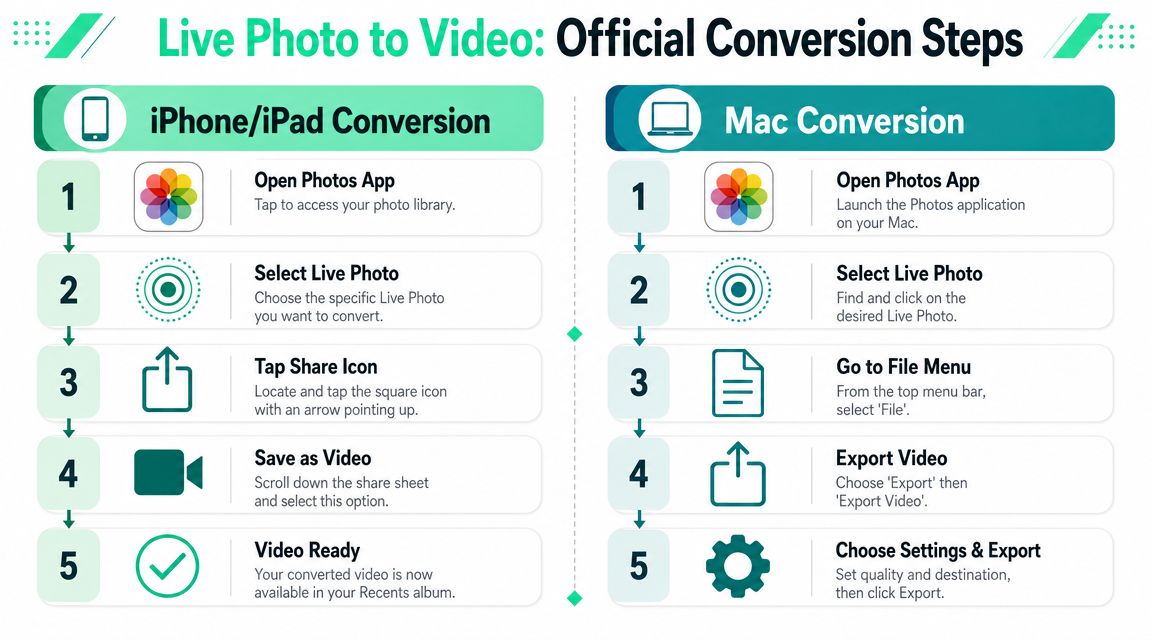
Apple's support page confirms two practical details that matter in day-to-day editing. The original Live Photo stays in your library, and the exported video lands in the **Recently Saved** album. Apple also notes that these video clips can continue into an iMovie workflow inside the same ecosystem ([Apple support](https://support.apple.com/en-us/105029)).
### On iPhone and iPad
Use this route when speed matters more than control.
1. Open **Photos**
2. Tap the **Live Photo**
3. Open the **three-dot menu**
4. Choose **Save as Video**
That export is usually enough to get a hidden camera-roll moment into your editing timeline in under a minute.
A few details are worth knowing before you build this into your content process:
- **Your Live Photo stays untouched.** You are creating a new file, not replacing the original.
- **The video saves separately.** If it seems to disappear, check **Recently Saved** first.
- **The result is made for fast reuse.** This is the quickest way to turn a casual capture into usable B-roll.
Apple-focused coverage noted this workflow years ago, so it has been a stable part of the Photos app for a while, even as menus have shifted slightly over time.
If your exported clip needs broader compatibility for editing apps, uploads, or client delivery, run it through this [MOV to MP4 converter for social-ready exports](https://www.blitzreels.com/tools/mov-to-mp4).
### On Mac
Mac works better when your Photos library syncs through iCloud and the rest of the project is already being cut on desktop.
1. Open **Photos**
2. Select the **Live Photo**
3. Go to **File**
4. Choose **Export**
5. Choose **Export Video**
I use the Mac route when a clip is heading into Final Cut, Premiere Pro, or a folder structure organized by campaign, product, or shoot date. It takes a few more clicks than iPhone, but file management is easier once you are handling more than one post at a time.
### Why the built-in method is usually the right first move
Apple's export wins on reliability and speed. No extra app. No guessing about where the file went. No quality loss from bouncing through random converters before you even know whether the shot is worth using.
That matters because this step is bigger than file conversion. It is how static-looking moments become usable inserts, transitions, and reaction clips that make short-form edits feel less staged. One saved Live Photo can become the cutaway that fixes pacing in a Reel.
Use the native export first. Add more processing only when the project needs it.
Some creators want motion that goes beyond what the phone originally captured. If that is the goal, tools that [animate your photos](https://clipcreator.ai/blog/make-photos-move) can add a different style. For authentic micro-B-roll pulled from real moments, Apple's built-in export is still the better starting point.
## Advanced Conversion for Power Users and Batch Jobs
Single-file export is fine until the camera roll starts acting like a stock footage library. Then speed matters more than novelty.
A creator building a bank of reaction shots, product details, ambient scenes, and behind-the-scenes snippets will quickly run into repetition if every Live Photo has to be opened one by one. That's where automation becomes useful.

### When Shortcuts makes sense
The Shortcuts app is the practical upgrade for batch jobs. The exact setup can vary, but the idea is simple: select Live Photos, run a shortcut, and save out video versions in one pass.
This approach works best when someone is doing all of the following:
- **Building a B-roll folder** from older camera-roll content
- **Prepping a week of social posts** in one editing session
- **Sorting by theme** such as product use, travel, office life, or reactions
- **Reducing repetitive taps** that slow down mobile workflows
A good batch routine doesn't need to be fancy. It only needs to remove friction. Teams thinking more broadly about automation can also borrow ideas from this guide to [AI-powered batch editing for Reels](https://www.blitzreels.com/blog/the-creator-s-guide-to-ai-powered-batch-editing-for-reels), because the real gain comes from turning many small edits into one repeatable process.
### When third-party apps are worth it
Third-party tools are helpful when the native export isn't enough. Common reasons include wanting alternate output types, extra control over export behavior, or a more specialized creative effect.
They're usually worth considering when the need is specific:
- **GIF output** for lightweight sharing
- **Different export controls** for niche publishing needs
- **Creative motion workflows** that go beyond what a Live Photo already captured
They're not necessary when the goal is “turn this into an editable video clip.”
> The best conversion setup is the one that gets the clip into the edit fastest. Extra controls only help when they solve a real constraint.
For creators mixing captured moments with synthetic visuals, this article on [AI video generation for creators](https://shortsninja.com/blog/ai-image-to-video-generator/) offers a useful contrast. Live Photo export is strongest when authenticity matters. Generated motion is stronger when the shot never existed in the first place.
## How to Turn Your New Clip into Engaging Social Content
The exported file isn't the finished asset. It's raw material.
Independent tutorial coverage describes the converted result as a **2–3 second** clip, and also notes a practical audio issue: some export methods can keep or drop sound, so creators should verify audio settings before building the clip into B-roll ([YouTube tutorial reference](https://www.youtube.com/watch?v=xhC1AzIUeBo)).
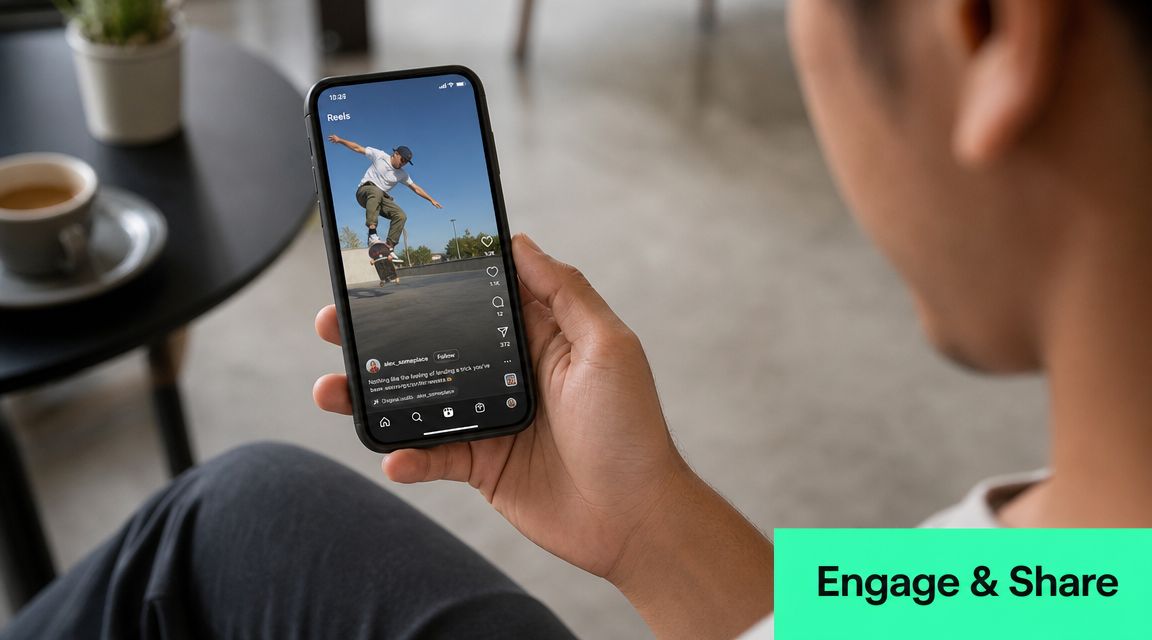
That short runtime is exactly why these clips work so well in vertical content. They aren't meant to carry the whole story. They're meant to sharpen it.
### Use the clip for interruption not explanation
A Live Photo conversion works best when used as a quick visual switch.
Think about the moments where short-form videos usually lose attention: after the opening hook, during a long sentence, between two spoken ideas, or while a caption block sits on screen too long. A tiny movement clip solves that by refreshing the frame.
Strong placements include:
- **Before the first spoken line** as a visual hook
- **Under a title card** to make the opening feel alive
- **Between cuts** when a talking-head sequence starts feeling static
- **Behind captions** when a static image would feel dead
A short clip with natural movement often performs better than over-edited filler because it feels real. A hand reaching for a product, a quick smile, a street scene shifting in the background, or a dog turning toward camera can carry more texture than a generic stock insert.
This is a useful editing reference for creators who need to adapt those clips into platform-friendly framing: [how to change aspect ratio](https://www.blitzreels.com/blog/how-to-change-aspect-ratio).
### Edit for vertical platforms fast
Once the clip is converted, the practical job is shaping it for feed behavior.
That usually means:
| Editing move | Why it helps |
|---|---|
| **Trim the dead frames** | Live Photos often start or end with weak motion |
| **Reframe for vertical** | The subject needs to read clearly on a phone screen |
| **Add captions** | Text helps the clip work even when audio is off |
| **Use a title card** | A hook gives the visual a job, not just decoration |
| **Drop it into a template** | Templates speed up repeat posting across platforms |
A short insert can do a lot if it's paired with the right structure. A bold opening line, clean subtitles, and a fast cut into the main point often turn a throwaway camera-roll moment into a usable Reel.
A useful example of short-form pacing sits below.
> A converted Live Photo rarely needs heavy editing. It needs context, timing, and the right place in the sequence.
## Troubleshooting Common Conversion Problems
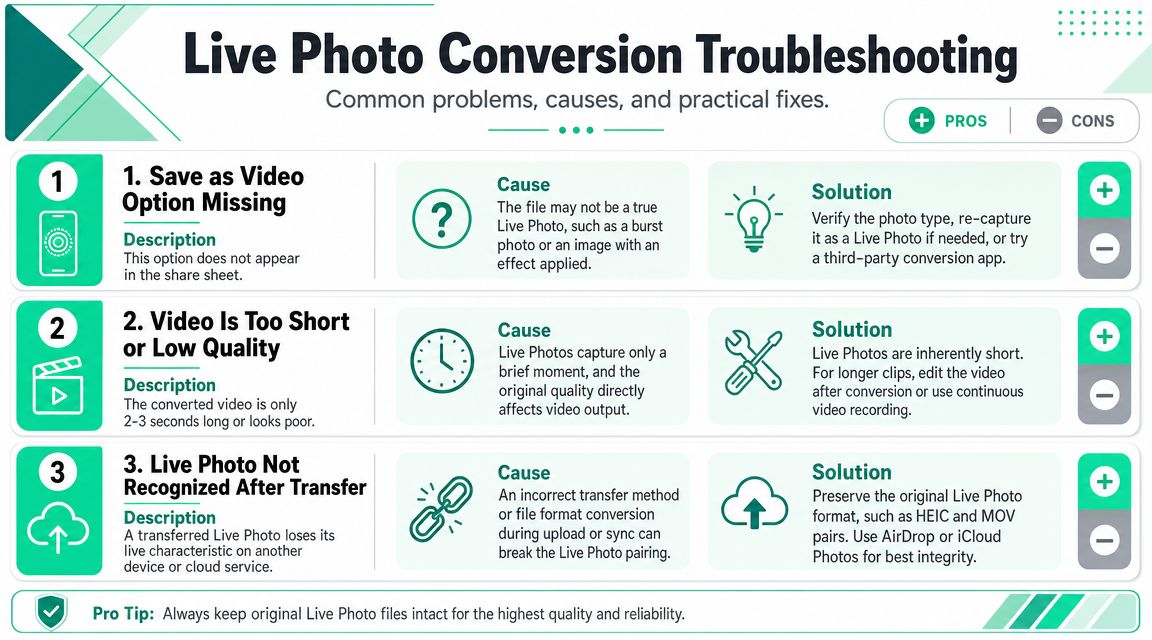
You convert a Live Photo because you spotted a usable moment in the camera roll. Then the option is missing, or the exported clip looks too short to matter. Both problems are common, and both are usually easy to fix once you know what iPhone is doing.
### Why Save as Video disappears
In practice, this usually happens because the file is no longer in a standard Live Photo state.
If **Save as Video** is missing, check the file before assuming the export failed:
- **Remove Live effects** if the photo is set to Loop, Bounce, or Long Exposure
- **Confirm it's a Live Photo** and not a standard still
- **Check multi-select carefully** because mixing in a non-Live item can hide the option
The fix is usually quick. Revert the effect, open the Live Photo by itself, and try again. On larger camera rolls, this matters because one hidden setting can slow down a whole batch workflow when you are trying to pull B-roll fast for a Reel or Short.
### Why the exported clip feels disappointing
Sometimes the conversion works perfectly, but the result still feels off.
That usually comes down to how Live Photos behave as source material. The clip is short. The original still stays in the library, so it may not feel obvious that anything changed. Audio can also vary depending on the capture and export method, so it is worth checking the file before dropping it into an edit.
I run into this most with creators who expect a fully formed video asset. A converted Live Photo is usually a raw moment, not a finished insert. Its value shows up after trimming the weak frames, reframing the subject, and pairing it with a hook, caption, or cutaway slot in the sequence.
If the file exports correctly but feels awkward to share, upload, or edit, reducing the size after conversion with a guide on [how to compress an MP4 video](https://www.blitzreels.com/blog/how-to-compress-mp-4-video) can make the clip easier to work with.
> If the export succeeded and the clip still feels unusable, the issue is usually editing context, not conversion.
## Start Mining Your Camera Roll for Gold
You are halfway through editing a Reel, need one more cutaway, and do not have time to film again. That is usually when an old Live Photo turns into the clip that saves the edit.
Learning how to **save Live Photo as video** matters because it changes how you use your camera roll. Those files are not just animated snapshots. They are raw micro-moments you can turn into reaction shots, mood clips, transition beats, or background motion for text-heavy scenes. The conversion step is small, but it is often the first move in turning forgotten captures into publishable short-form content.
That shift speeds up production.
Creators waste time waiting for a perfect reshoot when the better option is often already sitting in the library. A quick glance through Live Photos can surface a laugh, a hand movement, a change in light, or a subject turning toward the camera. Those details give Shorts and Reels texture, which is usually what makes a simple edit feel intentional instead of flat.
Start with one file that has clear motion. Convert it. Trim the dead space. Drop it into your next edit where a static frame feels weak. Once that habit clicks, your camera roll starts working like a standing B-roll archive instead of a storage dump.
BlitzReels helps creators turn rough clips into publish-ready shorts fast. Upload a video, add captions, reframe for vertical, build stronger hooks with title cards, and repurpose content for TikTok, Instagram Reels, YouTube Shorts, and more. Explore [BlitzReels](https://blitzreels.com) if the goal is to edit and publish more short-form content without getting stuck in a slow timeline.