---
title: "Mastering Syncing Audio with Video: A 2026 Guide"
canonical: "https://blitzreels.com/blog/syncing-audio-with-video"
---
# Mastering Syncing Audio with Video: A 2026 Guide
URL: https://blitzreels.com/blog/syncing-audio-with-video
Markdown URL: https://blitzreels.com/blog/syncing-audio-with-video.md
Published: 2026-05-16
Author: BlitzReels
Learn expert methods for syncing audio with video in 2026. Fix lip-sync issues on Premiere, TikTok, and Reels using manual, automatic, and AI tools.
Tags: syncing audio with video, video editing, audio sync, short-form video, creator tips

You've probably seen this happen. The clip looks sharp, the lighting is fine, the hook is strong, but the voice lands a beat before the mouth moves. Or the audio drifts just enough by the end that the whole thing feels cheap, even if the viewer can't explain why.
That's why syncing audio with video matters more than most new creators expect. It isn't a polish step you tack on at the end. It's one of the things that makes a video feel trustworthy, intentional, and easy to watch.
The good news is that sync has gotten easier. The old workflow was manual and fussy. You recorded, imported, zoomed way into the timeline, nudged clips by hand, and hoped exports didn't break anything. The newer workflow is different. You still need to understand the basics, but more creators now treat sync as something the pipeline preserves automatically, not as a separate repair job after the fact.
## Table of Contents
- [The Pre-Edit Prep That Guarantees Perfect Sync](#the-pre-edit-prep-that-guarantees-perfect-sync)
- [Why scratch audio is non-negotiable](#why-scratch-audio-is-non-negotiable)
- [The clap method that saves the edit](#the-clap-method-that-saves-the-edit)
- [The Manual Sync Workflow in Traditional Editors](#the-manual-sync-workflow-in-traditional-editors)
- [Waveform matching beats visual guessing](#waveform-matching-beats-visual-guessing)
- [Using the slate marker when waveforms are messy](#using-the-slate-marker-when-waveforms-are-messy)
- [Using Automatic Sync Features for Speed and Accuracy](#using-automatic-sync-features-for-speed-and-accuracy)
- [What auto sync does well](#what-auto-sync-does-well)
- [Where one-click sync still needs supervision](#where-one-click-sync-still-needs-supervision)
- [Understanding Timecode for Advanced Productions](#understanding-timecode-for-advanced-productions)
- [What timecode actually is](#what-timecode-actually-is)
- [When creators should care](#when-creators-should-care)
- [The AI Workflow Beyond Syncing for Short-Form Creators](#the-ai-workflow-beyond-syncing-for-short-form-creators)
- [Why the separate sync step is fading](#why-the-separate-sync-step-is-fading)
- [A faster pipeline for clips captions and exports](#a-faster-pipeline-for-clips-captions-and-exports)
- [Where AI still needs human judgment](#where-ai-still-needs-human-judgment)
- [From Manual Labor to AI Speed Your Syncing Journey](#from-manual-labor-to-ai-speed-your-syncing-journey)
## The Pre-Edit Prep That Guarantees Perfect Sync
Most sync problems start before the edit.
Creators often focus on camera settings, lenses, or the external mic, then forget the one thing that makes post-production simple: **always record scratch audio in-camera**. It can be ugly. It can be roomy. It can have fan noise. It still matters because it gives your editor, or your software, something to compare against the clean external recording.
According to the [audio-video synchronization reference summary](https://en.wikipedia.org/wiki/Audio-to-video_synchronization), the acceptable margin is small enough that audio should lead video by no more than **15 ms** and lag by no more than **45 ms** in ATSC guidance, while film lip sync is often considered acceptable within **22 ms** either way. That's why “close enough” usually isn't close enough.
### Why scratch audio is non-negotiable
If you record to a lav plugged into a separate recorder and mute the camera mic completely, you remove your easiest sync reference.
Keep the camera mic on for:
- **Talking head videos** where you're also recording to a wireless lav
- **Podcast clips** where each speaker has isolated audio elsewhere
- **Screen recordings with live commentary** when a secondary recording exists
- **Phone plus external recorder setups** where files will later be merged
> **Practical rule:** Bad reference audio is useful. Missing reference audio is a problem.
For creators repurposing content, this also helps when you need to [extract an audio track from video](https://www.blitzreels.com/tools/video-to-audio) before reorganizing a project. Even a rough camera track can become the alignment anchor that keeps the final export usable.
### The clap method that saves the edit
The clap is not a movie-set cliché. It's cheap insurance.
Do it the same way every time:
1. **Start both devices first.** Roll camera. Roll external audio. Don't clap before both are recording.
2. **Get the clap in frame.** Your hands, a slate, or even a finger snap in front of the lens works better when the visual action is obvious.
3. **Make one sharp transient.** A clean clap creates a spike in the waveform and a visible contact point in the picture.
4. **Pause for a beat.** Give yourself a little empty space after the clap so the spike is easy to isolate later.
5. **Repeat if needed.** On longer shoots, a second sync mark after a battery swap or file split can save you.
The actual benefit extends beyond initial alignment. The clap also helps you diagnose drift later. If the opening clap lines up but the mouth is off further down the timeline, your issue probably isn't bad syncing. It's more likely mixed frame rates, sample-rate mismatch, or a file that was re-exported badly.
## The Manual Sync Workflow in Traditional Editors
Every editor should know how to sync by hand at least once. Not because it's the fastest way, but because it teaches you what the software is doing.
Adobe Premiere Pro, DaVinci Resolve, and Final Cut Pro all let you line things up manually on a timeline. When automatic tools fail, this is what gets you out of trouble. It's also the cleanest way to diagnose whether the problem is simple offset or real drift over time.
### Waveform matching beats visual guessing
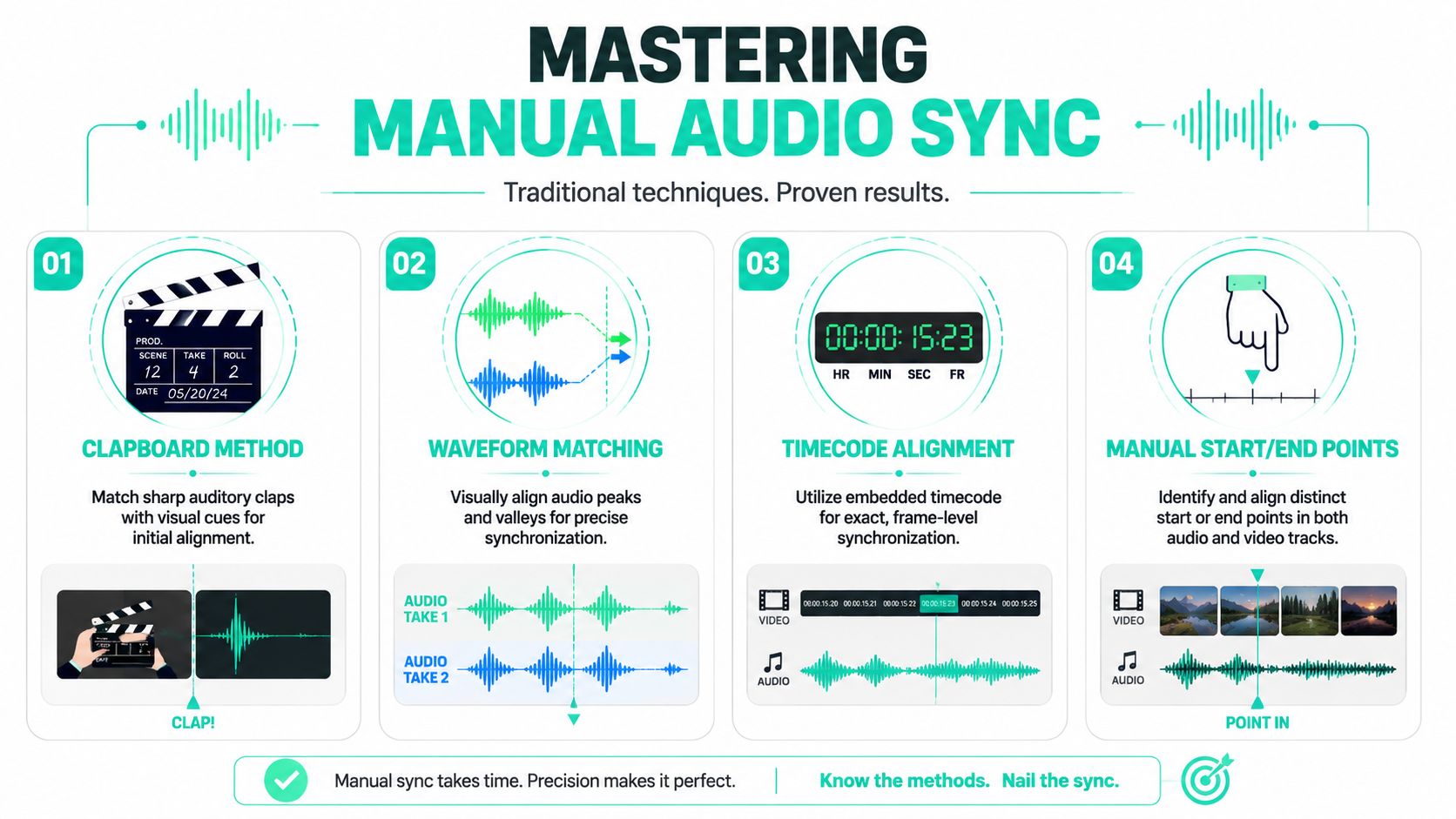
The most reliable manual method is waveform matching.
A disclosed sync method explains why visual-only alignment falls short: [a 60 fps video spaces frames at 16.67 ms](https://www.tdcommons.org/dpubs_series/5485/), which is too coarse for precision diagnosis. Audio gives finer timing resolution, so matching waveform peaks is more accurate than trying to judge mouth movement frame by frame.
That's the key idea. Use the picture to get close. Use the waveform to get precise.
A practical manual workflow looks like this:
- **Place the camera clip and external audio on separate tracks.** Don't merge anything yet.
- **Expand the track height.** You want to see waveform detail, not tiny compressed blobs.
- **Find the first sharp sound.** The opening clap is ideal. A plosive consonant can work in a pinch.
- **Line up the waveform spikes.** Drag the external audio until the transient peaks sit on top of each other.
- **Zoom in further and nudge.** If your editor supports keyboard nudging, use it for tiny corrections.
- **Mute one track and test.** Listen while watching lips on a few words with hard consonants like “B,” “P,” and “T.”
If you're syncing a podcast, use a laugh, desk tap, cough, or mic bump. Those often create stronger sync landmarks than speech.
### Using the slate marker when waveforms are messy
Sometimes the camera audio is too noisy to trust. A windy outdoor shoot, a far-away phone mic, or an overloaded preamp can make waveform matching painful.
That's when the **slate marker method** takes over. Instead of chasing waveform detail, you sync the exact frame where the clap closes with the corresponding audio spike.
Use this approach when:
- **Waveforms look flat** because the camera mic was distant
- **Background noise masks speech**
- **You have multiple takes** and need a quick visual reference
- **The editor generated poor auto sync results** and you want to confirm the opening point yourself
> When the waveform is messy, one clean visual event is often enough to establish the correct starting point.
A good habit in Premiere Pro or Resolve is to set markers at the clap frame and the clap spike before you start dragging. That gives you a return point if you overshoot.
Manual syncing works. It's dependable. It also gets old fast when you're handling batches of clips for Shorts, Reels, or TikTok.
## Using Automatic Sync Features for Speed and Accuracy
Modern editors already have better options than drag-and-nudge.
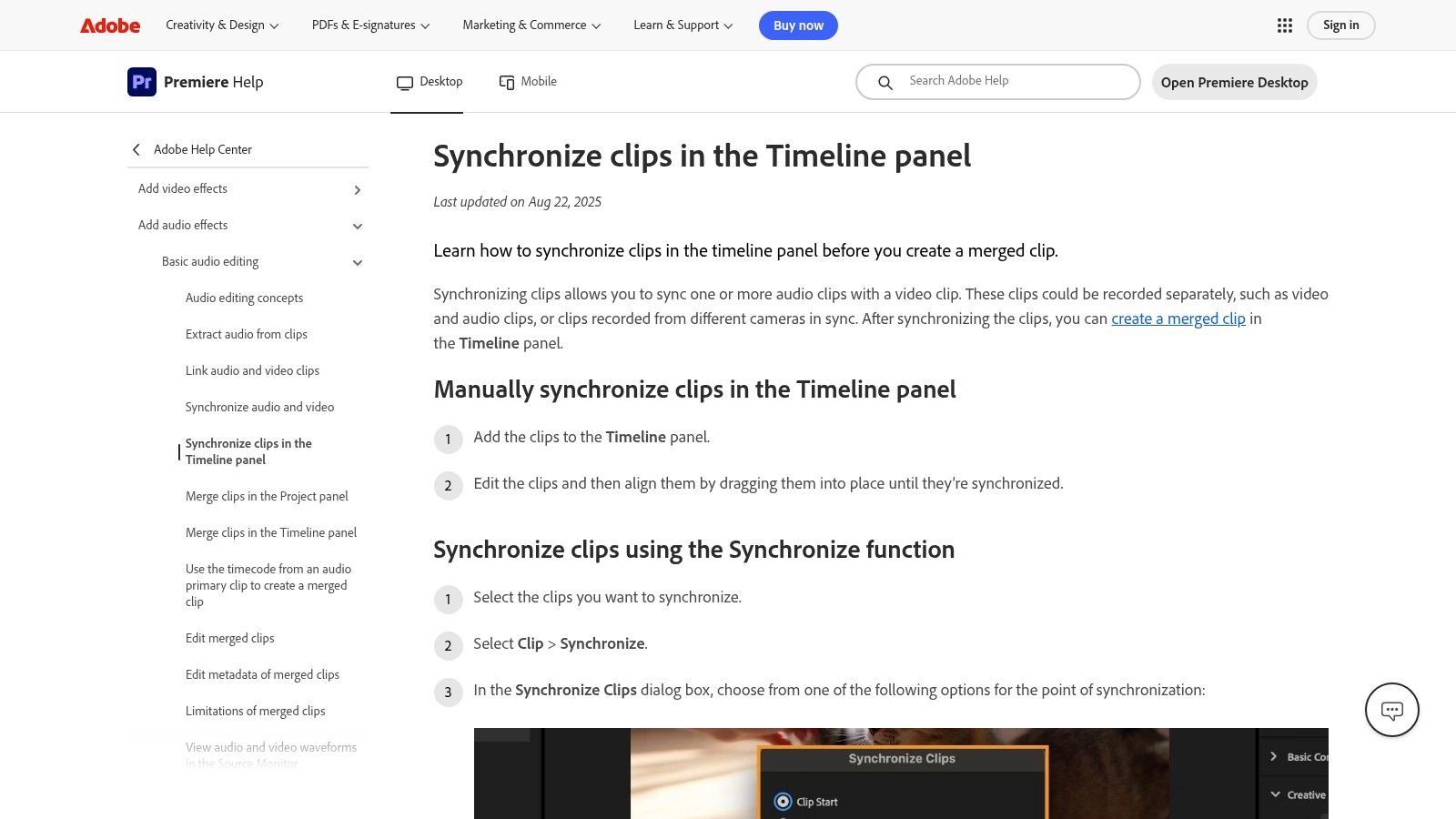
Premiere Pro can synchronize clips by waveform. Resolve can do the same in bin-level workflows and in more complex multicam setups. If your files were recorded cleanly and the scratch track exists, these tools often handle the first pass well enough that you only need to verify, not build the sync yourself.
### What auto sync does well
The reason auto sync became standard is simple. It reduces repetitive work without giving up precision.
Research on automated synchronization using spreading-code delay measurement reported **99% synchronization efficiency**, with both audio-to-video delay and sync drift measured at **16 ms** in the published result from the [ICTACT study](https://ictactjournals.in/paper/IJIVP_Vol9_Iss1_Paper2_1807_1813.pdf). That doesn't mean every editor will hit that exact outcome on every project, but it shows automated sync is based on measurable alignment methods, not guesswork.
In practice, here's where built-in sync works well:
| Situation | Manual sync | Automatic sync |
|---|---|---|
| One camera plus one external mic | Reliable but slow | Usually the easiest choice |
| Podcast with separate recorder | Fine for a few clips | Better for batches |
| Multicam interview with scratch audio | Manageable but tedious | Strong if all cameras captured usable reference audio |
| Recycled exports with baked changes | Hard to diagnose | May fail and need manual review |
A typical Premiere Pro workflow is short:
1. Select the camera clip and external audio.
2. Right-click and choose synchronize.
3. Pick audio as the sync method.
4. Review the first spoken phrase, then scrub later in the clip to check for drift.
If your subtitle timing shifts after a recut, a separate utility for [fixing subtitle timing for videos](https://coffeetrans.app/tools/subtitle-shifter) can save you from redoing the whole caption file by hand.
For creators working with captions at the word level, understanding [word-level sync](https://www.blitzreels.com/glossary/word-level-sync) also helps. Once you start animating captions to individual words, tiny alignment errors become much easier to spot.
### Where one-click sync still needs supervision
Auto sync fails for predictable reasons.
- **No scratch track:** The software has nothing useful to compare.
- **Heavy noise reduction applied too early:** Processed audio may no longer resemble the camera track.
- **Variable frame rate phone footage:** Files may start aligned but drift later.
- **Edited or truncated source files:** If one file was trimmed before sync, the software may lock to the wrong reference point.
This walkthrough shows the type of workflow many editors use when they want software help without giving up control:
The habit that separates clean auto sync from messy auto sync is verification. Check the start, the middle, and the end. If all three look right, move on.
## Understanding Timecode for Advanced Productions
Timecode sounds technical, but the basic idea is simple. It gives each frame its own address.
Instead of matching clips because they sound similar, cameras and recorders can share the same running clock. When you import the files, the editor reads that shared reference and places them together on the timeline automatically.
### What timecode actually is
Think of timecode as a common language between devices.
A camera records picture. A recorder captures cleaner sound. If both were jam-synced before the shoot, their files carry matching timing information. The editor doesn't need to hunt for a clap because both assets already agree on where they belong in the [timeline](https://www.blitzreels.com/glossary/timeline).
That's why professional crews use timecode boxes on:
- **Multi-camera podcasts**
- **Live events**
- **Long interviews**
- **Documentary shoots with separate sound teams**
> Timecode is what you use when “close enough” becomes too risky across many files.
### When creators should care
For a single talking-head clip, timecode is usually overkill. A clap and a waveform are faster.
For a two-hour podcast with several cameras and isolated audio tracks, timecode starts to make real sense. It reduces setup confusion, import friction, and the chance that one file drifts or gets matched to the wrong take. If you're renting gear for a client shoot, this is one of the first workflow upgrades worth asking about.
You don't need to use timecode every day to benefit from understanding it. Once you know what it solves, you make better choices about when to stay simple and when to step into a more professional capture setup.
## The AI Workflow Beyond Syncing for Short-Form Creators
The biggest workflow change isn't a better sync button. It's that many short-form creators no longer need a separate syncing phase at all.
That shift matters because short-form production is built around speed, volume, and reuse. A creator records on a phone, a webcam, a screen recorder, or all three. Then the footage gets clipped, resized, captioned, reposted, and exported again. The old edit model assumes one careful timeline and a patient human operator. That's not how most short-form publishing works now.
The gap is easy to see. As noted in a [research summary built around current short-form workflow needs](https://www.youtube.com/watch?v=aZRHNx3dPOE), tutorials still lean heavily on manual Premiere-style syncing even though Gen Z and millennials are spending more time with short-form video. The need has shifted from one-time alignment to repeatable systems that survive fast publishing, mixed devices, and multiple exports.
### Why the separate sync step is fading
Traditional editing treats sync as a task. Import the files, align them, lock them, and proceed.
AI-first short-form systems treat sync as a condition the pipeline preserves. The original recorded performance becomes the anchor. Transcription, clip selection, captioning, reframing, and exports all happen around that anchored media instead of repeatedly rebuilding it.
That changes a lot:
- You're not manually re-syncing every time you cut a new clip from a long recording.
- You're not breaking sync just because you added captions, zooms, or auto-crops.
- You're not rebuilding the timeline from scratch for each platform version.
For lip-adjusted or dubbed content, a dedicated [professional visual dubbing platform](https://sync.so/lipsync-2-pro) can be useful when the job goes beyond simple timeline alignment and into facial performance matching.
### A faster pipeline for clips captions and exports
Here's what the modern creator workflow often looks like when it's working well:
1. **Record with scratch audio intact.** This still matters because the raw source needs a reference.
2. **Upload the original file once.** Avoid bouncing between several exports before clipping.
3. **Let transcription drive the edit.** Spoken words become searchable edit points.
4. **Create clips from the source performance.** The cuts reference the same underlying media.
5. **Replace or clean audio without shifting the structure.** Sync stays stable here instead of being rebuilt every time.
6. **Add captions and reframing after the clip logic is set.**
7. **Export platform versions from the same source project.**
That's one reason platforms such as BlitzReels are relevant here. It's an AI video editor that ingests source video, transcribes audio, identifies cuts, generates captions, and outputs vertical clips. In that kind of system, syncing audio with video becomes less of a manual task and more of a preserved property of the original media chain.
> The fastest sync workflow is the one that doesn't force you to redo sync every time you make a clip.
This is especially useful for podcasters and marketers. One recording session can produce many short clips. If each clip has to be manually aligned, checked, captioned, and resized in separate tools, production slows down fast. If the source stays intact and the edits branch off that source, you spend time choosing the best moments instead of repairing technical drift.
### Where AI still needs human judgment
AI removes busywork, not responsibility.
You still need to watch for:
- **Phone footage with variable frame rate**
- **Badly recorded source audio**
- **Screen recordings that captured system audio differently from mic audio**
- **Exports that were round-tripped through several apps**
- **Dubs or replaced dialogue where lip movement no longer matches naturally**
The most reliable creators I know don't hand everything to automation blindly. They use AI for speed, then review the moments where viewers notice sync first: opening hooks, punchlines, hard consonants, and any close-up face shot.
That's the practical mindset now. Use automation to preserve sync through the pipeline. Use your eyes and ears to approve what the audience will notice.
## From Manual Labor to AI Speed Your Syncing Journey
Good sync starts before the edit. That's the lesson most beginners learn late.
If you capture scratch audio, make a clear clap, and keep your source files organized, you can solve a lot with manual tools alone. If you use Premiere Pro, Resolve, or another modern editor, built-in automatic sync usually handles standard creator work faster than hand alignment. If you move into podcasts, events, or multicam interviews, timecode removes another layer of guesswork.
For short-form content, the biggest improvement is workflow design. The less often you detach audio from the original performance and rebuild clips in separate apps, the fewer sync problems you create for yourself. That's why the smartest setup today isn't just “learn to sync.” It's “build a process where sync stays intact while you clip, caption, crop, and publish.”
If you're new, learn the clap method and waveform matching first. Those skills will rescue you when automation struggles.
If you're producing a lot of social content every week, stop treating sync as a separate repair task. Treat it as something your recording habits and editing system should protect from the start.
---
If you want to try a faster workflow, [BlitzReels](https://blitzreels.com) is one option for turning source videos into short-form clips with transcription, captions, reframing, and exports handled in the same system, which helps reduce the number of steps where sync usually gets broken.