---
title: "Discover the Best Video Editing App for Beginners 2026"
canonical: "https://blitzreels.com/blog/video-editing-app-for-beginners"
---
# Discover the Best Video Editing App for Beginners 2026
URL: https://blitzreels.com/blog/video-editing-app-for-beginners
Markdown URL: https://blitzreels.com/blog/video-editing-app-for-beginners.md
Published: 2026-06-26
Author: BlitzReels
Find the ultimate video editing app for beginners in 2026! Our guide reveals top choices to help you create stunning videos easily, even with no prior
Tags: video editing app for beginners, short-form video, video editing software, tiktok editor, reels editor

Stop Scrolling, Start Creating: A Beginner's Guide to Video Editing
A strong clip often dies in the camera roll. The footage is there, the idea is there, but the gap between recording and publishing feels bigger than it should. That's where the right video editing app for beginners changes everything.
For short-form content, the best tool isn't the one with the longest feature list. It's the one that helps a new creator trim fast, add captions, reframe for vertical, drop in a hook or title card, and export without fighting the interface. Mobile-first editing has become the default path for many beginners, and the phone video editing app market is projected to grow from USD 1.37 billion in 2026 to USD 7.12 billion by 2035, with Adobe, KineMaster, InShot, and CapCut holding about 65% of the market according to [Business Research Insights on the phone video editing app market](https://www.businessresearchinsights.com/market-reports/phone-video-editing-app-market-105353).
This guide gets to the point. It covers the 10 best apps of 2026 for making TikToks, Reels, Shorts, and other quick-hit social videos, with a close look at templates, clipping, auto-captions, resizing, and AI speed. Readers who want a broader stack beyond editing can also browse these [12 best creator tools for 2026](https://www.hypescribe.com/blog/best-tools-for-content-creators).
## Table of Contents
- [1. BlitzReels](#1-blitzreels)
- [Why BlitzReels stands out for beginners](#why-blitzreels-stands-out-for-beginners)
- [Best fit](#best-fit)
- [2. CapCut](#2-capcut)
- [Where CapCut works best](#where-capcut-works-best)
- [3. InShot](#3-inshot)
- [Why beginners still like InShot](#why-beginners-still-like-inshot)
- [4. VN Video Editor (VlogNow)](#4-vn-video-editor-vlognow)
- [When VN is the smarter pick](#when-vn-is-the-smarter-pick)
- [5. Canva Video Editor](#5-canva-video-editor)
- [Best use case for Canva](#best-use-case-for-canva)
- [6. Microsoft Clipchamp](#6-microsoft-clipchamp)
- [Where Clipchamp fits](#where-clipchamp-fits)
- [7. Adobe Express (Video Editor inside Adobe Express)](#7-adobe-express-video-editor-inside-adobe-express)
- [Who should choose Adobe Express](#who-should-choose-adobe-express)
- [8. Apple iMovie](#8-apple-imovie)
- [Best fit for iMovie](#best-fit-for-imovie)
- [9. Wondershare Filmora](#9-wondershare-filmora)
- [Where Filmora helps most](#where-filmora-helps-most)
- [10. Descript](#10-descript)
- [Best use case for Descript](#best-use-case-for-descript)
- [Top 10 Beginner Video Editing Apps Comparison](#top-10-beginner-video-editing-apps-comparison)
- [Your First Edit Which App Is Right for You](#your-first-edit-which-app-is-right-for-you)
## 1. BlitzReels
For beginners focused on short-form video, BlitzReels takes the most direct route from raw footage to published clip. Instead of asking a new creator to learn a full timeline editor first, it starts with the workflow that matters most for TikTok, Instagram Reels, YouTube Shorts, and LinkedIn video: find the strongest moment, build a hook, add captions, crop to vertical, and export fast.
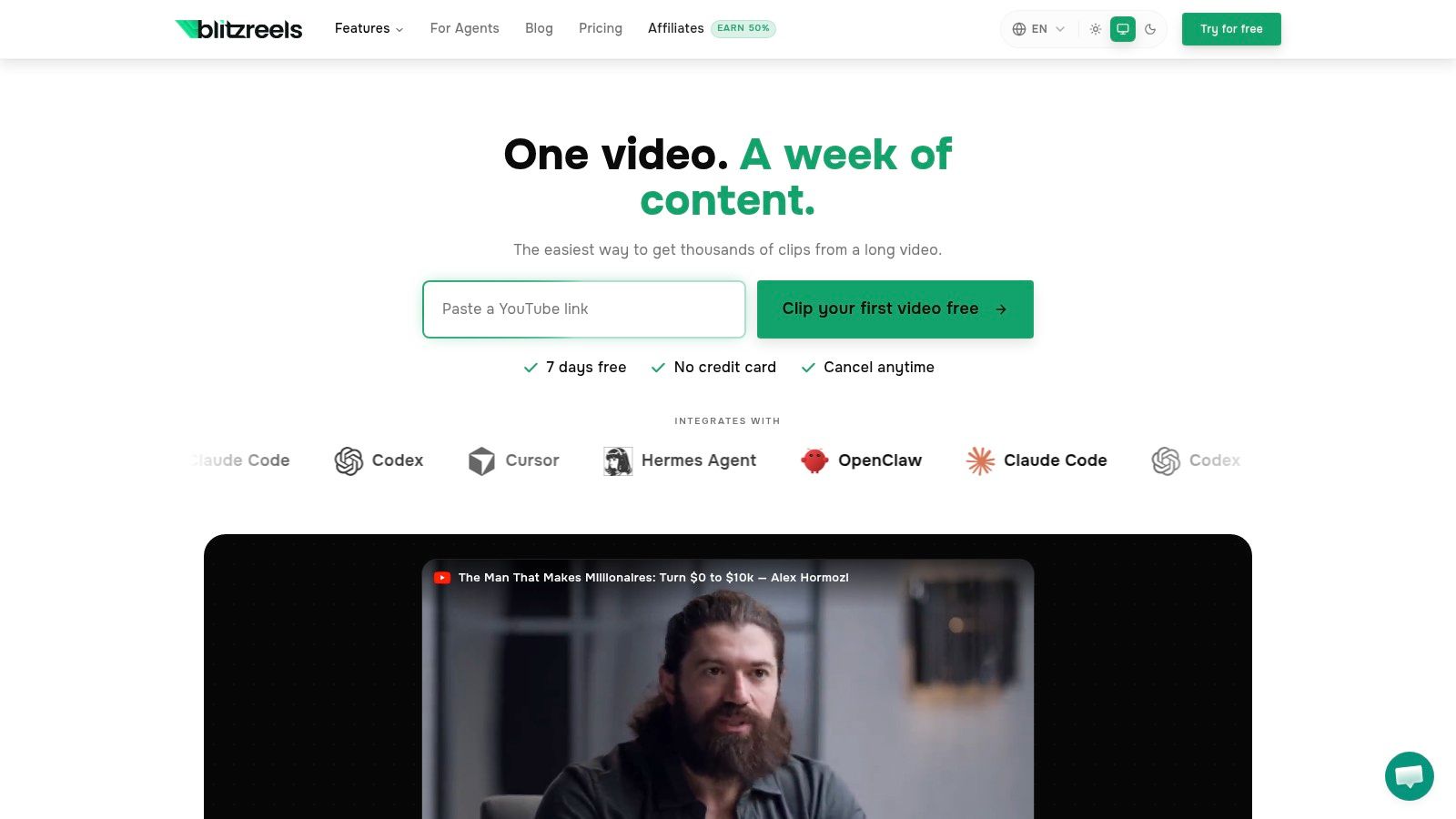
BlitzReels is built around repurposing. A creator can upload MP4 or MOV files, use screen recordings, or work from Loom, Zoom, and YouTube content, then let the platform transcribe audio, identify promising moments, and build shorts that are already formatted for social platforms. That matters because beginner frustration usually starts before editing details. It starts when someone has too much footage and no idea what to cut.
### Why BlitzReels stands out for beginners
The biggest advantage is speed with structure. Instead of making beginners decide every caption style, crop, title card, and transition manually, BlitzReels handles the heavy lifting first, then leaves room for edits after.
A practical short-form workflow inside BlitzReels usually looks like this:
- **Upload the source quickly:** Long recordings, webinars, podcasts, interviews, demos, and screen recordings are all fair game.
- **Let AI find usable clips:** The system surfaces moments that are likely to work as social content instead of forcing manual scrubbing through the full source.
- **Polish for platforms:** Captions, reframing, clipping, hooks, title cards, and export sizing are built around vertical publishing.
- **Refine without complexity:** Users can still tweak captions, zooms, crops, color, and supporting visuals before export.
> **Practical rule:** Beginners usually don't need more controls. They need fewer decisions between record and publish.
BlitzReels also goes beyond clipping. Its AI Studio supports faceless video generation, prompt-to-video workflows, templates, visual styles, and useful support tools like an SRT editor, subtitle generator, compressors, and converters. For creators comparing lightweight free tools, this [free AI video editor breakdown](https://www.blitzreels.com/blog/ai-video-editor-free) is a useful next step.
### Best fit
BlitzReels fits creators, founders, marketers, and small teams publishing regularly. It's especially strong when the source material already exists and needs to become multiple short clips fast.
The site also highlights creator results, including Virgile from Algomax, who reported 856,746 combined views in 28 days and inbound clients after repurposing daily recordings. Trial options are low-friction too, with a free clip and a 7-day free trial noted on the site. The trade-off is straightforward: BlitzReels isn't trying to replace a traditional frame-by-frame editing suite. It's built for fast social production, not deep cinematic editing.
Visit [BlitzReels](https://blitzreels.com).
## 2. CapCut
CapCut is the default recommendation for a lot of beginners because it meets creators where they already work. The app is tied closely to the short-form culture that shaped TikTok-style editing, and that shows up in its templates, transitions, captioning, and trend-friendly workflow.
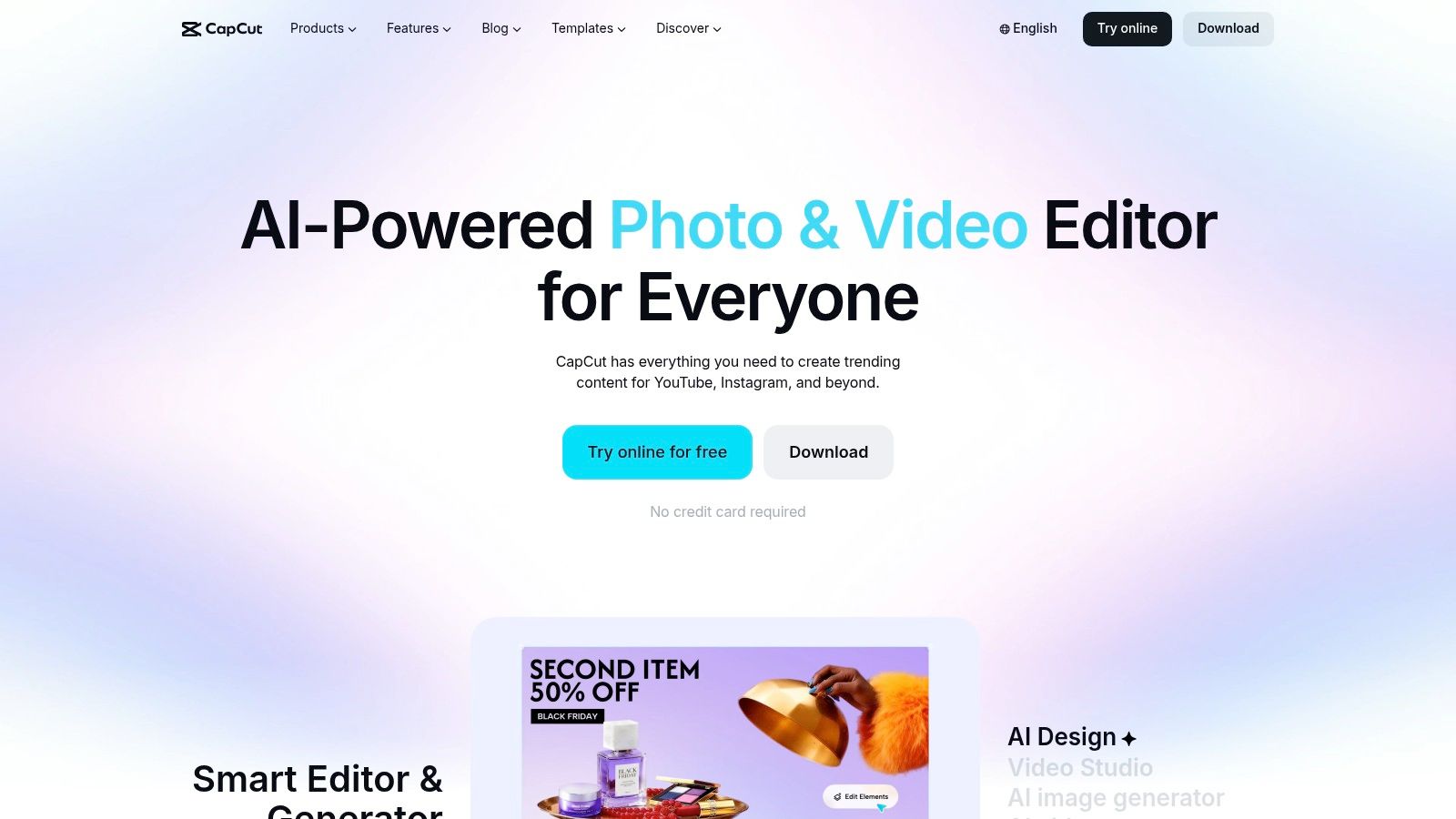
It's owned by ByteDance, the same company that owns TikTok globally, and one industry roundup says CapCut attracts over 40 million users globally while leaning hard into template-based editing, auto-sync transitions, and AI-driven viral trend analysis for social optimization, according to [B2W on the best Instagram Reel editing apps](https://www.b2w.tv/blog/best-instagram-reel-editing-apps). That explains why so many beginners can open it and produce something usable quickly.
### Where CapCut works best
CapCut is strongest when a creator wants speed, templates, and social-native output across mobile, web, and desktop. Auto-captions, beat sync, stickers, effects, text tools, and fast resizing make it easy to build a polished short without much editing knowledge.
There's also a wider market reason tools like CapCut matter. The broader video editing software market is projected to grow from USD 2.53 billion in 2026 to USD 3.8 billion by 2034, with AI-powered automation lowering the barrier for beginners, according to [Straits Research on the video editing software market](https://straitsresearch.com/report/video-editing-software-market). CapCut sits right inside that shift.
> CapCut is great when the goal is to make the first five videos fast. It's less great when the workflow depends on owning a stable process that won't change with platform rules, feature gating, or subscription changes.
Its free tier is still a major draw, and that's why it remains one of the easiest answers to the search for a video editing app for beginners. For creators comparing a template-heavy editor to a more automated repurposing workflow, this [CapCut vs BlitzReels comparison for TikTok creators](https://www.blitzreels.com/blog/capcut-vs-blitzreels-which-video-editor-is-best-for-tiktok-creators-in-2025) shows where each one fits.
Visit [CapCut](https://www.capcut.com).
## 3. InShot
InShot stays relevant because it doesn't overcomplicate basic editing. For someone cutting selfie videos, day-in-the-life clips, product shots, or simple talking-head content, it handles the core tasks quickly: trim, split, resize, add text, add music, and export.
In one practical tutorial focused on social video creation, InShot is recommended as the top affordable beginner-friendly app for Instagram Reels and TikTok, with a simple “New” button flow for importing stored clips and editing right away, as shown in this [YouTube walkthrough of InShot for Reels and TikTok](https://www.youtube.com/watch?v=V-N7-ly8UpA). That recommendation lines up with how the app feels in use. It's direct and mobile-first.
### Why beginners still like InShot
InShot makes sense for creators who don't need advanced layering or deep audio work. It's often the fastest path for routine edits that start and finish on a phone.
Its biggest strengths are easy to see in day-to-day use:
- **Quick trimming and splitting:** A beginner can isolate usable moments fast without learning a complex timeline.
- **Platform resizing:** TikTok, Reels, and Shorts need different framing habits, and InShot keeps that simple.
- **Low-friction overlays:** Text, stickers, music, and basic transitions are easy to add without slowing the workflow.
The limitations show up once content gets more ambitious. Multi-track editing is lighter than desktop tools, and audio control is basic compared with a full editor. Subscription handling also stays tied to app store ecosystems, which can be annoying for people who move between devices.
For creators who want to keep editing fully mobile, this guide on [how to edit videos on phone](https://www.blitzreels.com/blog/how-to-edit-videos-on-phone) pairs well with InShot's workflow.
Visit [InShot](https://www.inshot.com).
## 4. VN Video Editor (VlogNow)
VN sits in an interesting middle ground. It feels accessible enough for beginners, but it gives more timeline control than many social-first mobile apps. That makes it a strong step-up tool for creators who started with template editors and now want keyframes, layered edits, and more manual control without jumping straight into a heavyweight desktop setup.
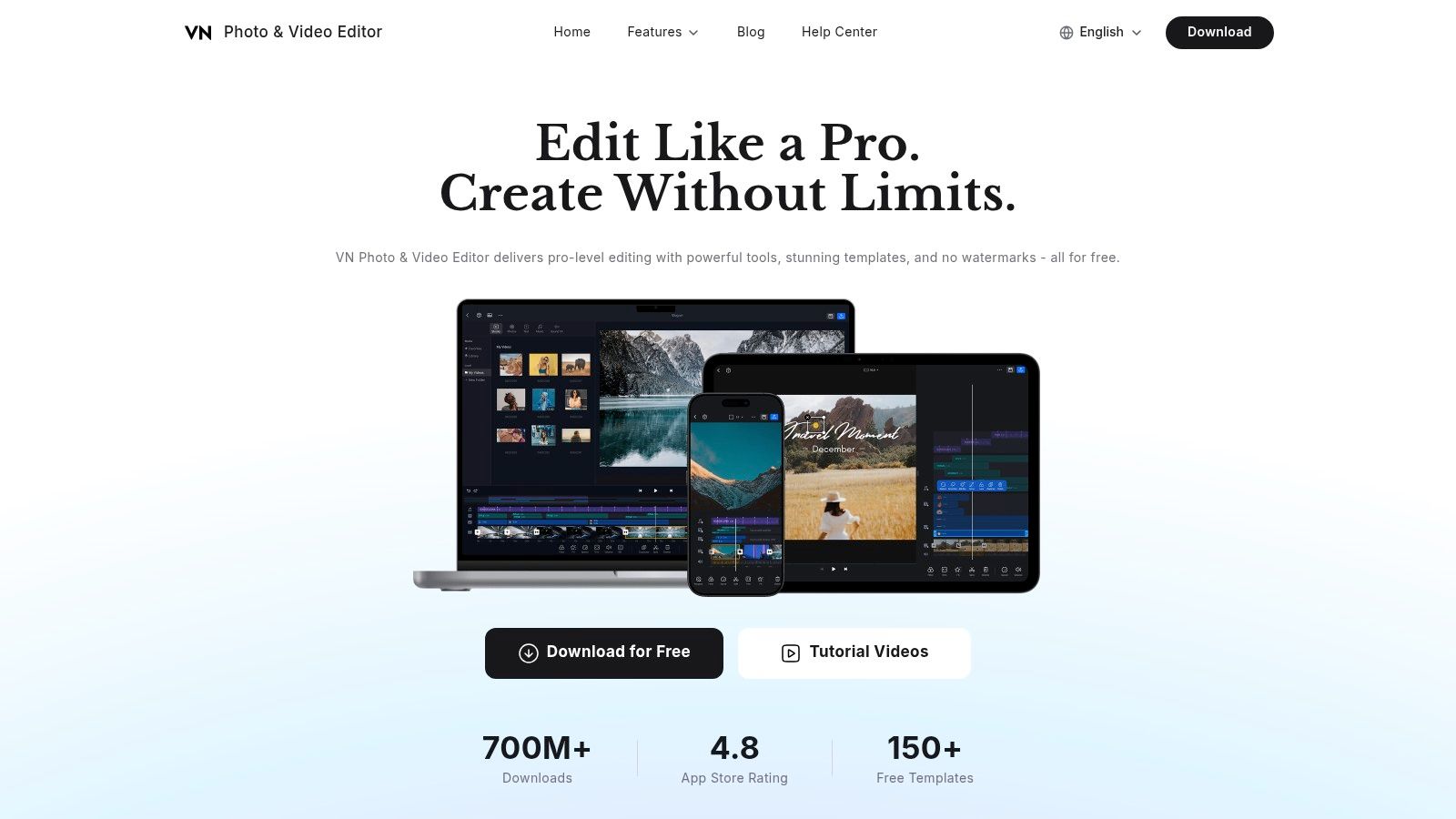
The appeal is simple. A beginner can still cut a Reel or Short quickly, but VN leaves more room to build custom pacing, animate text, and control visual timing by hand.
### When VN is the smarter pick
VN works well for creators who want to grow out of basic phone editing without losing the convenience of mobile. It's also useful for people who care about timing and motion more than template speed.
A few trade-offs matter:
- **More control:** Multi-track editing and keyframes give beginners room to learn real editing habits.
- **Better for custom edits:** It's easier to create something that doesn't look like a stock template.
- **Not as automated:** Users will do more themselves compared with AI-first editors or template-heavy apps.
> Beginners who want to learn editing, not just finish an edit, usually get more value from VN than from one-tap template apps.
It advertises free editing without a watermark and includes features like AI cutout, background removal, transitions, text-to-speech, and auto-captions on supported devices. The downside is platform coverage. Desktop support centers on Mac, there's no official Windows app, and some users run into occasional export or performance quirks. Still, for a free option with deeper control, VN remains one of the better answers for a video editing app for beginners.
Visit [VN Video Editor](https://vlognow.me).
## 5. Canva Video Editor
Canva is less of an editor-first product and more of a content assembly system. That difference matters. A beginner who wants to build branded videos with title cards, overlays, stock visuals, and reusable templates will often move faster in Canva than in a classic timeline editor.
Canva's drag-and-drop approach is especially useful when the job is making lots of short-form variations. A social team can reuse branded intros, captions, layouts, and visual treatments without rebuilding them every time.
### Best use case for Canva
Canva is strongest for branded short-form content from scratch. It's a strong fit for quote videos, product explainers, event promos, list-style clips, and simple talking-head edits that need consistent visual design.
Its practical advantages are easy to map to daily workflows:
- **Template speed:** Beginners don't start with an empty canvas.
- **Brand consistency:** Logos, fonts, colors, and title cards stay aligned.
- **Fast resizing:** Reformatting between feed, story, and short-form layouts is simple.
The trade-off is precision. Canva isn't where editors go for detailed audio work, frame-level rhythm, or layered motion control. It's built for speed and polish, not editing depth. That's why it works best when visual packaging matters more than custom cutting.
Creators who want an easy editor without watermark headaches can also compare options in this list of [video editing software without watermark](https://www.blitzreels.com/blog/10-best-video-editing-software-without-watermark).
Visit Canva Video Editor.
## 6. Microsoft Clipchamp
Clipchamp works best for beginners who want something familiar, straightforward, and connected to a common desktop environment. It's not the trendiest editor on this list, but it's practical. That counts for a lot when someone needs to get a first project done without learning a new creative ecosystem from scratch.
The interface is beginner-friendly, the template approach is easy to understand, and the browser-based workflow removes some of the usual setup friction. For users already inside Microsoft 365, the bundled premium access can also make Clipchamp a reasonable starting point.
### Where Clipchamp fits
Clipchamp is a good pick for talking-head videos, simple promos, educational clips, and internal social content where the workflow matters more than flashy effects. Templates, stock assets, brand kits, and a desktop app for Windows keep the experience approachable.
Its limitations are more about ecosystem than editing basics. The iOS app was retired, so mobile-first creators rely on web or desktop. Cross-device editing also now leans on OneDrive, which is fine for Microsoft users and less appealing for everyone else.
> Clipchamp is often the right answer for someone who wants “simple and good enough” on Windows, not “the most powerful tool.”
It's a practical option, but it doesn't lead on AI clipping, trend templates, or highly social-native features. For a beginner making frequent TikToks or Reels, a more social-first or AI-first tool will usually feel faster.
Visit [Microsoft Clipchamp](https://clipchamp.com).
## 7. Adobe Express (Video Editor inside Adobe Express)
Adobe Express makes the most sense when a beginner wants short-form video production inside a larger brand and design workflow. It doesn't try to be Premiere Pro. That's a strength, not a weakness, for people who need quick outputs with brand control, stock access, and collaborative approvals.
The video editor inside Express is simple enough for non-editors, especially teams already working with Adobe assets. Templates, captioning, stock media, brand kits, and shared libraries help beginners create clean social videos without building every element manually.
### Who should choose Adobe Express
Adobe Express is best for marketers, in-house teams, solo creators with design-heavy needs, and anyone already using Adobe files. It's very good for title cards, social promos, branded snippets, and quick visual repackaging.
Its practical strengths include:
- **Template-led production:** Faster starts for people who aren't editors first.
- **Adobe ecosystem access:** Stock assets and shared brand materials reduce setup friction.
- **Useful for team review:** Collaboration and scheduled delivery fit repeatable social workflows.
The trade-off is control. Adobe Express is faster than a full NLE, but it's much lighter on precision editing. AI and stock usage also draw from monthly credit systems on paid plans, so heavy use needs more plan awareness than some beginners expect.
For branded short-form content, though, it's one of the cleaner beginner-friendly options available.
Visit [Adobe Express](https://www.adobe.com/express).
## 8. Apple iMovie
iMovie remains one of the safest starting points for Apple users because it removes most of the fear factor. The interface is clean, the tools are limited in the right way, and features like Magic Movie and Storyboards give beginners a guided path instead of a blank screen.
That matters more than people think. A lot of beginners don't need more features. They need a tool that helps them finish the first edit without getting lost in transitions, plugins, or advanced settings.
### Best fit for iMovie
iMovie is a strong fit for iPhone, iPad, and Mac users making personal content, simple social clips, intro-level YouTube edits, or basic business videos. The handoff between Apple devices also helps creators start on mobile and finish on desktop without much friction.
It works especially well for:
- **Guided first edits:** Storyboards help users understand sequence and pacing.
- **Simple social outputs:** Titles, filters, green screen, and clean exports cover the basics.
- **Apple-only workflows:** Device integration is one of its best features.
The downside is obvious. iMovie only helps if the creator already lives inside Apple hardware. It also hits a ceiling quickly once someone needs stronger audio control, more advanced effects, or a faster short-form workflow built around captions, reframing, and clipping for multiple platforms. Still, for Apple beginners, it's hard to ignore because it's free and easy to start with.
Visit [Apple iMovie](https://www.apple.com/imovie).
## 9. Wondershare Filmora
Filmora is often the tool beginners pick when they want their edits to look more polished without learning pro software. It leans heavily on presets, effects, motion tools, and approachable controls, which makes it a useful bridge between simple mobile apps and more serious desktop editing.
That combination gives Filmora broad appeal. A new creator can make tutorials, social promos, talking-head videos, or montage content with more style than an entry-level app usually allows.
### Where Filmora helps most
Filmora is a good fit for beginners who want visual variety. Motion tracking, effects, title libraries, auto-captions, portrait tools, and cross-platform access give it a wide working range.
Its main advantages are practical:
- **Preset-driven editing:** Fast results without a huge learning curve.
- **Stronger visual toolbox:** Useful for creators who want more flair than basic mobile editors provide.
- **Lots of tutorials:** Easier onboarding than many advanced editing tools.
The trade-offs are worth checking before buying. Pricing and entitlement models have confused some users, so plan details should be reviewed closely. It can also feel heavy on lower-end machines when projects stack on lots of effects.
Filmora isn't the fastest tool for AI clipping or automated short-form repurposing, but it's a solid pick for beginners who want more creative range than a template app gives them.
Visit [Wondershare Filmora](https://filmora.wondershare.com).
## 10. Descript
Descript flips the editing model in a way that helps a lot of beginners. Instead of forcing someone to learn a visual timeline first, it lets them edit by editing text. For talking-head videos, podcasts, interviews, webinars, tutorials, and screen recordings, that can be far less intimidating than traditional editing.
That text-based approach is especially useful for creators who care about message clarity more than visual complexity. If the content starts with spoken words, Descript often feels logical right away.
### Best use case for Descript
Descript is best when the source content is voice-driven and the goal is to turn longer recordings into shorter, captioned clips with minimal editing friction. Auto-transcription, captions, templates, screen recording, and simple social crops make it strong for repurposing.
There's also a workflow lesson here that many beginner guides miss. One critique of “free” beginner tools is that hidden limits can push creators into tool switching later. A marketing analysis argues that 68% of beginner creators abandon free apps within 90 days because of limits like watermarks, export caps, or missing automation, according to this piece on the [best video editing software for beginners](https://www.itsfundoingmarketing.com/software/best-video-editing-software-for-beginners). Whether or not a creator lands on Descript specifically, that long-term workflow fit matters.
> A beginner editing talking-head content should choose the tool that reduces transcript cleanup, captions, and clipping steps. That usually matters more than fancy transitions.
Descript's downside is that traditional timeline editing and heavy visual effects are simpler than in a full NLE. For creators deciding between text-based editing and an AI-first clipping workflow, this [BlitzReels vs Descript comparison](https://www.blitzreels.com/compare/blitzreels-vs-descript) helps clarify the difference. Readers building technical content workflows may also like this [action plan for developer content](https://letmepost.dev/blog/content-creation-ideas/).
Visit [Descript](https://www.descript.com).
## Top 10 Beginner Video Editing Apps Comparison
| Product | Core features | Key benefits | Target audience | Price / availability |
|---|---:|---|---|---|
| **BlitzReels (Recommended)** | AI clipping & scoring; auto‑transcript; on‑beat captions; auto‑reframe/crops; AI Studio & B‑roll inserts; vertical exports | Turn long recordings into many high‑performing shorts in ~10 min; automation‑first; proven case studies | Creators, marketers, founders & small teams repurposing long‑form | Free first clip + 7‑day trial; paid plans (see site for tiers) |
| CapCut | Template workflows; auto‑captions; beat sync; AI tools (bg removal, TTS); multi‑platform | Strong free tier; trend‑driven mobile edits; fast exports | Mobile social creators and beginners | Free tier; Pro features/price vary by region |
| InShot | Trim/split, speed controls, filters, stickers, music; canvas resize; export presets | Very approachable; quick routine social edits | Casual creators & influencers on mobile | Free with in‑app purchases / subscriptions via app stores |
| VN Video Editor (VlogNow) | Multi‑track timeline; keyframes; AI cutout; auto‑captions; 4K/60fps exports | Deeper mobile timeline than typical apps; free with no watermark | Creators wanting advanced mobile control | Free (no watermark); Mac app available, no official Windows app |
| Canva Video Editor | Thousands of templates; brand kit & Magic Resize; stock media; browser collaboration | Extremely fast for branded shorts; strong team templates & collaboration | Teams, brand managers, social marketers | Free tier; Pro required for heavy stock/AI credit usage |
| Microsoft Clipchamp | Template‑led editing; stock assets; brand kit; 4K export on Premium/M365 | Simple UI for first projects; Premium bundled with Microsoft 365 | Microsoft 365 subscribers and beginners | Free; Premium included with Microsoft 365 Personal/Family |
| Adobe Express (Video) | Drag‑and‑drop templates; captions; Adobe Stock & brand kits; Firefly features | Fast branded shorts within Adobe ecosystem; shared libraries | Teams using Adobe assets and brand workflows | Free tier; paid plans for Firefly/stock credits |
| Apple iMovie | Magic Movie auto‑assemble; storyboards; titles, filters, green‑screen; device handoff | Free and tightly integrated across Apple devices; gentle learning curve | Apple device users and beginners | Free on iPhone, iPad and Mac |
| Wondershare Filmora | Template projects; motion tracking; effects; AI tools (bg/portrait remove); 4K export | Beginner‑friendly desktop editor with many presets | Beginners on Windows/Mac who want polished results | Paid licenses/subscriptions; review plan details |
| Descript | Text‑based editing (edit transcript to edit video); auto‑transcript; captions; screen recording | Fast for talking‑head clips, podcasts & repurposing; transcript‑driven workflow | Podcasters, interviewers, educators repurposing long‑form | Free tier with limits; paid plans for higher transcription/AI usage |
## Your First Edit Which App Is Right for You
The best video editing app for beginners depends less on feature count and more on what needs to happen between recording and publishing. If a creator is stuck at the “what do people post?” stage, the right app is the one that removes enough friction to help them ship the first few videos quickly.
For pure speed, BlitzReels stands out. It's built around the actual short-form workflow most beginners need: clipping longer recordings, finding hooks, adding captions, reframing for vertical, inserting title cards, and exporting polished social videos fast. That's a very different experience from opening a blank timeline and trying to learn editing theory while also trying to post consistently. For creators, founders, and small teams turning existing footage into repeatable TikToks, Reels, Shorts, and LinkedIn clips, that AI-first approach is the clearest shortcut.
CapCut and Canva are strong alternatives, but for different reasons. CapCut is excellent for social-native editing, trends, templates, and mobile-first speed. Canva is better when branded design matters more than editing depth, especially for teams that need repeatable visuals, clean layouts, and fast resizing across formats. InShot remains a practical mobile choice for quick everyday edits. VN is better for beginners who want to learn more manual control. iMovie is still a safe Apple-only starting point. Filmora gives more visual range. Descript is a smart pick for transcript-heavy talking-head and podcast workflows.
The wrong way to choose is by downloading five apps and learning none of them well. Beginners usually make faster progress by choosing one workflow and repeating it. A creator making short educational clips from Zoom calls has different needs than someone making trend-driven Reels from phone footage. A coach posting daily talking-head videos has different needs than a brand team assembling polished promo content from templates.
A simple way to decide is this:
- **Choose BlitzReels** if the priority is turning raw or long-form footage into captioned short clips fast.
- **Choose CapCut** if the priority is trend-based social editing with a familiar creator ecosystem.
- **Choose Canva** if the priority is branded templates and easy design-first production.
- **Choose Descript** if the priority is transcript-driven editing for spoken content.
- **Choose InShot or iMovie** if the priority is easy mobile editing with minimal learning curve.
The important part isn't finding a perfect tool. It's publishing the first finished video, then the next one, then building a workflow that doesn't slow down after week one. For creators who want the shortest path from recording to polished short-form output, BlitzReels is the clearest recommendation.
---
BlitzReels helps creators turn raw footage, screen recordings, interviews, webinars, and long videos into polished shorts without the usual editing drag. Anyone who wants faster captions, smarter clipping, vertical reframing, hooks, title cards, templates, and quick exports for TikTok, Instagram Reels, YouTube Shorts, and LinkedIn can start with [BlitzReels](https://blitzreels.com) and move from recording to publish in minutes.