---
title: "Video Format Conversion: A 2026 Guide for Social Media"
canonical: "https://blitzreels.com/blog/video-format-conversion"
---
# Video Format Conversion: A 2026 Guide for Social Media
URL: https://blitzreels.com/blog/video-format-conversion
Markdown URL: https://blitzreels.com/blog/video-format-conversion.md
Published: 2026-08-21
Author: BlitzReels
Master video format conversion for TikTok, Reels, and Shorts. Learn codec vs container differences and export settings for no quality loss.
Tags: video format conversion, short-form video, video codecs, social media export, video containers

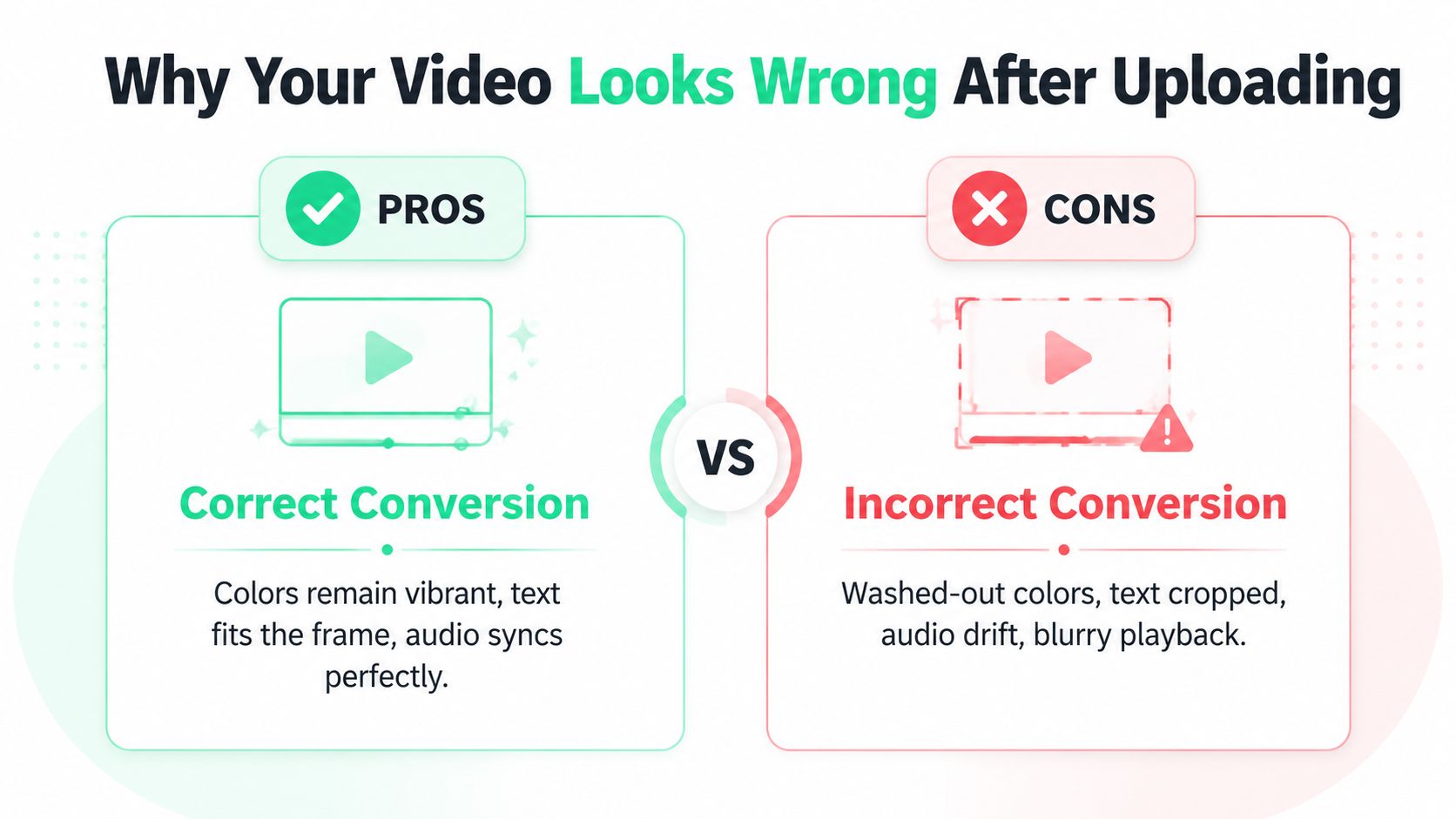
You've edited a sharp vertical clip, checked the captions, and watched it look perfect in the editor. Then the upload finishes and the result has washed-out color, cropped text, blurry detail, or audio that no longer feels locked to the cuts. The file extension looked right, but the platform still treated the video as something it needed to rebuild.
That's the practical reality of **video format conversion** for short-form publishing. Conversion isn't just changing `.mov` to `.mp4`. It includes the container, codec, frame shape, color handling, audio stream, captions, crop, and export decisions that determine whether TikTok, Instagram Reels, YouTube Shorts, or LinkedIn receives a clean deliverable. The right workflow preserves the creative intent while adapting the file to the way each platform displays and compresses video.
## Table of Contents
- [Why Your Video Looks Wrong After Uploading](#why-your-video-looks-wrong-after-uploading)
- [The file extension isn't the whole file](#the-file-extension-isnt-the-whole-file)
- [Understanding Containers and Codecs](#understanding-containers-and-codecs)
- [Choosing the envelope](#choosing-the-envelope)
- [Reading the language inside](#reading-the-language-inside)
- [Best Export Settings for Social Platforms](#best-export-settings-for-social-platforms)
- [Recommended settings by destination](#recommended-settings-by-destination)
- [Settings that protect the edit](#settings-that-protect-the-edit)
- [Choosing the Right Codec for Compatibility](#choosing-the-right-codec-for-compatibility)
- [Advanced codec choices](#advanced-codec-choices)
- [Streamlining Conversion for Multiple Platforms](#streamlining-conversion-for-multiple-platforms)
- [A reliable production flow](#a-reliable-production-flow)
- [Where integrated tools help](#where-integrated-tools-help)
- [Final Checklist Before You Publish](#final-checklist-before-you-publish)
## Why Your Video Looks Wrong After Uploading
A creator can spend hours refining a hook, title card, zoom, and caption animation, only to lose the result at upload. A widescreen interview may become a narrow crop with the speaker's face pushed off-screen. A product demo may retain the footage but cut off the price or call to action. A clip that looked crisp locally can appear soft after the platform re-encodes it for mobile playback.
The first culprit is usually **aspect ratio**. A 16:9 source placed directly into a 9:16 feed either leaves unused space or forces an automatic crop. That automatic crop has no understanding of the speaker's gaze, the product position, or the text layered into the frame. A deliberate crop keeps the subject in view and gives captions, hooks, and title cards room to breathe. Creators who need a quick reference can use this [aspect ratio glossary](https://blitzreels.com/glossary/aspect-ratio) before preparing a master.
### The file extension isn't the whole file
An `.mp4` label only identifies the container. Inside it, the platform still has to interpret the video codec, audio codec, frame rate, color information, and file structure. A creator may rename a file from `.mov` to `.mp4`, but renaming doesn't change the encoded streams. If the internal codec or audio format isn't handled well by the destination, the platform performs another conversion, sometimes with less favorable results.
Bitrate also matters, but not because a larger number always creates a better upload. An unnecessarily heavy file can take longer to upload and still be compressed again. A weak export gives the platform less visual information to work with, especially around fast motion, fine text, hair, foliage, and high-contrast edges. The useful target is a clean, compatible export that gives the platform a strong source without creating avoidable processing friction.
> **Practical rule:** Convert for the destination, not for the filename. The final file should match the platform's frame shape, supported codec, audio structure, and viewing context.
Short-form production adds another layer. Captions must survive interface overlays, hooks need to remain visible during the opening beat, and reframing must preserve the action rather than merely center the frame. A conversion workflow that handles only containers and codecs solves the engineering problem, but not the publishing problem.
## Understanding Containers and Codecs
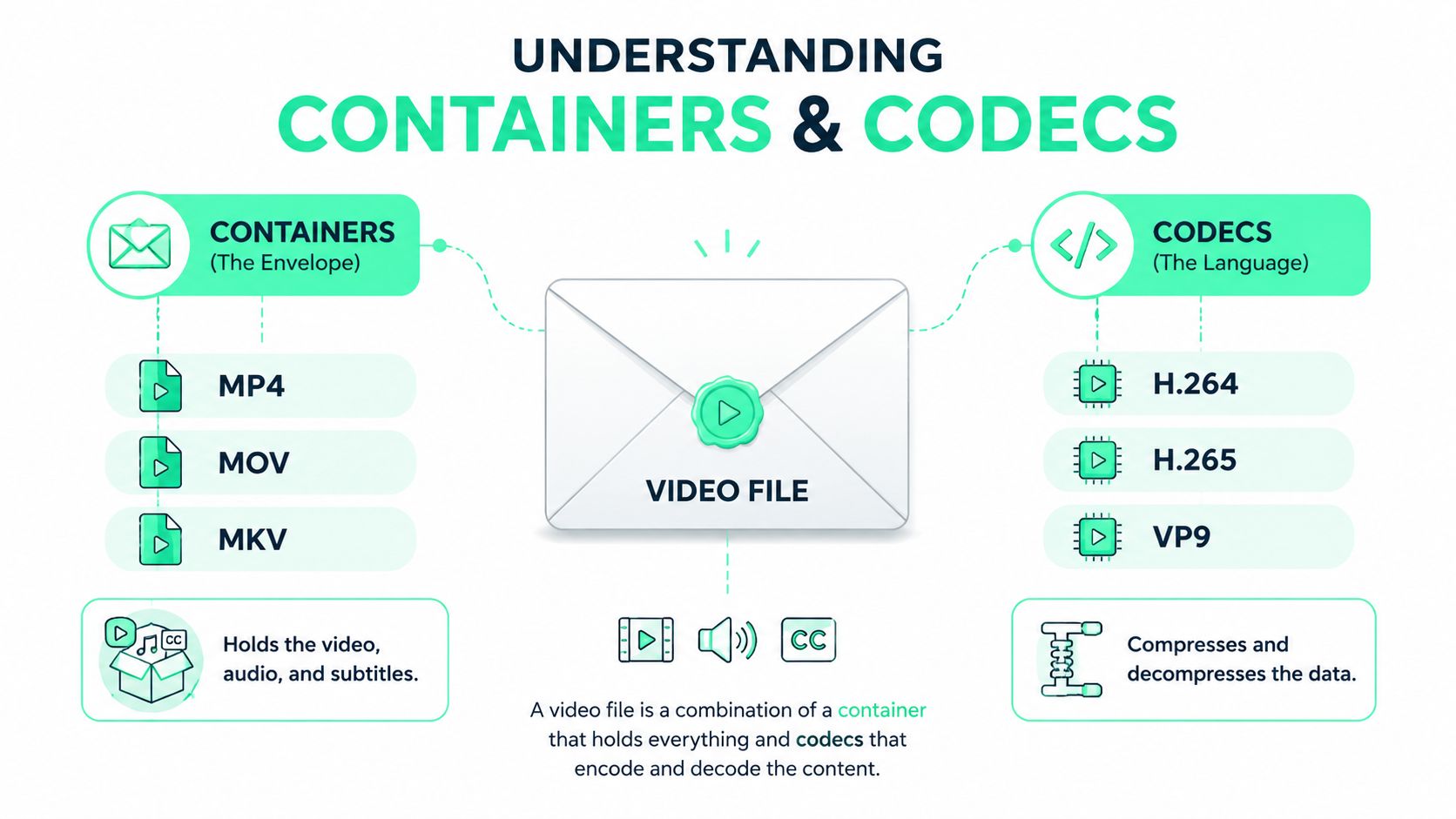
A social video file has two separate layers. The **container** packages the video, audio, subtitles, timing information, and metadata. The **codec** compresses and decompresses the video or audio streams inside that package.
That distinction matters during conversion. MP4, MOV, and MKV are containers. H.264, H.265 or HEVC, VP9, and AV1 are video codecs, while AAC, Opus, and PCM are audio codecs. The extension shows only the outer wrapper, not the combination of streams inside it.
### Choosing the envelope
**MP4** is usually the most practical container for social publishing because editing software, phones, browsers, and upload platforms commonly read it. MOV fits Apple and professional post-production workflows, especially when the file contains an editing-friendly codec such as ProRes. MKV can hold many stream types, but it is less convenient as a direct upload file.
Changing the container does not always require re-encoding. If the existing video and audio streams fit the destination container, a remux can place them in a new wrapper without altering the encoded media. This preserves quality and avoids another generation of compression. If the streams do not fit, a transcode is required. The process decodes and re-encodes the media, which can affect detail and file size.
Short-form publishing makes the distinction more practical. A file can have a suitable container yet still need work because its frame shape, rotation metadata, audio stream, or color handling does not match the delivery workflow. Rewrapping the file will not fix those properties.
### Reading the language inside
Use a file-inspection utility such as MediaInfo before converting. It can show the actual codec, pixel dimensions, frame rate, audio format, bitrate, rotation metadata, and color information. That check is more reliable than trusting a filename or extension. The [codec glossary](https://blitzreels.com/glossary/codec) provides a plain-language reference for terms shown in export panels.
Check these four areas:
- **Container:** Confirm whether the wrapper is MP4, MOV, MKV, or another format.
- **Video codec:** Identify the codec used and compare it with the destination workflow.
- **Audio stream:** Check the audio format, channel structure, and whether its duration stays synchronized with the video.
- **Frame structure:** Review frame size, frame rate, rotation metadata, and color handling.
A container change can preserve the existing streams, while a transcode changes how the media is encoded. That difference affects quality, processing time, and whether text, fine edges, and motion remain clean after a platform applies its own compression. Inspect first, then choose the least destructive conversion that produces a file the publishing workflow can use.
## Best Export Settings for Social Platforms
For a standard short-form workflow, the cleanest starting point is a **9:16 vertical frame at 1080×1920 pixels**. TikTok, Instagram Reels, and YouTube Shorts all use portrait-first viewing, while 16:9 and 1:1 exports can reduce screen coverage or introduce unwanted bars. The correct frame is only the foundation. Captions, title cards, subject placement, audio, and color handling determine whether the upload remains usable.
A 30 fps export is a practical default for talking-head clips, educational videos, and most edited social content. A 60 fps export can preserve smoother motion in sports, demonstrations, gaming, or fast camera movement, but it also creates more data for the platform to process. The source frame rate should guide the choice. Converting a 24 or 30 fps source to 60 fps doesn't create genuine motion detail.
### Recommended settings by destination
| Setting | TikTok | Instagram Reels | YouTube Shorts |
|---|---|---|---|
| Frame shape | 9:16 vertical | 9:16 vertical | 9:16 vertical, with square 1:1 also supported |
| Resolution | 1080×1920 | 1080×1920 | 1080×1920 is the practical vertical target |
| Frame rate | Match the source, commonly 30 fps | Match the source, commonly 30 fps | Match the source, commonly 30 fps |
| Container | MP4 | MP4 | MP4 |
| Video codec | H.264 for broad compatibility | H.264 for broad compatibility | H.264 for broad compatibility |
| Audio | AAC, with synced duration | AAC, with synced duration | AAC, with synced duration |
| Text placement | Keep key text away from interface edges | Keep the bottom area clear for interface controls | Keep captions away from the bottom and right overlays |
| Captions | Burned-in or platform captions | Burned-in or platform captions | Auto-generated captions or uploaded SRT captions |
Instagram Reels needs special attention at the bottom of the frame. Independent specification guidance recommends keeping roughly the **bottom 320–420 pixels clear** because captions, action buttons, and CTA stickers can occupy that area. The [Instagram Reels aspect-ratio guidance](https://posteverywhere.ai/blog/instagram-reels-aspect-ratio) also highlights the upper interface area, so title cards shouldn't sit too close to the top edge either.
YouTube Shorts supports vertical 9:16 and square 1:1 uploads, and Shorts can run for **up to 3 minutes**, according to [YouTube Shorts video specifications](https://www.vidulk.com/video-specs/youtube-shorts). Mid-frame captions are safer because the interface overlays the lower and right portions of the player. TikTok's platform specifications likewise identify **1080×1920** as the portrait-first target for full-screen mobile delivery, as detailed in [TikTok video specifications](https://xroadstudio.com/platform-specs/tiktok).
### Settings that protect the edit
Use a standard SDR workflow with Rec. 709 when the footage is intended for broad social playback. HDR footage can look different after upload if the platform or editing application interprets the color metadata differently. A controlled color conversion before export is safer than assuming every destination will preserve HDR appearance.
Use variable bitrate when the encoder can allocate more data to complex scenes and less to simple ones. Constant bitrate can be useful when a delivery system demands predictable throughput, but it doesn't automatically protect image quality. Keyframe placement should support seeking and processing, with a regular interval such as every 2 seconds often working well for short-form delivery.
Audio deserves a final check. AAC is a practical social choice, and 48 kHz is a sensible production rate when the edit already uses it. The audio and video streams must start together, end together, and remain aligned after any speed changes, clipping, or frame-rate conversion. Creators looking beyond file mechanics can also review [video ad production best practices](https://www.thewojomedia.com/post/video-ads-production) for decisions involving hooks, pacing, framing, and message clarity.
## Choosing the Right Codec for Compatibility
Newer codecs are most useful when you choose them for a specific delivery path. AV1, HEVC, and VP9 can reduce file size or bandwidth, but each adds checks before a short-form video reaches viewers. Confirm how the editing app, review tool, scheduler, platform, and target devices handle the file. A codec that saves space in storage may trigger another conversion before publication, affecting detail, captions, and fine graphics.
### Advanced codec choices
| Codec | Platform support | Compression efficiency | Best for |
|---|---|---|---|
| H.264 | Broad support across social, editing, and playback environments | Established, dependable efficiency | A fallback export and general handoff |
| H.265 or HEVC | Stronger in newer device ecosystems, less consistent across tools | More efficient than H.264 in suitable workflows | Controlled delivery and storage-conscious libraries |
| VP9 | Strong for web-oriented playback | Efficient web delivery | Browser-first publishing after playback verification |
| AV1 | Growing, but support remains uneven | High efficiency for bandwidth-sensitive distribution | Tested web tiers and large libraries with a clear delivery benefit |
**AV1** is a deployment choice, not a default social preset. It fits a web delivery tier when bandwidth or storage has a real operational cost and the playback environment is known. A review of software and hardware decoding efficiency found AV1 delivered about **43.95% bitrate savings compared with VP9**, while increasing energy demand only modestly in optimized decoders, as reported by [Streaming Media's AV1 efficiency review](https://www.streamingmedia.com/Articles/ReadArticle.aspx?ArticleID=134039). Test the complete path, including upload processing, browser playback, mobile playback, and any tool used to add captions or schedule the post.
AV1 adoption remains uneven. Industry reporting recorded H.264 use at **79%**, HEVC at **49%**, and VVC at **6%**. It also recorded AV1 deployment at **14%** in one prior survey, with **42%** planning implementation within 12–24 months, while later reporting placed deployment at **8%** and planned adoption at **32%**. [Streaming Media Global's codec adoption reporting](https://www.streamingmediaglobal.com/Articles/ReadArticle.aspx?ArticleID=163439) shows why an AV1 file needs a verified fallback rather than an assumption that every social workflow will accept it.
**HEVC** works well in a controlled environment. Use it for camera originals, internal review, or a storage-conscious library when the receiving devices and applications are known. It can also suit a private client portal or a team that has already verified its scheduler. Keep a broadly supported export available if the file may pass through an older editor or an unfamiliar upload tool.
**VP9** is mainly a web-first option. It can be practical for browser playback, but confirm that the destination accepts the container, preserves the audio stream, and processes portrait video correctly. A web player may handle VP9 while a social publishing tool rejects it or creates a second conversion.
For short-form publishing, test codec behavior with the finished vertical file, not a generic sample. Check small text, skin tones, gradients, motion, and safe-zone graphics after the platform processes the upload. Keep H.264 as the compatibility export when a clip must move between several tools, while using HEVC, VP9, or AV1 only where their specific efficiency benefits justify the extra verification.
## Streamlining Conversion for Multiple Platforms
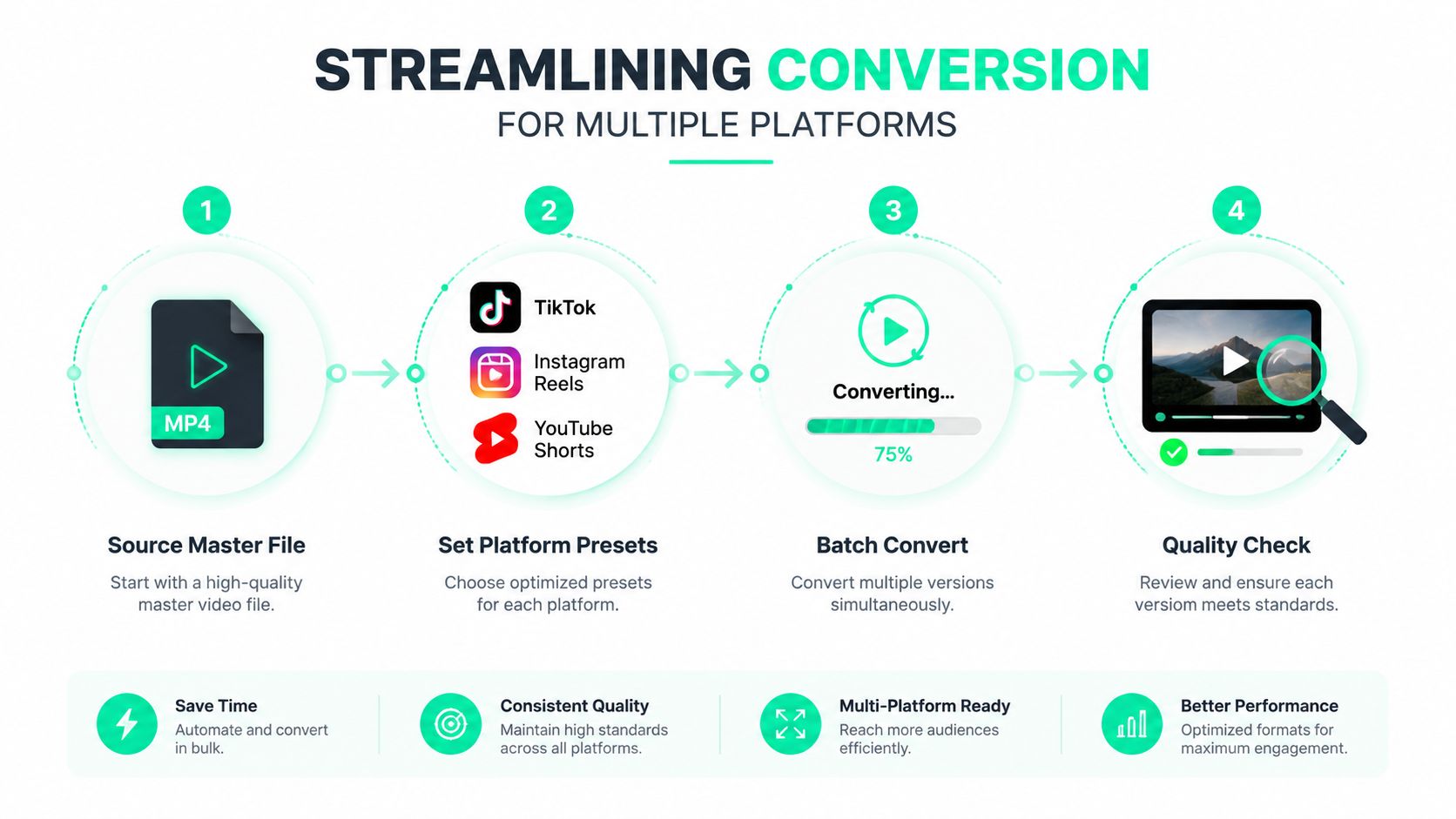
A single master can feed TikTok, Instagram Reels, and YouTube Shorts, but one unaltered export rarely serves all three perfectly. The efficient workflow separates the creative master from the platform deliverables. That keeps the edit intact while allowing each version to receive its own crop, safe-zone placement, captions, title card, and export preset.
### A reliable production flow
**1. Preserve a high-quality source master.** Keep the original edit before resizing, compression, caption burn-in, or aggressive reframing. If the source is widescreen, decide whether the subject and supporting visuals can survive a vertical crop. A speaker can remain centered, while a product demonstration may need a custom crop that follows the hands or object.
**2. Identify the moments that must stay visible.** Mark the hook, face, product, graphics, subtitles, and any on-screen proof. Automatic reframing is useful for repetitive work, but every important clip still deserves a visual check. If the subject moves, a fixed center crop may turn a strong moment into an empty frame.
**3. Create platform presets.** Set separate 9:16 outputs for each destination, then adapt the safe zones rather than dragging text until it “looks close.” TikTok and Reels may share the same canvas, but their interface overlays differ. YouTube Shorts can also accept square content, yet vertical framing usually gives the intended mobile experience.
**4. Batch convert, then inspect.** Batch processing handles repetitive resizing, codec conversion, caption rendering, and file naming. It shouldn't replace review. Watch the opening hook, the most active movement, the densest caption section, and the final CTA on every output.
### Where integrated tools help
The main bottleneck isn't usually pressing Export. It's repeating the same work across multiple applications, then discovering that a caption was cropped, a face drifted out of frame, or an audio edit shifted during conversion. An integrated editor can combine clipping, hook selection, title cards, caption styling, reframing, resizing, templates, and final exports in one project.
BlitzReels is one option in that workflow. It can accept formats such as MP4 and MOV, generate short clips, transcribe audio, create captions, reframe widescreen footage, and export vertical versions for social platforms. A dedicated converter such as FFmpeg or HandBrake remains useful when a creator needs low-level control over codecs and containers, while an integrated short-form editor is more practical for repeated content adaptation.
A useful file organization system separates source, working, and publishable folders. Names should identify the platform, crop, language, caption state, and revision without relying on memory. Before publishing, open the actual exported files, not just the editor preview, because the final container and encoded streams are what the platform receives.
Teams that process recurring clips can also use a [batch processing glossary](https://blitzreels.com/glossary/batch-processing) to clarify which steps should be automated and which should remain part of human quality control.
## Final Checklist Before You Publish
A publishable file has to pass two tests. It must be technically readable by the destination, and it must preserve the creative decisions that make the clip worth watching. A clean container won't rescue a crop that hides the product, and a beautiful frame won't matter if the upload fails or the audio stream breaks.
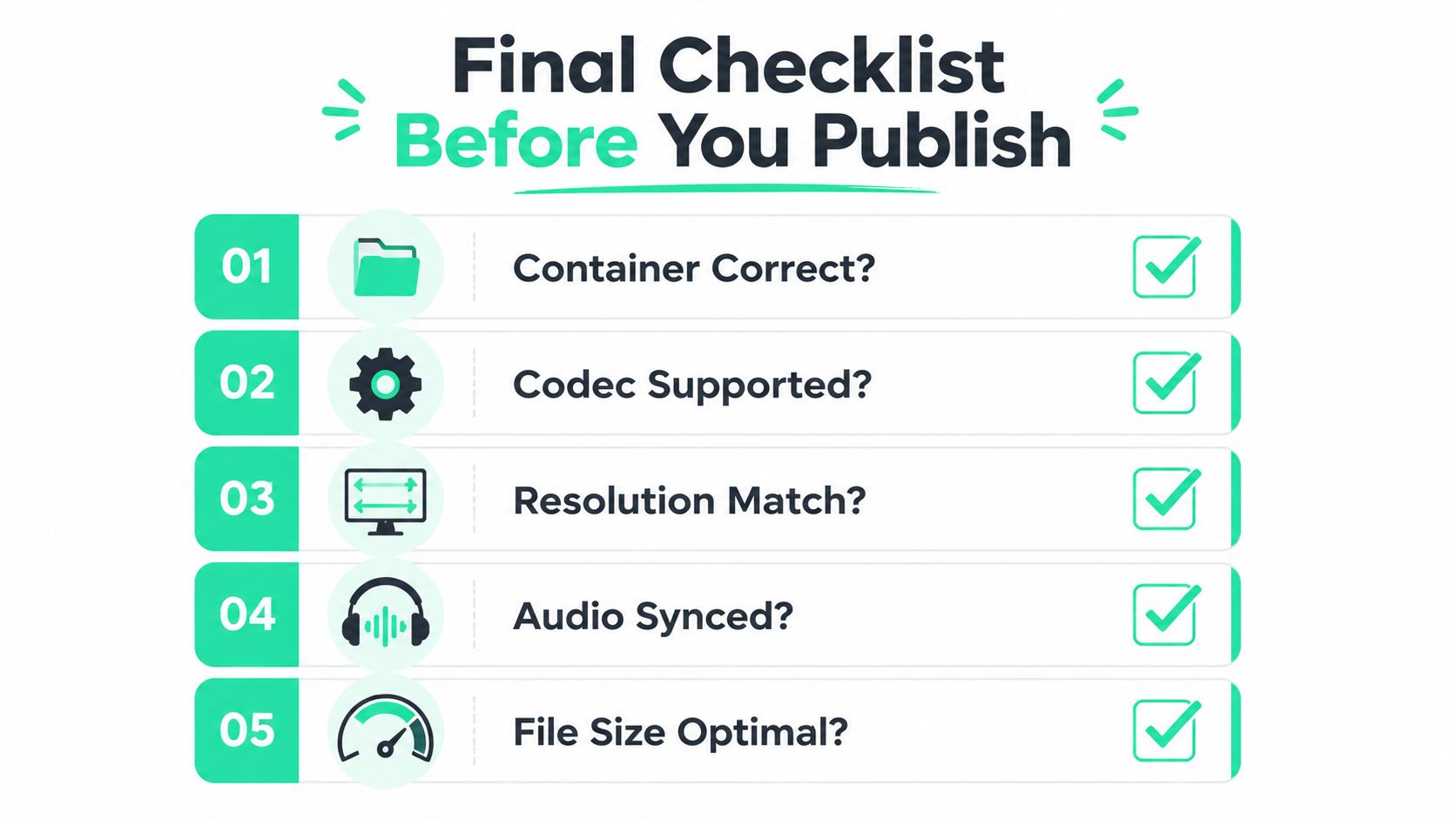
Use this final pass before sending a file to a scheduler or platform:
- **Container correct:** Export MP4 unless the destination or workflow requires another wrapper.
- **Codec supported:** Use H.264 for the safest broad-compatibility delivery, and verify the internal codec rather than trusting the extension.
- **Frame matches the destination:** Use a 9:16 vertical frame at 1080×1920 for standard full-screen short-form delivery.
- **Safe zones protected:** Keep captions, hooks, title cards, faces, and CTAs away from interface overlays, especially along the lower and right edges.
- **Audio synced:** Play the entire file and check that speech, music, sound effects, and cuts remain aligned.
- **Color looks intentional:** Compare the export with the master and watch for washed-out SDR or HDR interpretation.
- **Compression is acceptable:** Inspect fine text, motion, gradients, and dark scenes after export.
- **Platform version is correct:** Keep separate deliverables when TikTok, Instagram Reels, and YouTube Shorts require different caption or framing treatment.
The [publishable clip QA checklist](https://blitzreels.com/guide/publishable-clip-qa-checklist) can serve as a reusable review reference for creators and social teams. A final full-file playback is faster than discovering a cropped title card after the post is live.
---
BlitzReels helps creators turn source footage into publishable short-form videos with clipping, captions, hooks, title cards, auto reframing, resizing, templates, and platform-ready exports. Visit [BlitzReels](https://blitzreels.com) to convert and adapt videos for TikTok, Instagram Reels, YouTube Shorts, LinkedIn, and other social channels without juggling separate editing and conversion tools.