---
title: "Best Video Stabilizer Apps in 2026"
canonical: "https://blitzreels.com/blog/video-stabilizer-app"
---
# Best Video Stabilizer Apps in 2026
URL: https://blitzreels.com/blog/video-stabilizer-app
Markdown URL: https://blitzreels.com/blog/video-stabilizer-app.md
Published: 2026-05-15
Author: BlitzReels
Compare the best video stabilizer apps for iPhone, Android, desktop, and browser in 2026, including price, watermark, export, and motion-blur tradeoffs.
Tags: video stabilizer app, video stabilization, smooth video, video editing apps, shaky footage

## What is the best video stabilizer app in 2026?
The best video stabilizer app in 2026 depends on the footage. CapCut is fast for casual mobile clips, LumaFusion fits mobile timelines, Premiere Pro and DaVinci Resolve offer desktop control, Gyroflow excels with gyro data, and Emulsio provides focused stabilization on Apple devices. No stabilizer can restore detail already lost to motion blur.
| Tool | Platform | Price model | Stabilization type | Watermark note | Export limits |
|---|---|---|---|---|---|
| CapCut | Mobile, desktop, browser | Free and paid tiers | Digital one-click stabilization | Standard edits and templates can differ | Varies by platform, plan, and project |
| LumaFusion | iPhone and iPad | Paid app with add-ons | Lock & Load digital stabilization | No editor watermark on normal exports | Resolution, quality, and format are configurable |
| Premiere Pro | Desktop | Subscription | Warp Stabilizer | No editor watermark | Depends on source, format, and hardware |
| DaVinci Resolve | Desktop | Free and paid Studio tiers | Multiple digital stabilization modes | No editor watermark | Free and Studio capabilities differ |
| Final Cut Pro | Mac and iPad | Paid options | Digital stabilization and rolling-shutter correction | No editor watermark | Depends on device, source, and codec |
| Gyroflow | Desktop and mobile | Free and open source | Gyro-based stabilization | No editor watermark | Depends on source data and output codec |
| Emulsio | iPhone, iPad, and Mac | Free with in-app purchases | Digital stabilization and rolling-shutter correction | Export terms depend on the active tier | Supports configurable output, HDR, and upscaling |
Stabilize before reframing when severe shake is the main problem, then inspect the vertical crop again. After correction, use the [video-to-MP4 tool](https://www.blitzreels.com/tools/video-to-mp4), the [YouTube Shorts resizer](https://www.blitzreels.com/tools/resize-video-for-youtube-shorts), the [Instagram Reels resizer](https://www.blitzreels.com/tools/resize-video-for-instagram-reels), or compare [AI video editors](https://www.blitzreels.com/best/ai-video-editors) for the rest of the workflow.
## Table of Contents
- [Before choosing: where BlitzReels fits](#1-blitzreels)
- [Why BlitzReels works for short-form creators](#why-blitzreels-works-for-short-form-creators)
- [Best fit](#best-fit)
- [2. Adobe Premiere Pro](#2-adobe-premiere-pro)
- [Where Warp Stabilizer earns its place](#where-warp-stabilizer-earns-its-place)
- [3. DaVinci Resolve](#3-davinci-resolve)
- [Why editors trust it on rough footage](#why-editors-trust-it-on-rough-footage)
- [4. Final Cut Pro](#4-final-cut-pro)
- [Best use case on Mac](#best-use-case-on-mac)
- [5. CapCut](#5-capcut)
- [Best use case for fast social turnaround](#best-use-case-for-fast-social-turnaround)
- [6. GoPro Player + HyperSmooth Pro](#6-gopro-player-hypersmooth-pro)
- [When gyro data changes everything](#when-gyro-data-changes-everything)
- [7. proDAD Mercalli V6](#7-prodad-mercalli-v6)
- [Where Mercalli earns its keep](#where-mercalli-earns-its-keep)
- [8. Gyroflow](#8-gyroflow)
- [Best for technical creators](#best-for-technical-creators)
- [9. LumaFusion](#9-lumafusion)
- [10. Emulsio](#10-emulsio)
- [The focused stabilizer approach](#the-focused-stabilizer-approach)
- [Top 10 Video Stabilizer Apps Comparison](#top-10-video-stabilizer-apps-comparison)
- [Final Thoughts](#final-thoughts)
## Before choosing: where BlitzReels fits
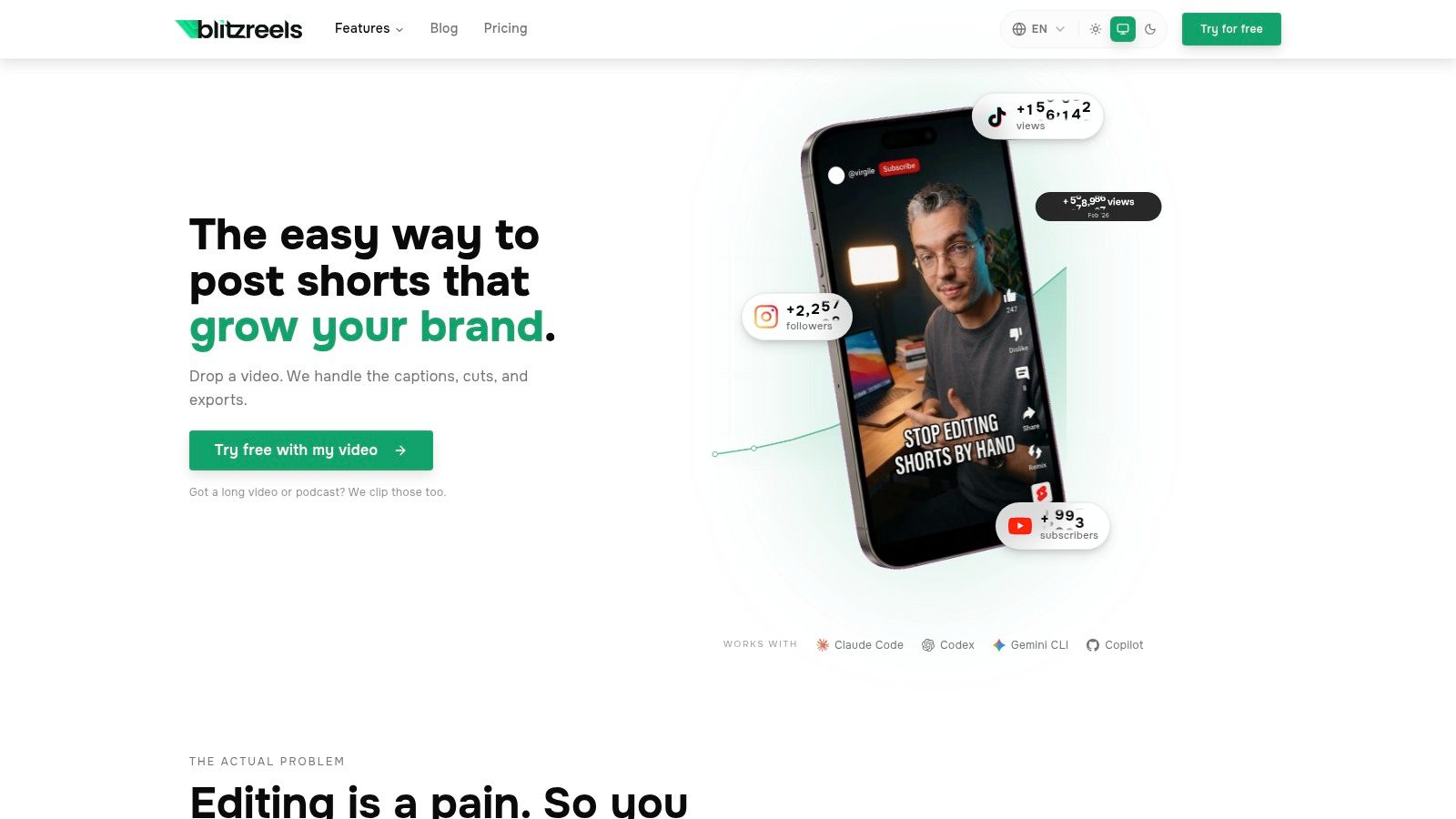
Stabilize the source clip first when shake is the main defect. After that correction, BlitzReels can handle the separate production work: finding short moments, reframing subjects for vertical video, adding captions, tightening hooks, and exporting clips for Shorts, Reels, TikTok, or LinkedIn.
BlitzReels is not a dedicated video stabilizer. It is included here as a workflow companion for creators who need to turn corrected footage, podcasts, webinars, interviews, or screen recordings into publishable short-form assets.
### Why BlitzReels works after stabilization
A stabilizer fixes camera movement. BlitzReels addresses what comes next:
- **Vertical reframing:** Keep the important subject visible in phone-first output.
- **Clip production:** Turn long recordings into several short-form assets.
- **Caption workflow:** Add readable captions and branded styling.
- **Format preparation:** Resize and export for Shorts, Reels, TikTok, and LinkedIn.
Use a dedicated stabilizer for shake, rolling shutter, or gyro-based correction. Then use [BlitzReels](https://www.blitzreels.com) when the bottleneck shifts to clipping, captions, reframing, and repeatable publishing.
## 2. Adobe Premiere Pro
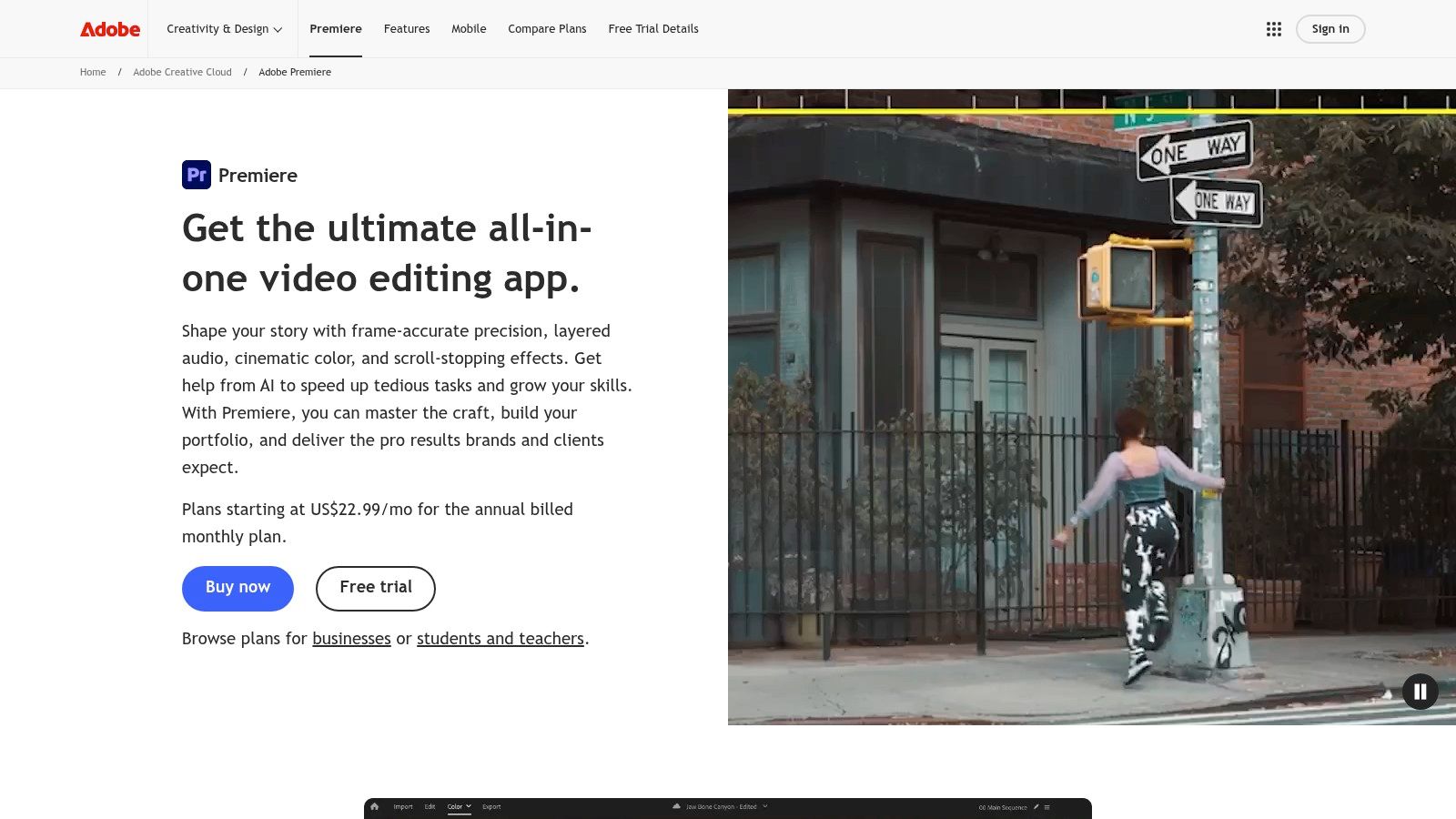
You finish a handheld interview edit, scrub the timeline, and catch the small bounce you missed on the first pass. That is the kind of job Premiere Pro handles well. Warp Stabilizer sits inside the edit you are already building, so you can test a fix in minutes instead of sending the clip to a separate video stabilizer app.
That speed is a key advantage. If you are already trimming, adding graphics, mixing audio, and exporting from Premiere, stabilization becomes one more timeline decision instead of a separate workflow.
### Where Warp Stabilizer earns its place
Premiere is strongest when the shake is noticeable but still recoverable. I use it for handheld b-roll, interview shots with light camera drift, and walk-and-talk clips that need to feel calmer without looking locked off. On those jobs, staying in the same editor usually matters more than chasing the absolute best stabilization algorithm.
You still need to watch the trade-offs. Push Warp Stabilizer too hard and the frame can start to bend around faces, door frames, or foreground movement. Wide lenses and quick pans are the usual problem cases. Rolling shutter can make those artifacts worse.
The controls are good enough for real editing work:
- **Smoothness:** Lower settings often look more natural than trying to iron out every bump.
- **Method options:** Position, Position/Scale/Rotation, Perspective, and Subspace Warp give you different levels of correction and distortion risk.
- **Crop handling:** You can keep the frame steadier, but you pay with tighter framing or auto-scale.
My rule is simple. If the shot only needs mild to moderate cleanup and I am already finishing in Premiere, I stay in Premiere. If stabilization is the main rescue job, or the footage has complex motion, a dedicated tool often gives better results with fewer visual side effects.
That is also where the comparison with AI-first editors matters. For short-form creators, an app like BlitzReels can be faster when the clip still needs reframing, captions, and pacing work after stabilization. Premiere makes more sense when you want manual editorial control in a pro timeline, not the fastest publish path. If you are comparing those workflows directly, this breakdown of [CapCut vs BlitzReels for TikTok creators](https://www.blitzreels.com/blog/capcut-vs-blitzreels-which-video-editor-is-best-for-tiktok-creators-in-2025) helps clarify where an editor with built-in automation saves time.
> Judge stabilization at full resolution. Check faces, subtitles, and straight vertical lines before export.
Premiere also fits better in team environments where projects move between editors, producers, and review rounds. Shared Adobe workflows, broad format support, and timeline-level finishing are part of the value here, not just Warp Stabilizer itself.
Use [Adobe Premiere Pro](https://www.adobe.com/products/premiere.html) when you want professional editing control and built-in stabilization in the same timeline.
## 3. DaVinci Resolve
DaVinci Resolve is the tool many editors reach for when footage is difficult and they don't want the stabilizer to fall apart. It gives you multiple stabilization modes, access from different parts of the app, and a lot of room to tune the result instead of accepting a one-button guess.
The free version is already serious. That alone makes it one of the easiest recommendations on this list for creators who want better control without starting with a subscription.
### Why editors trust it on rough footage
Resolve's Perspective, Similarity, and Translation modes let you match the tool to the motion problem. That's useful because not every shaky shot is shaky in the same way. A long-lens handheld interview clip needs different treatment than a moving gimbal rescue or a rough drone shot.
Studio adds more advanced tools, including rolling-shutter help, but even the free version can handle a lot of everyday creator footage. If you color grade, clean audio, and finish in one app, Resolve becomes even more attractive because stabilization is just one step in a deeper post workflow.
What works well in practice:
- **Translation mode:** Often best when you want a cleaner, less distorted correction.
- **Perspective mode:** Useful when the shot has more complex movement, but it can push the image harder.
- **Color page plus edit page:** Helpful when you want stabilization as part of a finishing pass instead of a quick fix.
Resolve has a learning curve. New editors often feel that immediately. But if you're willing to spend a little time learning where things live, it rewards you with stronger control than many simplified apps.
Use [DaVinci Resolve](https://www.blackmagicdesign.com/products/davinciresolve) if you want a powerful all-in-one editor with stabilization that holds up on demanding footage.
## 4. Final Cut Pro
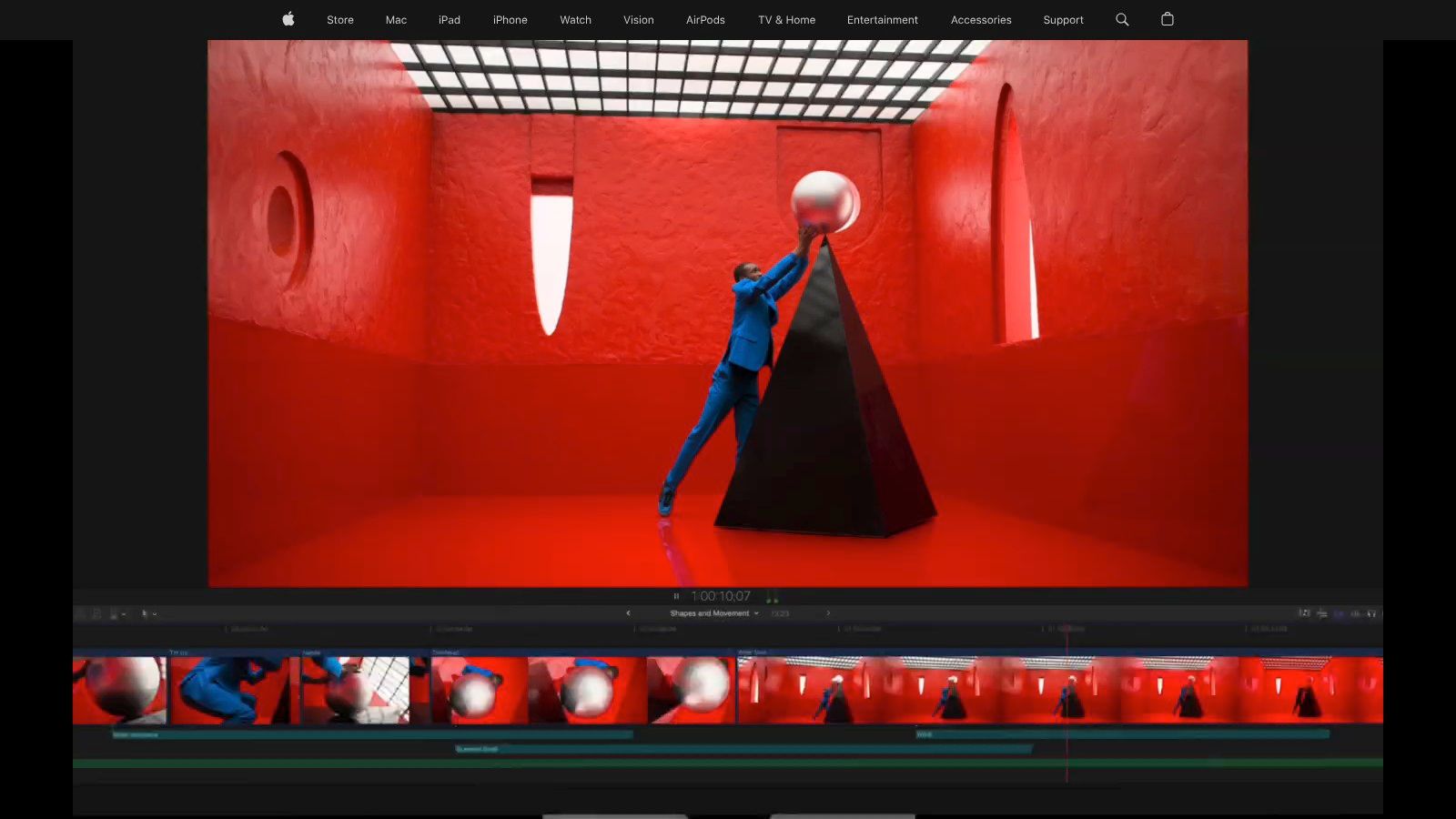
Final Cut Pro is one of the smoothest options for Mac creators who want the stabilizer to disappear into the normal edit process. You apply it per clip, preview the result quickly, and keep moving. On Apple hardware, that speed is a real advantage.
It's especially practical for creators who shoot on iPhone and finish on Mac. The handoff is simple, exports are fast, and the app doesn't make stabilization feel like technical surgery.
### Best use case on Mac
Final Cut Pro's strength isn't just stabilization. It's stabilization plus reframing. For short-form creators, Smart Conform is often as important as camera shake reduction because it helps repurpose horizontal footage into vertical or square output without rebuilding the shot manually.
That makes Final Cut a strong middle ground. It isn't as stripped down as a consumer app, but it also doesn't push as much interface complexity on you as some heavyweight editors do.
A few practical trade-offs:
- **Great for Apple-centric workflows:** Shoot on iPhone, AirDrop to Mac, edit, stabilize, export.
- **Good for creators who deliver multiple aspect ratios:** Vertical, square, and standard widescreen all live comfortably in the same project flow.
- **Less ideal if you're cross-platform:** Mac-only is still Mac-only.
> A clip that looks stable in landscape can feel cramped in vertical. Always review stabilization after reframing, not before.
Final Cut Pro is a strong pick when you want dependable built-in stabilization with fast performance and tight Apple ecosystem integration.
Use [Final Cut Pro](https://www.apple.com/final-cut-pro/) if your editing life already revolves around macOS.
## 5. CapCut
You shoot a quick handheld clip for TikTok, the framing is usable, but the small bumps make it feel sloppy. That is the kind of footage CapCut handles well. Open the clip, apply stabilization, clean up the timing, add captions, export, and post.
That speed is the primary reason CapCut belongs on this list. For short-form creators, stabilization is often just one step in a fast publishing workflow, not a separate finishing pass. If the footage only needs moderate correction, CapCut usually gets you to "ready to publish" faster than a dedicated stabilizer app or a full desktop NLE.
### Best use case for fast social turnaround
CapCut works best when your footage is close enough already. Handheld talking clips, walking B-roll, casual product shots, and quick UGC edits are a good fit. You get one environment for stabilization, text, effects, music, and export, which saves time when volume matters more than fine control.
That convenience comes with trade-offs. CapCut gives you practical correction, not surgical correction. On tougher clips, heavy shake, rolling shutter, or fast directional movement, you will hit the ceiling sooner than you would in Premiere or Resolve.
A practical way to choose:
- **Use CapCut when speed wins:** Social posts, trend content, same-day edits, and lightweight cleanup.
- **Use a dedicated stabilizer when the shot really matters:** Hero shots, client work, difficult motion, or footage that needs careful tuning to avoid crop and warping.
- **Use an AI-first editor when the whole short needs to move fast:** If your bigger bottleneck is turning raw footage into a finished vertical edit, built-in AI tools can save more time than a standalone stabilization step.
That last point matters. Many creators do not need the strongest stabilizer. They need the fastest path from rough footage to a polished short. For creators deciding between faster AI-first editing and CapCut's familiar social workflow, BlitzReels has a useful comparison in this guide to [CapCut vs BlitzReels for TikTok creators](https://www.blitzreels.com/blog/capcut-vs-blitzreels-which-video-editor-is-best-for-tiktok-creators-in-2025).
Use [CapCut](https://www.capcut.com/) when you want decent stabilization inside a fast social editing workflow, and switch to a dedicated tool when the footage needs more than a quick rescue.
## 6. GoPro Player + HyperSmooth Pro
If you shoot GoPro or FPV footage, generic stabilization tools can feel blunt. They're reacting to image movement after the fact. HyperSmooth Pro works differently because it can use gyro metadata recorded with the footage.
That difference is why this tool deserves a separate category in your head. It isn't just another video stabilizer app. It's a footage-specific rescue and refinement tool for action creators.
### When gyro data changes everything
With proper gyro data, HyperSmooth Pro can produce that floating, controlled look people usually associate with a gimbal. It also handles lens correction and can mitigate some of the ugly motion problems that make action footage hard to save in standard editors.
I'd use it here:
- **Action cams and FPV work:** Fast movement, vibration, and constant directional changes.
- **GoPro-heavy workflows:** Especially when you've shot specifically with stabilization cleanup in mind.
- **Batch cleanup before edit:** Stabilize first, then bring selects into your main editor.
Its limitation is obvious. If the footage doesn't carry the right gyro data, the magic mostly disappears. For ordinary phone footage or standard camera files, you'll usually be better off elsewhere.
GoPro creators should absolutely keep GoPro Player with HyperSmooth Pro in the toolkit. For everyone else, it's a specialist, not a default.
## 7. proDAD Mercalli V6
Mercalli has been around long enough to earn a reputation for “difficult footage” work. It's the tool editors mention when the standard one-click stabilizer didn't solve the problem and they still want one more shot at saving the clip.
It isn't flashy. The interface leans practical. But utility often beats polish when you're trying to salvage drone footage, telephoto shake, or CMOS wobble that cheaper tools exaggerate.
### Where Mercalli earns its keep
Mercalli's appeal is in correction depth. Rolling-shutter and CMOS issues often sit underneath the visible shake, and if your tool only smooths movement without addressing those distortions, the result can still look broken.
Mercalli tends to help most here:
- **Drone and action footage:** Especially clips with vibration or wide-angle distortion.
- **Telephoto shots:** Long focal lengths magnify shake and punish weak stabilizers.
- **Batch rescue work:** The standalone app is useful when you've got a stack of damaged clips to process.
The trade-off is speed of learning. Mercalli asks you to pay attention to settings, profiles, and what type of movement you're correcting. If you want the simplest path, this won't be the friendliest pick. If you care about recovery quality, it's worth the effort.
Use [proDAD Mercalli V6](https://www.prodad.com/) when you're trying to save footage that ordinary built-in stabilization keeps mangling.
## 8. Gyroflow
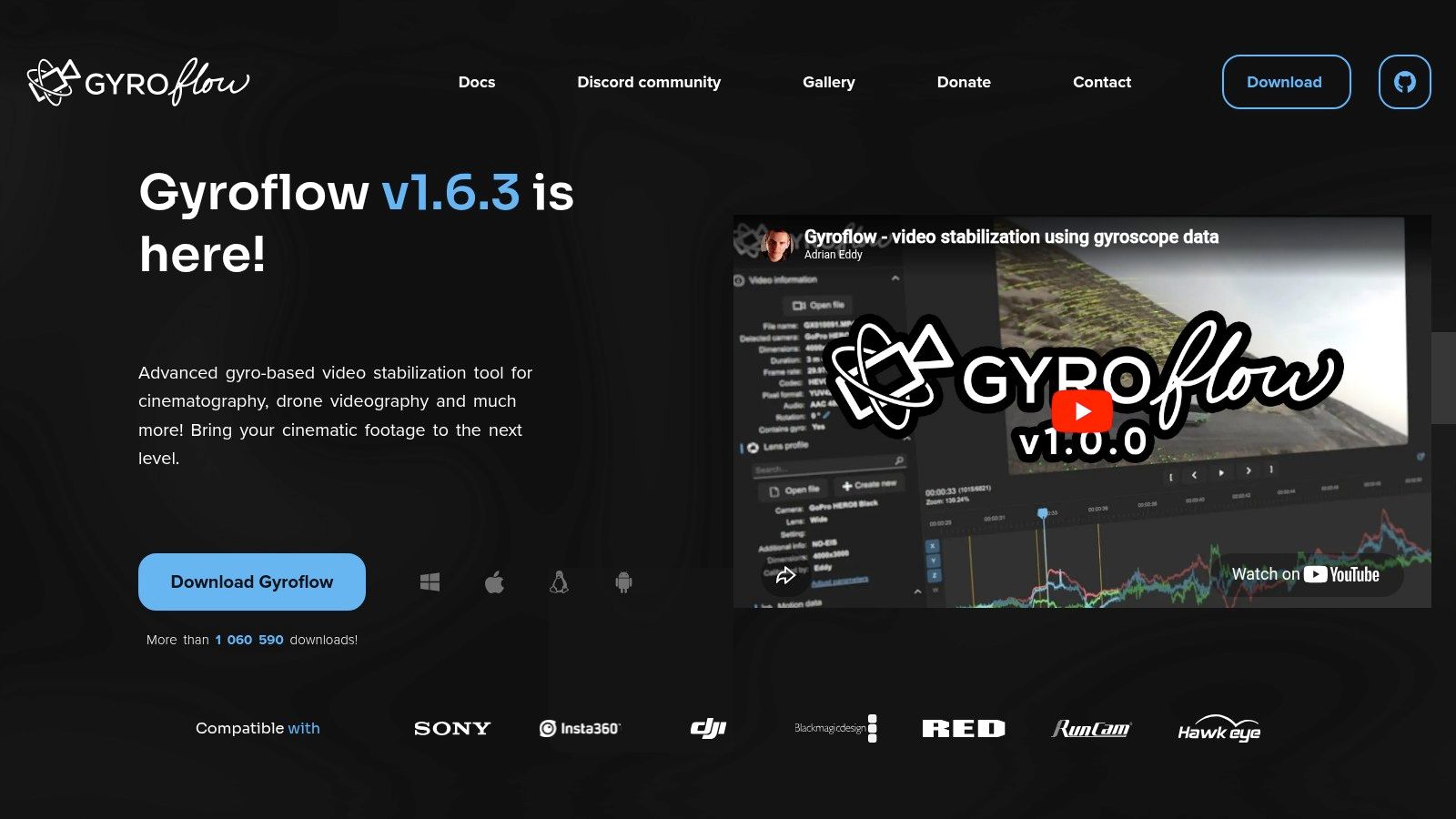
Gyroflow is the tool for creators who like control, don't mind technical detail, and want impressive stabilization without paying for a closed ecosystem. It's open-source, cross-platform, and especially strong with cameras or flight controllers that record gyro data.
For the right user, it's one of the best options on this list. For the wrong user, it can feel like too much software.
### Best for technical creators
Gyroflow shines when you understand your footage at a systems level. Lens calibration, rolling shutter values, smoothing profiles, and data sources all affect the result. That's a lot more involved than tapping “stabilize” inside a mobile editor, but the payoff can be excellent.
It makes the most sense for:
- **FPV pilots and action shooters:** Lots of camera movement, lots of value from gyro-based correction.
- **Mirrorless shooters with compatible data:** Useful when you want better stabilization than generic warp methods.
- **Editors who like plug-in flexibility:** You can integrate it with larger desktop workflows.
> The best stabilizer for motion-heavy footage usually isn't the one with the prettiest interface. It's the one that understands how the camera moved.
If you don't have gyro data, Gyroflow becomes less compelling. It can still be useful, but its real edge is data-driven stabilization, not generic clip smoothing.
Use [Gyroflow](https://gyroflow.org/) if you want a powerful, free tool and you're comfortable with a more technical workflow.
## 9. LumaFusion
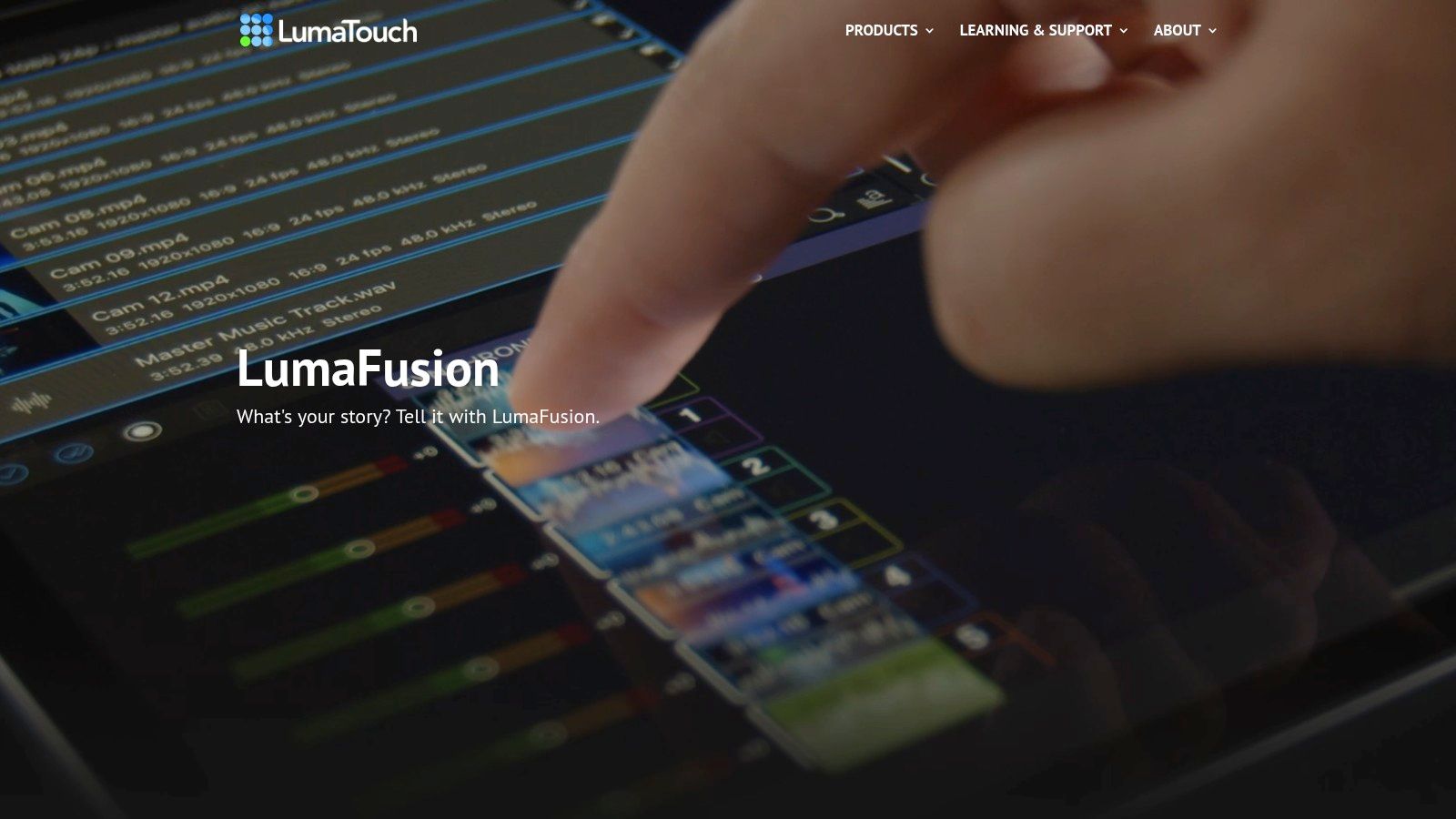
You shoot a clip on your phone, notice the handheld shake, and need it posted the same day. LumaFusion fits that job better than desktop-first editors because you can stabilize, trim, mix audio, and export from the same device.
Its real value is workflow speed with enough manual control to avoid the generic mobile-editor look. On iPhone and iPad, the built-in stabilization is useful for mild to moderate shake, especially for talking-head clips, travel footage, and b-roll that just needs to settle down. For heavier motion, the trade-off shows up fast. You may lose more of the frame, and the result can look softer than footage stabilized in a dedicated tool.
That makes LumaFusion a good middle-ground option, not the automatic best choice.
Use it when the goal is to finish on mobile and keep the process contained:
- **Creators editing where they shoot:** Good for fast field edits without sending footage to a desktop app.
- **Editors who want a real timeline on tablet:** More precise than template-led apps, especially for pacing and audio cleanup.
- **Short-form creators balancing speed and control:** Stabilize inside the edit when the shake is manageable and the deadline is tight.
The bigger strategic question is whether you need a dedicated stabilizer at all. If the shot only needs light correction and you are already cutting shorts, an editor with built-in AI features can be the faster path. If vertical framing is a regular part of your process, BlitzReels also has a helpful guide to [AI tools for perfect vertical video framing](https://www.blitzreels.com/blog/ai-tools-for-perfect-vertical-video-framing), which complements LumaFusion well when stabilization alone doesn't solve composition issues.
Use [LumaFusion](https://luma-touch.com/) when you want serious mobile editing with built-in stabilization, and your footage does not need the extra recovery headroom of a dedicated stabilizer.
## 10. Emulsio
Emulsio takes the opposite approach from all-in-one editors. It focuses on stabilization and transcoding, and that focus is exactly why some creators like it. You open the clip, tune the result, preview the difference, and export.
For Apple users who don't want to launch a full NLE just to steady footage, that simplicity is appealing.
### The focused stabilizer approach
Emulsio gives you granular control over stabilization strength and rolling-shutter compensation without burying you in a complete editing suite. That's useful when you already know the rest of your workflow and just need a clean pre-processing step.
It's a strong fit when:
- **You want dedicated stabilization first:** Fix the shot, then edit somewhere else.
- **You care about previewing trade-offs:** Cropping, warping, and softness are easier to judge when the tool is built around them.
- **You work on Apple devices:** That's where the experience is strongest.
This kind of tool is easy to underestimate. Not every creator wants captions, templates, AI hooks, or auto B-roll in the same app. Some just want a focused utility that does one job well.
Use [Emulsio](https://www.creaceed.com/emulsio) if you want a dedicated stabilizer instead of a full editing environment.
## Top 10 Video Stabilizer Apps Comparison
| Product | Core features | Quality (★) | Price / Value (💰) | Target Audience (👥) | Unique Strengths (✨) |
|---|---:|:---:|:---:|---|---|
| BlitzReels workflow companion | Clipping, captions, reframing, and short-form export after stabilization | Not a dedicated stabilizer | Free trial; paid plans | Creators repurposing corrected footage | Post-stabilization short-form workflow |
| Adobe Premiere Pro (Warp Stabilizer) | Warp Stabilizer, timeline NLE, team/Frame.io integration | ★★★★ Pro‑grade control; reliable | 💰 Subscription (Adobe CC) | 👥 Professional editors, studios | ✨ Detailed parameter control, seamless NLE workflow |
| DaVinci Resolve (Free / Studio) | Clip/node stabilization, multiple algorithms, Fusion tracking, Neural Engine (Studio) | ★★★★ Strong free tools; Studio adds advanced fixes | 💰 Free; Studio one‑time license | 👥 Colorists, editors, budget pros | ✨ Powerful free stabilization, advanced modes & tracking |
| Final Cut Pro (macOS) | Per‑clip stabilization, rolling‑shutter, Smart Conform for vertical | ★★★★ Very fast on Apple Silicon | 💰 One‑time macOS purchase | 👥 Mac/iPhone creators, prosumers | ✨ Smart Conform auto‑reframe, ProRes performance |
| CapCut (Desktop/Mobile/Web) | One‑toggle Stabilize, templates, multi‑platform editor | ★★★ Easy + fast for social clips | 💰 Free core; optional paid assets/subscriptions | 👥 Short‑form creators, beginners | ✨ Fast templates, mobile‑first UX, cross‑platform |
| GoPro Player + HyperSmooth Pro | Gyro‑based stabilization, rolling‑shutter mitigation, batch joiner | ★★★★ Best for gyro‑enabled action/FPV | 💰 In‑app add‑on (paid) | 👥 Action cam & FPV creators | ✨ Gyro‑tuned gimbal‑like results, minimal cropping |
| proDAD Mercalli V6 | CMOS/rolling‑shutter correction, AI‑assisted settings, de‑fish | ★★★★ Recovers challenging footage; utilitarian UI | 💰 Paid (editions vary) | 👥 VFX/edit pros, drone/telephoto users | ✨ Deep correction, batch processing, lens profiles |
| Gyroflow (Open‑source) | Gyro‑based stabilization, lens calibration DB, Resolve/Adobe plug‑ins | ★★★★ Free & powerful for gyro clips | 💰 Free (open‑source) | 👥 FPV/action cam enthusiasts, tinkerers | ✨ Free gyro workflows, active community, advanced smoothing |
| LumaFusion (iOS/iPadOS) | Mobile NLE with stabilization, multicam, vertical exports | ★★★★ Mobile‑first pro workflow (iOS focus) | 💰 Paid app; in‑app add‑ons | 👥 Mobile filmmakers, on‑the‑go creators | ✨ Finish‑to‑post on iPhone/iPad, rich timeline tools |
| Emulsio (iPhone/iPad/Mac) | Dedicated stabilizer, rolling‑shutter control, real‑time preview | ★★★ Quick, focused stabilizer tool | 💰 Paid app (Apple devices) | 👥 Users needing fast stabilize+export | ✨ Simple drop‑in workflow, HDR & high‑FPS support |
## Frequently Asked Questions
### Can a video stabilizer fix motion blur?
No. Stabilization can reduce visible camera movement by cropping, shifting, or warping frames, but it cannot recreate detail smeared during exposure. Severe motion blur usually needs a reshoot, a shorter shutter time, or selective use of the least-blurred frames.
### What is the best free video stabilizer app?
Gyroflow is a strong free choice when the camera recorded compatible gyro data. DaVinci Resolve offers capable desktop stabilization without requiring the paid Studio tier for every workflow, while free mobile editors are better for mild shake and fast social edits.
### Which stabilizer is best for iPhone and Android?
LumaFusion and Emulsio are strong Apple-device options, while CapCut provides a simpler cross-platform workflow. The best choice depends on whether the clip needs a quick social correction or detailed control over cropping, rolling shutter, and smoothing.
### How much does video stabilization crop the frame?
The crop varies with shake severity, smoothing strength, lens distortion, and the algorithm. Preview the stabilized result at the final 9:16, 1:1, or 16:9 aspect ratio because a correction that looks safe in landscape can cut off a subject after vertical reframing.
## Final Thoughts
The best video stabilizer app depends less on “which tool is strongest” and more on where stabilization sits in your workflow.
If your main problem is one ugly shaky clip, a dedicated tool like Emulsio, Mercalli, Gyroflow, or HyperSmooth Pro can make sense. Those tools are especially useful when you're dealing with action footage, telephoto wobble, rolling shutter problems, or gyro-enabled files that benefit from specialized correction. They're for rescue work, technical refinement, and edge cases where a built-in stabilizer may not be enough.
If your real problem is production speed, the answer shifts. Short-form creators rarely stop at stabilization. They also need vertical reframing, captions, trims, pacing, exports, and social-ready formatting. That's why embedded stabilization is becoming the expected default rather than a specialist feature. Market research on the broader camera stabilizer space places demand in the multi-billion-dollar range, with one 2024 estimate valuing the market at USD 4.76 billion and projecting growth to USD 6.45 billion by 2030, while content creation is repeatedly cited as a major demand driver ([camera stabilizer market outlook](https://www.strategicmarketresearch.com/market-report/camera-stabilizer-market)). For creators, the takeaway isn't just that stabilization matters. It's that creator-first workflows now define where the demand is going.
That's also why many creators are better served by editors that keep stabilization inside the publishing pipeline. Reports on stabilizer adoption increasingly point to online content creation, vlogging, live streaming, short-form social video, AI-powered stabilization, automated tracking, and portability as the features and use cases pulling demand forward ([creator and AI stabilization demand signals](https://www.techsciresearch.com/report/camera-stabilizer-market/22657.html)). In practical terms, people don't want to repair footage in one place, crop it in another, caption it in a third, and export it in a fourth.
The working rule is simple. Use a dedicated stabilizer when the clip is unusually difficult or when gyro-based correction gives you a clear advantage. Use a modern editor when the footage is only mildly shaky and the bigger bottleneck is getting to a polished post fast.
BlitzReels is not the stabilizer recommendation on this list. It is the next-step workflow for turning already corrected footage into captioned, reframed short-form clips. If you want a broader look at editing stacks beyond stabilization, Vidito's roundup of [video editing software review picks for YouTube](https://www.vidito.ai/blog/best-software-for-editing-videos-for-youtube) is also worth a read.
---
If you want to turn shaky clips, podcasts, screen recordings, or long-form videos into polished vertical shorts without juggling multiple apps, try [BlitzReels](https://blitzreels.com). It's built for an authentic short-form workflow: automatic cuts, captions, reframing, visual inserts, and fast exports for TikTok, Reels, and YouTube Shorts.