New dashboard home with next steps and a Support center
The dashboard now opens on Home: your next steps, three ways to start a video, channel results on Starter and up, and a Support center for every user.
The BlitzReels team
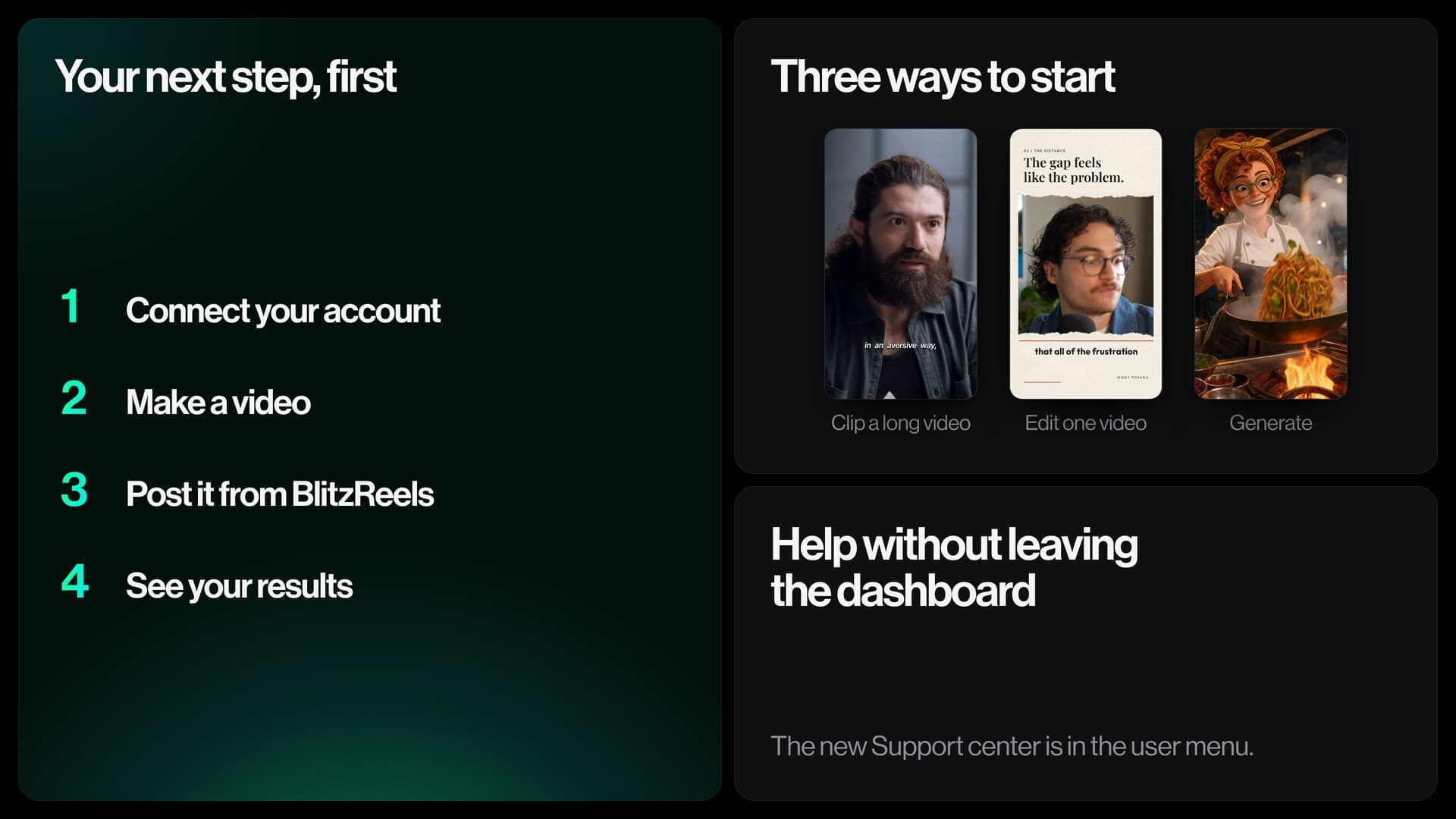
Signing in used to drop you into a list
Until October 29, opening the dashboard took you straight to your projects. That’s fine when you already know what to do. It helps less right after you sign up, or when you want to see whether last week’s clips did anything before you make more.
After onboarding, the dashboard now opens on Home. One page shows where your videos stand and what to make next, and the Support center is a click away in the user menu.
Get started in four steps
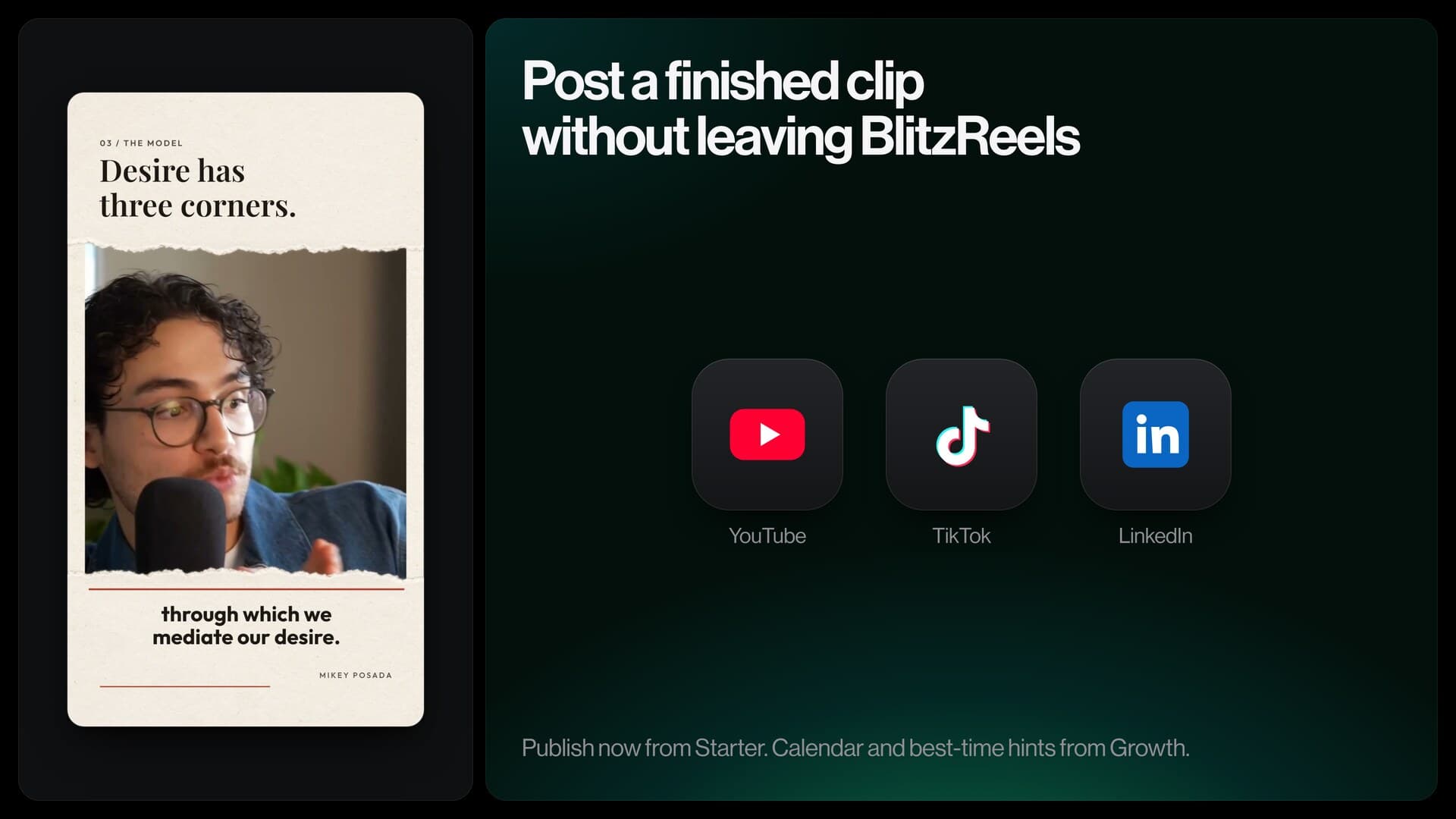
Until you’ve done them all, a Get started checklist sits at the top of Home. Each step ticks itself off as you go: 1. Connect your account: link a TikTok or YouTube account and BlitzReels imports your recent posts. 2. Make a video: clip a long video, edit one, or generate one. 3. Post it from BlitzReels: pick your accounts and a time, with no download in between. 4. See your results: each post is compared with your other posts at the same age.
Only the first open step shows a button, so there’s always one clear next move. On Free, the first step points to the plans instead, because posting from BlitzReels starts with Starter. Once all four are done, the checklist goes away.
Three ways to start the next video
Under Make your next video, three shortcuts get you started, each previewed with real BlitzReels output: - Clip a long video: one long video in, many short clips out. - Edit one video: one finished video from one or more sources. - Generate: a full video from a topic, in the AI tools.
Clipping and editing are open on every plan, within its limits. The AI tools need an active paid plan or the no-card trial, and they use credits; every AI tool in one place explains how they work. If you’re starting from a long recording, go with AI clipping.
Your channel results, before the next batch
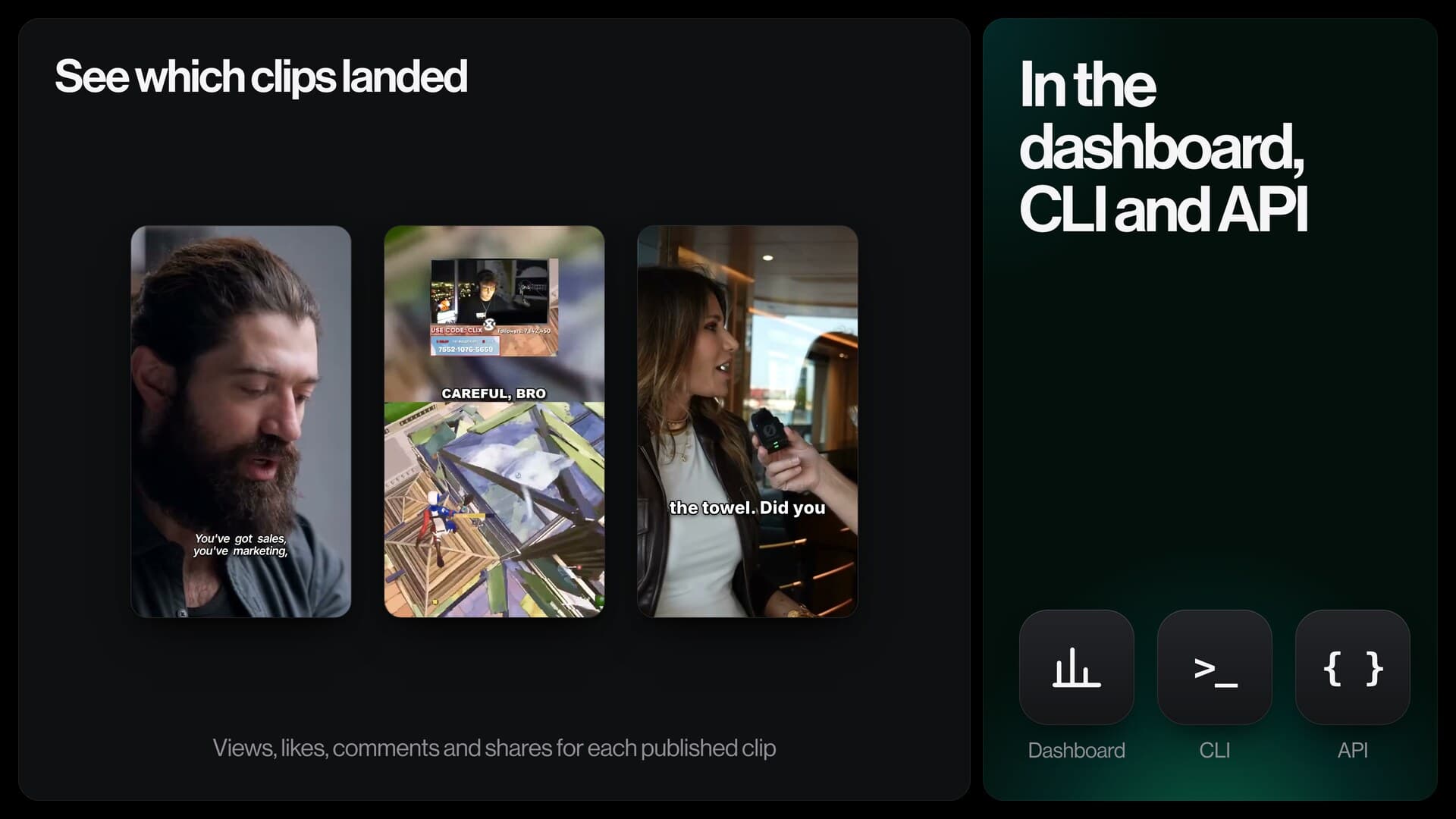
On Starter and above, Home also shows Your results for the accounts you’ve connected. Choose the last 7, 30 or 90 days to see: - the views of your posts, against the previous period of the same length - likes, comments and shares - your most viewed posts - each post made with BlitzReels next to your usual views at the same age - your posting rhythm, with a goal of three to five posts a week
It’s the quick check before you plan the next batch of clips. The analytics tab goes further; read how post analytics work. Posting itself is covered in posting clips from BlitzReels.
Agents and support, one click away
A tile titled Make videos from ChatGPT or Claude lists the AI agents connected to your account and helps you connect one. Once it’s set up, you ask for clips in a sentence and the agent cuts, captions and exports them into your workspace. The AI agents page has the setup for each tool.
When something doesn’t work the way you expected, open Support from the user menu. The Support center keeps your requests and our replies in one place: - start a New request and describe what happened - attach a screenshot if it helps (PNG, JPEG or WebP, up to 5 MB) - follow its status: Waiting for our reply, We replied or Resolved
We answer there and by email. Support is open to everyone who is signed in, on any plan.
Who sees what
- Everyone signed in: Home, the Get started checklist, the create shortcuts, the agents tile and the Support center.
- Starter and above: Your results and posting from BlitzReels. Scheduling posts starts with Growth.
- AI tools: an active paid plan or the no-card trial, with credits.
Workspace owners and admins connect the social accounts. The pricing page compares what each plan includes.
Post a clip, then watch it on Home
See how posting from BlitzReels works (publishing from Starter, scheduling from Growth), then follow the results on your dashboard home.
See how posting works