Hooks, lower thirds and end screens in the video editor
Add a hook, a name lower third or an end screen from the Text & hooks panel, then move or resize the BlitzReels watermark. Paid plans can turn it off.
The BlitzReels team
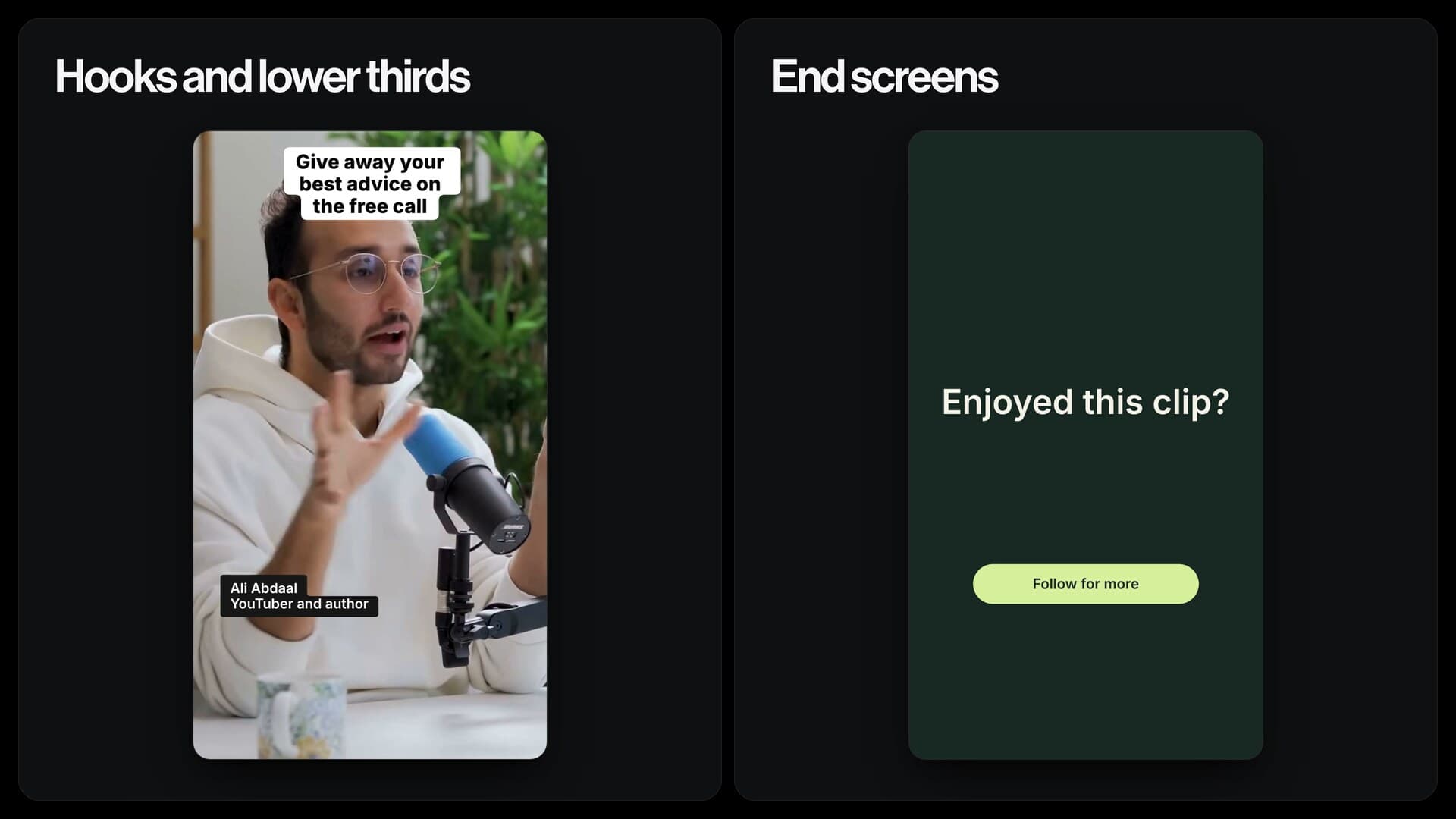
Every line of text has a job
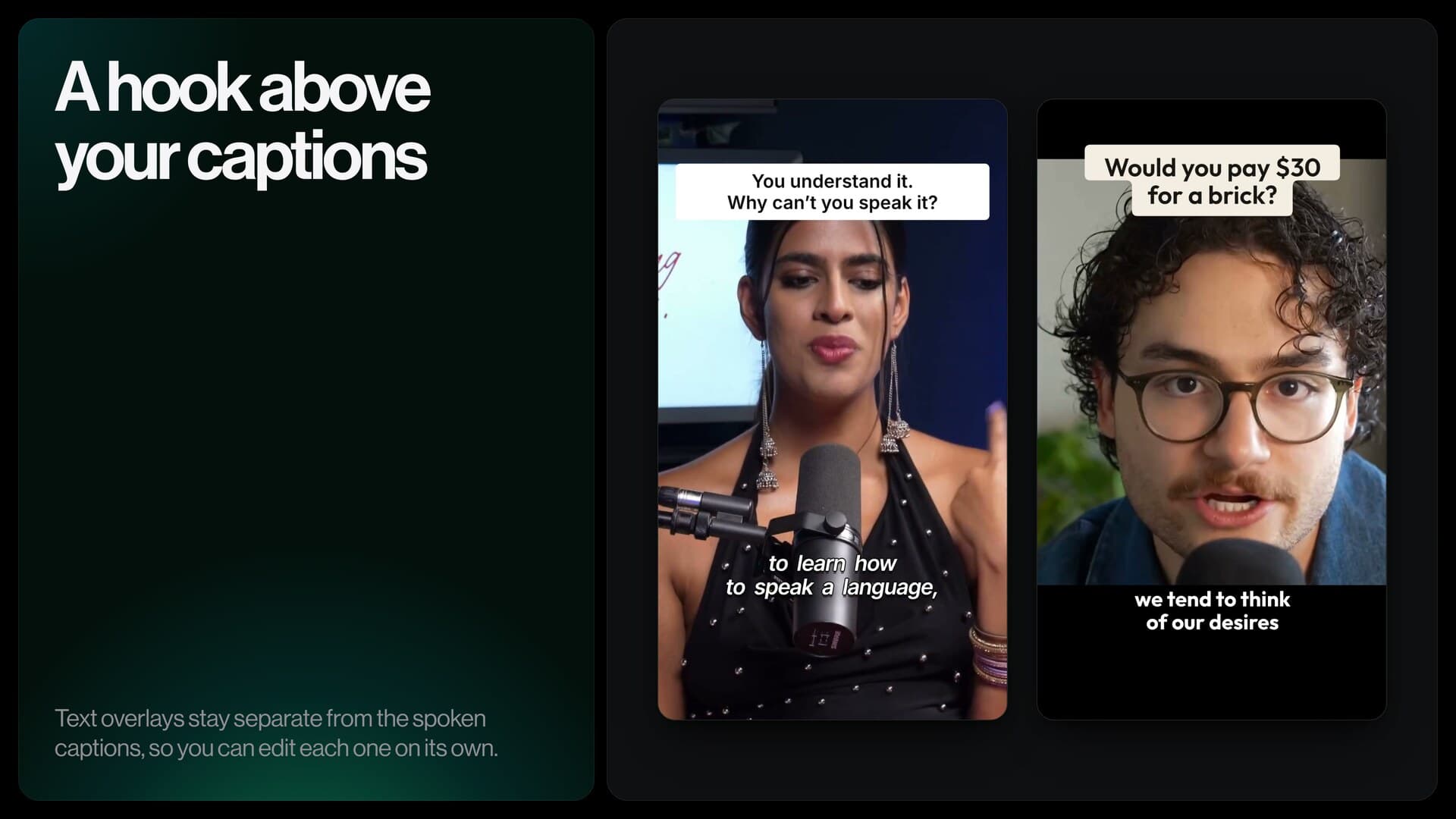
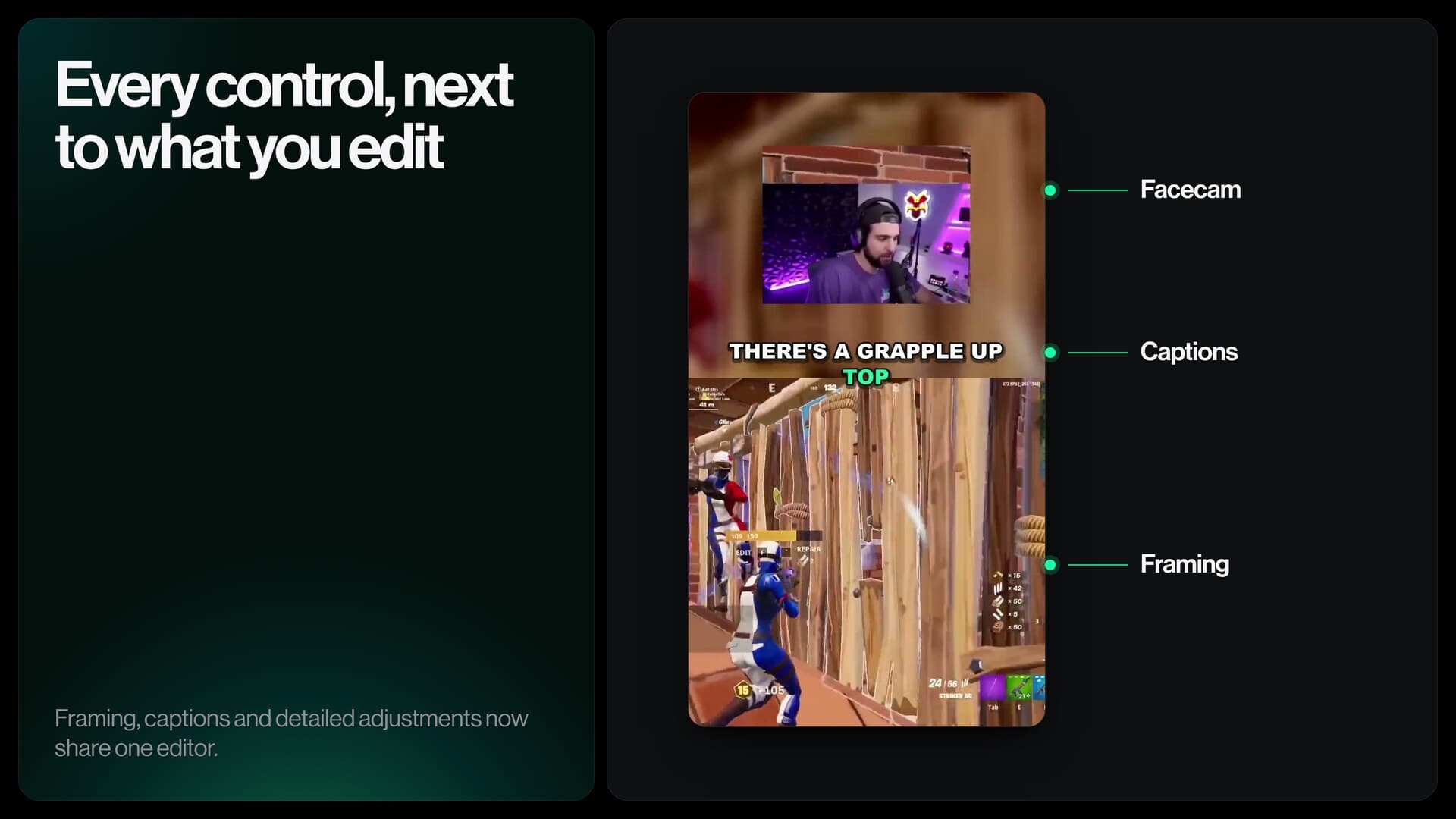
A hook has a couple of seconds to stop the scroll, and a lower third tells people who’s talking. Captions are a different thing again, since they carry every word. Until this update, captions, plain text and ready-made graphics all shared one Text panel, so reaching the right tool meant switching between its tabs.
On September 28 we split them up. Captions now has its own entry in the editor sidebar. A new Text & hooks panel holds hooks, lower thirds and plain text, and its Titles & graphics tab holds the ready-made graphics, including an End screen to close a clip.
What’s in Text & hooks
The panel opens on three tiles, each previewing what it adds: - Add text, for a plain label or a call to action - Add a hook, a bold title block for your opening line - Add a lower third, with a Name line and a Role or company line
Long hooks can now spread up to 90% of the video width, with the background fitted to the longest line, so a two-line opener isn’t squeezed into a narrow column. Short hooks stay compact. Everything you add appears in a list under the tiles, where you can search for it, select it or delete it.
Add a hook, a lower third and an end screen
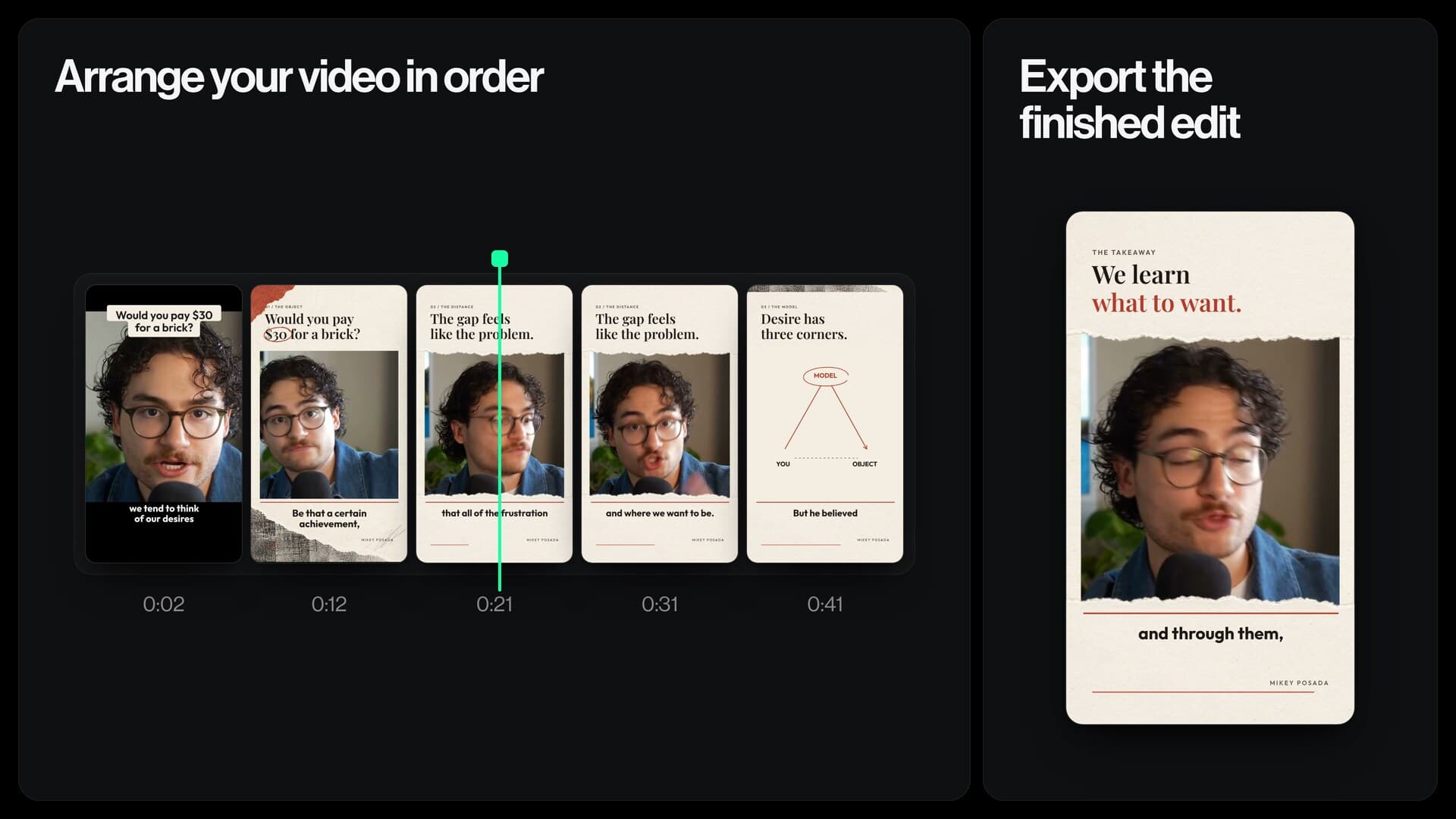
Here’s a full pass on a podcast clip: 1. Put the playhead on the first frame and open Text & hooks. 2. Click Add a hook and type your opening line. 3. Move to the moment your guest first speaks, click Add a lower third, and fill in their name and role. 4. Move near the end, open the Titles & graphics tab and pick End screen. 5. Write a closing line and a call to action, choose a logo from your workspace if you want one, then click Add to timeline.
New blocks start at the playhead and open in Properties. For text, you can change the wording, timing and style there. Graphics like the end screen keep their design, and you edit their fields, start and duration. The end screen covers the picture while the clip’s audio keeps playing underneath.
More ready-made graphics
Titles & graphics holds more than the end screen. Each one opens as an editable draft, with a preview rendered the same way as your export: - B-roll headline: a line of text over an image or video from your workspace - Steps: two to five short steps in order - Quote: a quote with its attribution - Key number: one figure you want to land - Before / after: a before image and an after image - Screenshot focus: drag across an image to highlight one detail - Chapter divider: a numbered title between sections
Social templates sit in the same tab. For animated titles beyond these presets, see motion graphics.
A watermark you can place
The BlitzReels watermark now shows the full logo, with no background box. Drag it on the video to any spot inside the safe zone, or pick one of the four corners, so it stays clear of your hook and captions. You set its size in Effects; today the slider goes from 80% to 100%.
On a paid plan, you can switch the watermark off. On Free, and during a trial, it stays on, though you can still move and resize it. The pricing page shows which plans export without it.
From code, and what to pair it with
The same building blocks work outside the editor. blitzreels text add --project-id PROJECT_ID --text "Wait for it" --at 0 --duration 2 places a hook from the terminal, blitzreels visuals presets lists the graphics, and blitzreels visuals apply adds up to 20 of them in one batch from a JSON file. The overlays API covers text overlays from code.
For the spoken words, pick a look in caption styles, then line everything up on the timeline.
Give your next clip a hook and a clean ending
See what the timeline editor can do, then open a project and try Text & hooks and the End screen.
See the editor timeline